
Quick Links
- Getting started
- Add the boat accommodation
- Add port stops
- Set up routing
- Build a custom route
- How the route displays on outputs
- Need Help?
Getting started
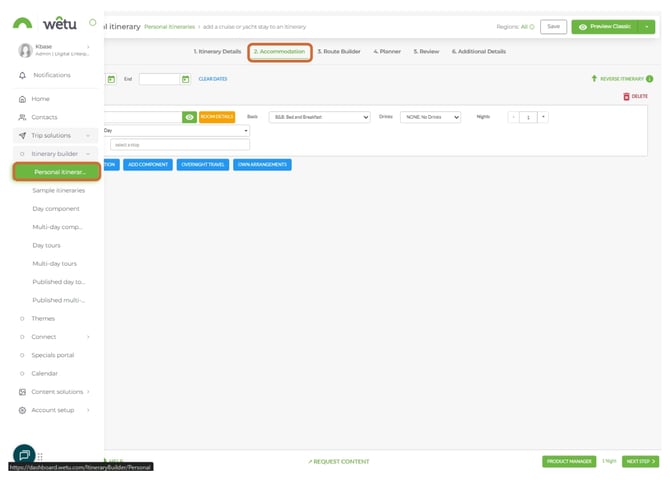
1. Navigate to Trip Solutions.
2. Click Itinerary Builder to open the dropdown menu.
3. Create a new itinerary or open an existing one.
4. Navigate to the Accommodation step.
Add the boat accommodation
1. Click the blue Accommodation button.
2. Start typing the name of the cruise liner or boat vessel in the search field.
3. Select it from the dropdown list.
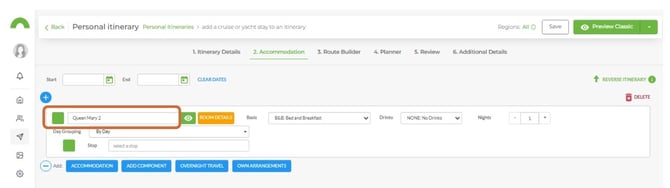
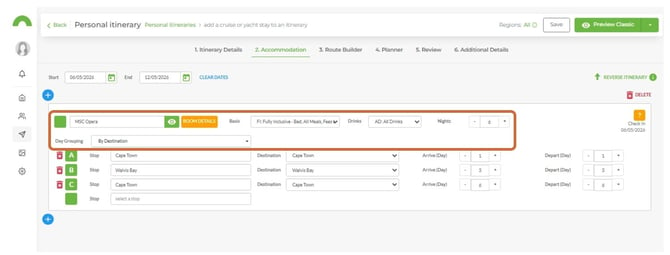
4. Configure the additional details for the cruise.
|
Room Details
|
Add port stops
Recommended approach
Add all port stops in the Accommodation step so that the routing displays correctly on the Digital and Virtual outputs.
1. In the Select a Stop field, type the name of the first stop to the cruise entry.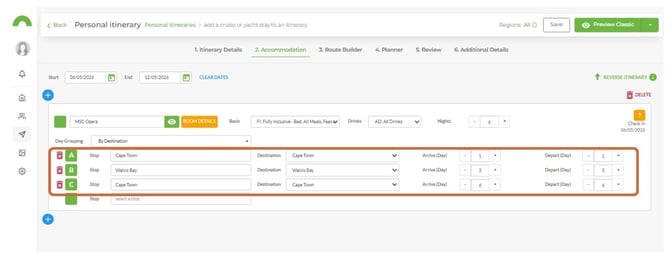
2. For each stop, complete the following details:
|
Destination Arrive (Day) Depart (Day) |
Set up routing
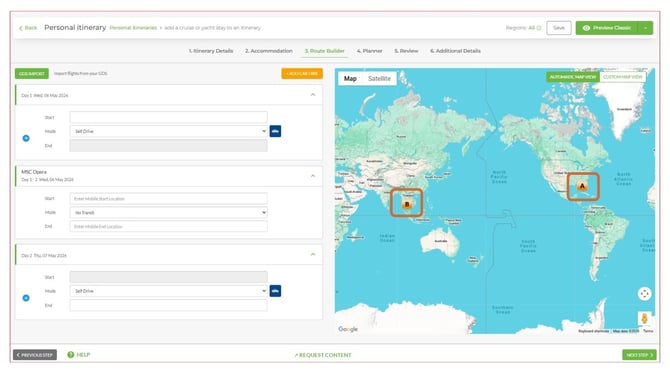
1. Navigate to the Route Builder step.
2. All stops added in the Accommodation step will have been automatically plotted on the map.
3. Enter a Start location and an End location for the boat leg.
4. From the Mode dropdown, select Boat.
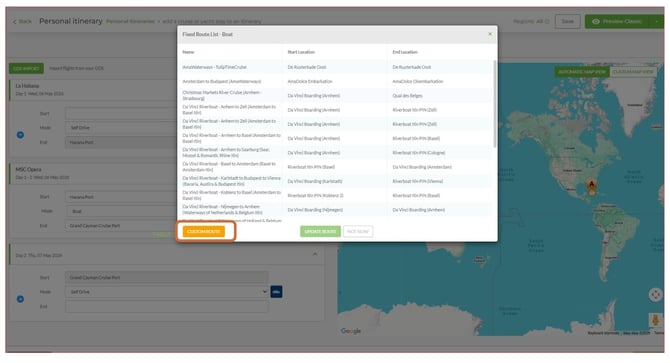
5. The Fixed Route List - Boat browser will open.
6. Select a fixed route if one is available, or proceed to add a Custom Route.
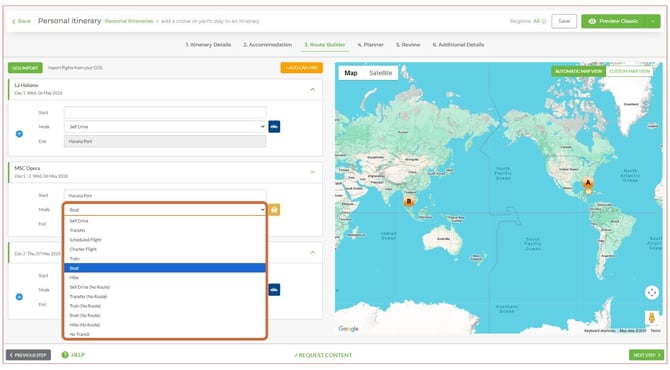
Note Boat (No Route): is a boat trip with no routing - it will not display a route on the Virtual Itinerary.
Build a custom route
1. In the Fixed Route List browser, click Custom Route at the bottom left.
2. A Map View screen will open showing the stops selected for the boat journey.
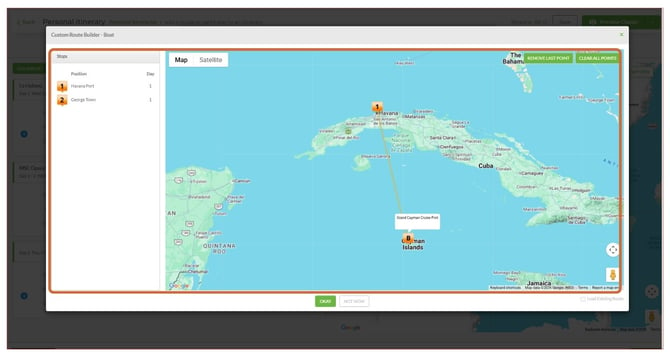
3. A direct route will be drawn between the start and end points by default.
4. Click on the map to drop markers along the route the boat will travel.
5. To remove the last point added, click the button in the top right corner.
6. Click Okay at the bottom to save the custom route.
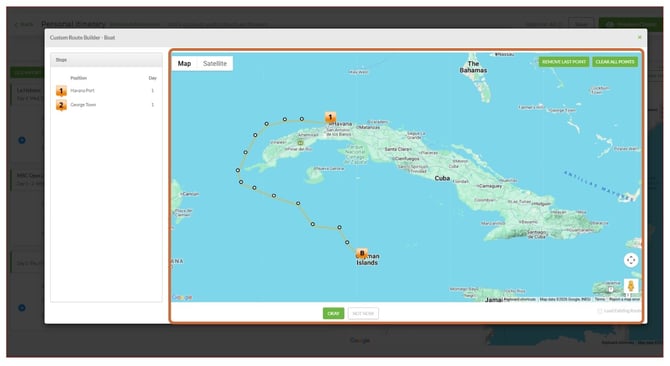
7. The custom route will now be visible in the Route Builder map preview.
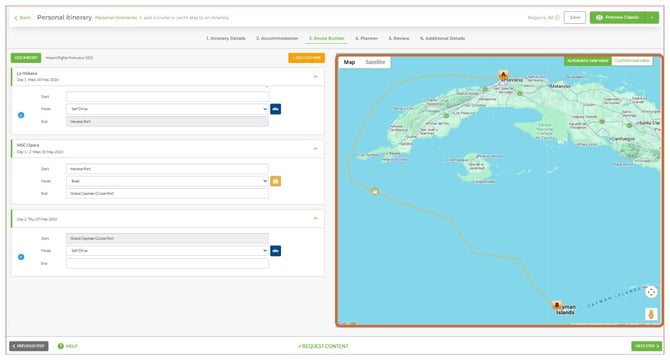
Important: Zoom in and out to check that the custom route stays sea-bound and does not cross over land. Custom routes are single-use — you will need to rebuild the route each time you add this boat trip to an itinerary.
How the route displays on outputs
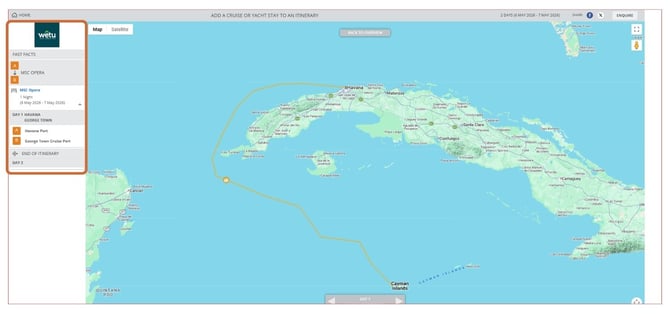
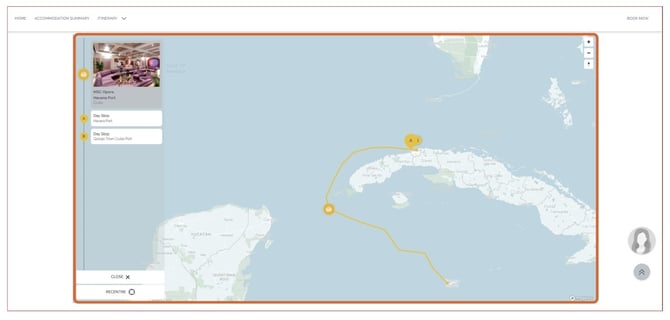
- On the Digital or Virtual Itinerary, the selected or custom route displays in the map overview.
- On the Discovery Itinerary, it appears at the top of the itinerary.
Need help?
- Contact Support: support@wetu.com
- Live Chat: Available on your Dashboard