
Quick Links
- Note fields overview
- Add notes to a day
- How notes display on outputs
- Need Help?
Note fields overview
| Field | Description |
|---|---|
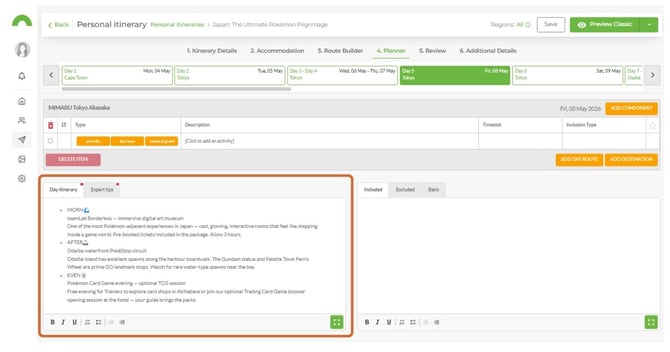
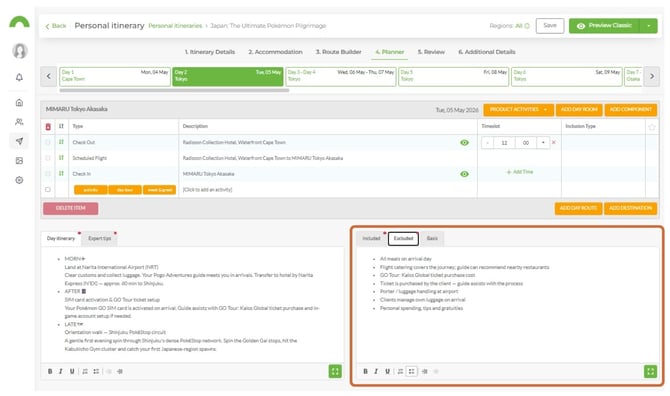
| Day Itinerary | Notes explaining what clients will be doing on that specific day. A red dot appears on the field when text has been added - making it easy to see at a glance where notes exist. |
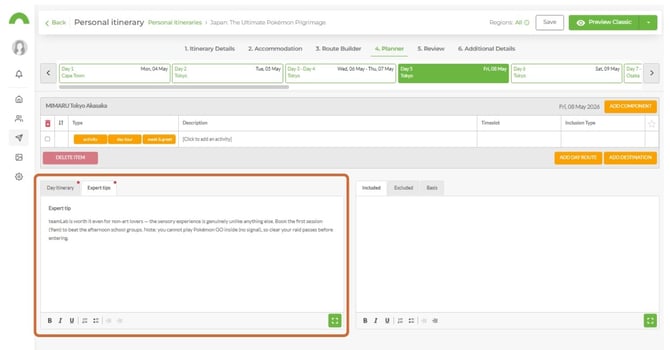
| Expert Tips | Additional information to help clients prepare - such as what to bring or what to expect during the day's activities. |
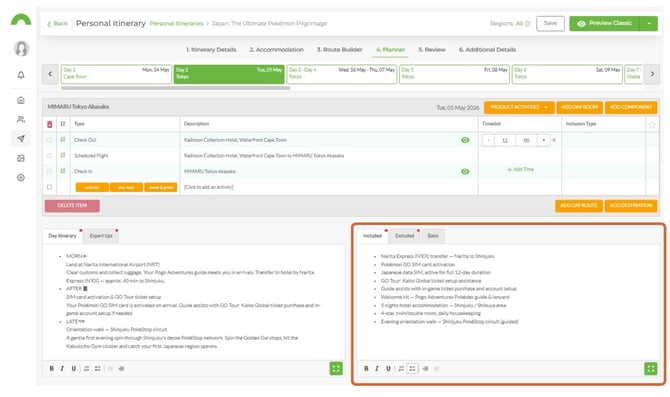
| Included | Items or services included on this specific day of the tour. |
| Excluded | Items or services excluded from this specific day of the tour. |
Note: All fields are free text with no character limit. Bullet points and numbered lists can be used to organise the content.
Add notes to a day
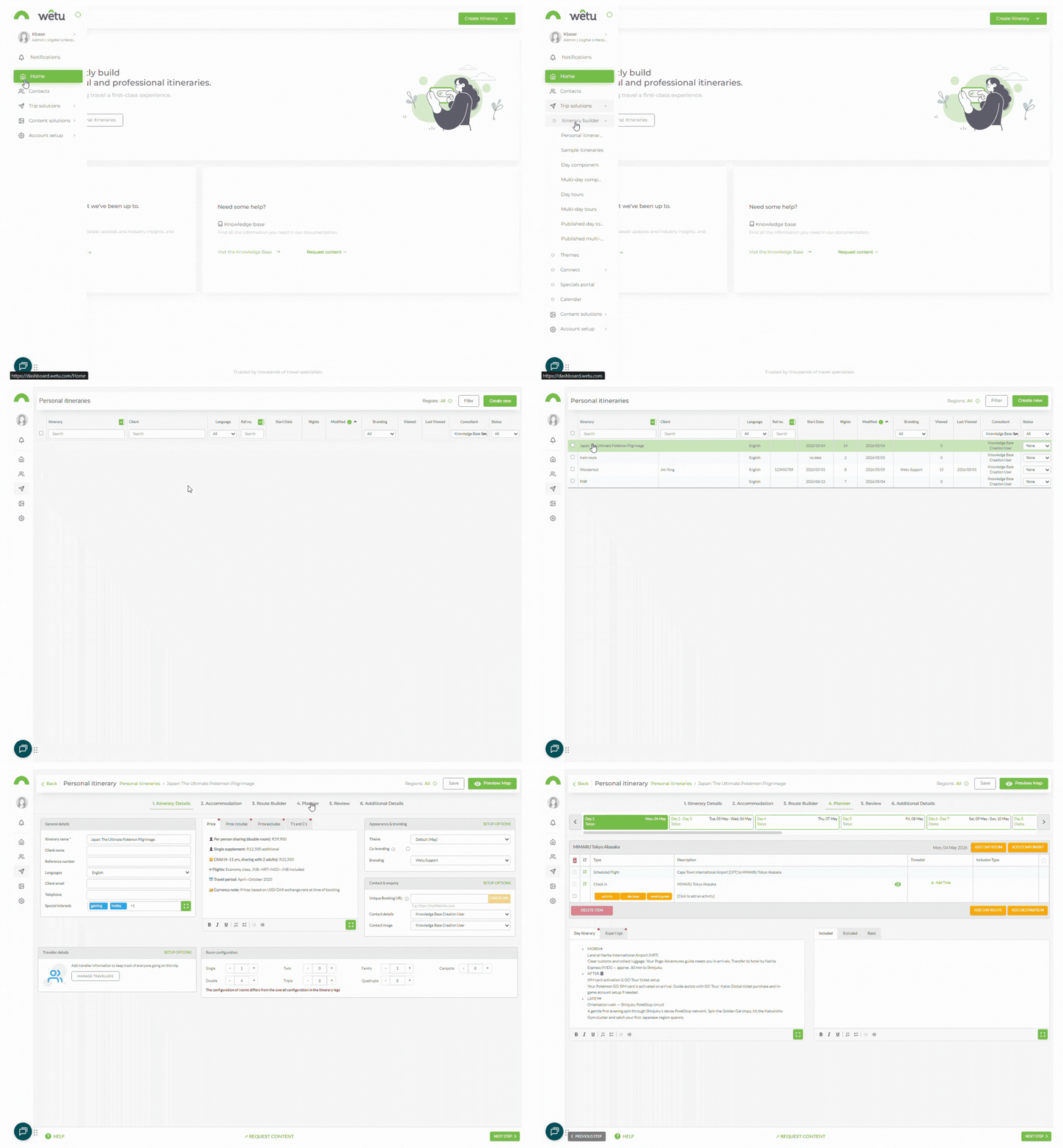
1. Open the itinerary and navigate to the Planner step.
2. Scroll to the bottom of the activity block for the relevant day.
3. Click the Day Itinerary field and enter the day notes.
4. Click the Expert Tips field and enter any additional preparation information.
5. Click the Included field and enter items included on this day.
6. Click the Excluded field and enter items excluded on this day.
How notes display on outputs
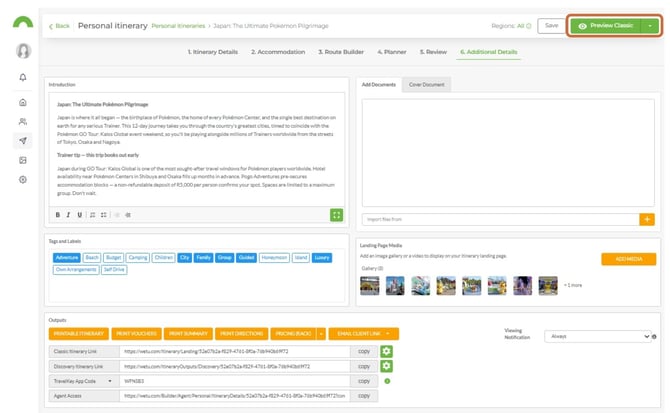
1. Navigate to the Additional Details step.
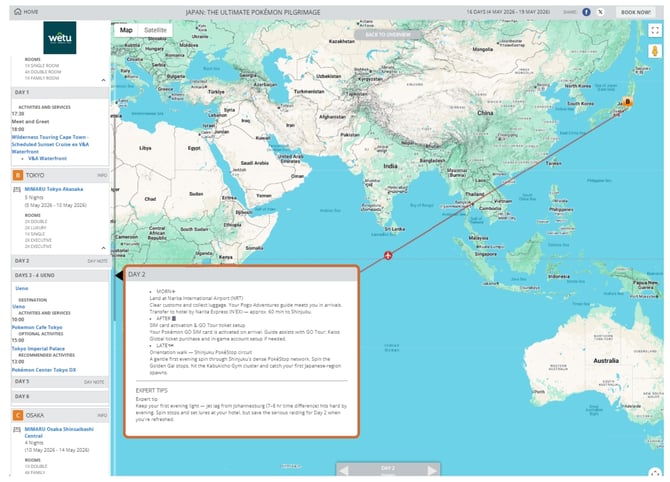
2. Click Preview Itinerary to view the Digital Itinerary.
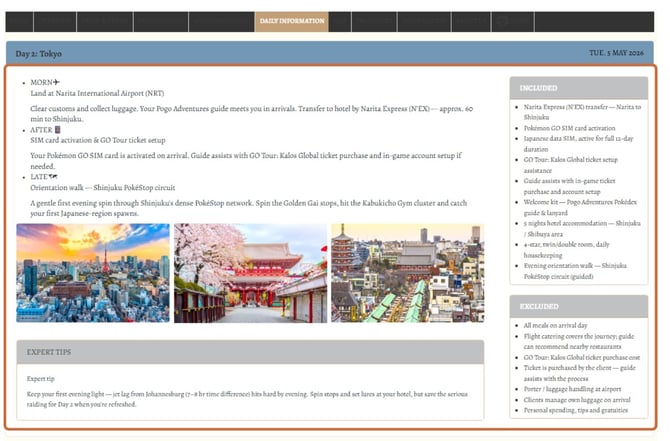
All Day Itinerary, Expert Tips, Included, and Excluded notes added in the Planner step will display on the digital outputs.
Classic
Discovery
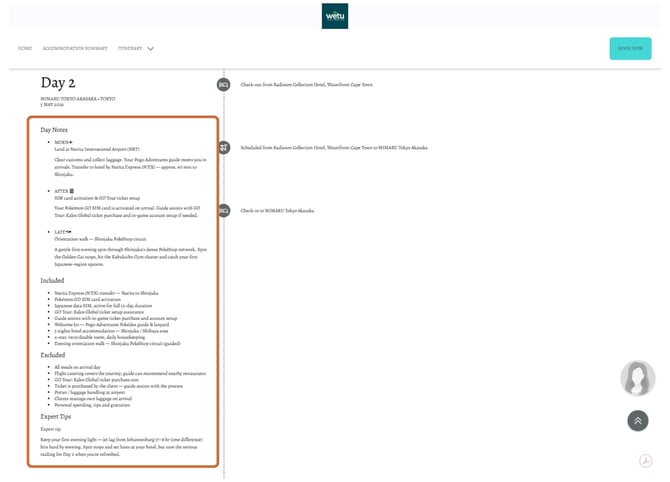
Virtual
Need Help?
- Contact Support: support@wetu.com
- Live Chat: Available on your Dashboard