
Quick Links
- How to navigate to profiles
- What is governance information?
- Who can see governance information?
- Accessing governance settings
- Section A: Health and Safety
- Section B: Sustainability
- Section C: General Information
- Best practices
- Why governance information matters
- Where governance information appears
- Updating governance information
- Troubleshooting
- Need help?
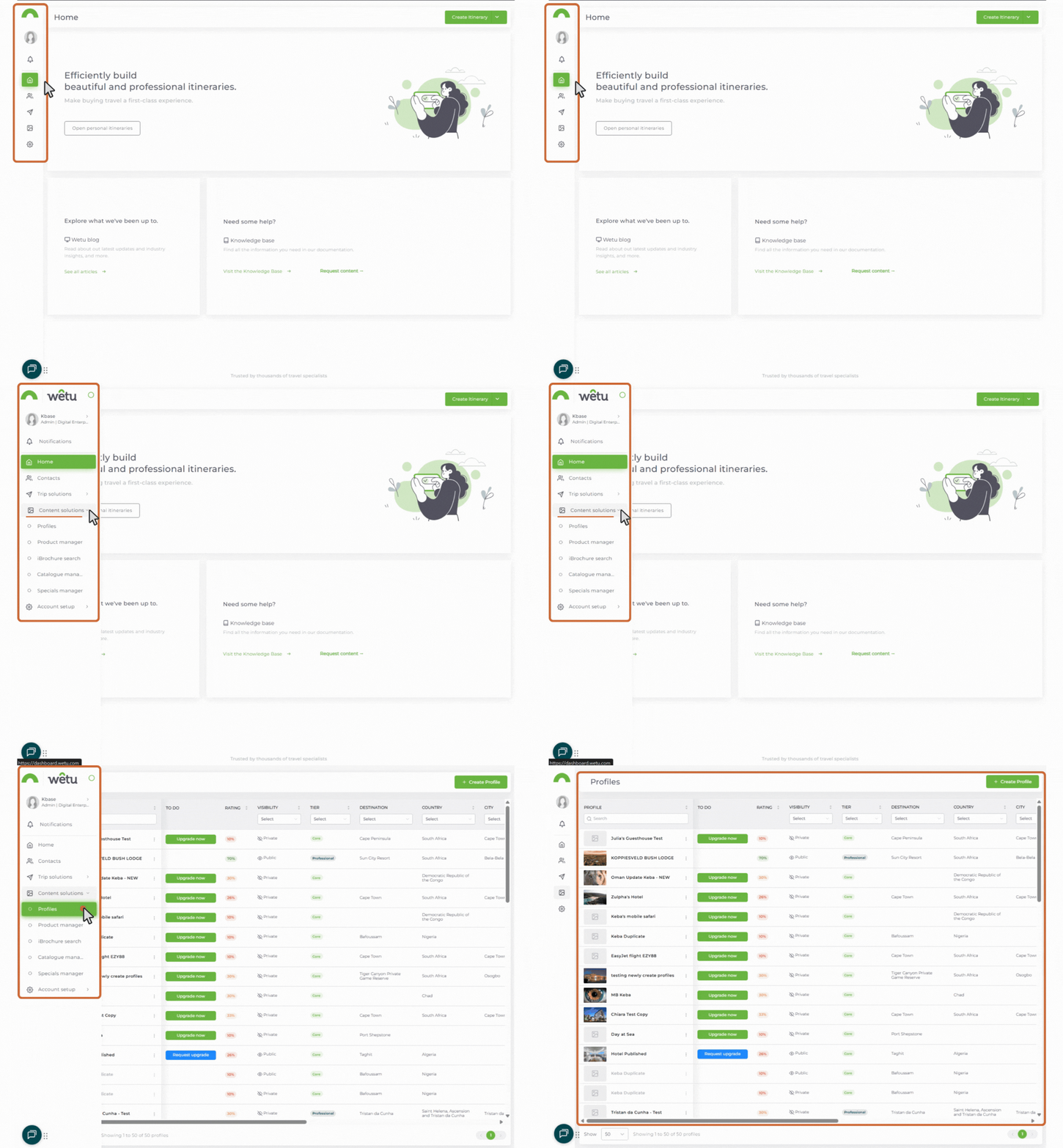
How to navigate to profiles
1. Log in to your Wetu account.
The menu expands when you move your mouse over it, revealing labelled icons.
.jpg?width=114&height=195&name=finding%20profiles%20(1).jpg)
This takes you to the Profiles landing page.
What is governance information?
Governance information includes:
- Health and safety protocols
- Public liability insurance
- Sustainability certifications
- Compliance documentation
This information is increasingly required by tour operators and travel agents when forming partnerships.
back to top
Who can see governance information?
Important: Governance details are NOT public.
Visible to:
- Tour operators
- Travel agents
- DMCs (Destination Management Companies)
- Wetu clients with access to Itinerary Builder
Not visible to:
- End clients (travelers)
- Public domain
- iBrochure viewers
Why private? This is professional compliance information for trade partners, not marketing content.
back to top
Accessing governance settings
1. Navigate to your Profile Library
2. Find your profile and click the three dots (⋮)
3. Select "Edit Profile"
4. Navigate to the "Resources" section
5. Click "Governance"
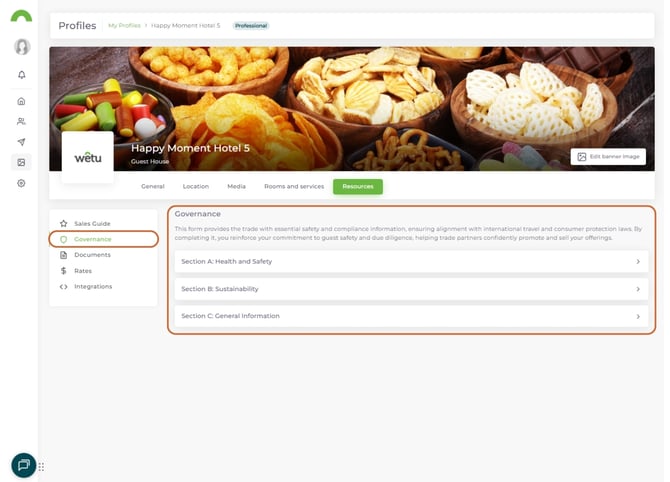
The Governance form opens with three sections.
back to top
Section A: Health and Safety
What to include
This section covers health and safety protocols and certifications.
Common fields (checkboxes):
- First aid trained staff
- Emergency procedures in place
- Fire safety compliance
- Food safety certifications
- Regular safety audits
- Staff safety training
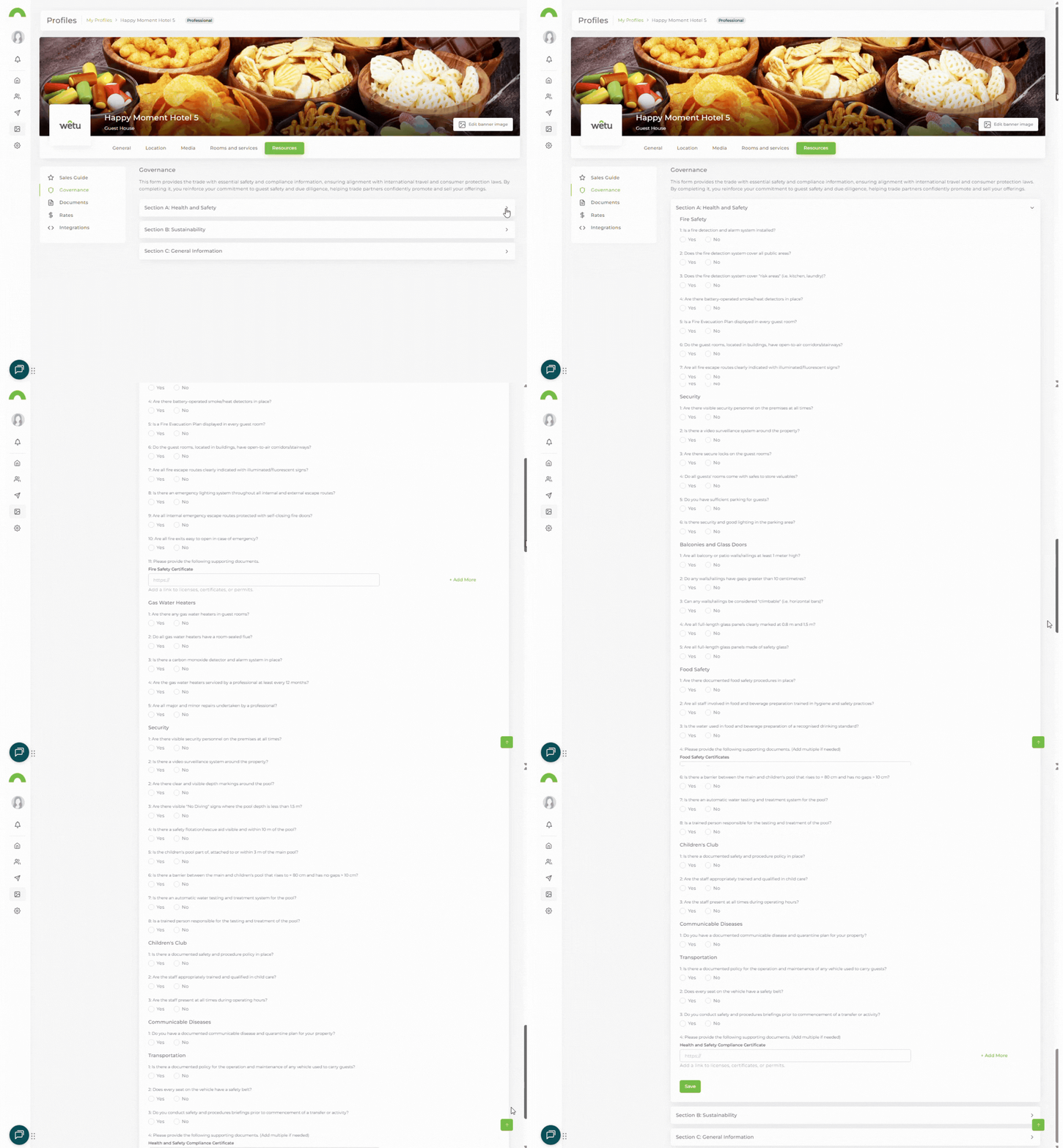
Adding certificates
1. Select relevant checkboxes
2. Add certificate URLs for documentation
- Link to PDF certificates
- Link to compliance documents
- Link to audit reports
3. Click "+ Add more" to add additional certificate fields
4. Click "Save"
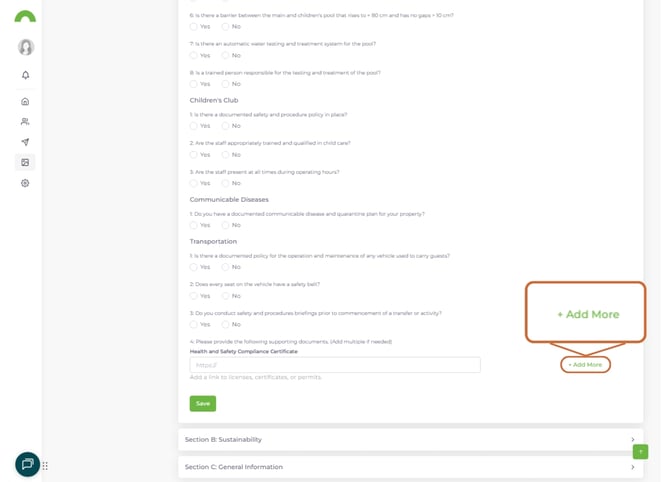
Tip: Host certificates on your website or cloud storage, then paste the public link.
back to top
Section B: Sustainability
What to include
Common fields:
- Sustainability certifications (name and issuing body)
- Environmental policies
- Carbon offset programs
- Water conservation measures
- Waste management practices
- Community involvement
- Local sourcing commitments
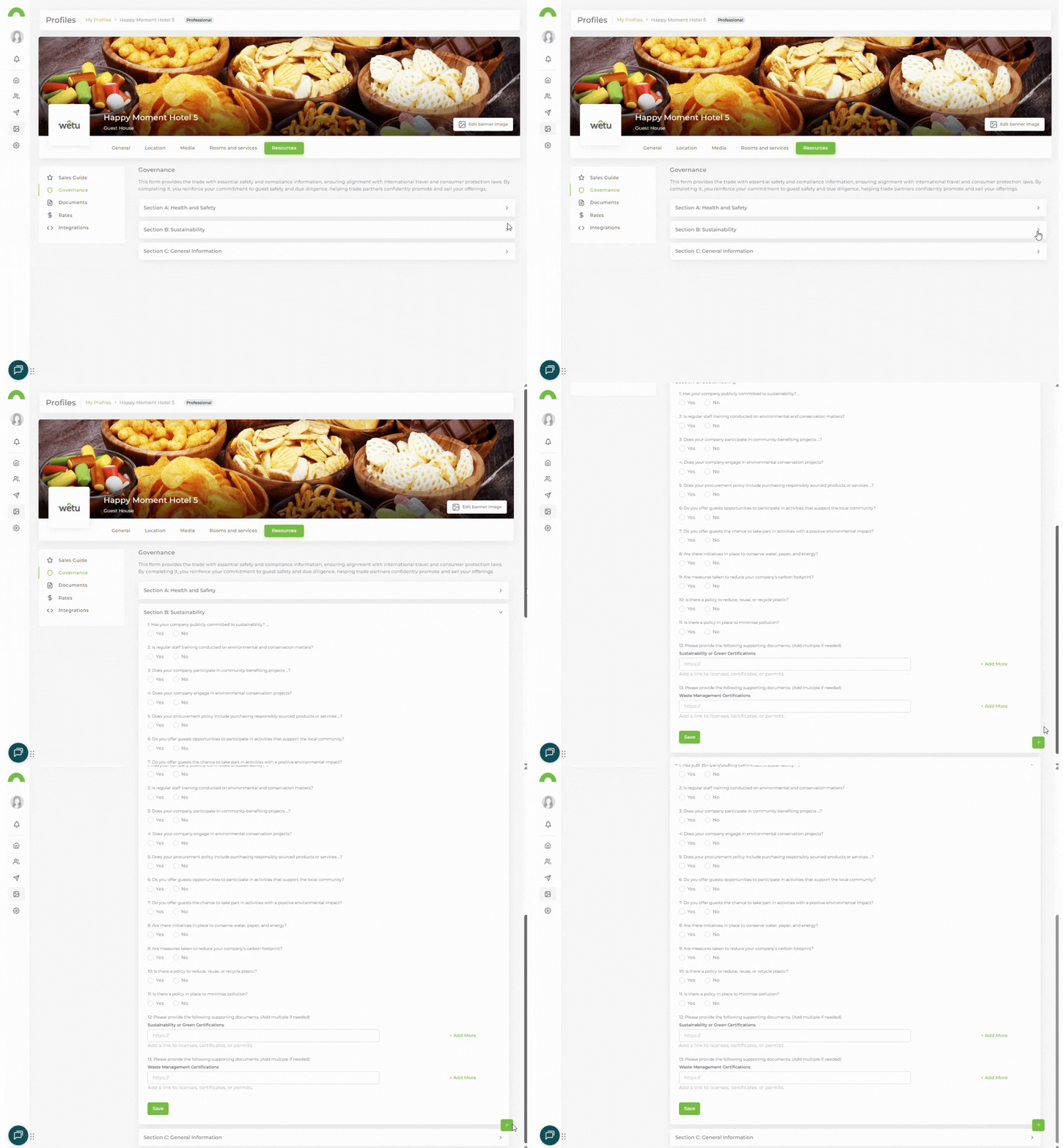
Adding sustainability certificates
1. Complete the sustainability fields
2. Add certificate URLs or upload certificates
- Fair Trade Tourism
- Travelife
- Green Key
- EarthCheck
- LEED certification
- Other eco-certifications
3. Click "+ Add more" for multiple certificates
4. Click "Save"
Pro tip: If you have multiple certifications, add them all. This strengthens your credibility with eco-conscious agents.
back to top
Section C: General Information
What to include
General compliance and liability information.
Common fields:
- Public liability insurance (policy number, coverage amount)
- Professional indemnity insurance
- Business registration details
- Tax registration
- Operating licenses
- Membership in industry associations
- Accreditations
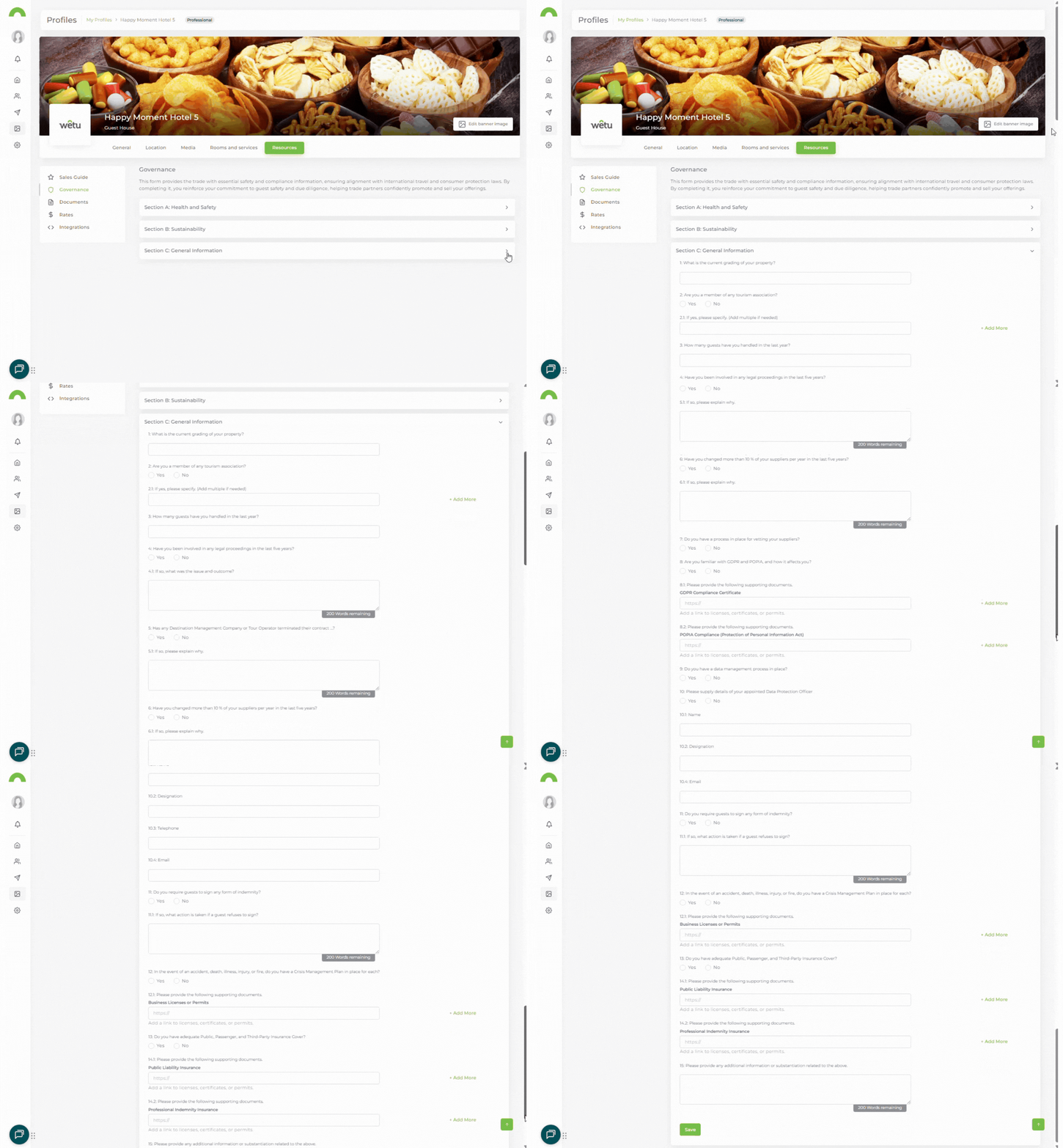
Completing general information
1. Fill in all applicable fields
2. Empty fields will display as "-" on outputs
3. Add certificate URLs where relevant
4. Click "Save"
Complete all sections for full professional credibility.
back to top
Best practices
Health and Safety
Do:
- Keep certifications current (check expiry dates)
- Link to valid, accessible documents
- Include COVID-19 protocols if still relevant
- Mention staff training and qualifications
Don't:
- Link to expired certificates
- Leave required fields blank if you have certifications
- Use broken links
Sustainability
Do:
- List all eco-certifications you hold
- Describe specific practices (not just general statements)
- Include community and local sourcing initiatives
- Update when you achieve new certifications
Don't:
- Claim certifications you don't hold
- Use vague "eco-friendly" statements without specifics
- Forget to renew expired certifications
General Information
Do:
- Include full public liability insurance details
- Keep policy numbers current
- Add all relevant industry memberships
- List operating licenses and registrations
Don't:
- Share sensitive internal documents
- Include personal information
- Leave insurance fields blank (this is often required)
back to top
Why governance information matters
For travel agents:
- Verify your compliance before including you
- Meet their duty of care requirements
- Satisfy insurance requirements
- Build trust with corporate clients
- Comply with industry regulations
For you:
- Demonstrate professionalism
- Stand out from uncertified competitors
- Attract quality tour operators
- Meet partnership requirements
- Build long-term credibility
back to top
Where governance information appears
Agents see your governance details when:
- Researching properties in the Product Manager
- Building itineraries with your property
- Comparing suppliers
- Conducting due diligence
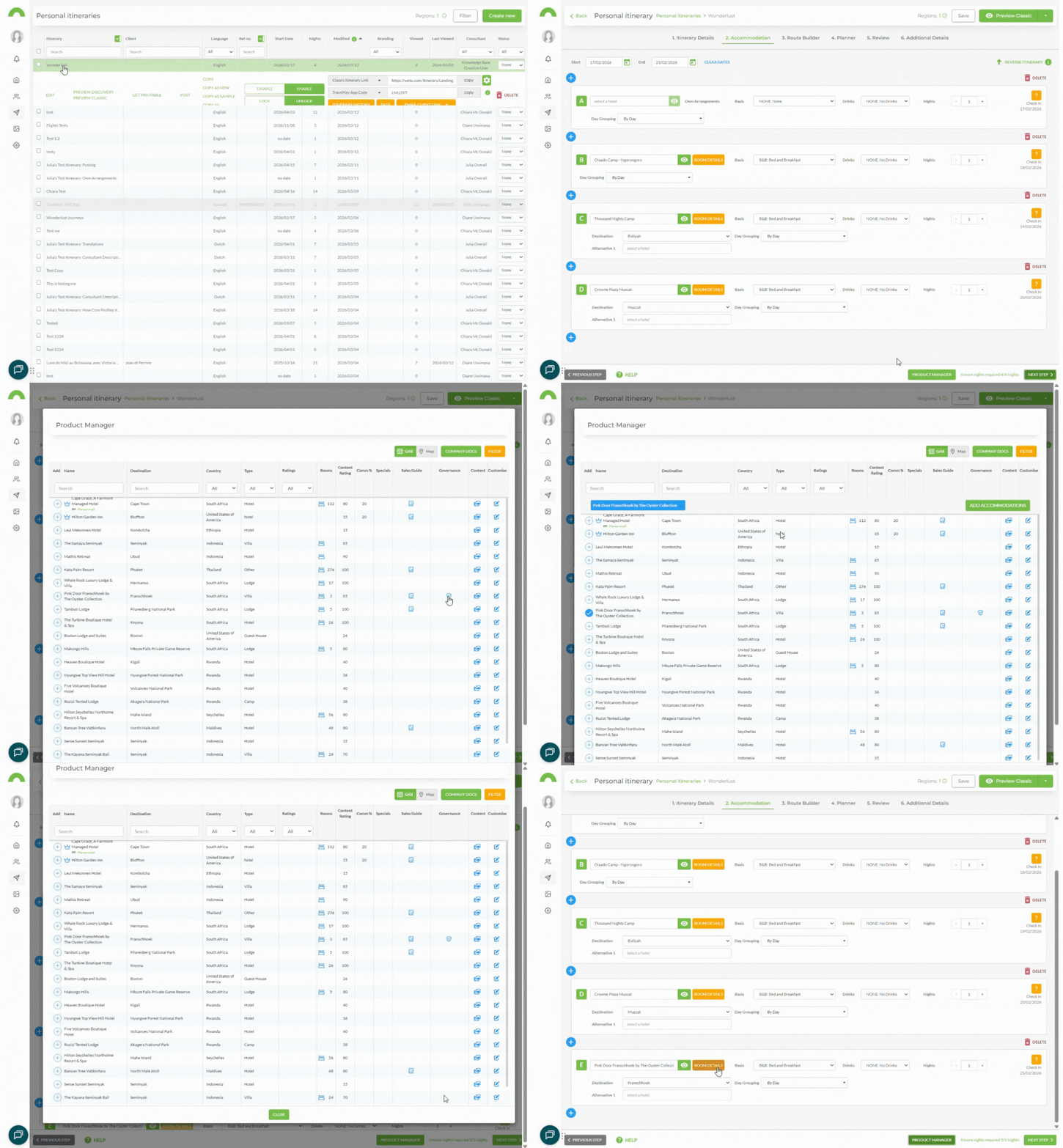
The information appears in a clear, organized format for easy review.
back to top
Updating governance information
When to update
Update immediately when:
- Certificates are renewed
- New certifications achieved
- Insurance policies renewed
- Licenses renewed
- Sustainability practices change
Review quarterly:
- Check all certificate expiry dates
- Verify all links still work
- Update any changed information
- Add new certifications
How to update
1. Edit your profile
2. Navigate to Resources > Governance
3. Expand the relevant section (A, B, or C)
4. Update fields or certificates
5. Click "Save"
Changes appear immediately to agents.
back to top
Troubleshooting
Certificate links aren't working
- Ensure URLs are publicly accessible (not behind login)
- Use direct links to PDFs, not download pages
- Test links in an incognito browser window
- Use cloud storage with public sharing enabled
I don't see the Governance section
- Verify you're editing the correct profile
- Check you have edit permissions
- Look under "Resources" section
- Contact support if still not visible
Empty fields showing as "-"
- This is normal for incomplete fields
- Complete all sections for full credibility
- Leave blank only if truly not applicable
How do I delete governance information?
- You can clear fields or uncheck boxes
- Save to remove information
- Consider updating rather than deleting
back to top
Need help?
For governance setup support:
- Email: support@wetu.com
- Live chat: Available in your dashboard
For certification questions:
- Contact your certification body
- Verify certificate URLs and validity
- Ensure documents are current
back to top
vs.1.0.13.03.2026