
Quick Links
- Add an activity
- Activity list indicators
- Inclusion type
- Timeslot
- Highlight activities
- Need Help?
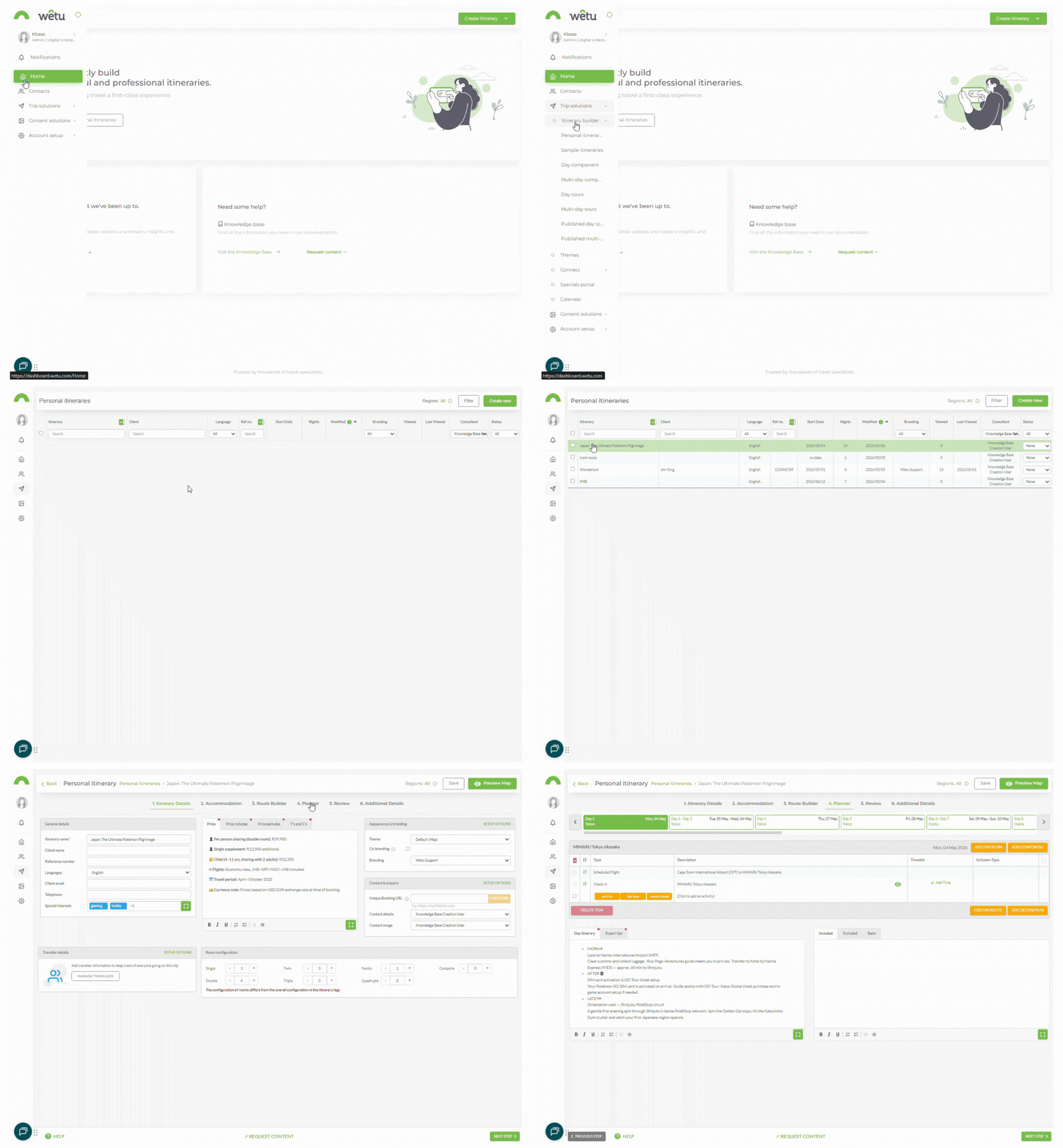
Navigating to your Itinerary Builder
Add an activity
1. Open the itinerary and navigate to the Planner step.
Method 1
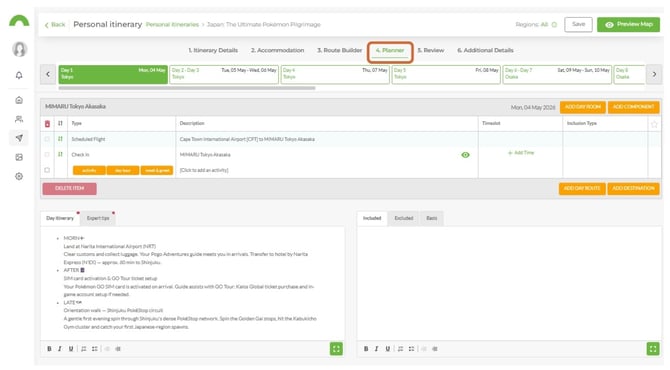
1. Click Activity to activate the Select an Activity field.
2. Start typing the activity name - the system will display matching results.
3. Select the activity from the list.
Method 2
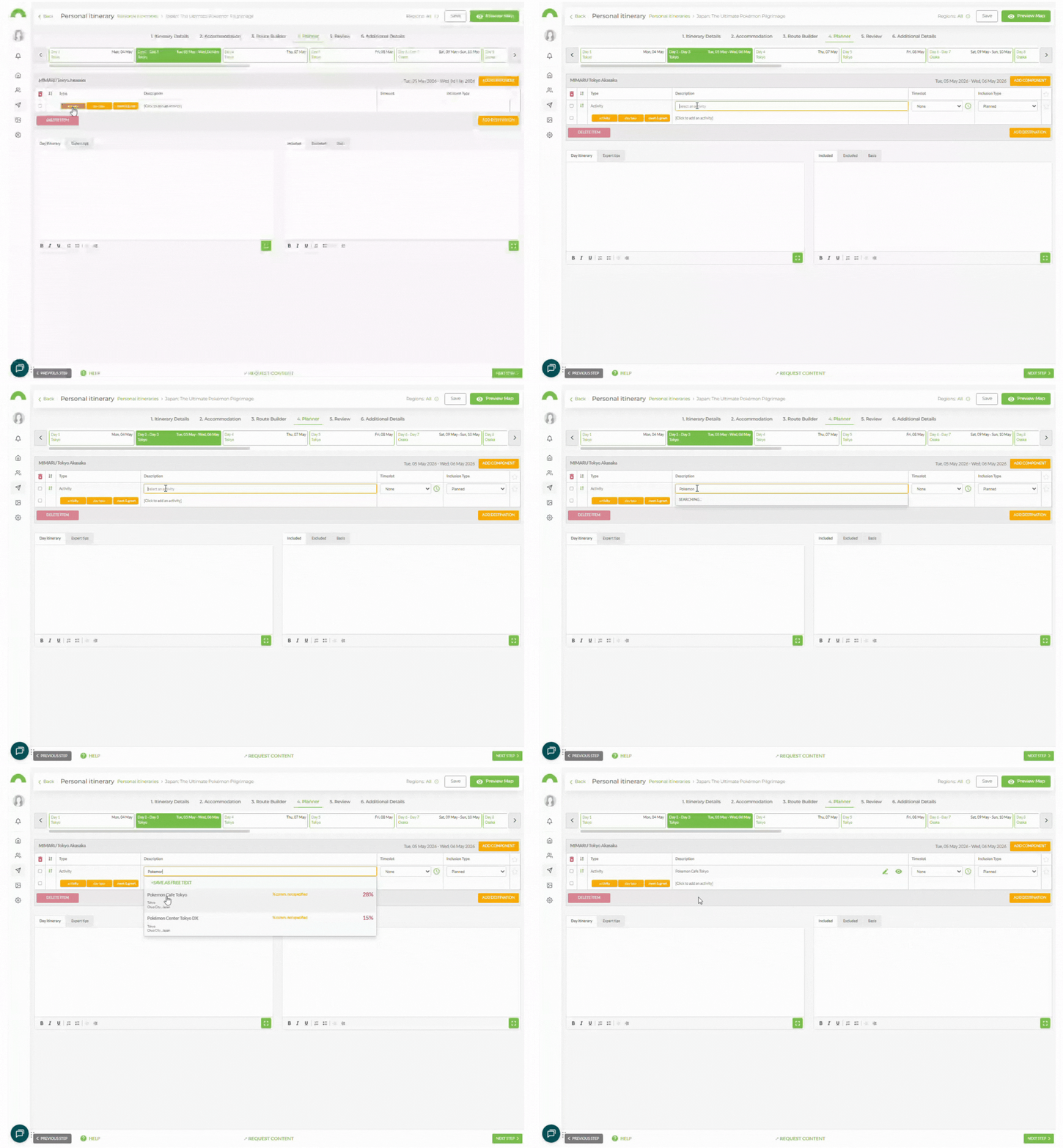
1. Click in the Click to Add Activity field.
2. Click Select an Activity and follow the same process as Method 1.
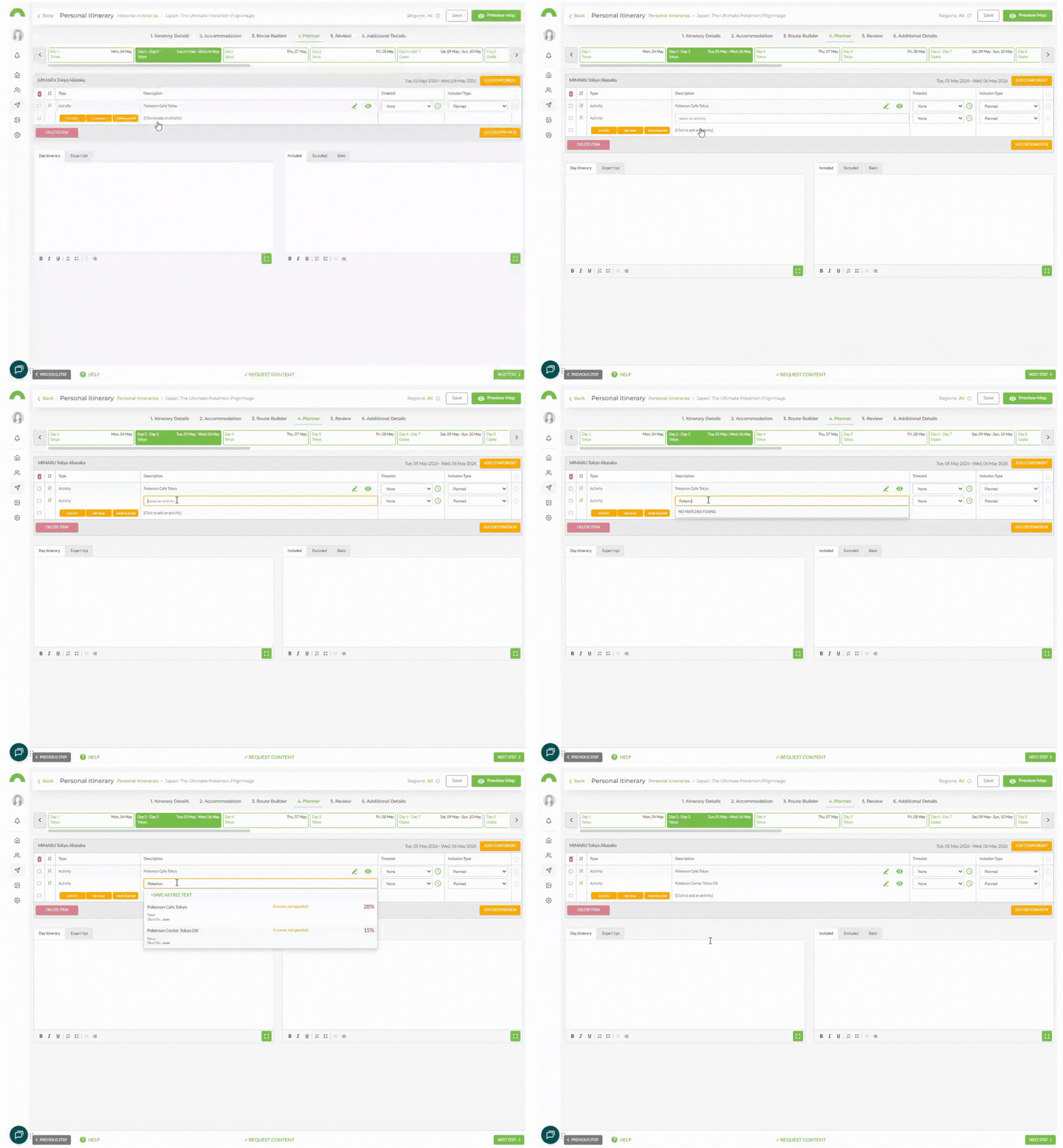
Note: To change an activity already added, click on it to reactivate the search field and select a different one.
Activity list indicators
The activity dropdown displays the following indicators next to each result:
| Indicator | Description |
|---|---|
| % comm. not specified | If your company has added a commission percentage via the consultant portal, it will display here. |
| IB | A black IB box indicates the activity is an iBrochure. |
| Percentage | The large percentage shows how much content is loaded for the activity. 0% = no information; 100% = complete listing. |
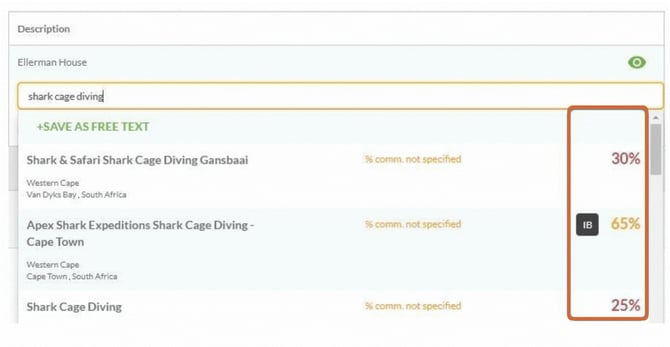
Note: Click the preview button next to an activity to view the descriptions and images loaded for it.
Inclusion type
Set the inclusion type to indicate the nature of each activity.
| Type | Description |
|---|---|
| Planned | The activity is included in the cost of the tour. |
| Recommended | Something for clients to do during their free time. |
| Optional | Available to the group but not compulsory - generally an additional cost. |
| Information | Additional information about activities, sites, attractions, or destinations. |
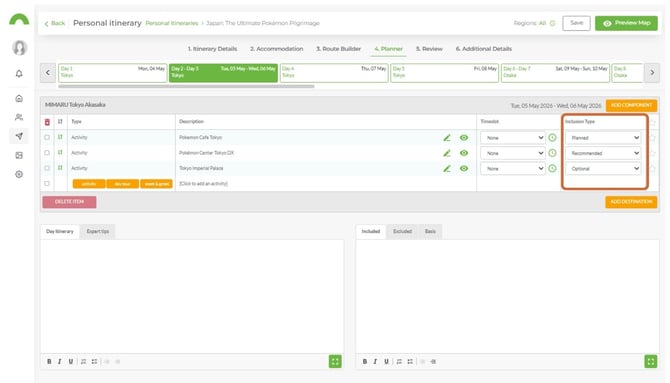
Note: Click the preview button next to an activity to view the descriptions and images loaded for it.
Timeslot
Add a specific time or a general time of day to each activity.
Exact time
1. Click the green clock icon next to the Timeslot dropdown.
2. Use the + and − buttons to set the hours and minutes.
General time of day
1. Click the Timeslot dropdown and select from: Morning, Lunch, Afternoon, Dinner, or Evening.
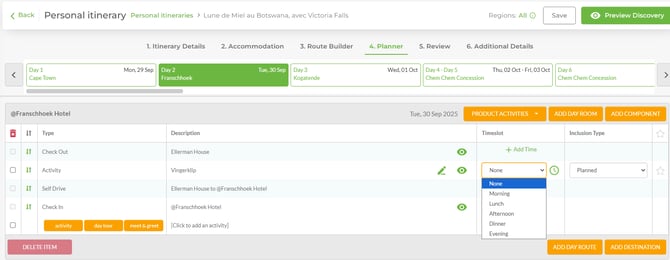
Note: Time can also be typed directly into the field without using the + or − buttons. Time is recorded in 24-hour format.
Highlight activities
1. Click the Star icon next to an activity to mark it as a highlight.
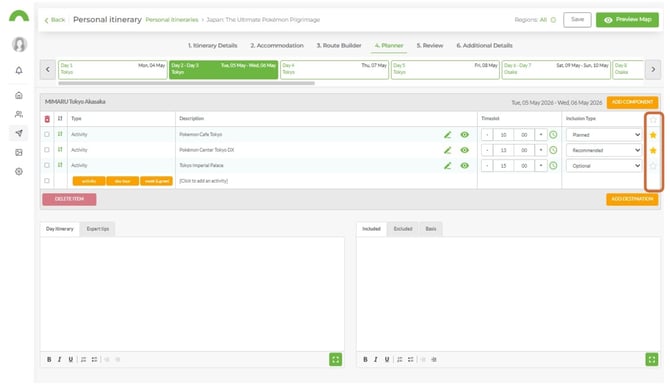
2. Highlighted activities will appear on both the Overview page and the Destination page of the Digital Itinerary.
Overview
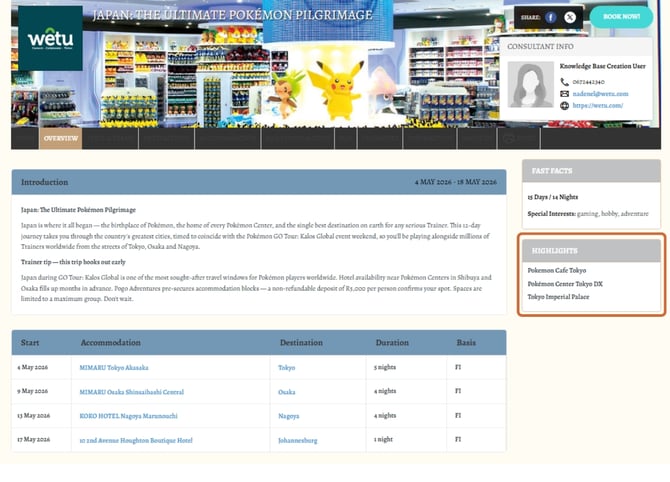
Destination
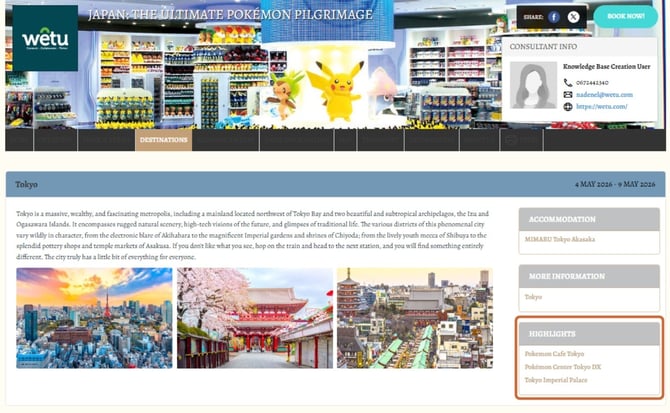
Note: If 10 or more activities are added to a single day in the Planner, the standard 3-image display in the Digital Itinerary will automatically increase to 6 images.
Need Help?
- Contact Support: support@wetu.com
- Live Chat: Available on your Dashboard