
Quick Links
- Company terms and conditions
- Identity terms and conditions
- Itinerary terms and conditions
- Need help?
Company terms and conditions
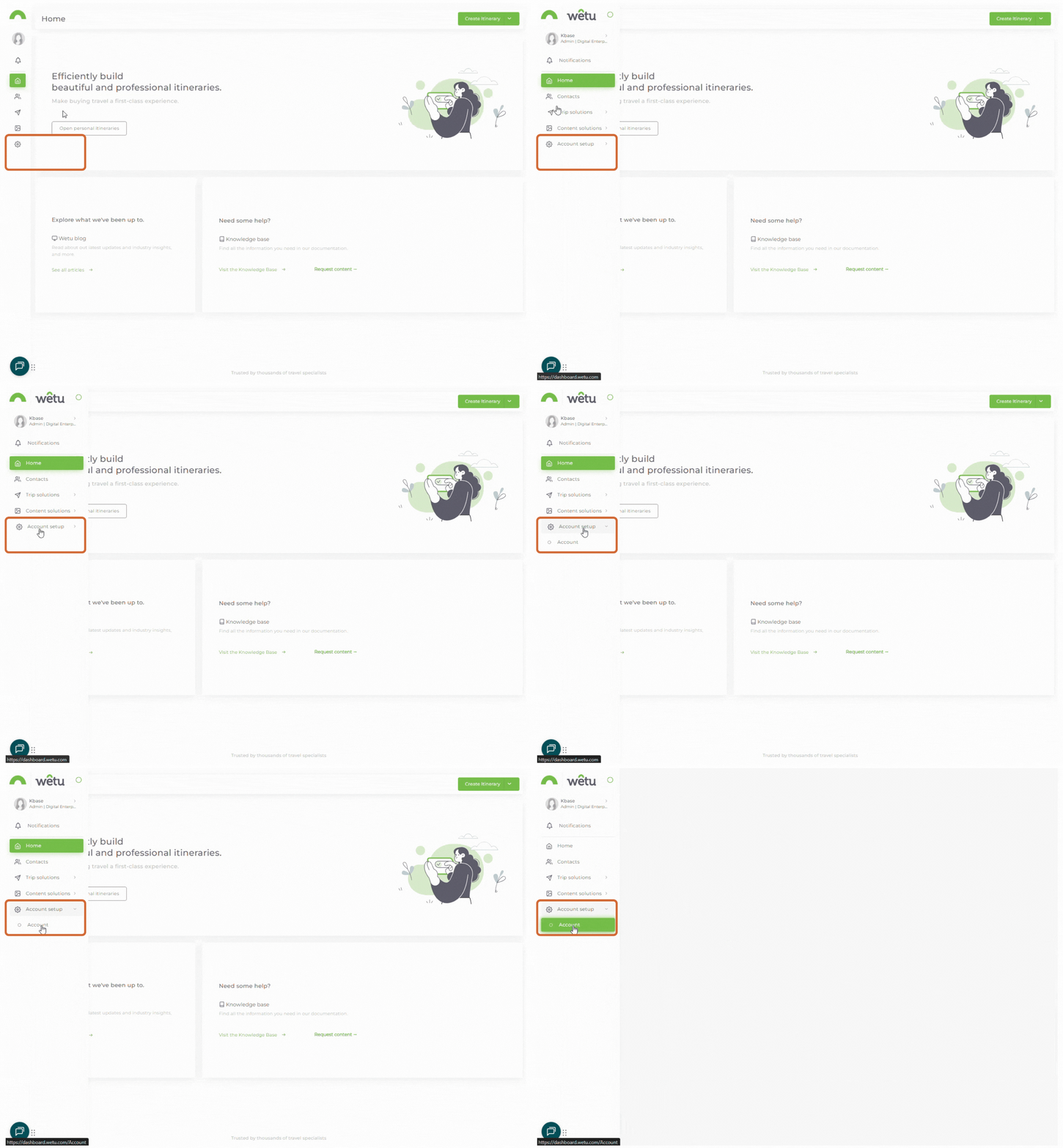
1. Navigate to Account Setup in the left-hand navigation panel.
2. Select Account.
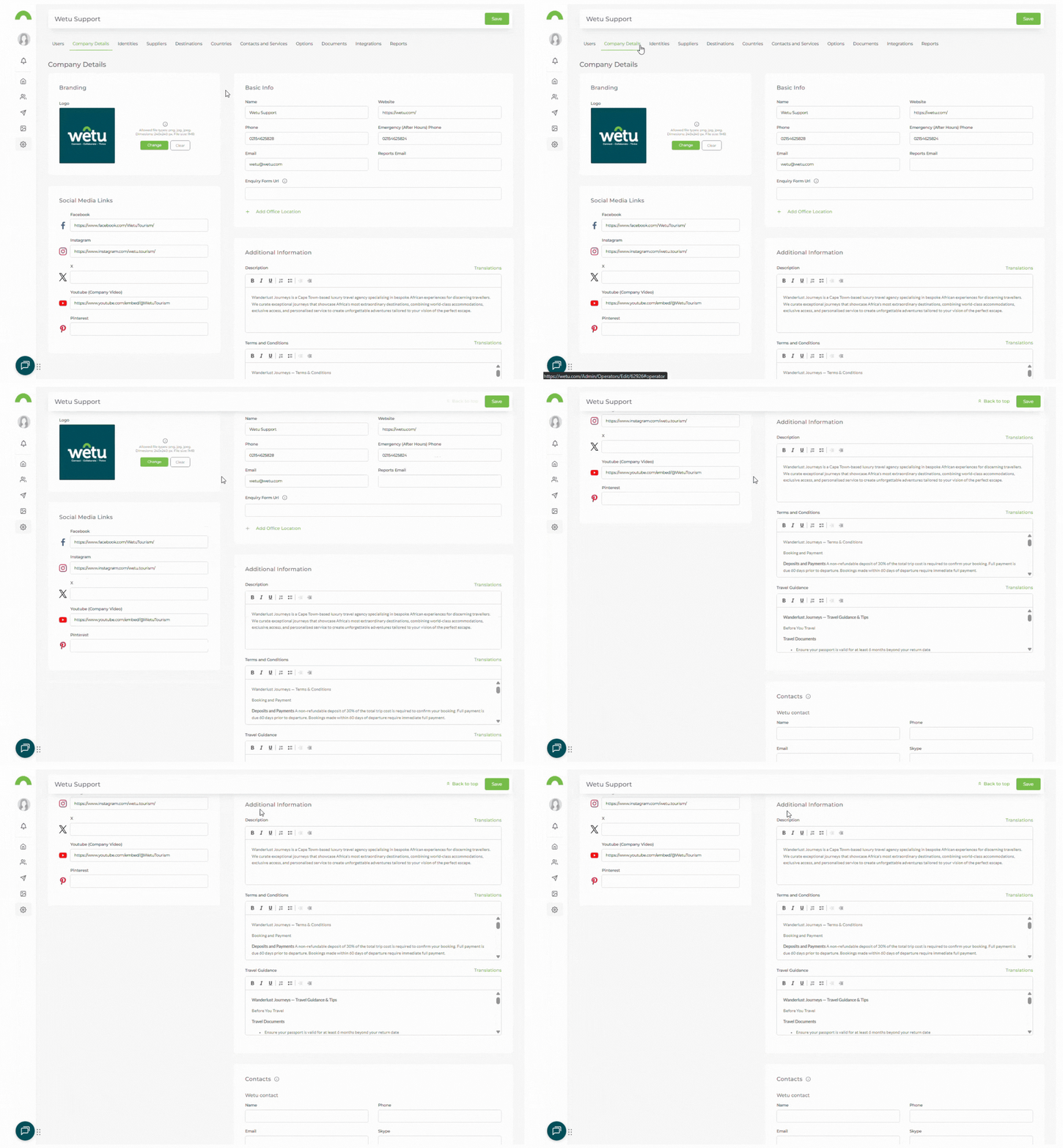
3. Click Company Details in the top navigation bar.
4. Scroll down to Additional Information.
5. Enter your terms and conditions in the Terms and Conditions field.
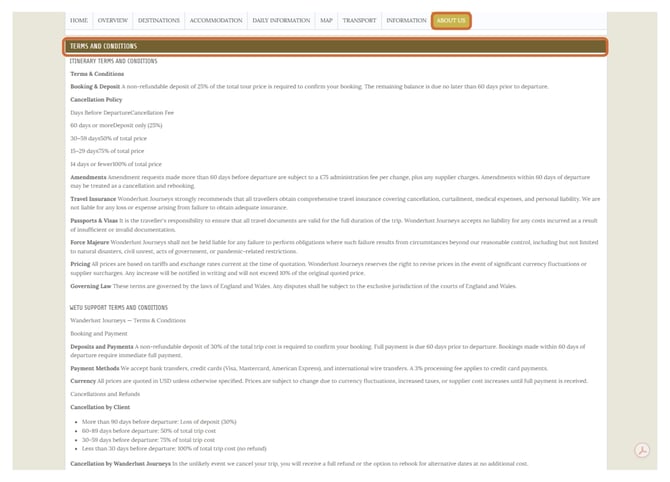
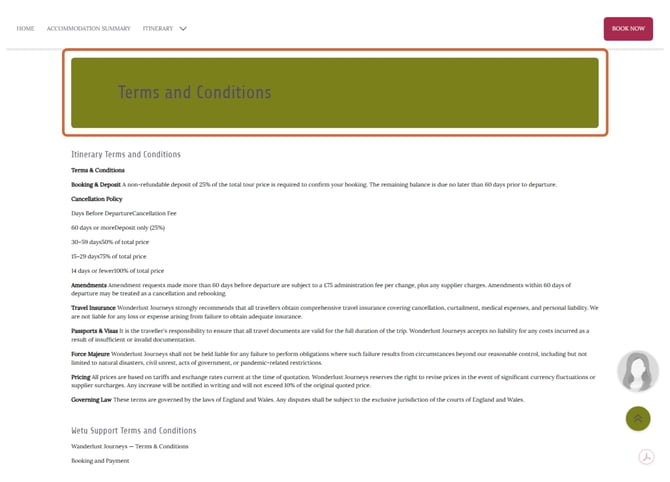
Where company terms and conditions display:
| Itinerary output | Location |
|---|---|
| Classic | About Us section |
| Discovery | Bottom of the itinerary |
Identity terms and conditions
1. Navigate to Account Setup in the left-hand navigation panel.
2. Select Account.
3. Click Identities in the top navigation bar.
4. Click on the edit icon asociated with the Identity.
5. Enter the agent's terms and conditions.
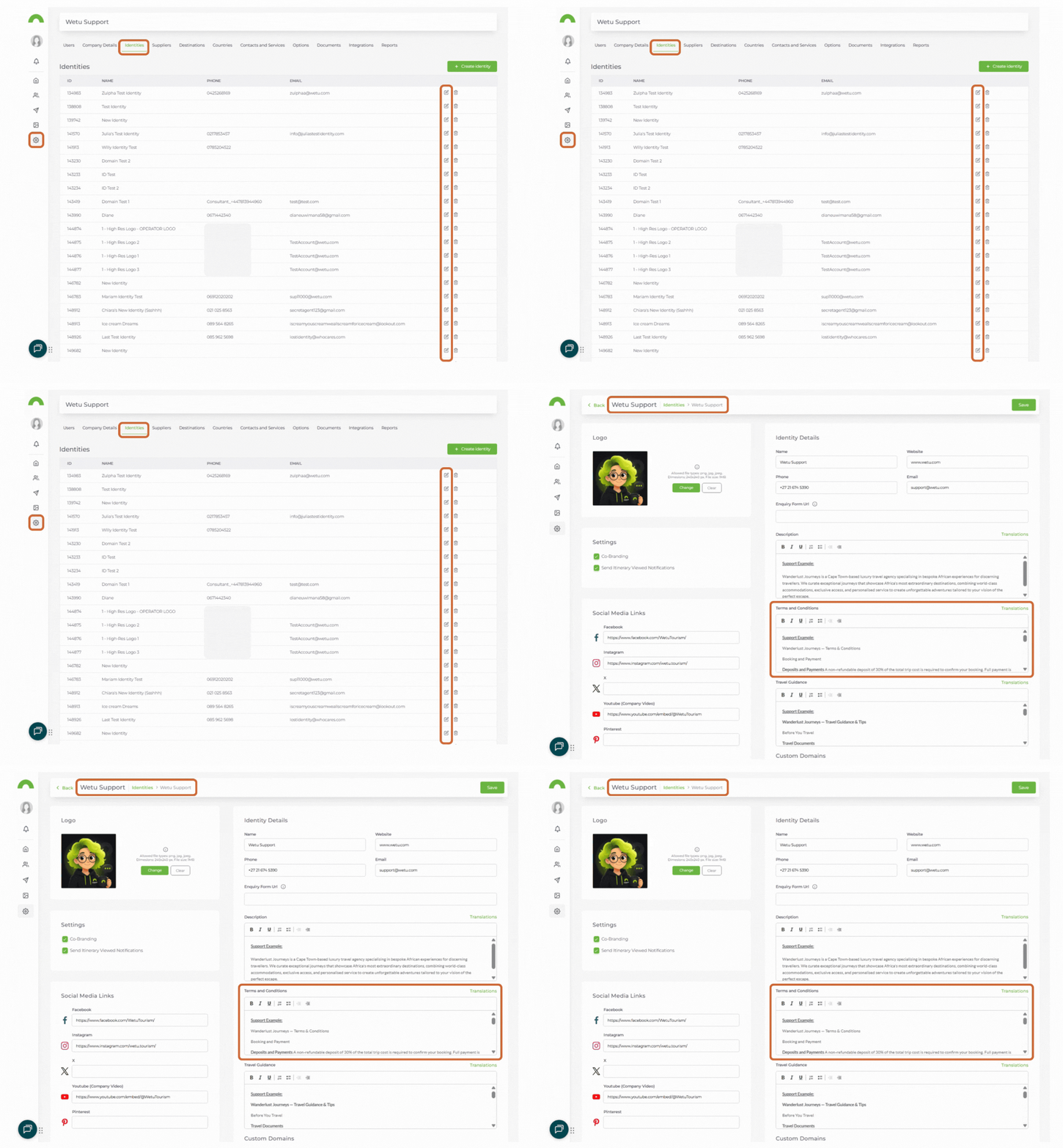
Note: Selecting an Identity to rebrand your itinerary will replace your company's terms and conditions with the Identity's terms and conditions.
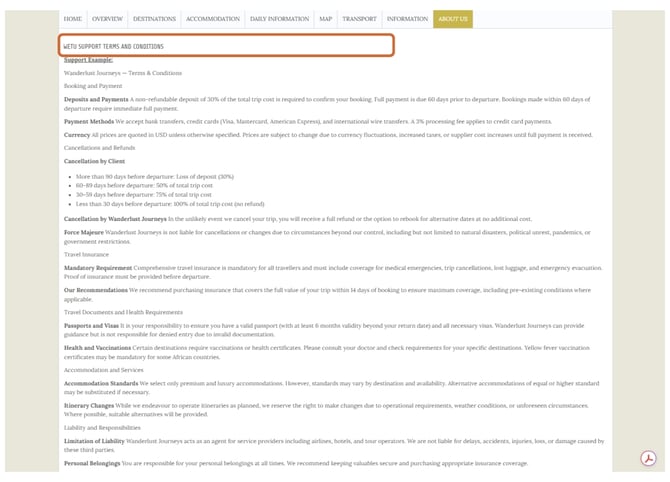
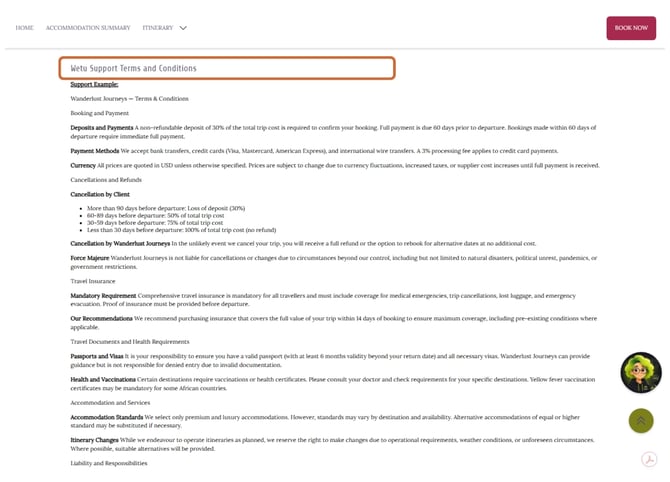
Where identity terms and conditions display:
| Itinerary output | Location |
|---|---|
| Classic | About Us section |
| Discovery | Bottom of the itinerary |
Itinerary terms and conditions
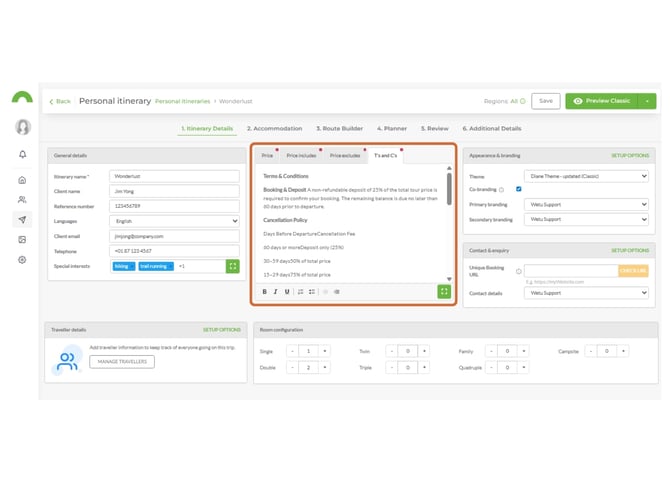
1. Open an itinerary in the Itinerary Builder.
2. In Step 1(Itinerary Details), locate the Terms and Conditions field.
3. Enter any terms and conditions relevant to this itinerary only.
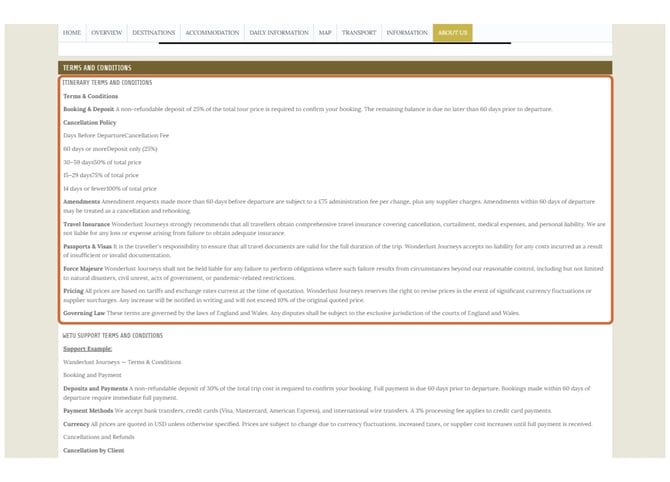
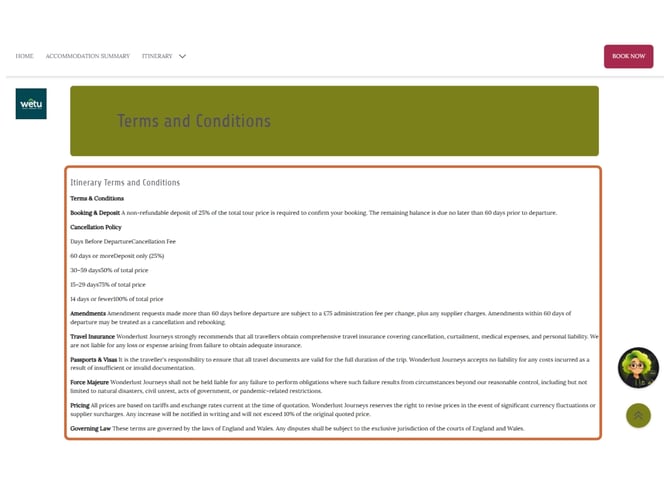
Where itinerary terms and conditions display:
| Itinerary output | Location |
|---|---|
| Classic | About Us section - above the company terms and conditions |
| Discovery | Bottom of the itinerary |
Need Help?
- Contact Support: support@wetu.com
- Live Chat: Available on your Dashboard