
Quick Links
- Getting started
- Uploading documents
- Managing documents
- Need help?
Getting started
Step 1
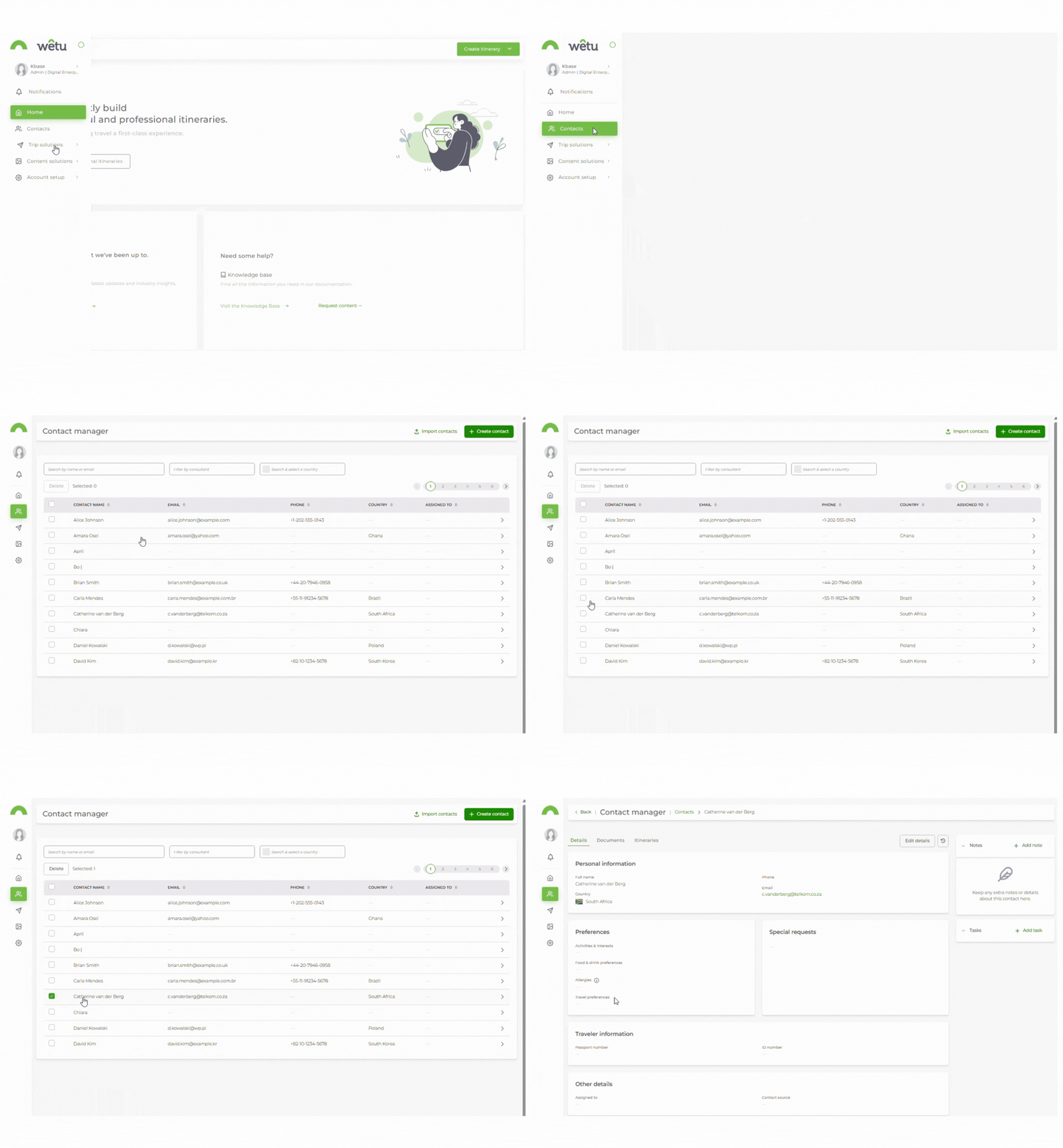
Open the Contact Manager and select the traveller contact you want to work with.
Step 2
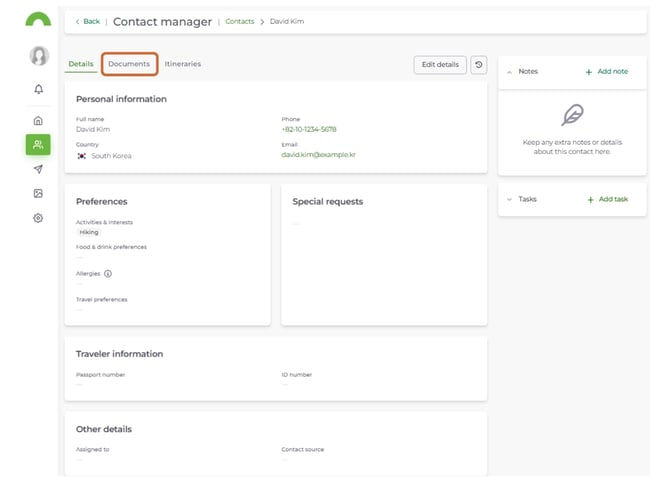
Select the Documents tab from the menu at the top of the contact profile.
Uploading documents
Step 3
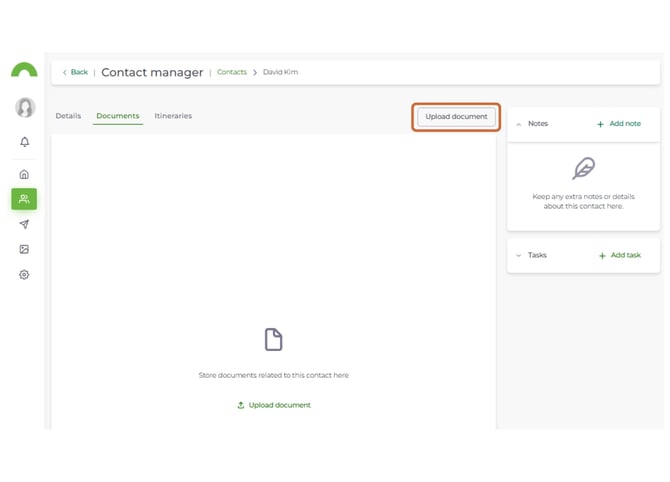
Click Upload document in the top right-hand corner.
Step 4
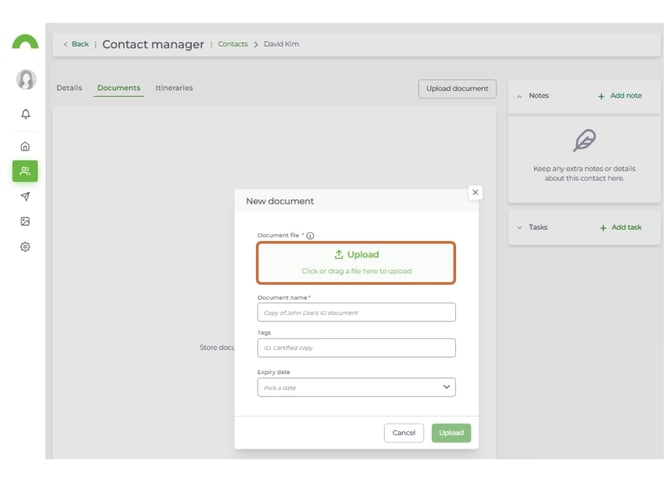
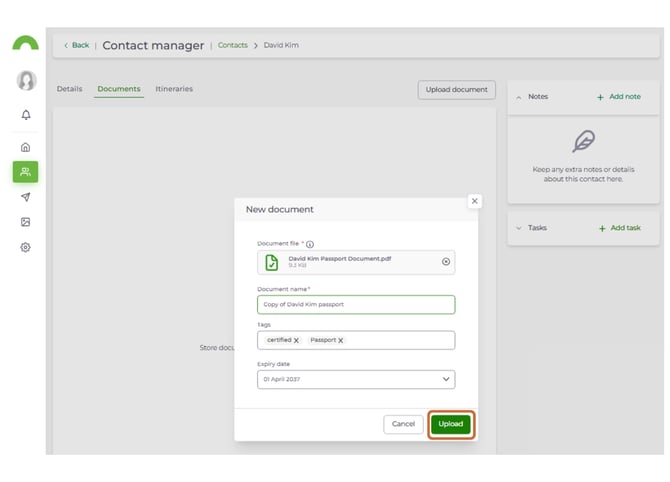
In the New document pop-up, drag and drop your file into the upload area, or click to select it from your device
Note: Accepted file types: .png, .jpg, .jpeg, .pdf, and .docx. Maximum file size: 1MB per file.
Step 5
Complete the document details:
- Document Name (required) - enter a name for the file.
- Tags (optional) - add tags to identify the document type at a glance.
- Expiry date (optional) - add an expiry date to track document validity.
Click Upload to save the document.
Step 6
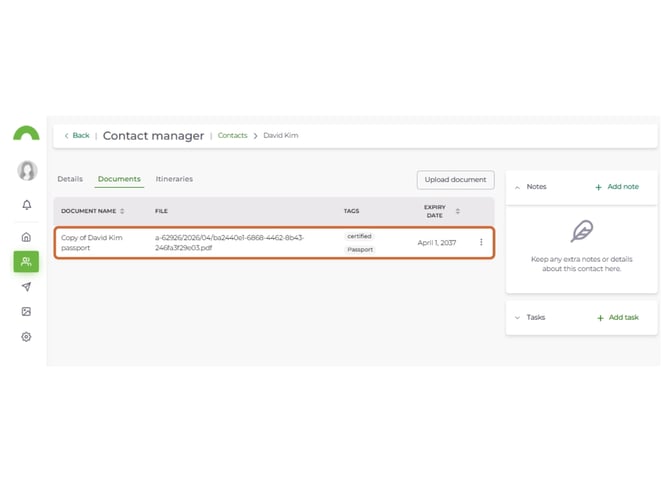
The uploaded document will appear in the Documents tab, showing the document name, file, tags, and expiry date.
Managing documents
Step 7
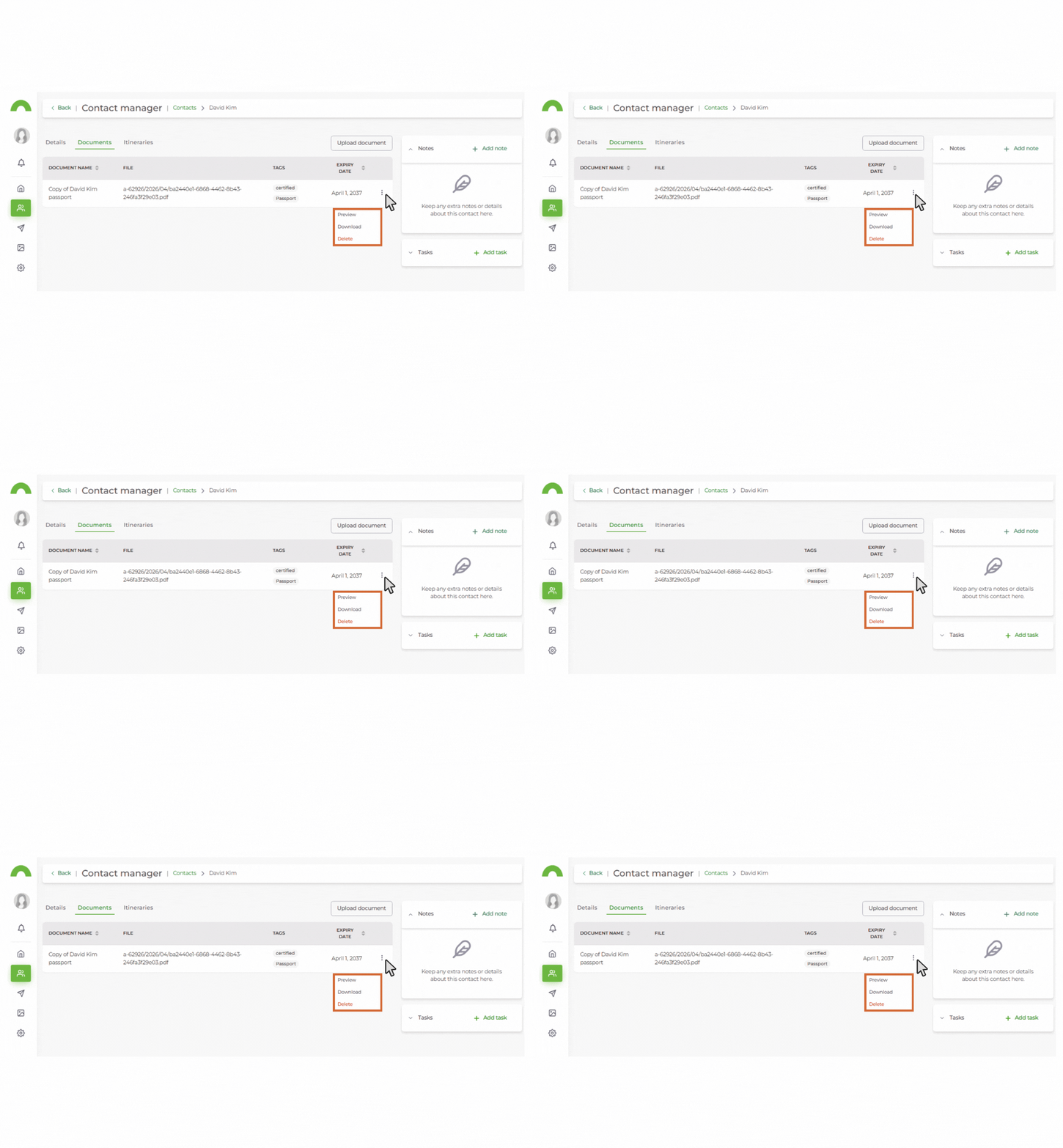
Select the three-dot menu next to a document to manage it:
- Preview - view the document on screen.
- Download - save a copy to your device.
- Delete - permanently remove the document.
Note: When previewing Word documents, the on-screen preview may not reflect the exact formatting shown when the file is downloaded and opened in Word.
Need Help?
- Support: support@wetu.com
- Live chat: Available in your dashboard