
Quick Links
- Create vouchers
- Customisation options
- Download and send
- Need help?
Create vouchers
Note: The Print Vouchers button only appears when travel dates have been added to the itinerary. It is not available on Sample Itineraries.
1. Open the itinerary in the Itinerary Builder and navigate to Step 6: Additional Details.
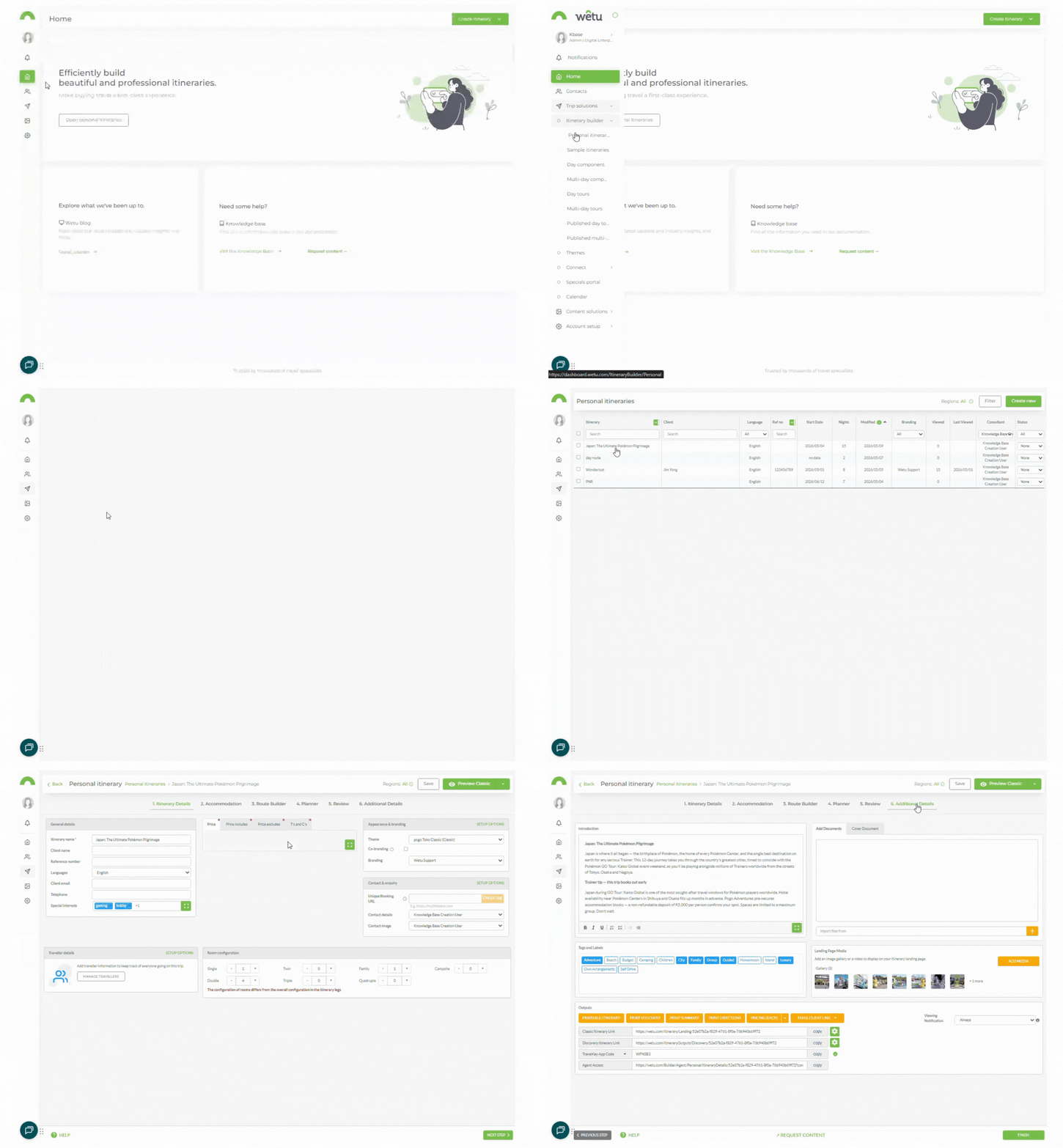
2. Scroll to the bottom of the page and click Print Vouchers on the left under Outputs.
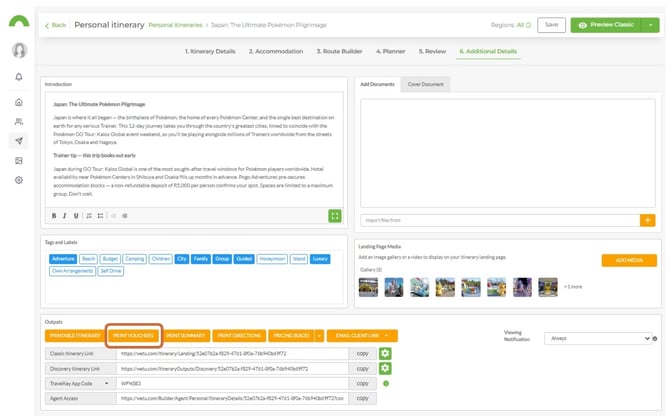
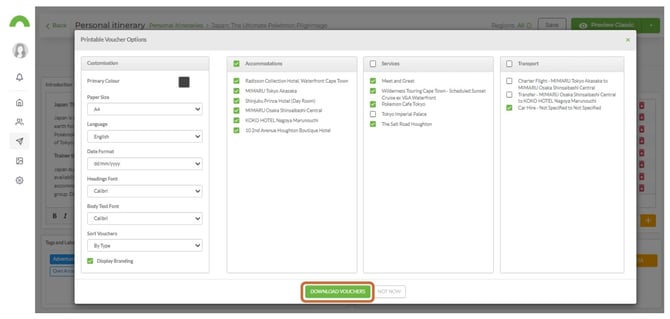
3. The Printable Vouchers Options window will open.
4. Tick the boxes next to the services, transport, or accommodation you want vouchers for. Free-text activities will also appear here.
5. Select the language from the dropdown. Available languages are those configured in Account setup › Account › Options › Languages.
Note: What you see in the Voucher Options window depends on the access level your Admin has granted. If consultants have full access, additional customisation settings will be available.
Customisation options
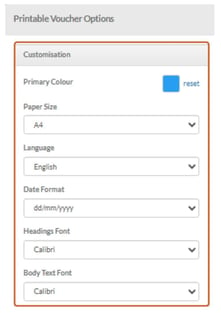
If your Admin has granted full Print Options access, the following settings are available:
Colours
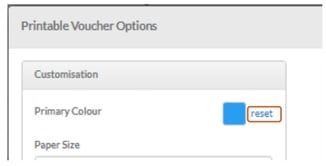
1. Use the colour picker or enter a Hex or RGB value to set the Primary Colour for borders and shading on your vouchers.
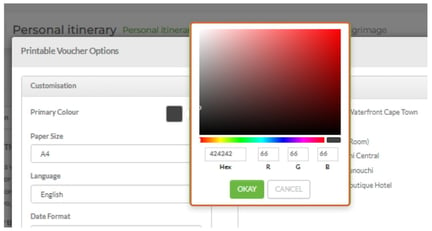
Note: A default colour can be set in Admin. If you change the colour in the Itinerary Builder, a reset button will appear allowing you to return to the default.
Layout and format
| Setting | Options |
|---|---|
| Paper Size | A4 or Letter (for US, Canada, and parts of South America) |
| Date Format | British (dd/mm/yy) or American (mm/dd/yy) |
| Headings Font | Select from Windows-compatible fonts |
| Body Text Font | Select from Windows-compatible fonts |
Sort order
| Option | Description |
|---|---|
| By Type | All accommodation vouchers grouped together, then all activity vouchers, then all transport vouchers |
| By Date | All services for each day grouped together in date order |
Branding
1. Tick Display Branding to include your company logo and contact details on the vouchers.
2. Untick to hide your company logo and contact details.
Download and send
1. Once all options are set, click Download Vouchers at the bottom of the window.
The vouchers will download in Microsoft Word format. From there you can:
-
Format or edit the vouchers in Microsoft Word.
-
Print and cut out individual vouchers for clients.
-
Send the file as an email attachment.
-
Upload the vouchers as a document attachment on the Virtual or Digital Itinerary so clients can download them directly.
Need Help?
- Contact Support: support@wetu.com
- Live Chat: Available on your Dashboard