
Quick Links
- Getting started
- Copy
- Copy as New
- Copy as Sample
- Copy as Component
- Need help?
Getting started
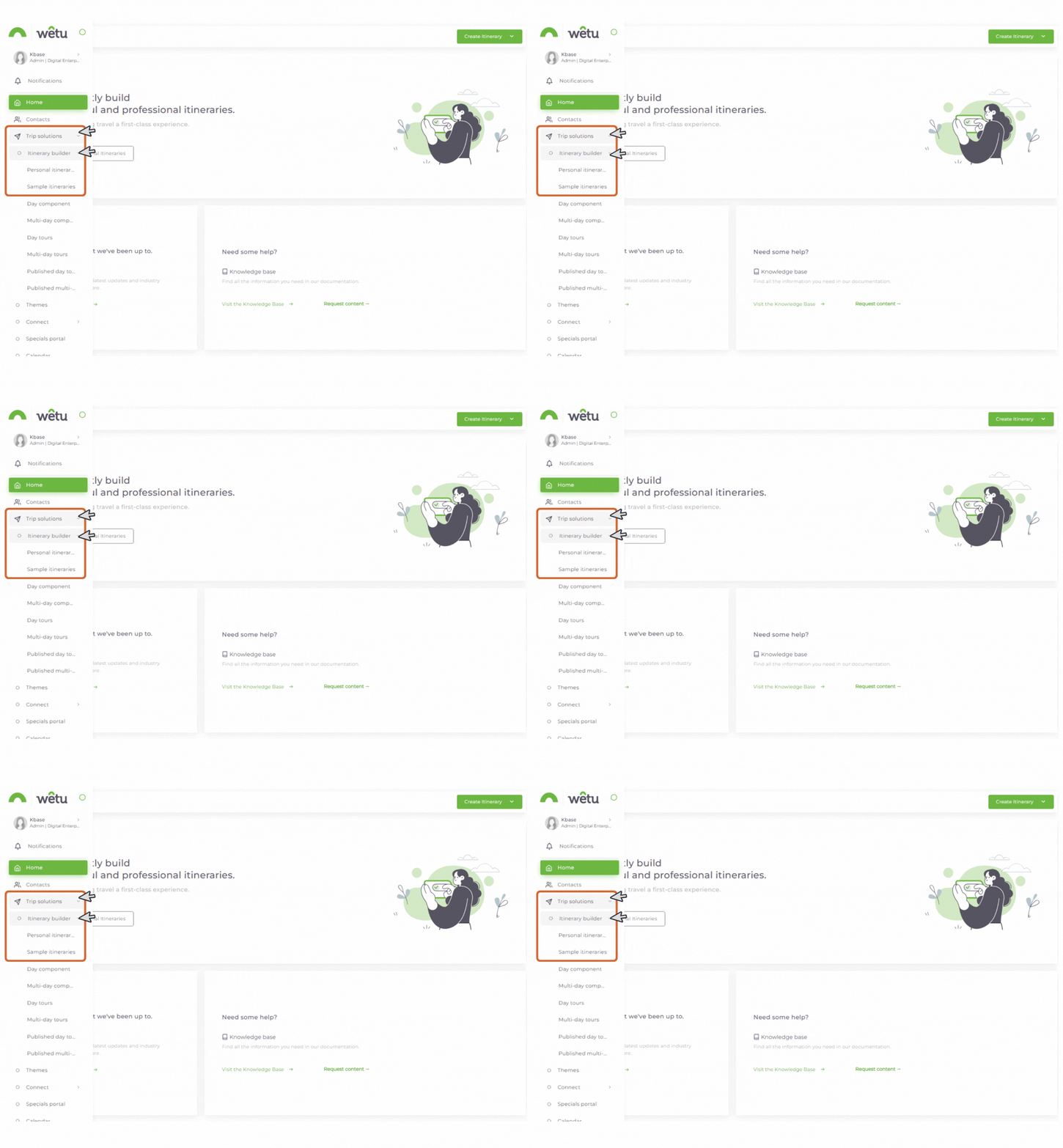
- Navigate to Trip Solutions.
- Click Itinerary Builder.
- Select Personal Itineraries or Sample Itineraries.
- Your existing itineraries are listed on the right-hand side.
Note: The copy functions apply to both Personal Itineraries and Sample Itineraries. The same basic process also applies to duplicating Components.
back to top
Copy functions
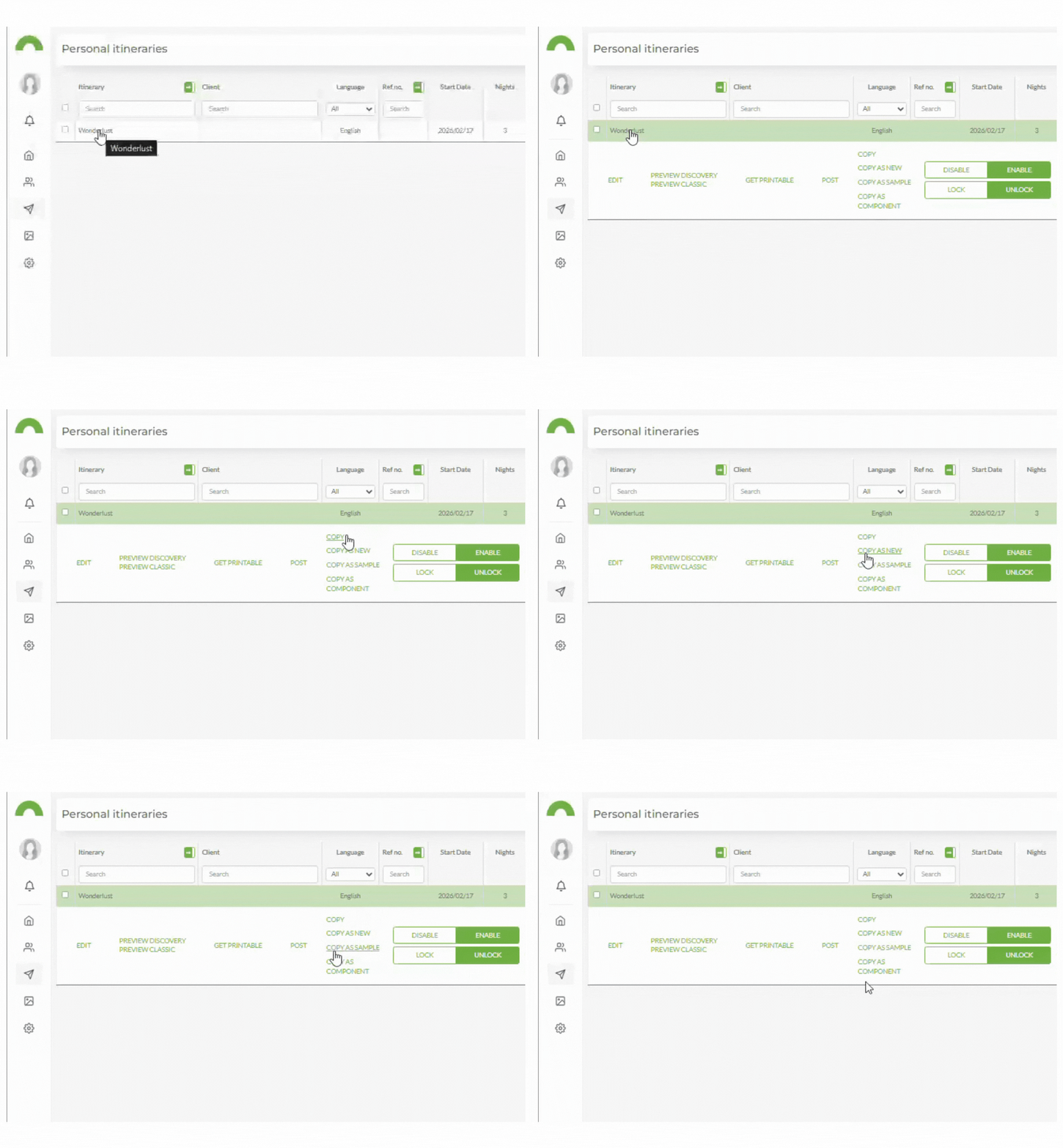
- Under Itinerary Builder, click Personal Itineraries or Sample Itineraries.
- Select the itinerary you want to copy.
- Several copy options will appear - choose the one that suits your needs.
back to top
Copy
Makes an exact duplicate of the itinerary, including all details and the itinerary name.
Note: Only the Itinerary Link and Mobile Code will be different in the copy.
- Click Copy.
- The duplicate itinerary will open.
- Update the itinerary name.
- Click Save & Exit or Quick Save.
Copy as New
Makes a copy of the itinerary but removes all client details and the original itinerary name.
Note: Only the Itinerary Link and Mobile Code will be different in the copy.
- Click Copy as New.
- The duplicate itinerary will open.
- Enter a new itinerary name.
- Click Save & Exit or Quick Save.
Copy as Sample
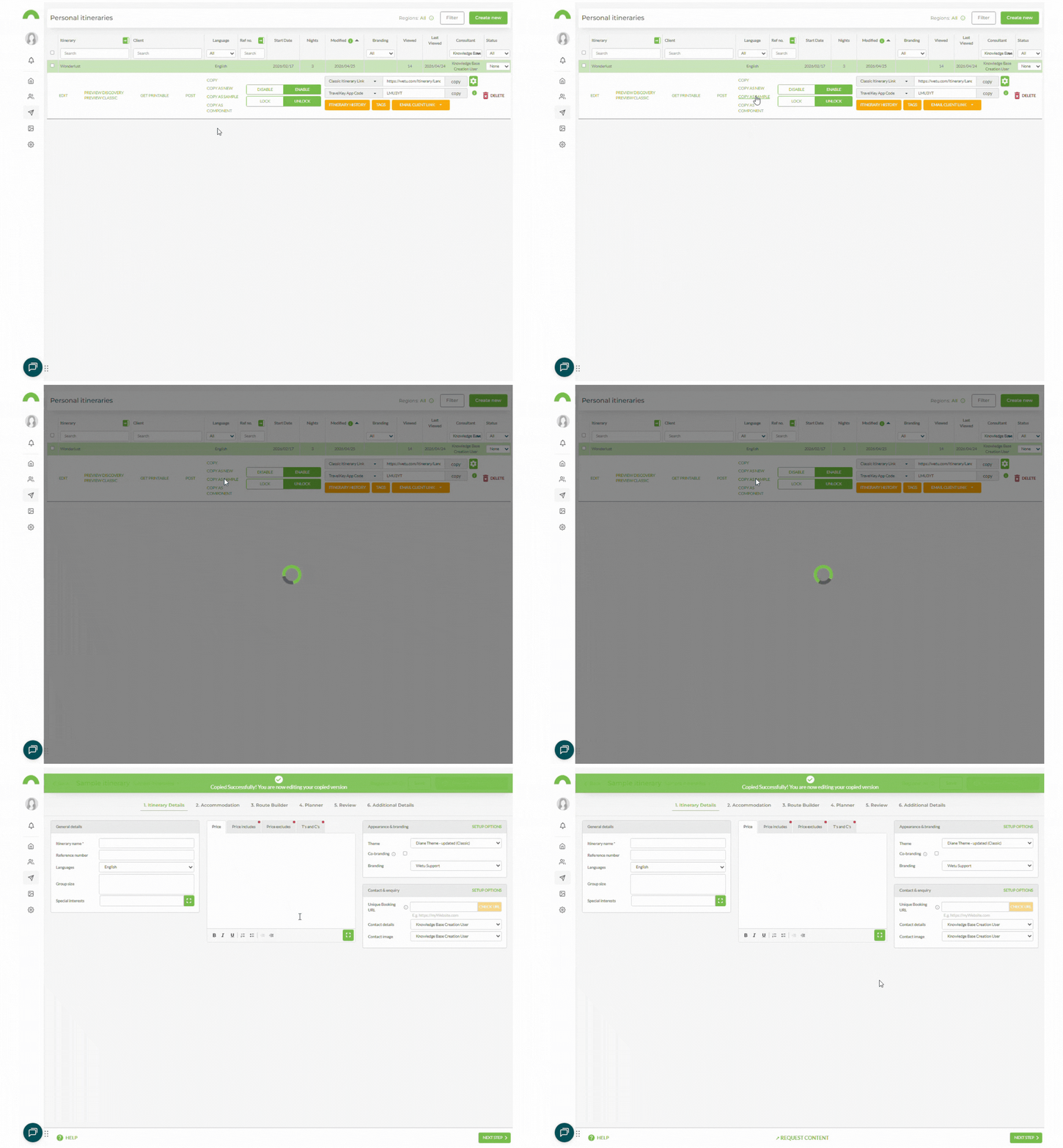
Converts a Personal Itinerary into a Sample Itinerary, removing client details.
Tip: Use this when you have built a detailed Personal Itinerary and want to turn it into an example itinerary for your website.
- Click Copy as Sample.
- A Sample Itinerary version of your Personal Itinerary will open.
The following will be removed from the new Sample Itinerary:
| Removed fields |
|---|
| Itinerary Name |
| Client Contact Details |
| Traveller Details |
| Travel Dates |
Copy as Component
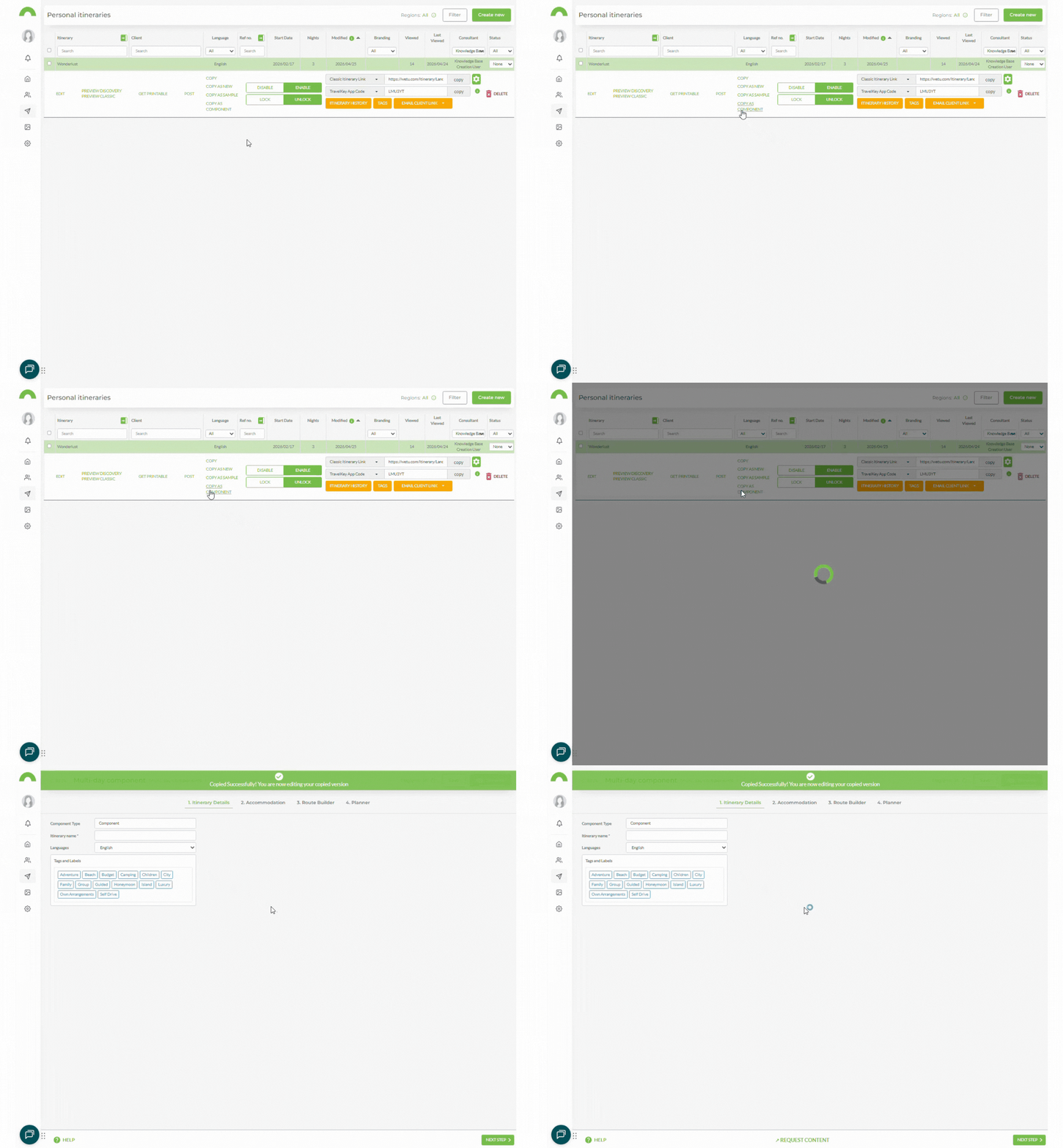
Converts a Personal or Sample Itinerary into a Multi-Day Component that can be reused in any itinerary.
Tip: Multi-Day Components are pre-built packages that can be added in the Accommodation step of the Itinerary Builder. Using components saves time when building itineraries.
- Click Copy as Component.
- The component will open in the Builder.
- Enter a name in the Itinerary Name field.
- Edit accommodation, activities, and any other details as needed.
- Click Save & Exit when done.
Need Help?
- Contact Support: support@wetu.com
- Live Chat: Availabale on your Dashboard