
Quick Links
- Getting started
- Lock an itinerary, component, or tour
- Unlock an itinerary, component, or tour
- Need Help?
Getting started
1. Navigate to Trip Solutions.
2. Click Itinerary Builder to open the dropdown menu.
3. Select the itinerary type you want to work with (e.g. Personal Itinerary).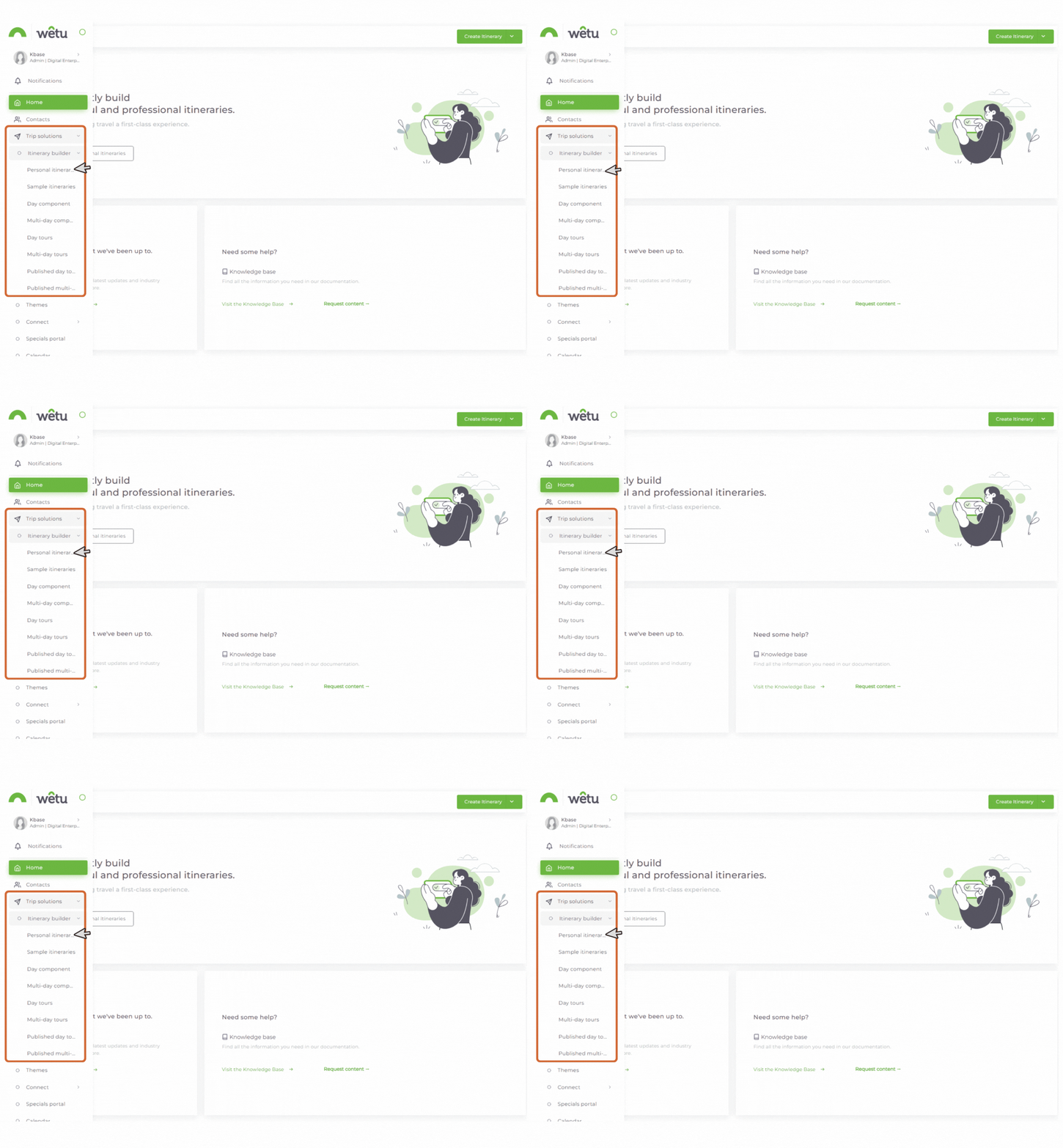
Note: The lock function applies to Personal Itineraries, Sample Itineraries, Components, and Day Tours. The options available may vary depending on the functionality enabled on your account.
Lock an itinerary, component, or tour
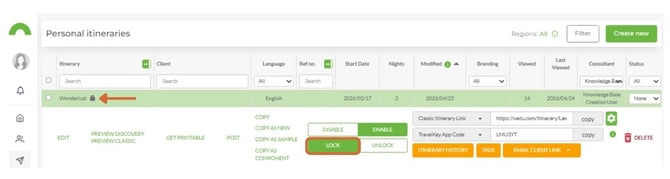
To lock a single itinerary:
- In the Itinerary Browser, select the itinerary you want to lock.
- Click the Lock toggle switch.
- A lock icon will appear next to the itinerary confirming it is locked.
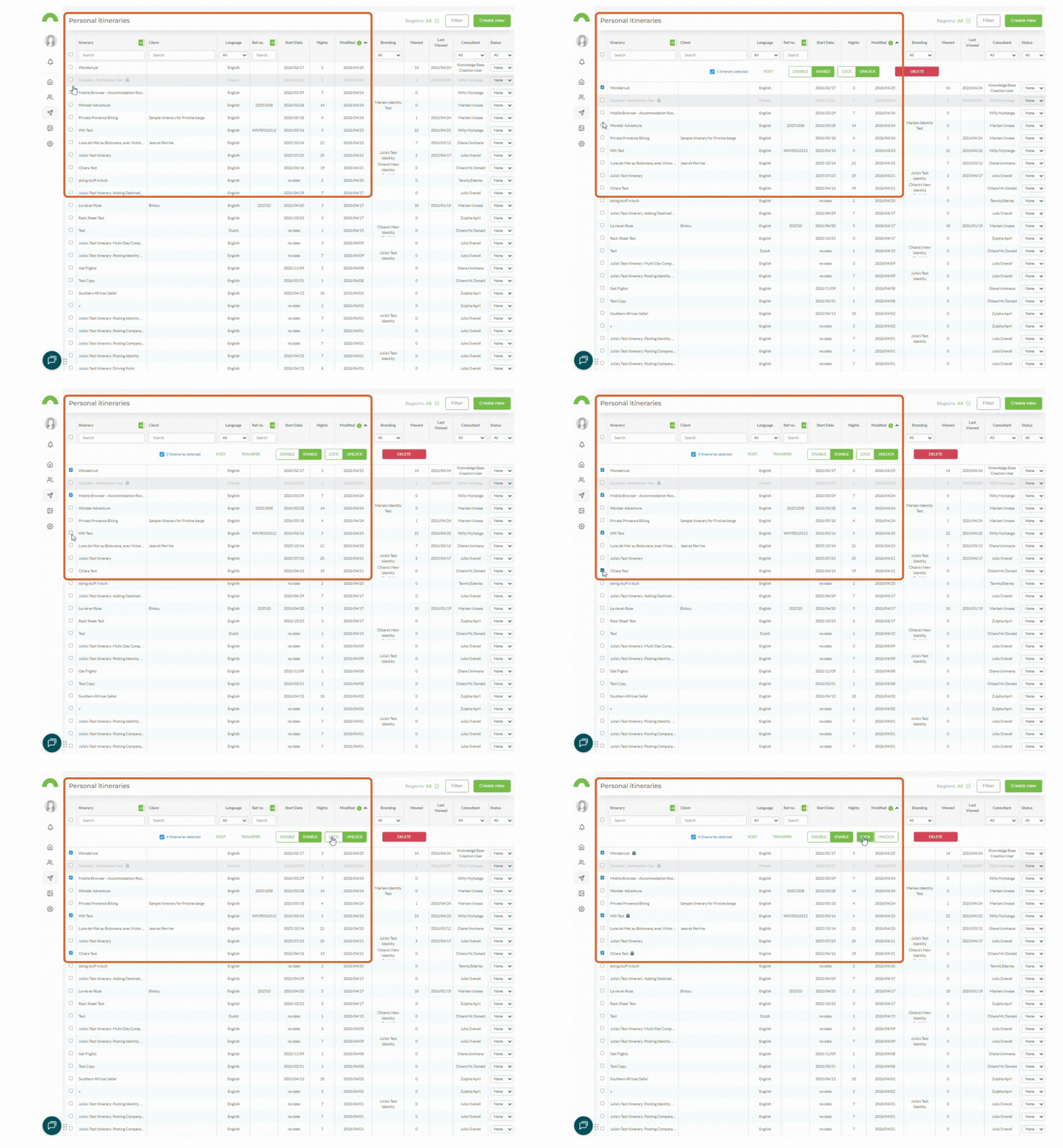
To lock multiple itineraries at once:
- In the Itinerary Browser, select the radio button next to each itinerary you want to lock.
- A menu will appear at the top of the screen.
- Click Lock to lock all selected itineraries.
Note: You can lock and unlock your own itineraries, components, and day tours. Admin users can lock any user's itineraries, components, or day tours.
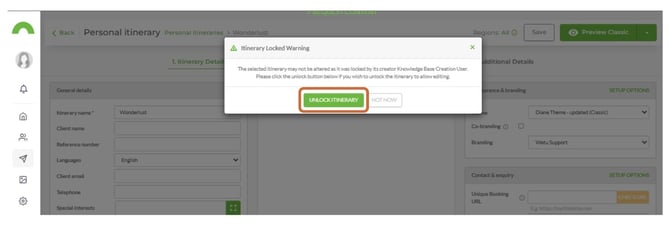
Note: A locked itinerary can still be sent to clients - locking does not affect client access. It only prevents editing. If a user tries to edit a locked itinerary, a pop-up will indicate who locked it. It can then be unlocked by the user who locked it or by an Admin.
Unlock an itinerary, component, or tour
To unlock a single itinerary:
- In the Itinerary Browser, click on the locked itinerary.
- Click Unlock.
- The itinerary can now be edited again.
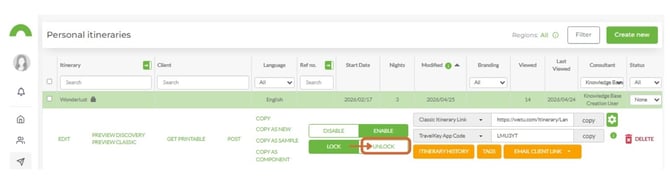
To unlock multiple itineraries at once:
- In the Itinerary Browser, select the radio button next to each itinerary you want to unlock.
- A menu will appear at the top of the screen.
- Click Unlock to unlock all selected itineraries.
Need Help?
- Contact Support: support@wetu.com
- Live Chat: Available on your Dashboard