
Quick Links
- Getting Started
- Editing Transfer Details
- Editing the Transfer Route
- Adding Self Drive
- Editing Self Drive Routes
- Adding Additional Arrangements
- Flight Lookup
- Need Help?
1. Getting Started
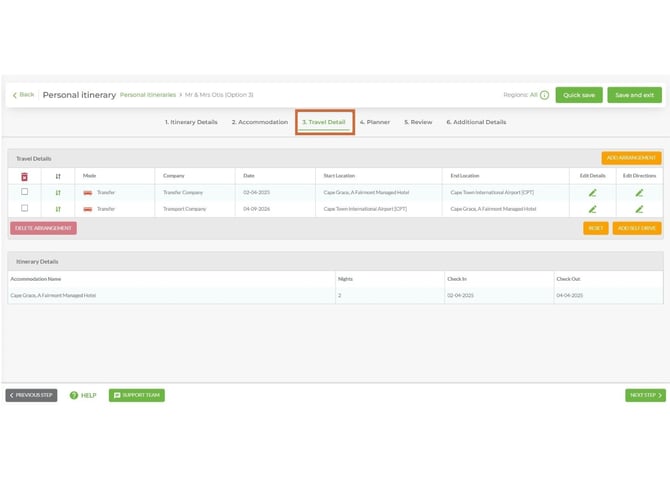
The Travel Details tab is the third tab in the Itinerary Builder. Travel services pull through directly from your booking system and can be manually edited from here.
1. Open the Itinerary Builder for your booking.
2. Select the third tab - Travel Details.
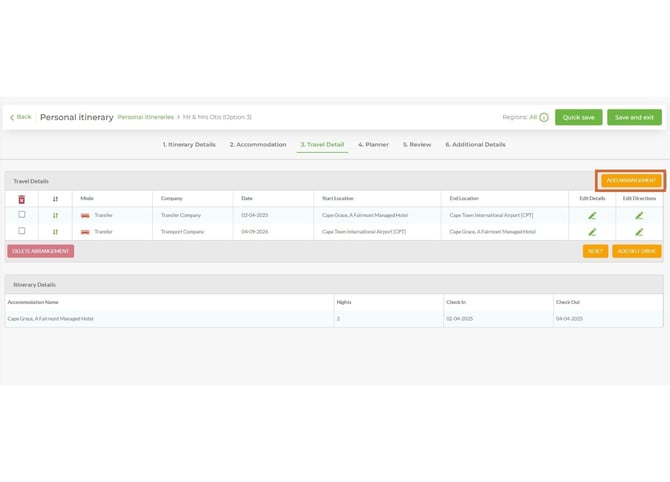
3. Each travel service from your booking system will appear as an individual line item. You can edit service arrangements and directions directly from this screen.
2. Editing Transfer Details
The following fields are pulled directly from your booking system:
Company Name, Mode, First Location, Second Location, First Time, Second Time, Date
To edit these or add client-specific details:
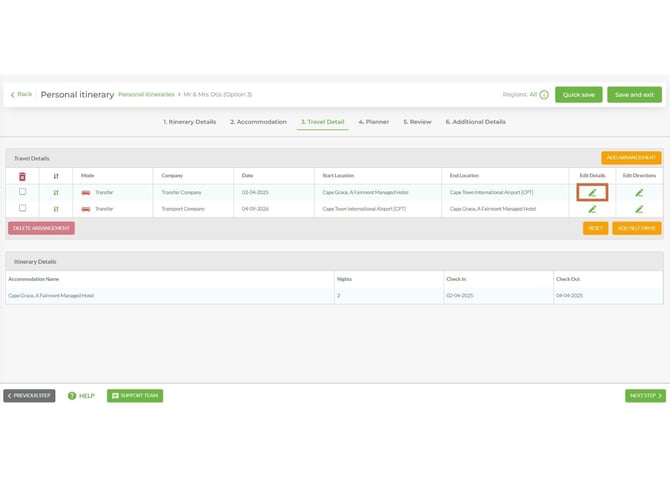
1. Select the Edit Details icon next to the relevant service.
2. Edit the standard fields as needed. Depending on the service type, you can also select an icon and a type for the transfer.
3. Save your changes.
3. Editing the Transfer Route
Transfer routes are populated automatically in Wetu via Google Maps. You can adjust the route if needed.
1. Select the Edit Details icon for the transfer service.
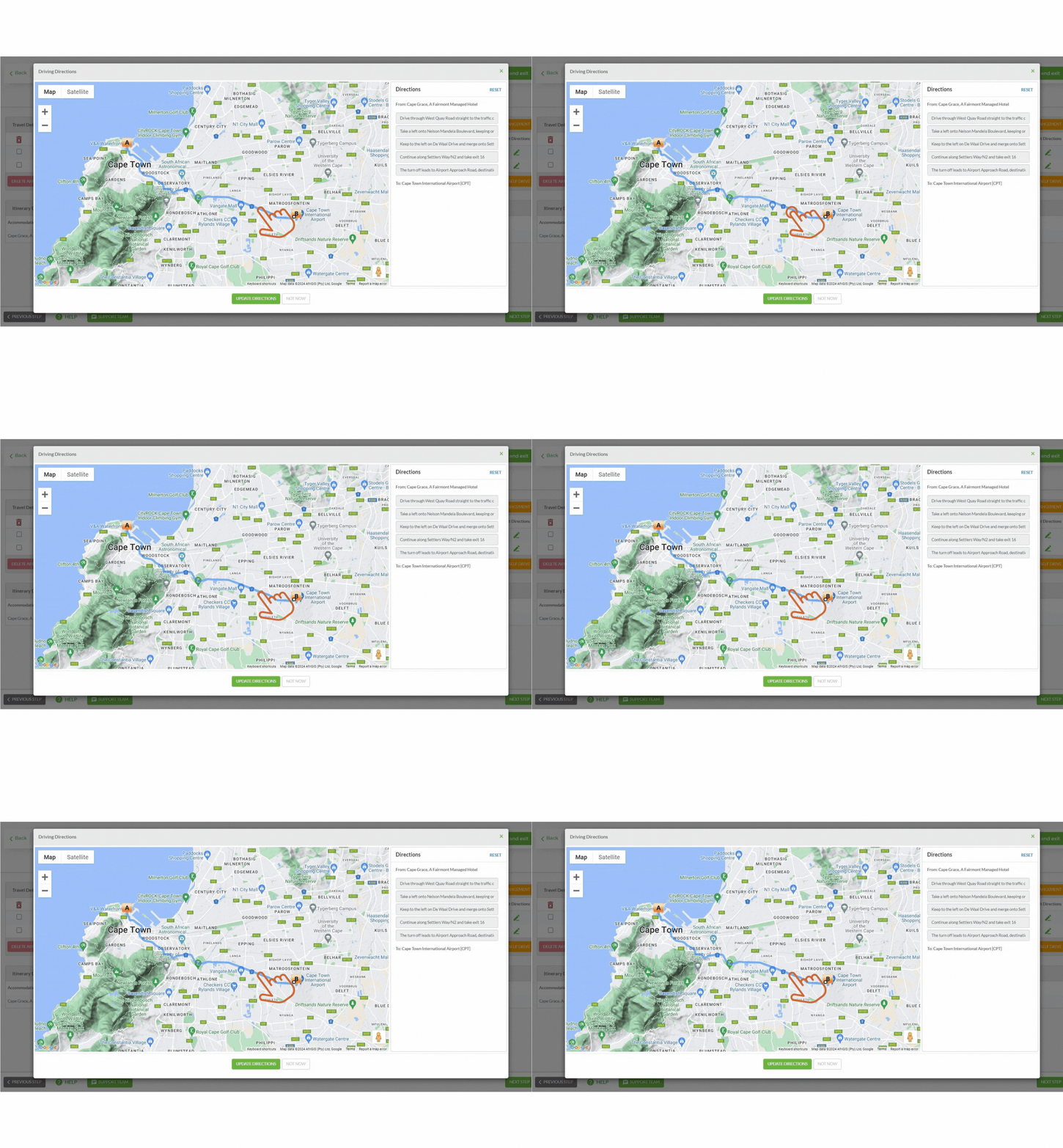
2. The route will display as a blue line on the map, with directions shown on the right-hand side.
Note: Directions are greyed out for Transfers - there are no direction functions available for this service type.
3. To adjust the route, click and drag the blue line to the correct path.
4. Use the zoom controls to get a closer view of the roads and plot a more accurate route.
4. Adding Self Drive
Self Drive legs do not pull through automatically from your booking system. You need to add them manually.
To add Self Drive legs:
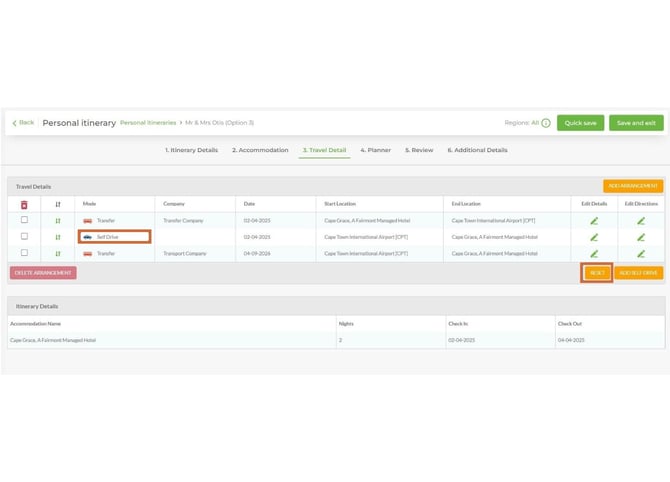
1. In the Travel Details tab, select Add Self Drive.
2. The self drive legs will be added. Routes will start and end at the relevant hotels.
To remove Self Drive legs:
1. Select Reset to remove the self drive legs from your itinerary.
Important: The Reset button is only available immediately after adding Self Drives. If you change tabs or save before resetting, you will need to manually delete the Self Drive routes.
5. Editing Self Drive Routes
Self Drive routes and directions are populated from Google Maps. Editing works in the same way as transfer routes, though the map is accessed differently.
1. Open the self drive route you want to edit from the Travel Details tab.
2. Adjust the route as needed - the directions function works in the same manner as described in the [Editing the Transfer Route](#editing-the-transfer-route) section above.
6. Adding Additional Arrangements
If a leg of the journey is missing - either because it wasn't added to the costing, or because self drive routes only go between hotels - you can add it manually.
1. In the Travel Details tab, select Add Arrangement.
2. A drop-down menu will appear. Select the type of travel arrangement you'd like to add.
3. A modal will open for that arrangement type. Fill in the relevant details.
4. The new arrangement will appear as a line item and can be edited using the same options as other travel services.
7. Flight Lookup
For flight services, Wetu pulls through core details from your booking system. You can use the Flight Lookup function to automatically populate full flight information.
The following fields are pulled directly from your booking system:
Flight Company Name, Departure Airport, Arrival Airport, Date, Flight Time
To use the Flight Lookup function:
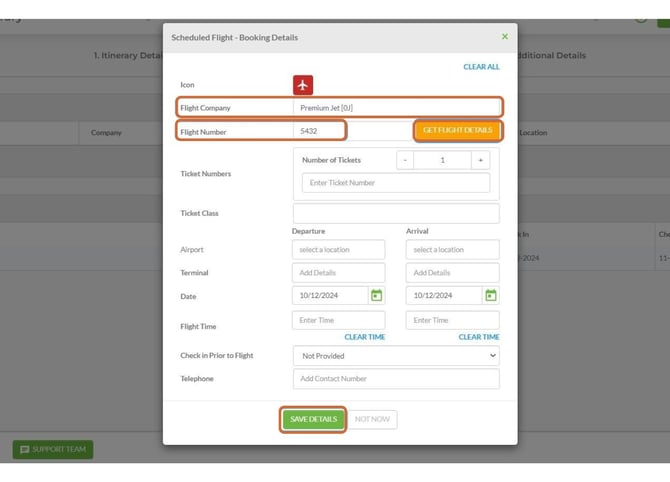
1. Re-enter the flight company name in the relevant field.
2. Enter the flight number.
3. Select Get Flight Details.
4. Wetu will automatically populate the remaining flight details in your itinerary.
Need Help?
For support reach out to the Wetu enterprise team.
enterprise@wetu.com