
Quick Links
- Access the Calendar
- Consultant calendars
- Navigate the Calendar
- Points to note
- Need Help?
Access the Calendar
1. From your Wetu account, navigate to Trip Solutions › Calendar.
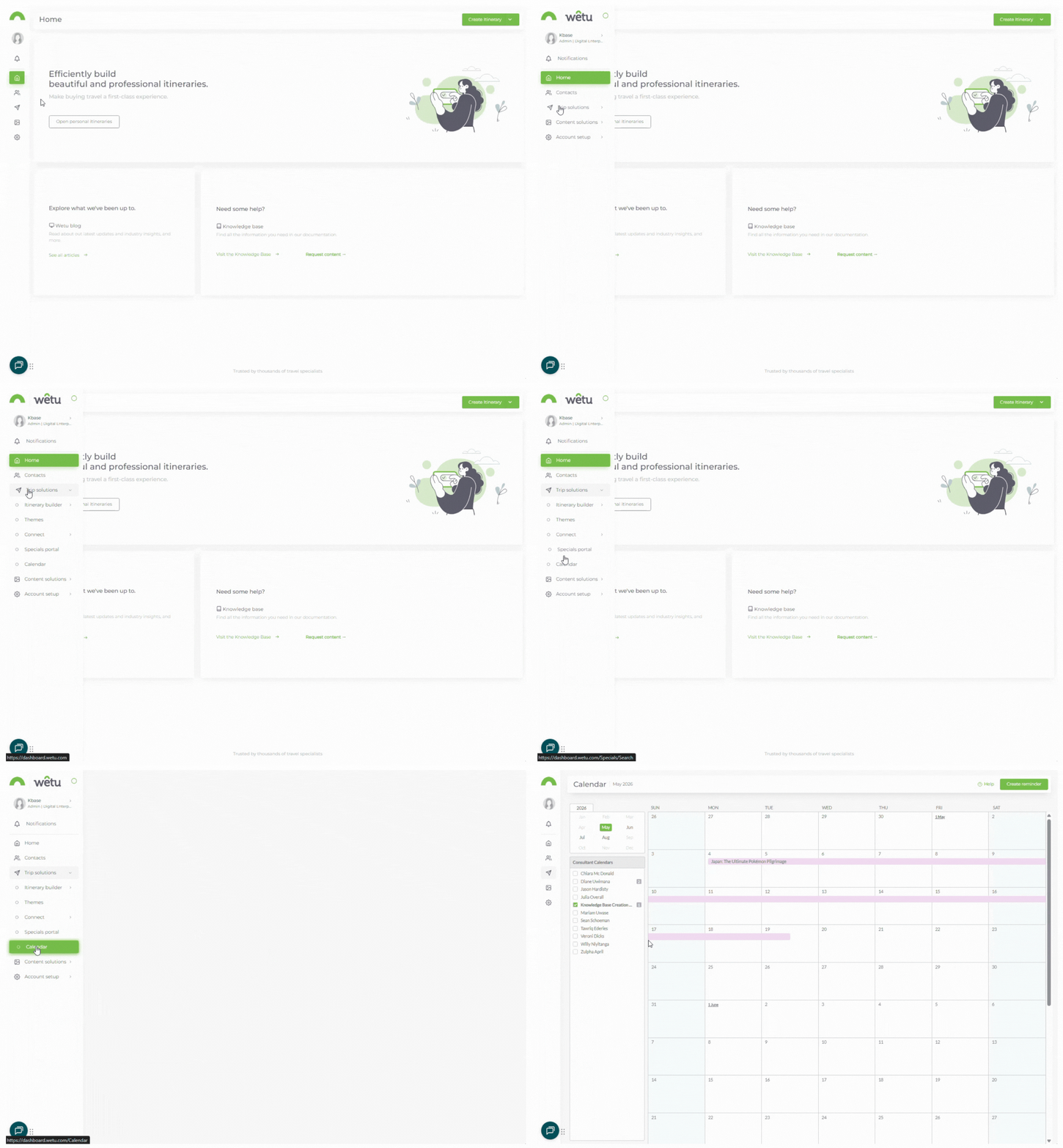
Note: Itineraries only appear in the Calendar when their status is set to Booked, Travelled, or Paid. If no itineraries have these statuses, a pop-up will appear. The status can be changed in the Itinerary Browser.
2. If the pop-up appears, select Visit Itinerary Builder to update itinerary statuses, or select View Calendar to proceed.
Consultant calendars
1. On the left side of the Calendar, tick the checkbox beside any consultant whose booked itineraries you want to view.
2. When multiple consultants are selected, the consultant's initials will appear next to each itinerary name so you can tell them apart at a glance.
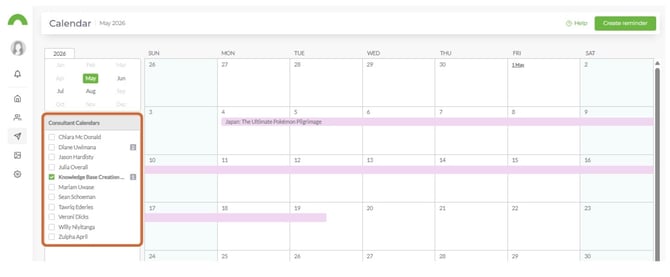
Note: Initials are pulled from each consultant's Personal Details. If two consultants share the same initials, update their user details to use a longer or distinct identifier.
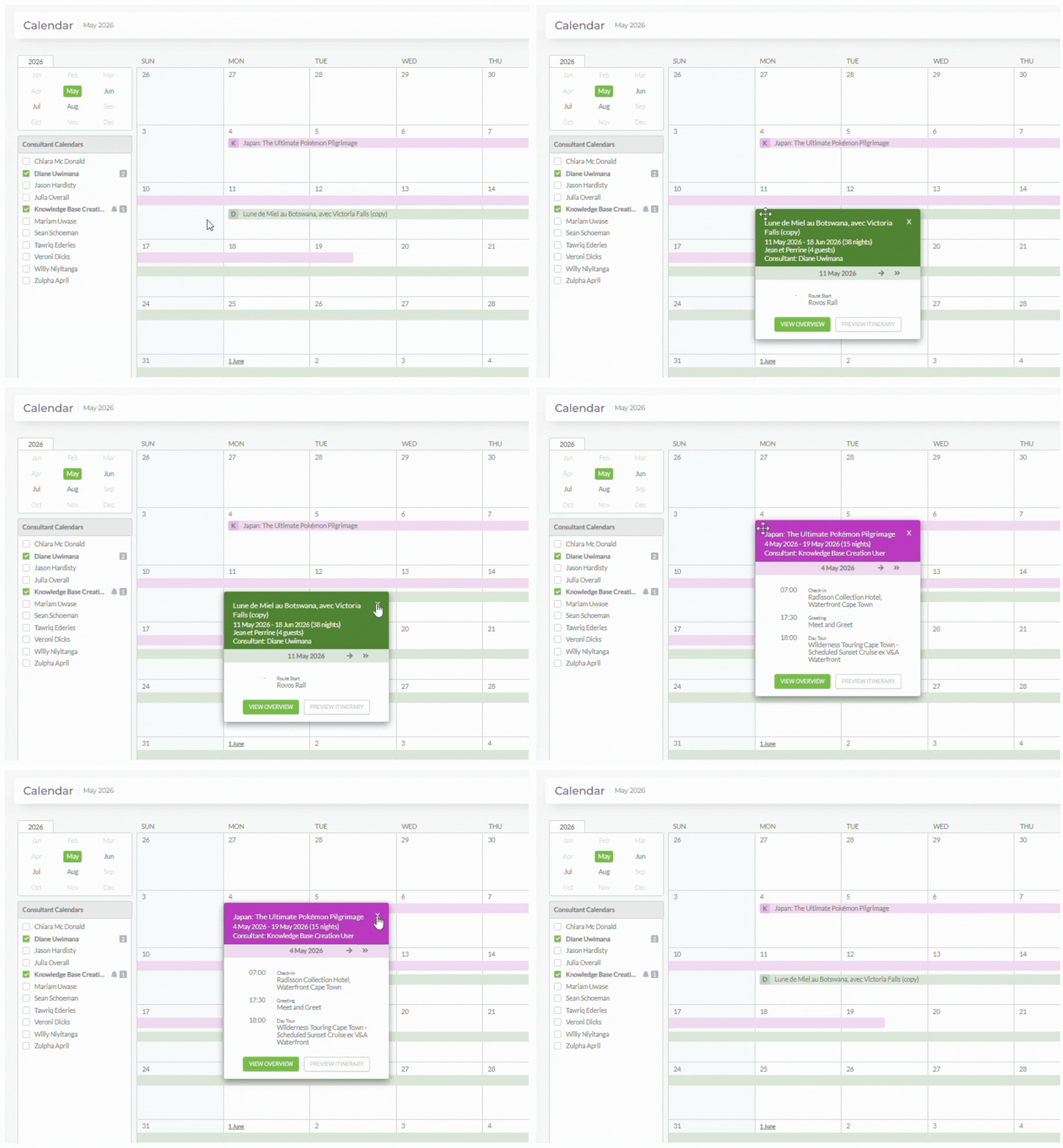
4. Click on any itinerary on the calendar to open the trip information card, which also shows which consultant the itinerary belongs to.
Navigate the Calendar
Colour coding
Each itinerary is displayed in a contrasting colour spanning its full duration. Hover over a colour block to see the itinerary name.
Trip information card
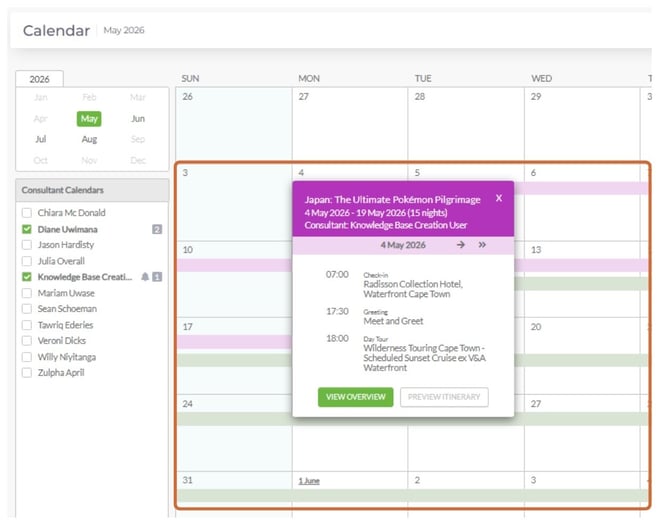
1. Click on any itinerary to open the trip information card.
2. The card shows all services in the itinerary, accommodation, activities, transfers, and more. Days with no activity display as ~Day at Leisure~.
3. Use the double arrows to jump to the first or last day of the itinerary.
Trip overview
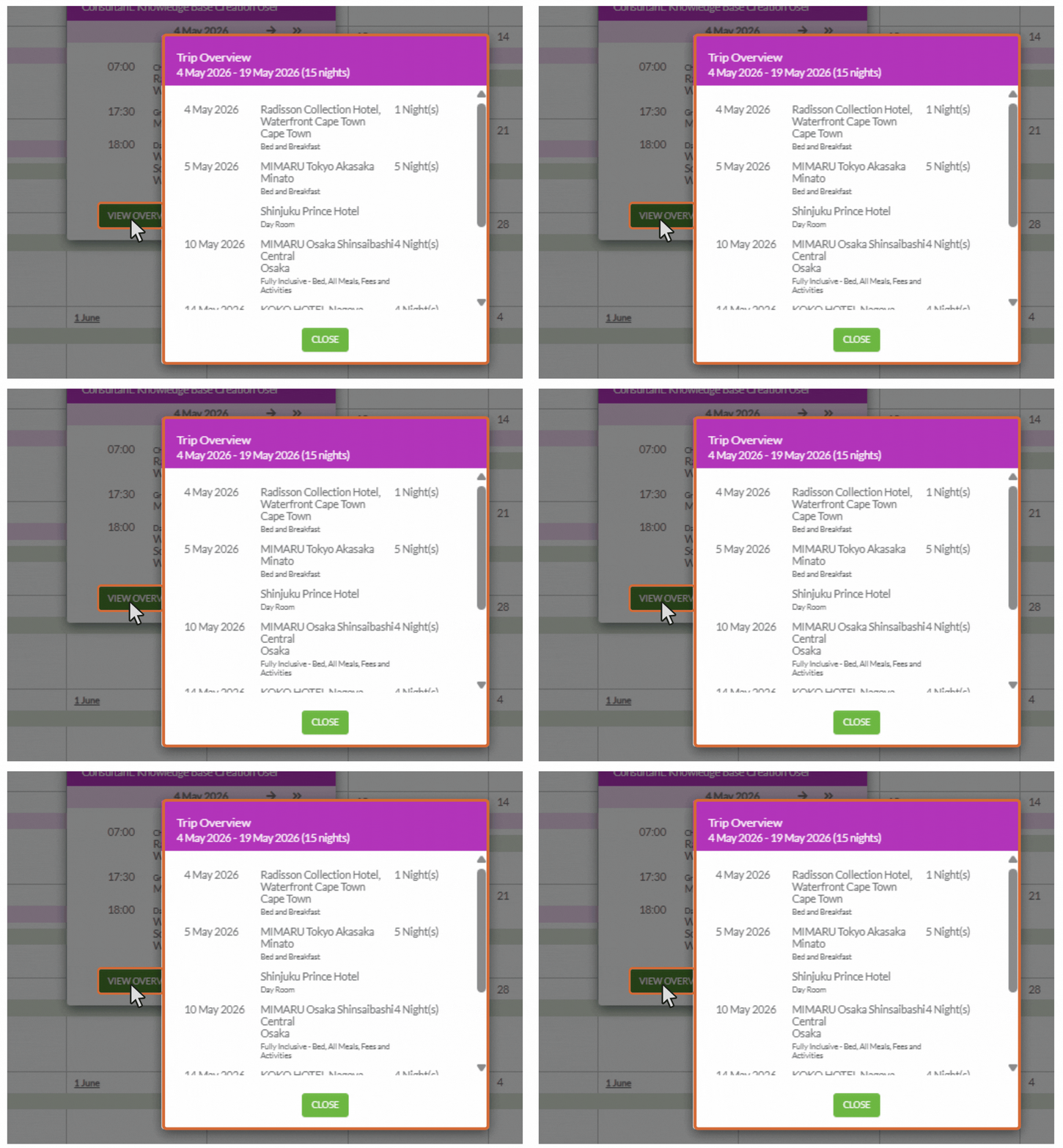
1. In the trip information card, click View Overview to see a summary of all accommodation - overnight stays, alternative accommodations, and day rooms - with dates and number of nights.
Preview itinerary
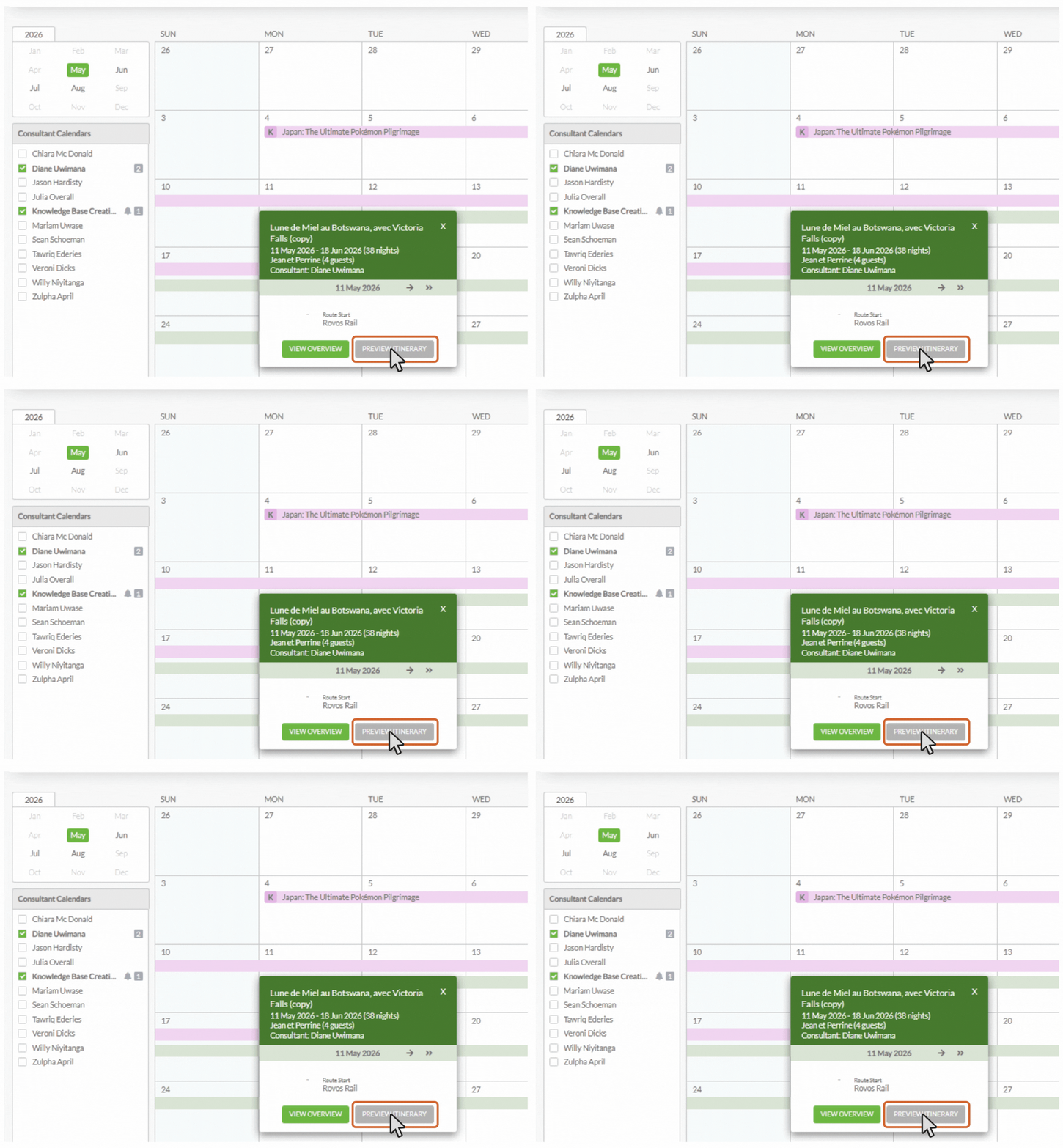
1. In the trip information card, click Preview Itinerary to open the itinerary as the client would see it - a convenient way to confirm everything is displaying correctly without leaving the Calendar.
Points to note
- Reminders can be created, edited, and viewed by all users, regardless of user rights.
- Reminder emails are sent to the email address in each consultant's Personal Details section.
- When a reminder is due, the recipient receives an email with the details specified when the reminder was created.
Need Help?
- Contact Support: support@wetu.com
- Live Chat: Available on your Dashboard