
Quick Links
- Add a destination
- Delete a destination
- How destinations display on outputs
- Need Help?
Add a destination
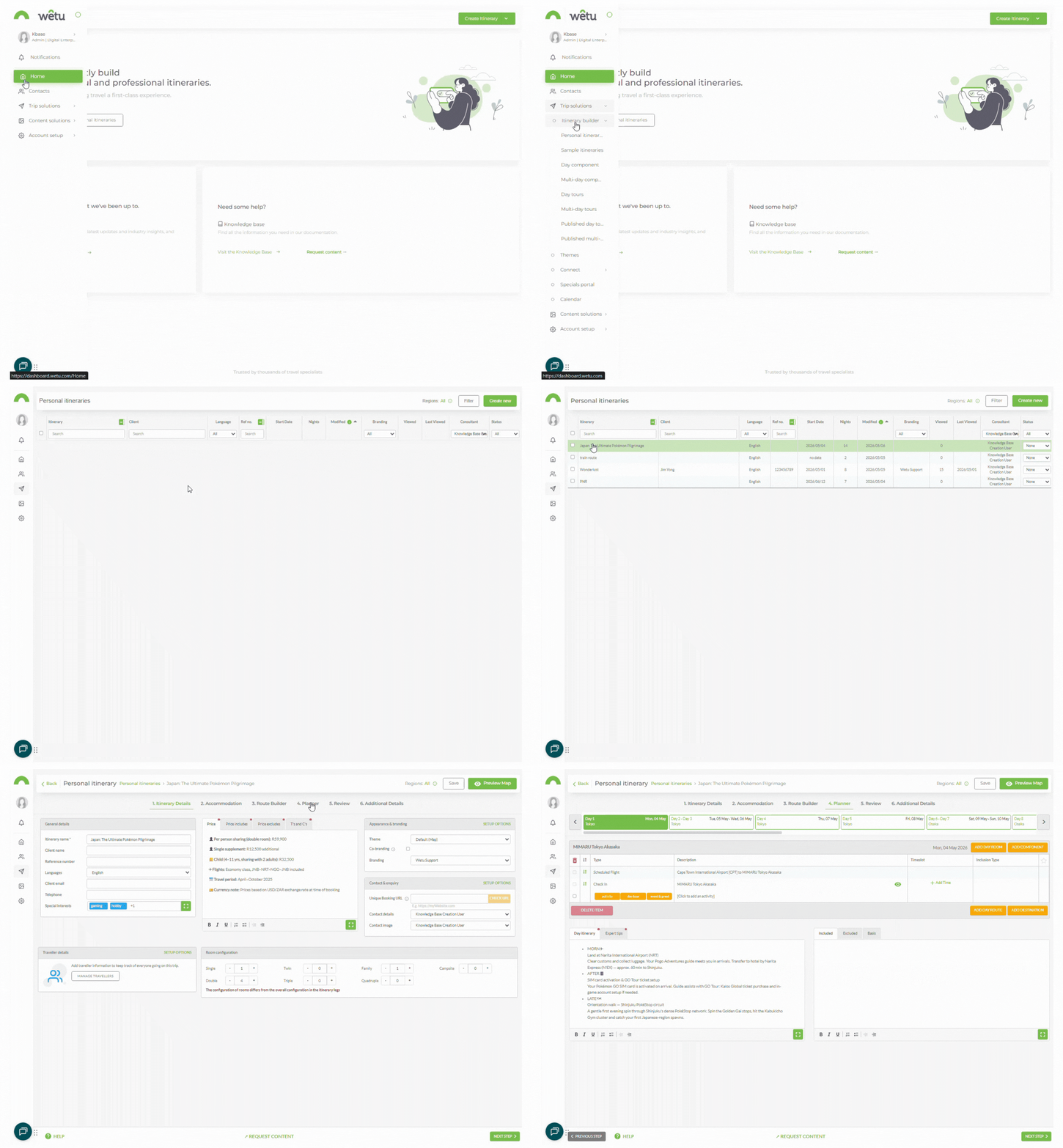
1. Open the itinerary and navigate to the Planner step.
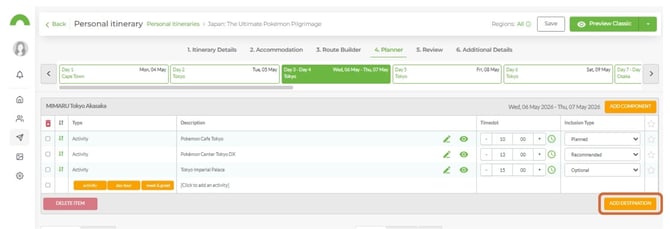
2. Locate the activity block for the day you want to add a destination to.
3. Click Add Destination at the bottom right of the activity block.
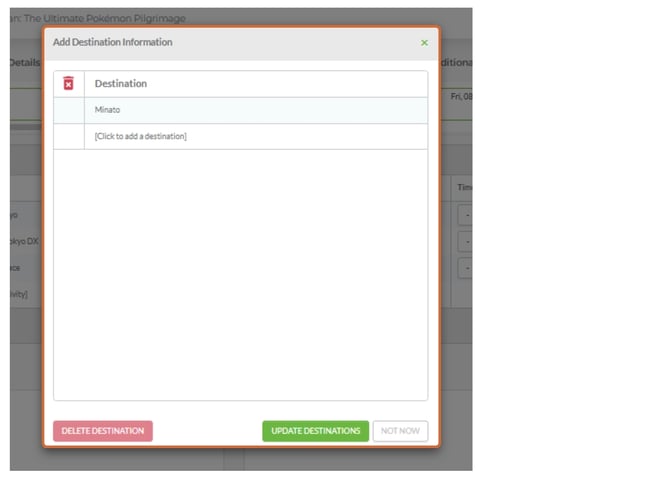
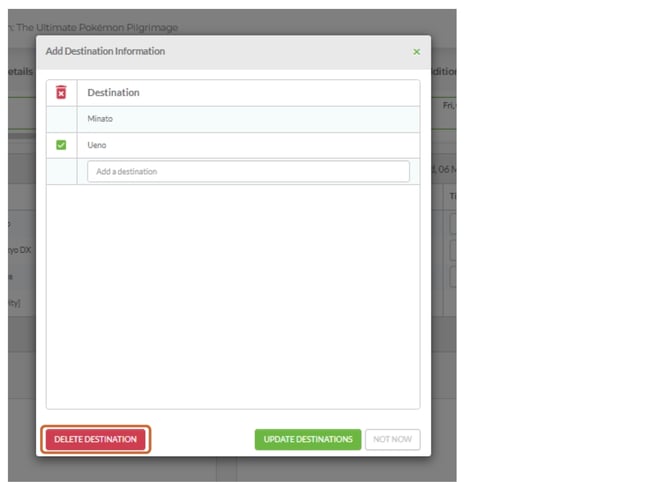
4. A pop-up window will appear.
5. Click in the Add Destination field and start typing the destination name.
6. Select the correct destination from the dropdown.
7. Click Update Destinations to save.
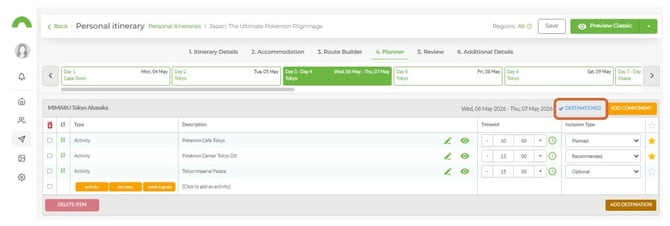
8. A blue tick and the label Destination(s) will appear at the top of the activity block, confirming the destination has been added.
Delete a destination
1. Click Add Destination on the activity block again.
2. Select the destination you want to remove.
3. Click Delete Destination.
4. Click Update Destination(s) to save the change.
How destinations display on outputs
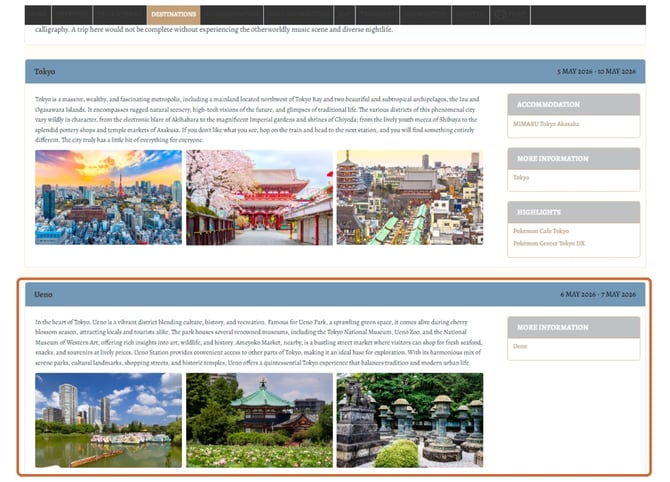
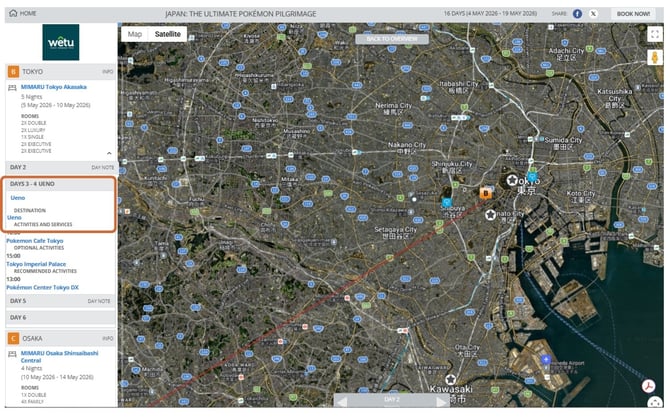
| Output | Where the additional destination displays |
|---|---|
| Digital Itinerary | Listed below the main destination assigned during accommodation setup |
| Virtual Itinerary | Listed under the specific day as a clickable link that populates related content |
Need Help?
- Contact Support: support@wetu.com
- Live Chat: Available on your Dashboard