
Quick Links
- Access the Review tab
- Personal details
- Accommodation details
- Important contacts
- Traveller details
- Miscellaneous fees
- Need Help?
Access the Review tab
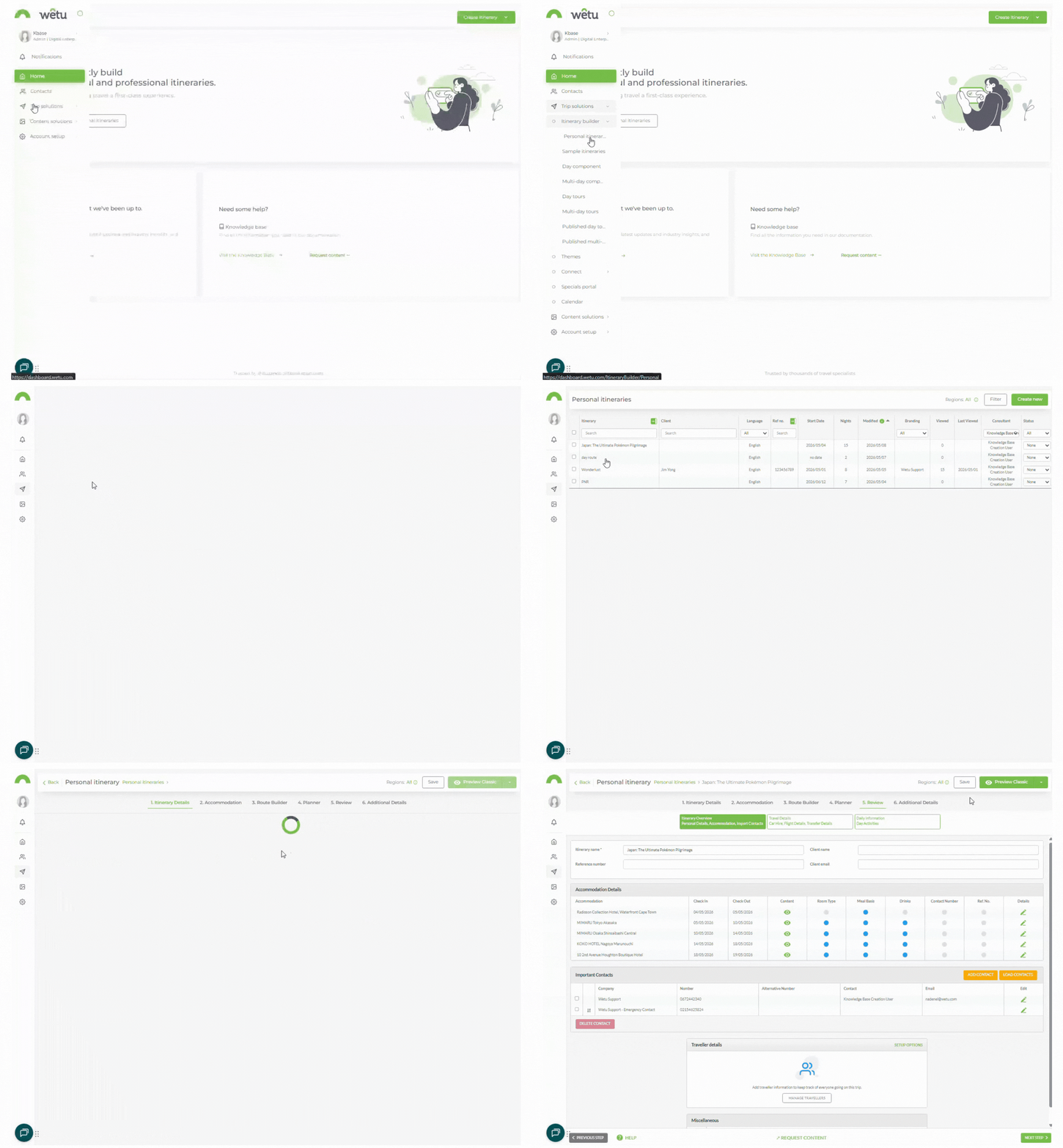
1. Open the itinerary in the Itinerary Builder.
2. Navigate to the Review tab.
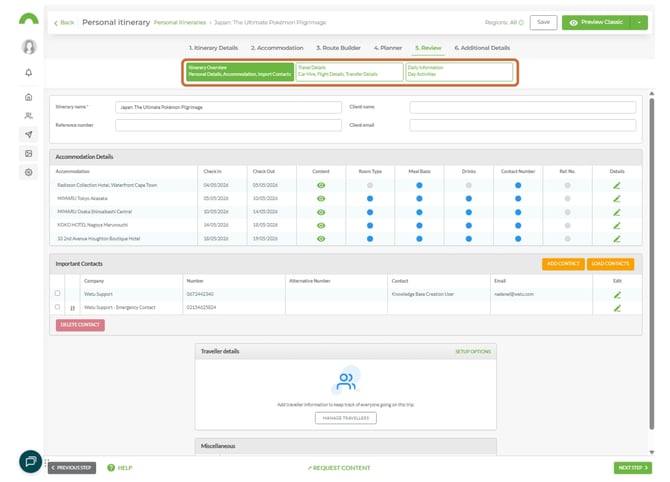
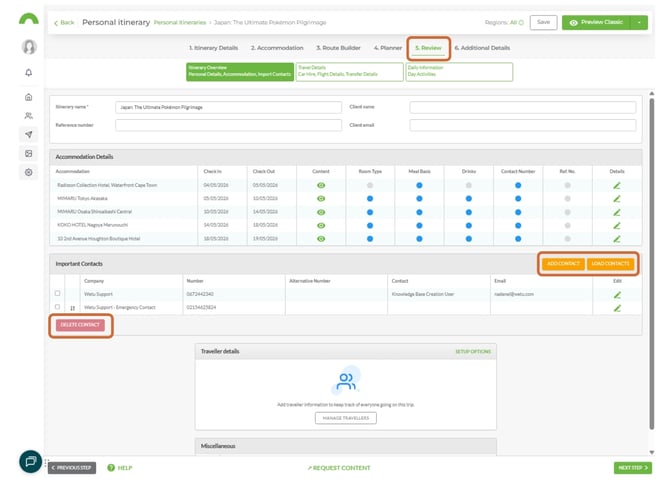
3. Click Itinerary Overview, Travel Details, or Daily Information at the top of the screen to switch between sections.
Personal details
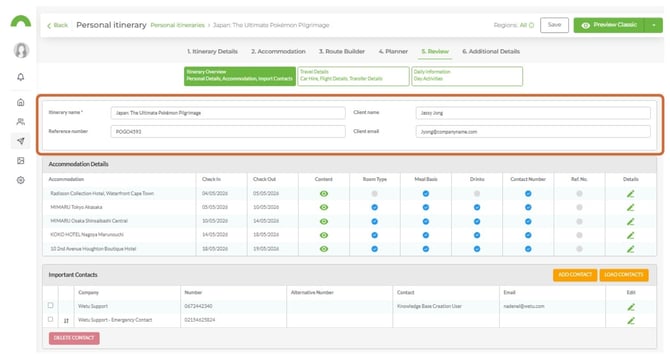
In the Itinerary Overview, you can quickly edit the following client booking details:
-
Itinerary Name
-
Client Name
-
Reference Number
-
Email Address
Accommodation details
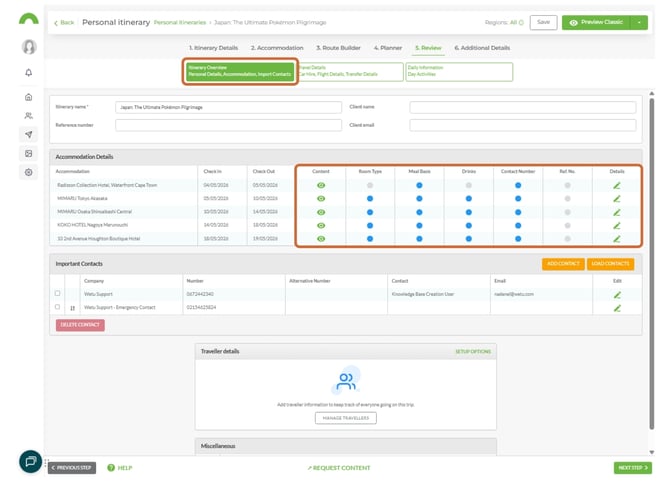
All accommodations added in Step 2: Accommodation are listed here.
-
Click the eye icon to view the content loaded for an accommodation.
-
Blue ticks indicate information that has been loaded.
-
Click the pencil icon to edit the details.
Important contacts
1. Click Add Contact and enter the contact details in the pop-up.
2. Alternatively, click Load Contacts to select from your preloaded contacts.
3. To remove a contact, click Delete Contact.
Note: Contacts are managed in Account Setup > Account > Contacts
Traveller details
The Traveller Details section displays the names and ages of travellers as added in Step 1: Itinerary Details.
Miscellaneous fees
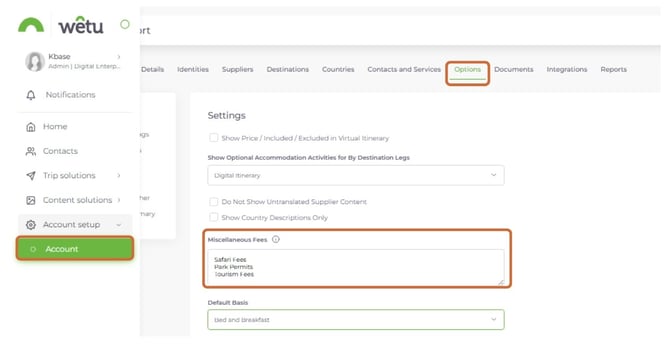
This section displays the miscellaneous options configured in Account Setup > Account > Options. Select the fees relevant to this booking.
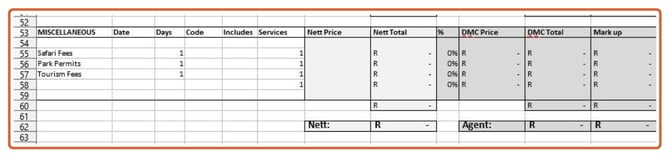
Note: Miscellaneous fees do not appear on any client-facing outputs. They add additional lines to the Pricing Sheet generated from Step 6: Additional Details.
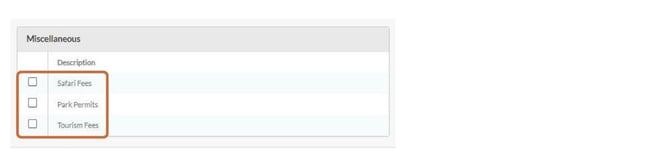
2. To manage the available options, navigate to Account Setup > Account > Options and add Miscellaneous fees there.
3. Once selected in the Review tab, the fees will appear on the Pricing (nett) sheet for adding costs against each service.
Navigate to your Pricing (nett) sheet
1. Select all three fees in the Review tab Miscellaneous section2. Go to Step 6: Additional Details
3. Generate the Pricing sheet
Need help?
- Contact Support: support@wetu.com
- Live Chat: Available on your Dashboard