
Quick Links
- Getting started
- Add accommodation
- Room configuration
- Basis and drinks
- Live availability
- Set destination
- Day grouping
- Alternative accommodation
- Insert accommodation before an entry
- Reverse itinerary
- Need Help?
Getting started
1. Create a new itinerary or open an existing one in the Itinerary Builder.
2. Complete Step 1: Itinerary Details.
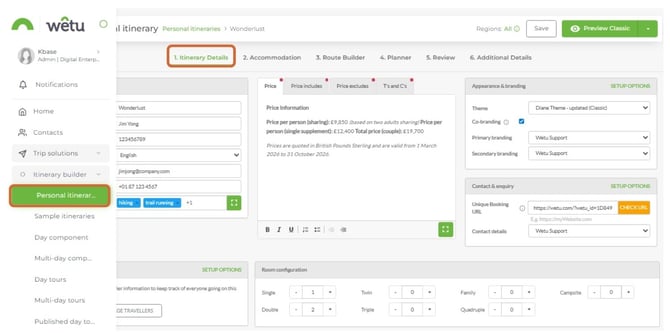
3. Click Next Step at the bottom right, or click Accommodation in the top navigation bar.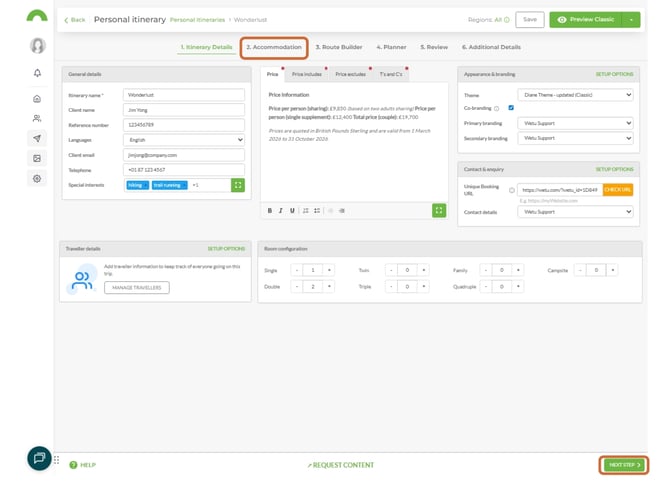
4. In Step 2, click the calendar icons at the top to enter your travel dates.
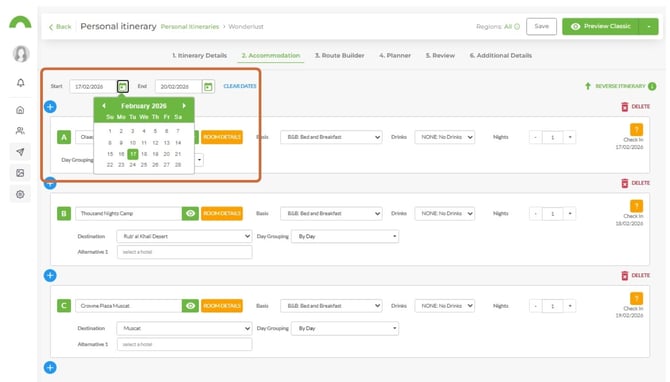
Note: The total number of nights shown in the bottom right corner must match the combined number of nights set across all accommodation entries.
Add accommodation
1. Click the blue Accommodation button.
2. Start typing the property name in the text field.
3. Select the correct property from the dropdown list.
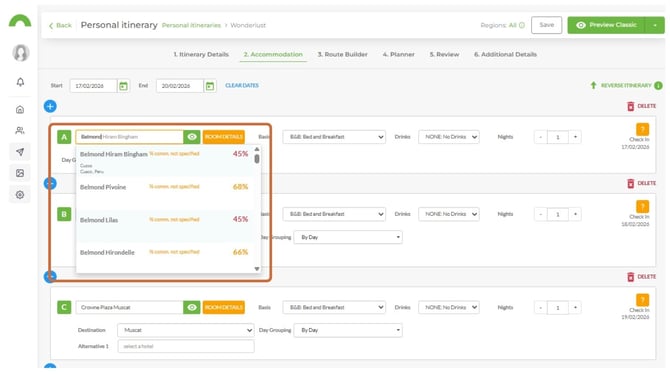
Note: The IB icon indicates the property has a paid Wetu listing. The % figure is an automated Wetu Content Rating - a higher rating generally means more complete and up-to-date content.
Note: If the property you are looking for does not appear, contact contentservices@wetu.com to have it added.
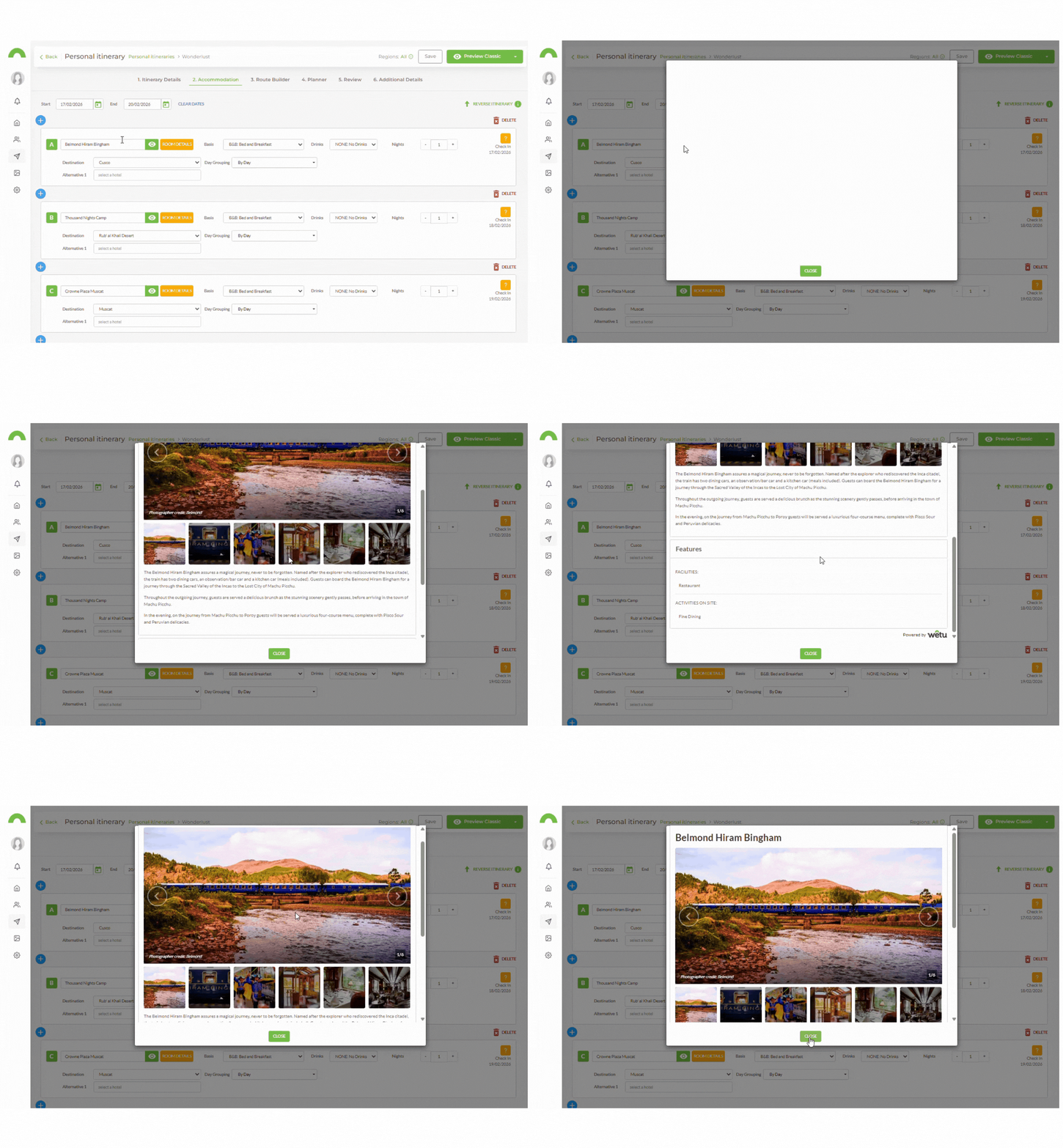
4. Click the preview icon next to the selected property to view its content - including images, description, and room types.
Room configuration
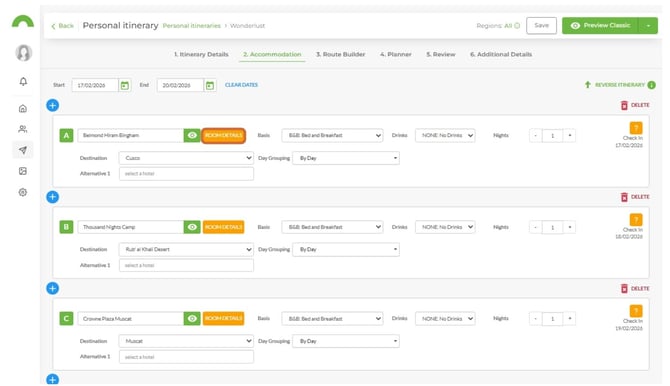
1. Click Room Details.
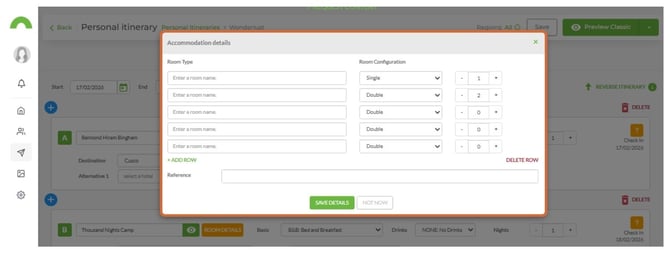
2. Set the room type, room configuration, and number of rooms per room type.
Note: If the supplier has specified room type limits, the maximum available number will display next to your selection.
Hide room types
1. Tick the Only display selected room types checkbox.
2. Only the room types you have selected will appear on the itinerary output.
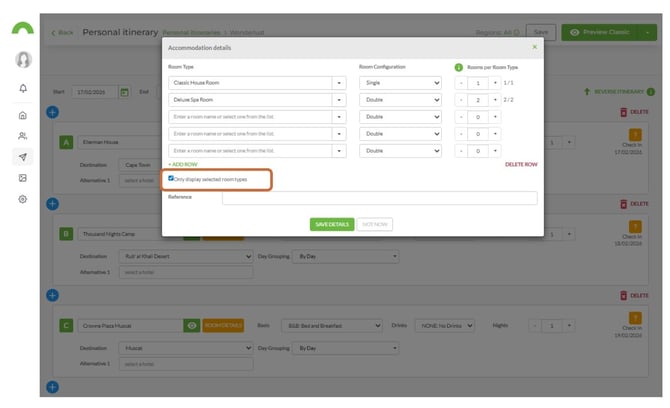
Note: Use this option when you have a specific arrangement with an accommodation provider about which room types a client may choose from as part of a package.
Note: Accommodations need to have room types for the "Only display selected room types" checkbox to show.
Basis and drinks
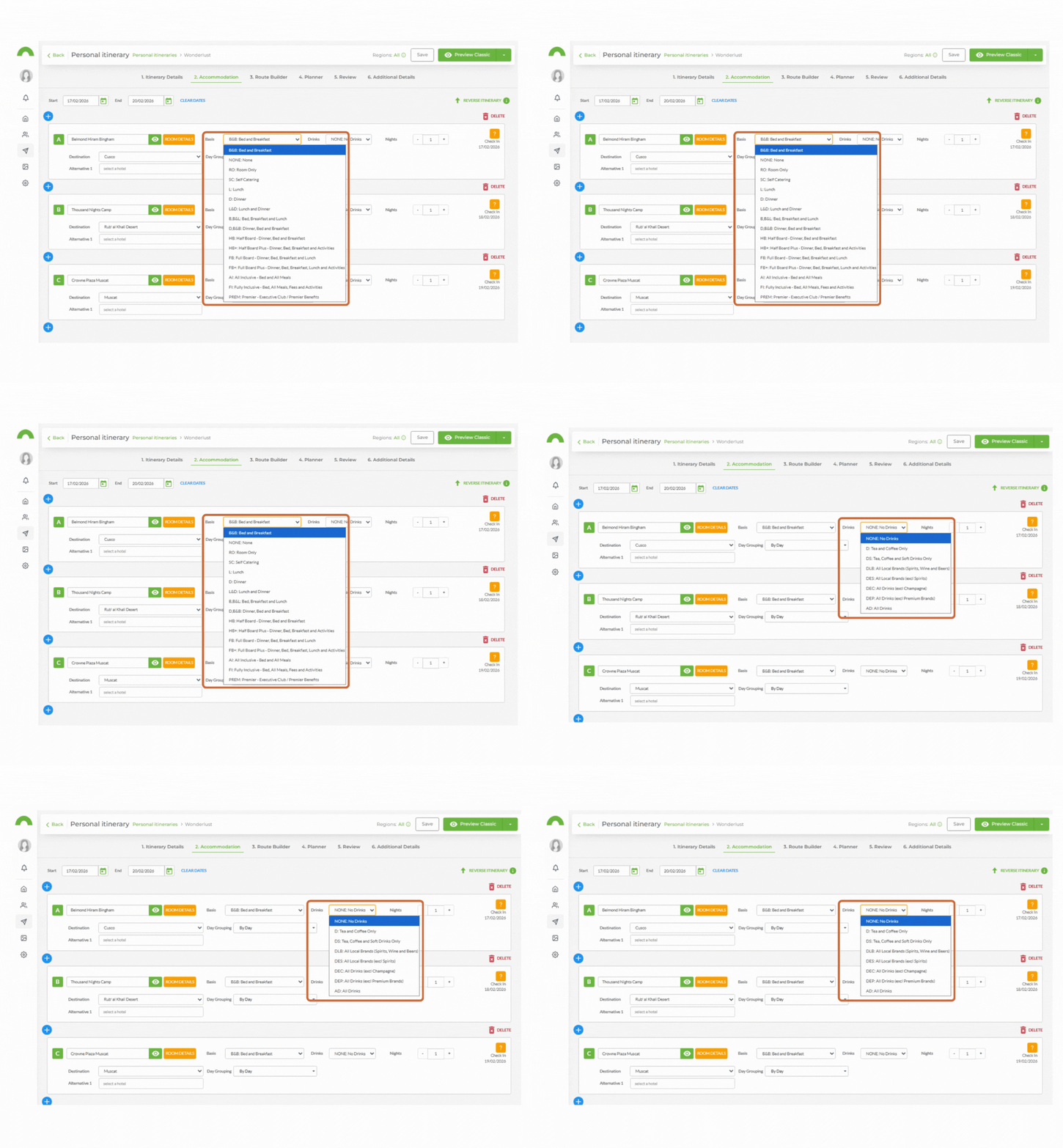
1. Click Basis and select the applicable option from the dropdown.
2. Click Drinks and select the applicable option from the dropdown.
Live availability
1. Enter the number of nights the clients will be staying by typing directly or clicking the + button.
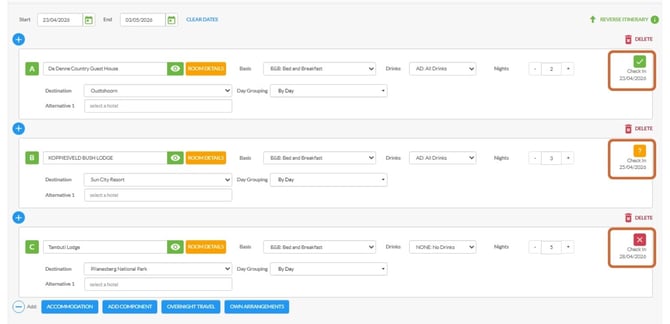
The icons next to the check-in date indicate live availability status when linked to an affiliate booking system:
| Icon | Meaning |
|---|---|
| ? | Live availability not linked or the link is broken |
| ✓ | Availability confirmed |
| ✗ | Fully booked |
Set destination
1. Below the accommodation entry, locate the Destination dropdown.
2. Select the destination for this itinerary.
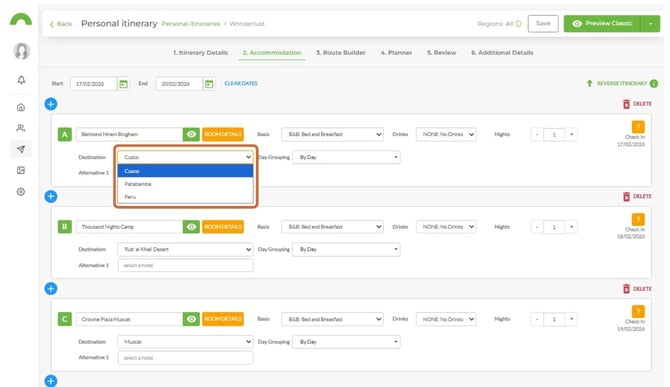
Note: The destination is set once for the entire itinerary.
Day grouping
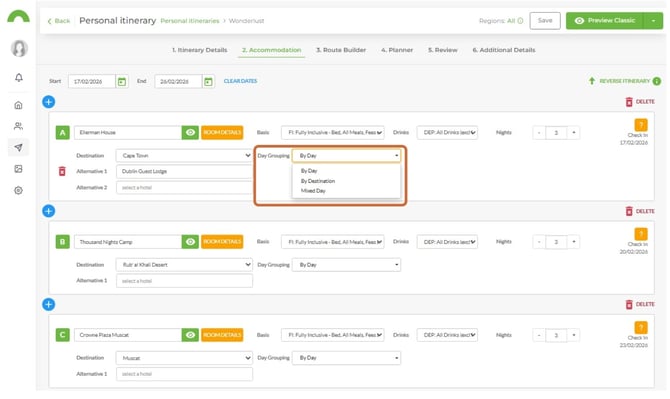
Day Grouping is used to group different sections of your itinerary separately or together. This affects the output of your Planner step.
Alternative accommodation
1. Below the primary accommodation entry, locate the Alternative Accommodation field.
2. Type the name of the alternative property and select it from the dropdown.
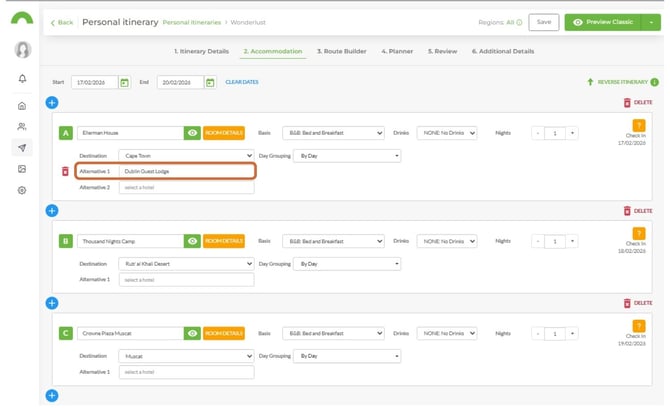
Note: More than one alternative property can be added at a time.
Insert accommodation before an entry
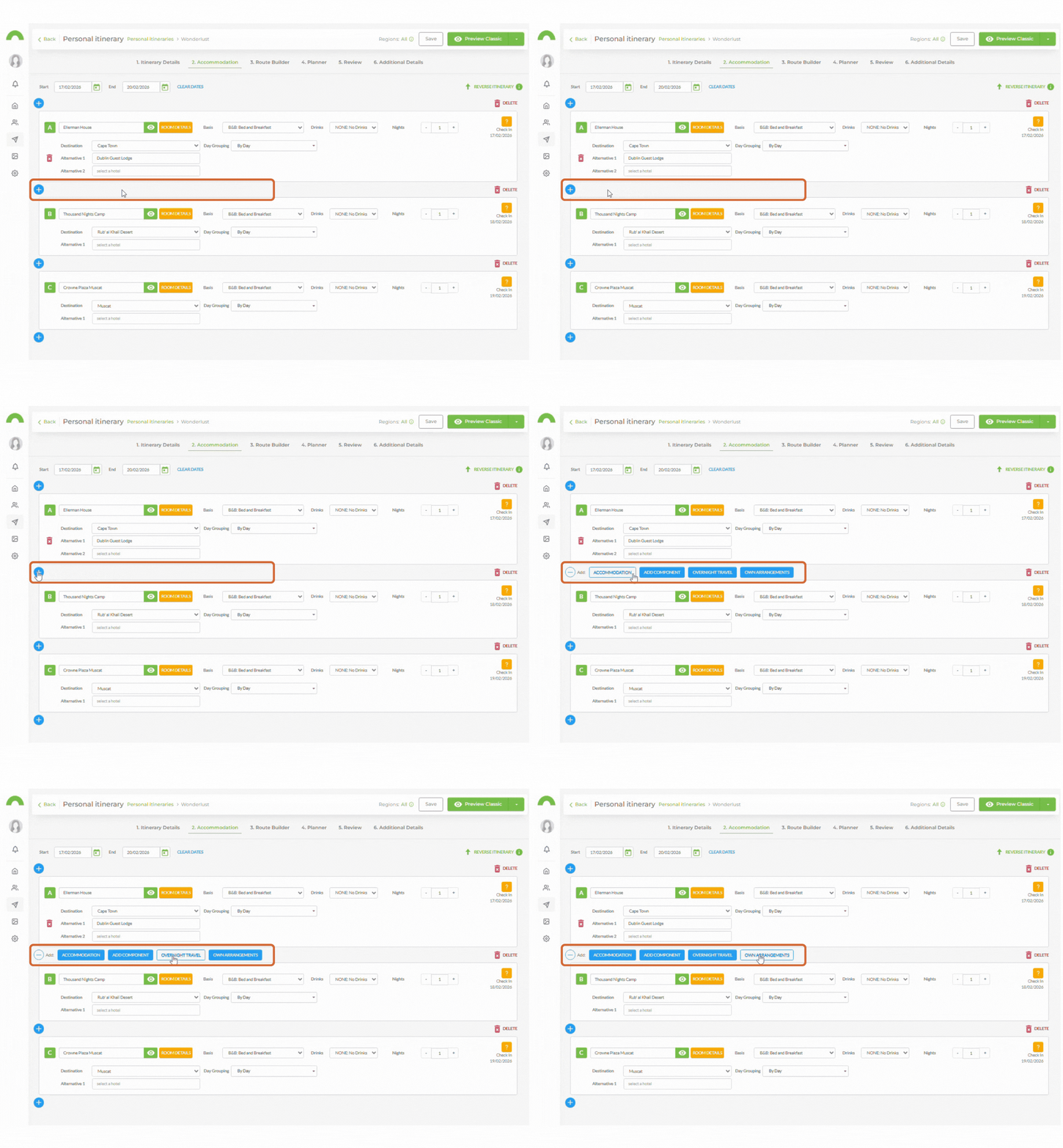
1. Click the blue + button above the existing accommodation entry.
2. Select Accommodation from the available options.
3. Follow the same process as adding a new accommodation entry.
Reverse itinerary
1. Click Reverse Itinerary.
2. The entire itinerary order will be flipped.
3. Review the routing after reversing and make any manual corrections needed.
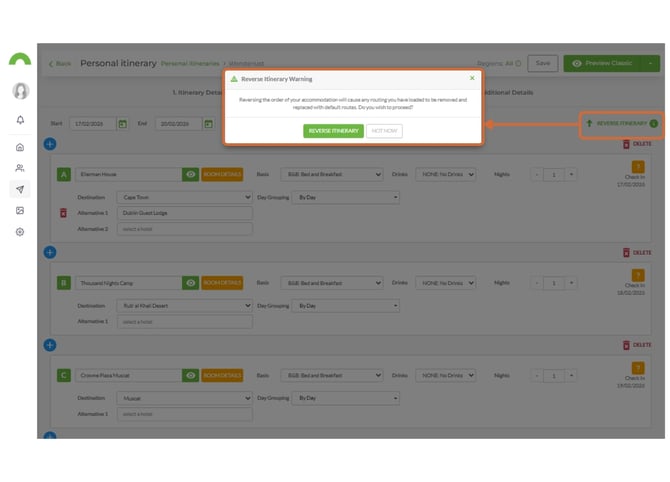
Important: After reversing, check the routing to confirm it has updated correctly. Manual corrections may be needed.
Need Help?
- Contact Support: support@wetu.com
- Live Chat: Available on your Dashboard