
Quick Links
- Where to add GPS coordinates
- Mobile safaris
- Accepted GPS format
- Formats not accepted
- Adding coordinates in Wetu
- Accuracy checklist
- Common mistakes
- Need Help?
Where to add GPS coordinates
GPS coordinates are entered in Step 5: Location when creating or editing a supplier profile.
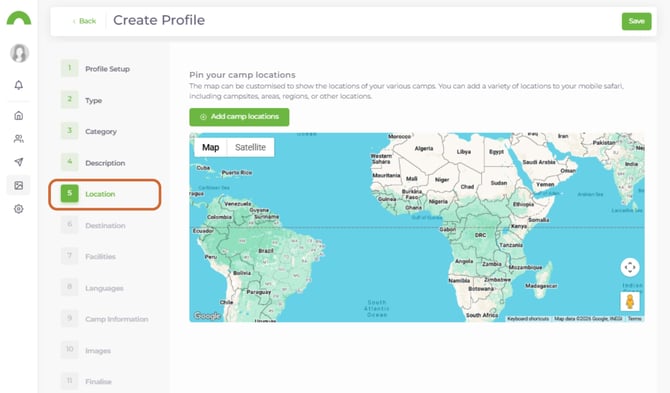
At this step you can either:
- Search using the property address (recommended)
- Drag the map pin to the correct location
- Manually enter Latitude and Longitude
Note: The Latitude and Longitude fields only accept Decimal Degrees (DD) format.
back to top
Mobile safaris: Adding multiple GPS locations
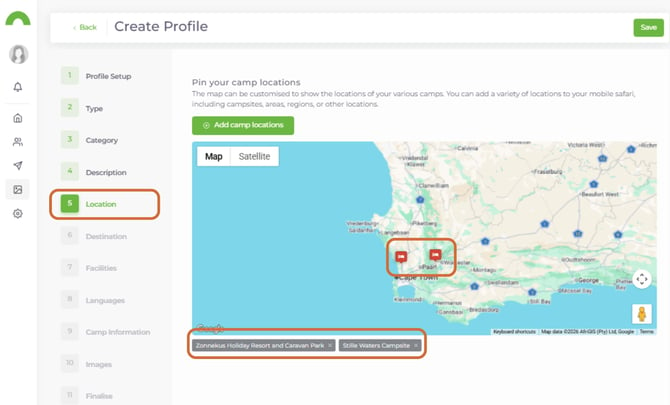
Mobile Safari profiles can have multiple GPS locations, allowing you to represent all campsites the safari operates from throughout the year.
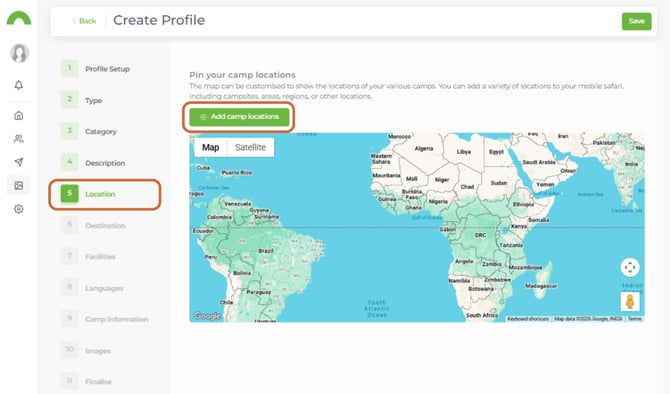
Step 1
In the Location tab, select Add camp locations.
Step 2
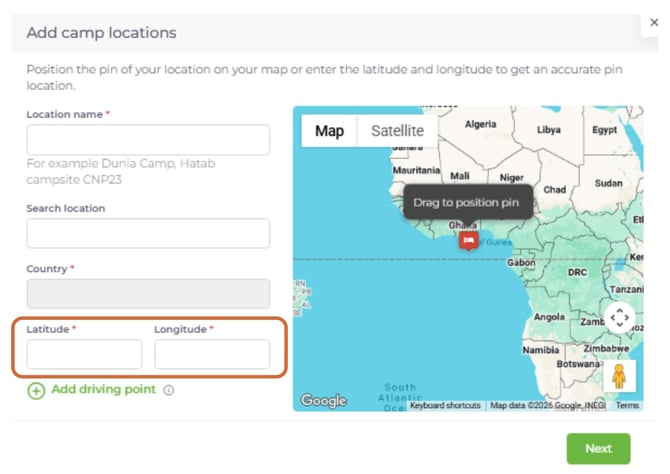
For each campsite, enter the required details including Latitude and Longitude in Decimal Degrees (DD) format.
Make sure the green check marks are present next to the location name and coordinates.
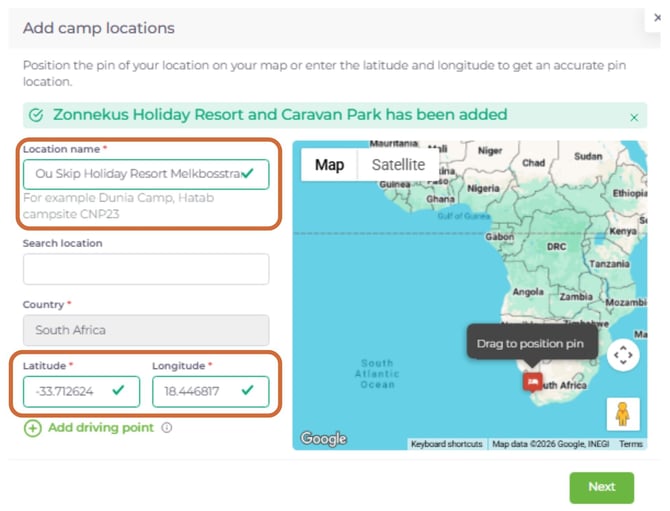
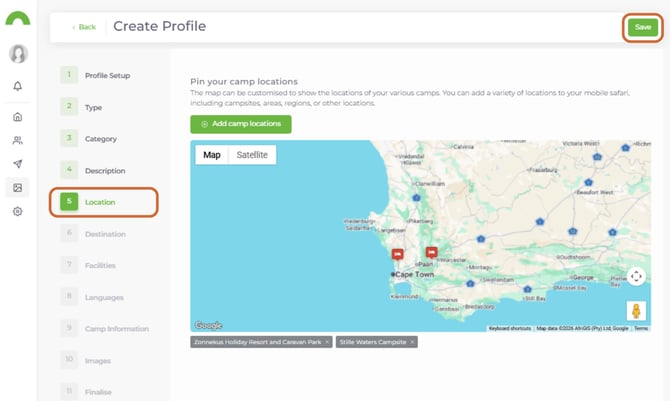
Each camp location will appear as its own marker on the map.
Step 3
press Save
Wetu's accepted GPS format
Wetu accepts Decimal Degrees (DD) only.
| Latitude | Longitude |
|---|---|
| -33.9249 | 18.4241 |
In this format:
- Decimal numbers are used - no minutes or seconds.
- South and West coordinates use a negative ( - ) sign.
- North and East coordinates remain positive.
GPS formats that are not accepted
The following formats cannot be entered directly into Wetu. They must be converted to Decimal Degrees first.
Degrees Minutes Seconds (DMS)
40° 41' 21" N
74° 02' 40" W
Degrees Decimal Minutes (DDM)
33° 51.412' S
151° 12.857' E
Universal Transverse Mercator (UTM)
31U 448252 m E
5411924 m N
Format comparison
| Format | Example | Accepted in Wetu |
|---|---|---|
| Decimal Degrees (DD) | -33.9249, 18.4241 | Yes |
| Degrees Minutes Seconds (DMS) | 40° 41' 21" N | No |
| Degrees Decimal Minutes (DDM) | 33° 51.412' S | No |
| UTM | 31U 448252 m E | No |
back to top
Adding coordinates in Wetu
Steps
- Navigate to Step 5: Location.
- Locate the Latitude field.
- Enter the decimal latitude.
- Enter the decimal longitude.
- Verify the map pin is positioned correctly.
- Confirm the address matches the property.
- Select Save.
- Select Next.
Accuracy checklist
Before saving, confirm the following:
- The pin is positioned on the actual property.
- The address matches the property.
- Latitude and Longitude are in Decimal Degrees.
- South coordinates use a negative sign ( - ).
- West coordinates use a negative sign ( - ).
Common mistakes
Entering DMS coordinates
40° 41' 21" N
74° 02' 40" W
These will not work in Wetu. Convert to Decimal Degrees before entering.
Copying from Google Maps incorrectly
Google Maps may display coordinates in different formats depending on the source. Always confirm coordinates are in Decimal Degrees before entering them into Wetu.
-33.9249
18.4241
Missing the negative sign
The negative sign changes the hemisphere and can place the property thousands of kilometres away.
| Incorrect | Correct (Cape Town) |
|---|---|
| 33.9249 18.4241 |
-33.9249 18.4241 |
Need Help?
Email: support@wetu.com
Live chat: Available in your dashboard