
Quick Links
- Add a Meet & Greet
- Reorder the service
- How it displays on outputs
- Need Help?
Add a Meet & Greet
1. Open the itinerary and navigate to the Planner step.
2. Select the day you want to add the Meet & Greet to.
3. Click Meet & Greet at the bottom left of the activity block.
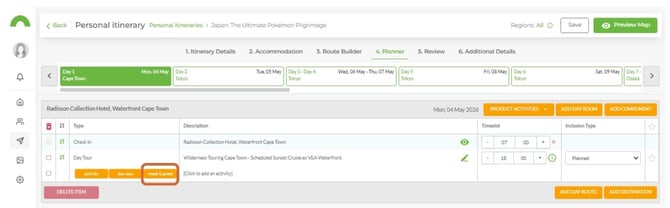
Note: The Meet & Greet option is available whether the Planner is set to Day by Day or By Destination.
Choose one of the following methods to add the Meet & Greet details:
Preloaded service
|
Manual entry
|
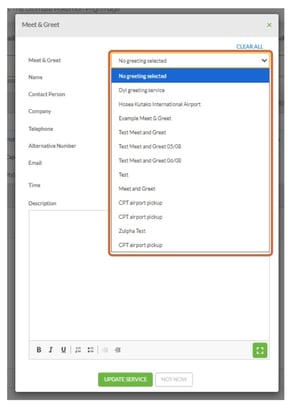
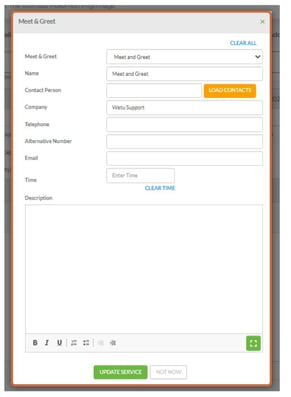
Note: Contact details and time must be entered either from your contact list or manually for each itinerary - they do not pull through automatically.
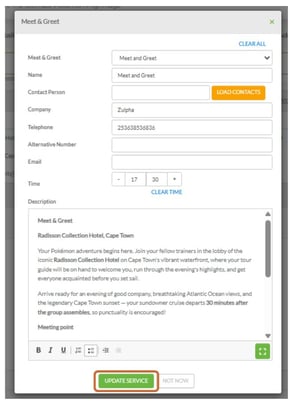
4. Once all details are entered, click Update Service to save to the Planner.
Reorder the service
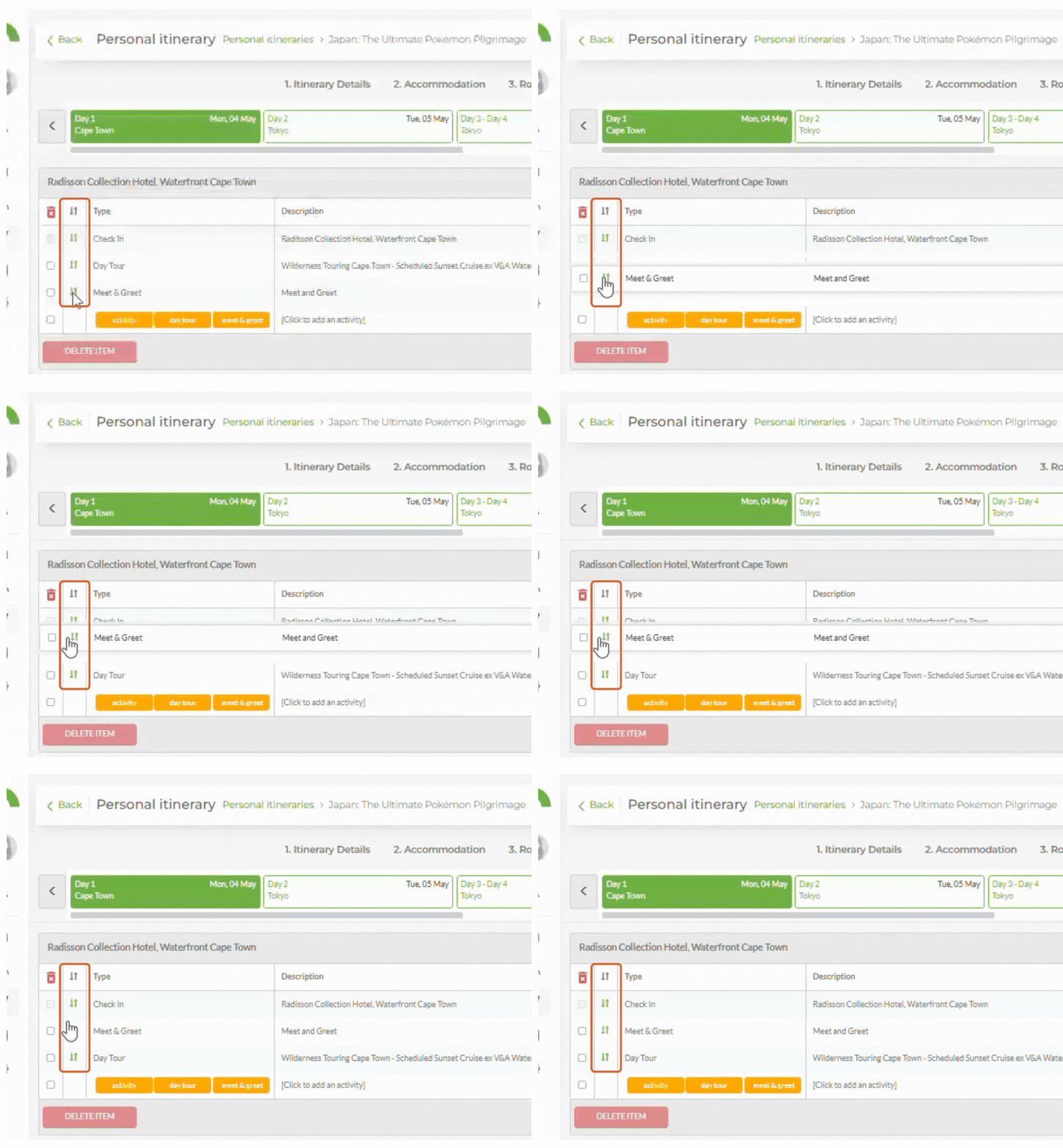
1. Click the green arrow on the Meet & Greet entry and drag it to the correct position in the day's chronological order.
How it displays on outputs
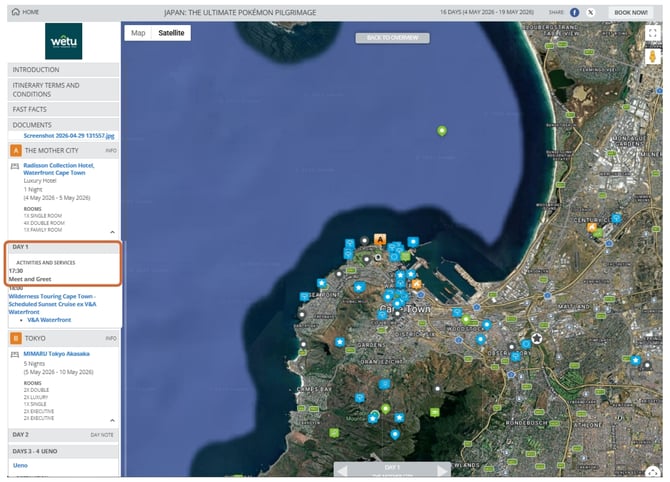
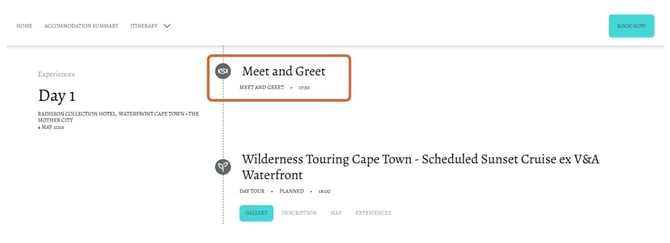
The Meet & Greet will appear on your itinerary output. Clicking on the service will open a pop-up with the information entered.
Virtual
Classic
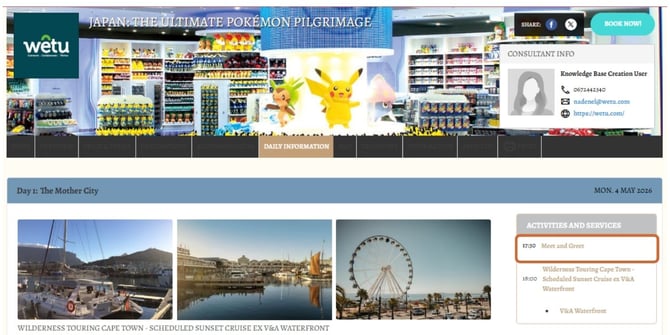
Discovery
Need Help?
- Contact Support: support@wetu.com
- Live Chat: Available on your Dashboard