
Quick Links
- Add a Multi-Day Tour or Component
- Search for a tour
- Make changes after adding
- Need Help?
Add a Multi-Day Tour or Component
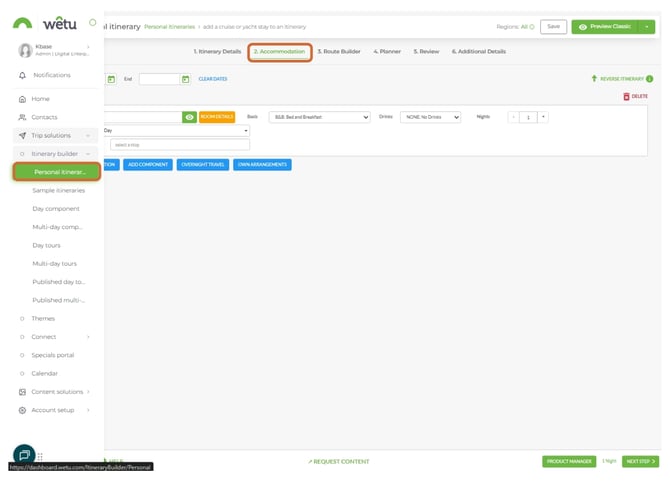
1. Open your itinerary in the Itinerary Builder and navigate to the Accommodation step.
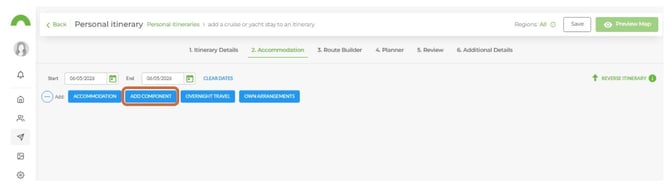
2. Click the + icon and select Add Component.
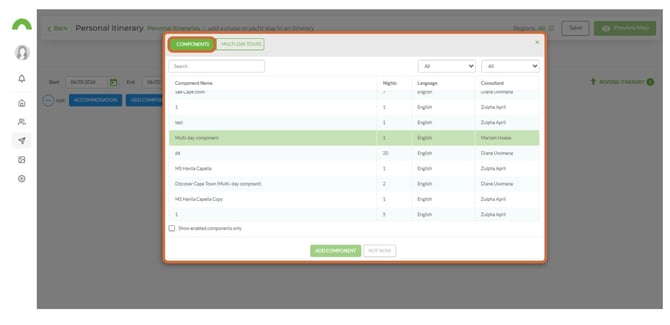
3. Select the type you want to add - Components or Multi-Day Tours.
4. All published tours, plus any company-built tours (if enabled on your account), will be listed.
Search for a tour
1. Use one of the following methods to find the tour you need:
Operators dropdown
Select the provider company name from the Operators dropdown. To find tours built in your own account, select your company name from this list - it will filter to show only your tours.
Search field
Type the name of the Multi-Day Tour directly in the Search field to find it by name.
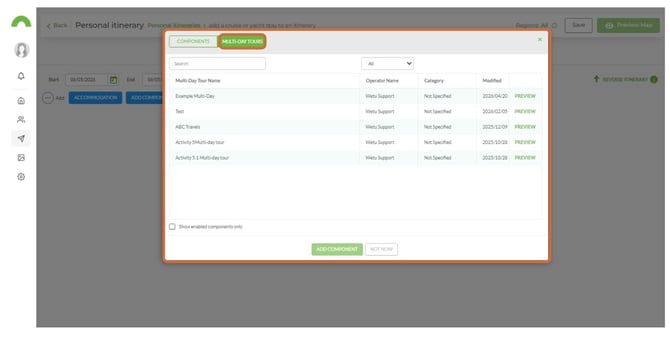
2. Select the tour from the list to add it to the itinerary.
Make changes after adding
Rearrange accommodation order
1. Click and hold the letter label (A, B, C…) next to the property name for 3 seconds.
2. Drag it to the new position.
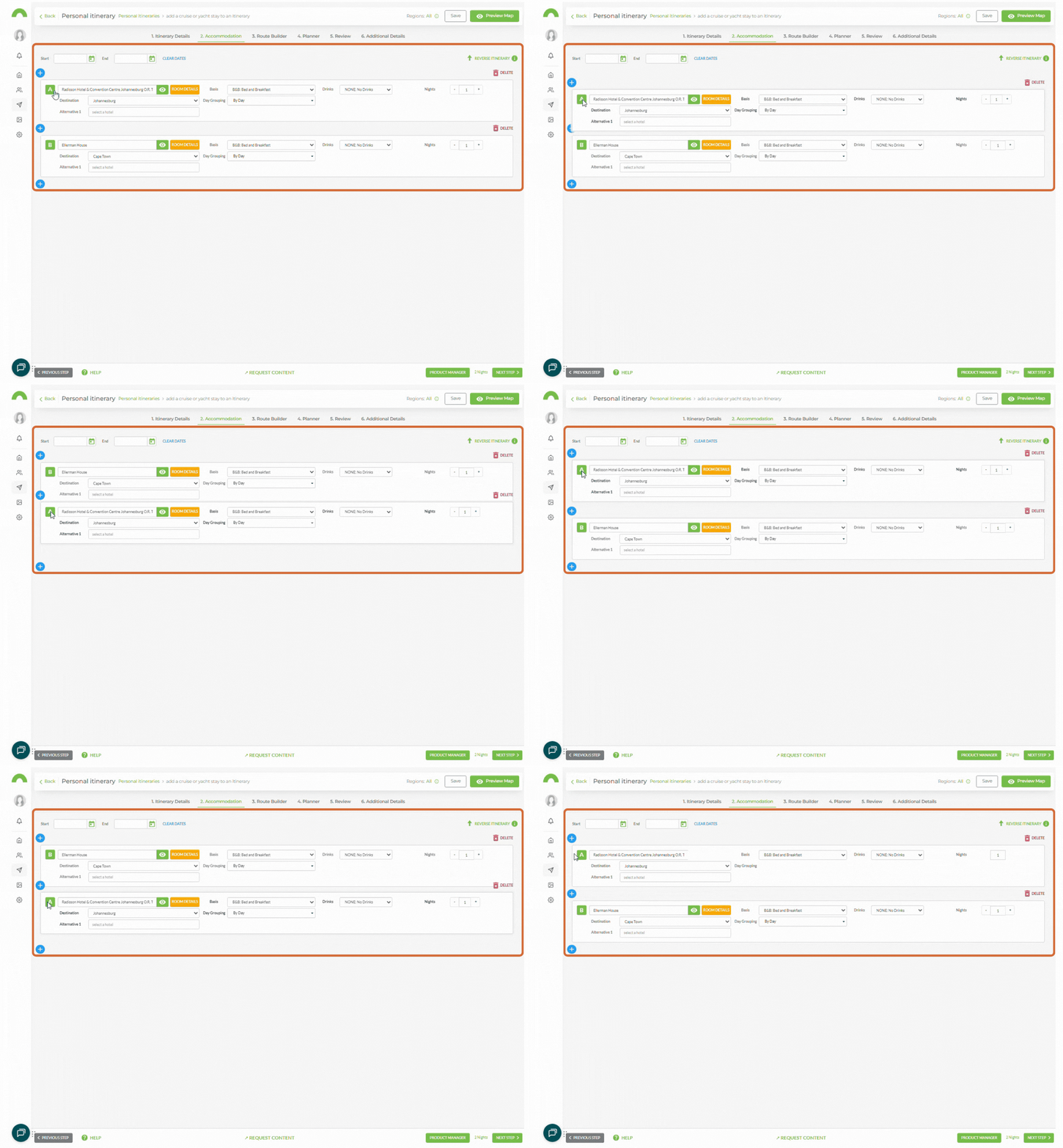
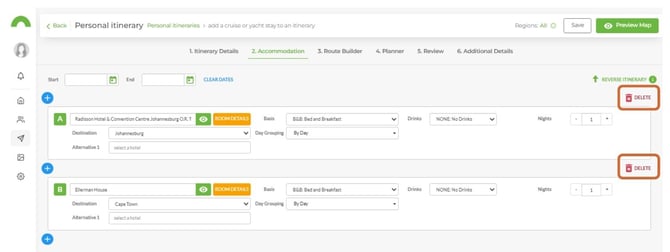
Delete an accommodation
1. Click Delete next to the accommodation you want to remove.
Tip: Any changes made in the Accommodation step will affect the Route Builder and the Planner. If you are concerned about the impact of changes, copy the itinerary first and make changes to the copy — this keeps the original intact as a backup.
Need Help?
- Contact Support: support@wetu.com
- Live Chat: Available on your Dashboard