
Quick Links
- Getting started
- Adding notes
- Editing notes
- Deleting notes
- Adding tasks
- Managing tasks
- Need help?
Getting started
Step 1
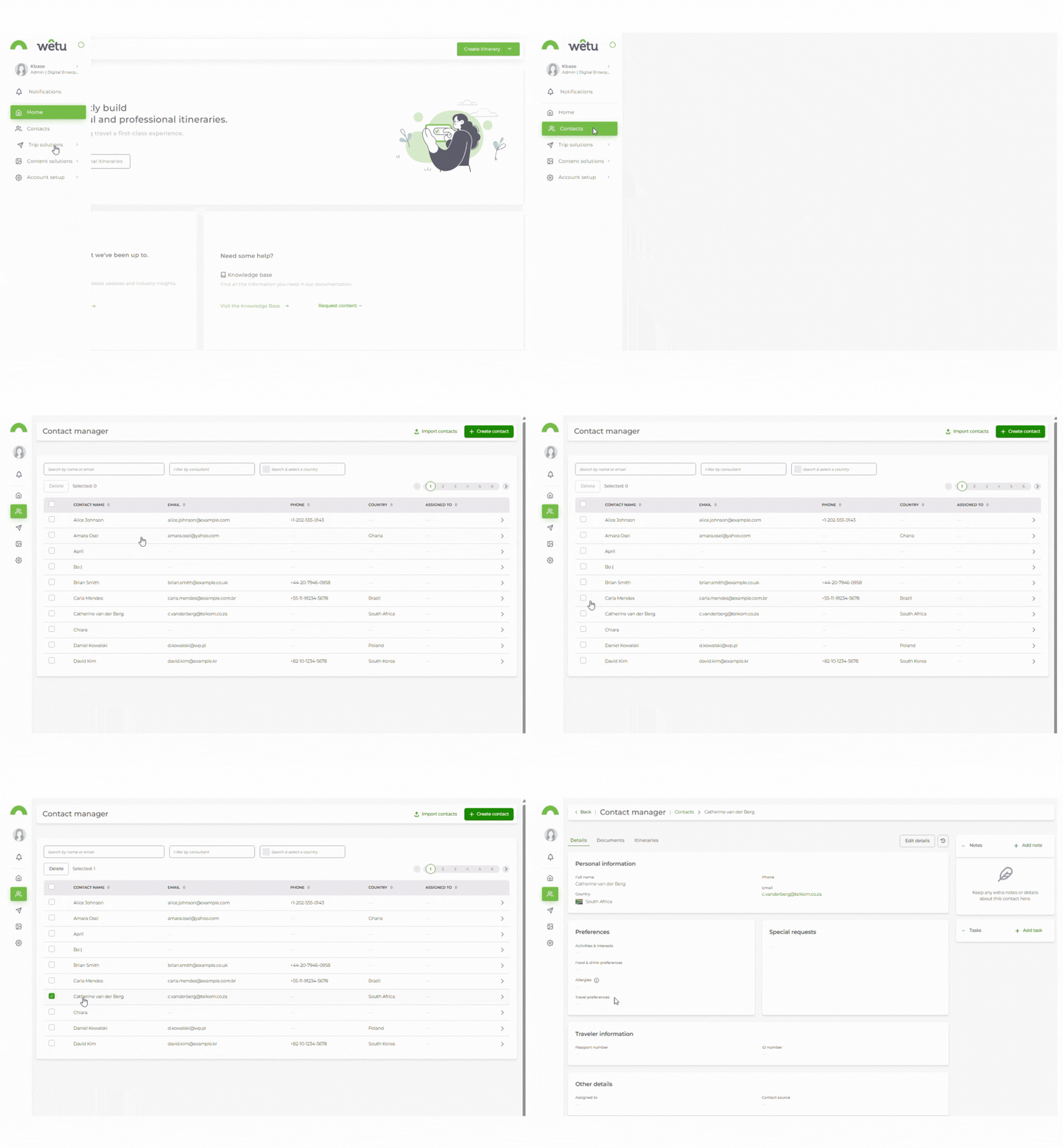
Open the Contact Manager and select the traveller contact you want to work with.
Step 2
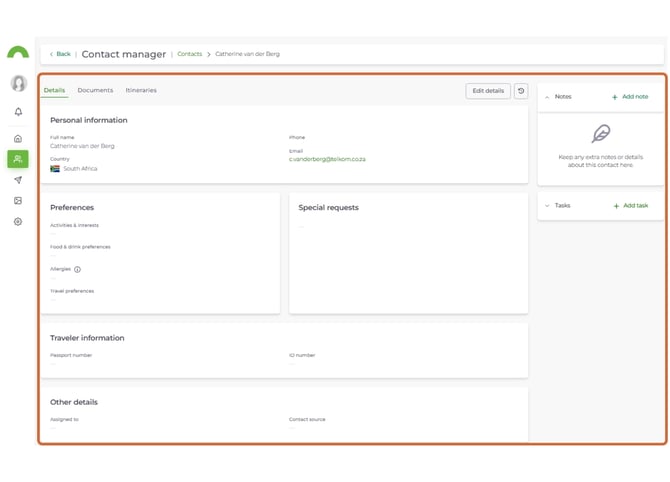
The contact's profile will open, showing their details, notes, and tasks panel on the right.
Adding notes
Step 3
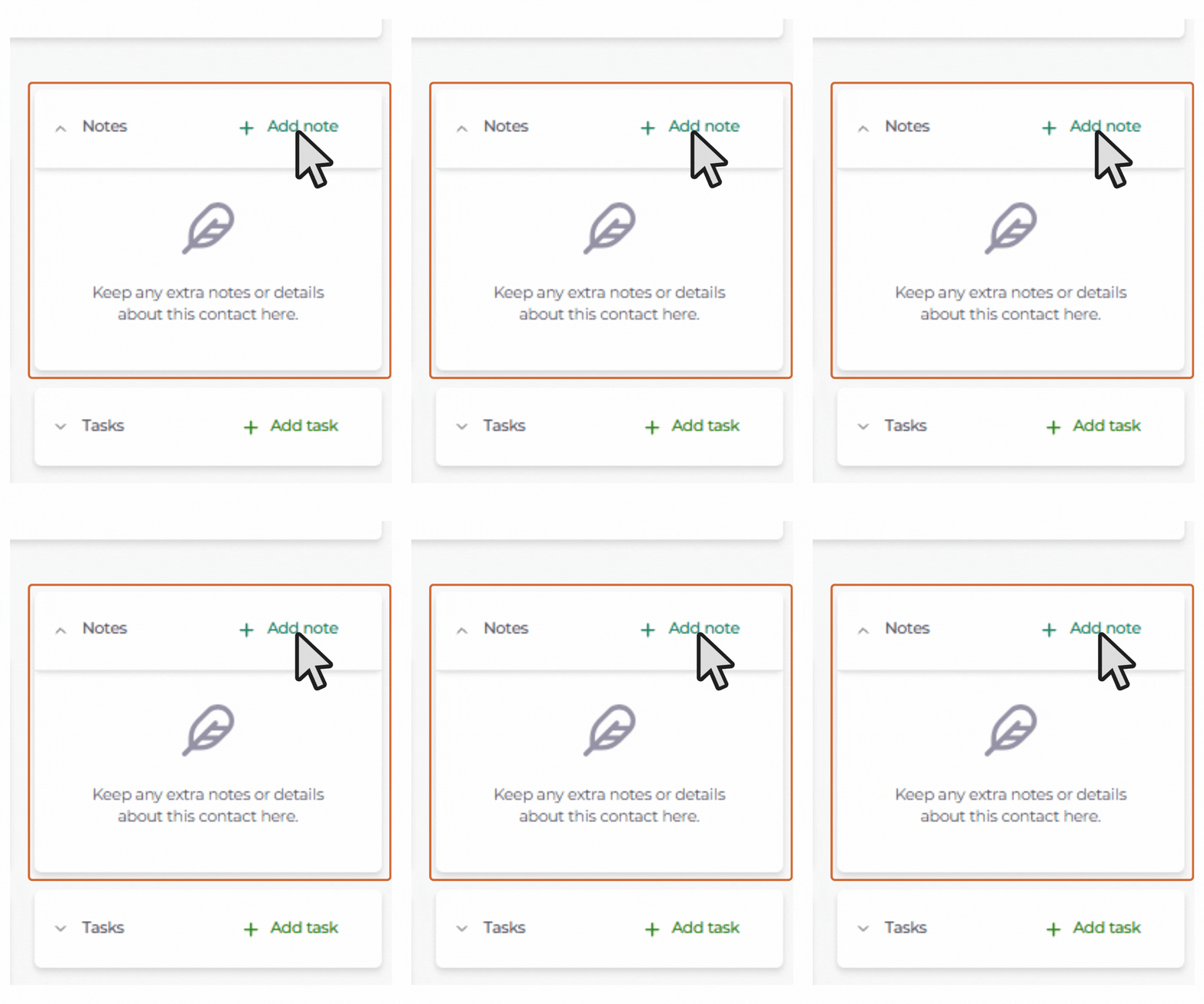
In the right-hand panel, click + Add note.
Step 4
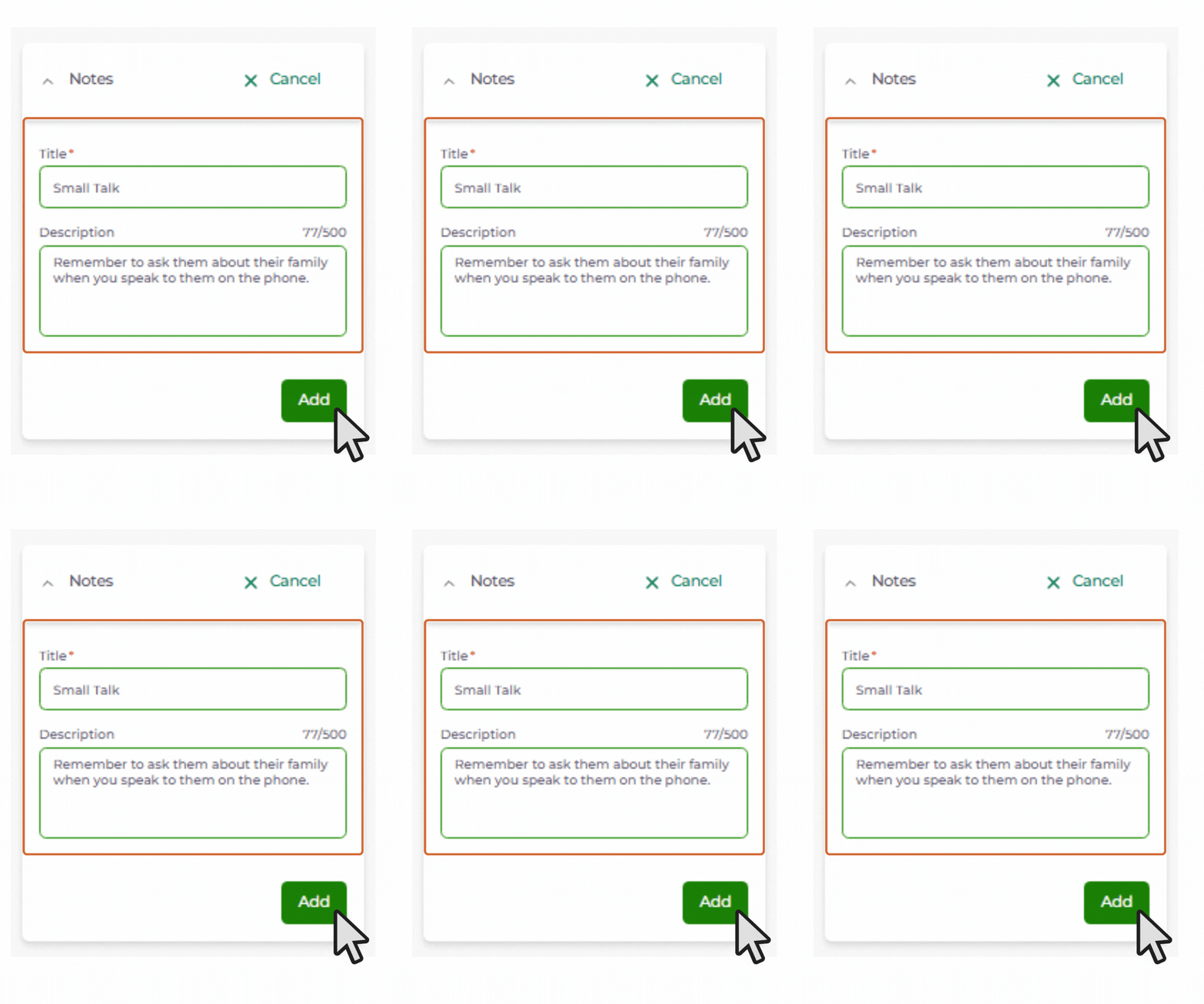
Enter a title in the Title Text field (required), then add your details. Select the green Add button to save the note.
Step 5
Notes are automatically time-stamped with the date they were added.
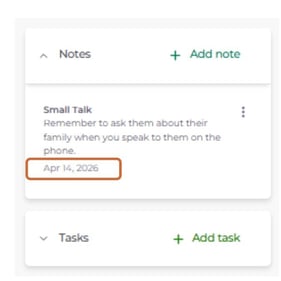
Note: Each description field allows up to 500 characters. Create additional notes if you need to capture more detail.
Editing notes
Step 6
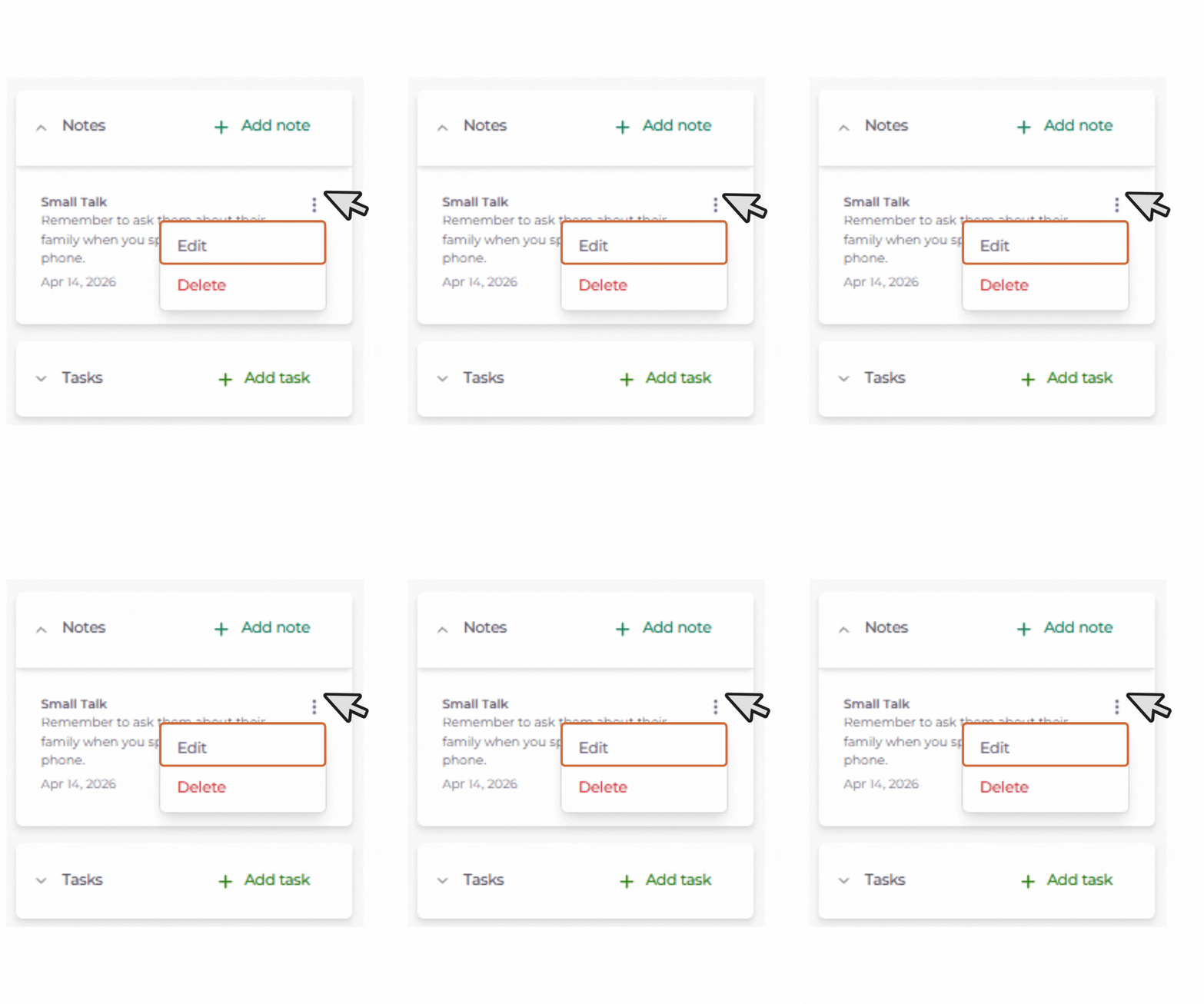
Click on the three dots in the top-right corner of the note and choose Edit. Make your updates and save.
Deleting notes
Step 7
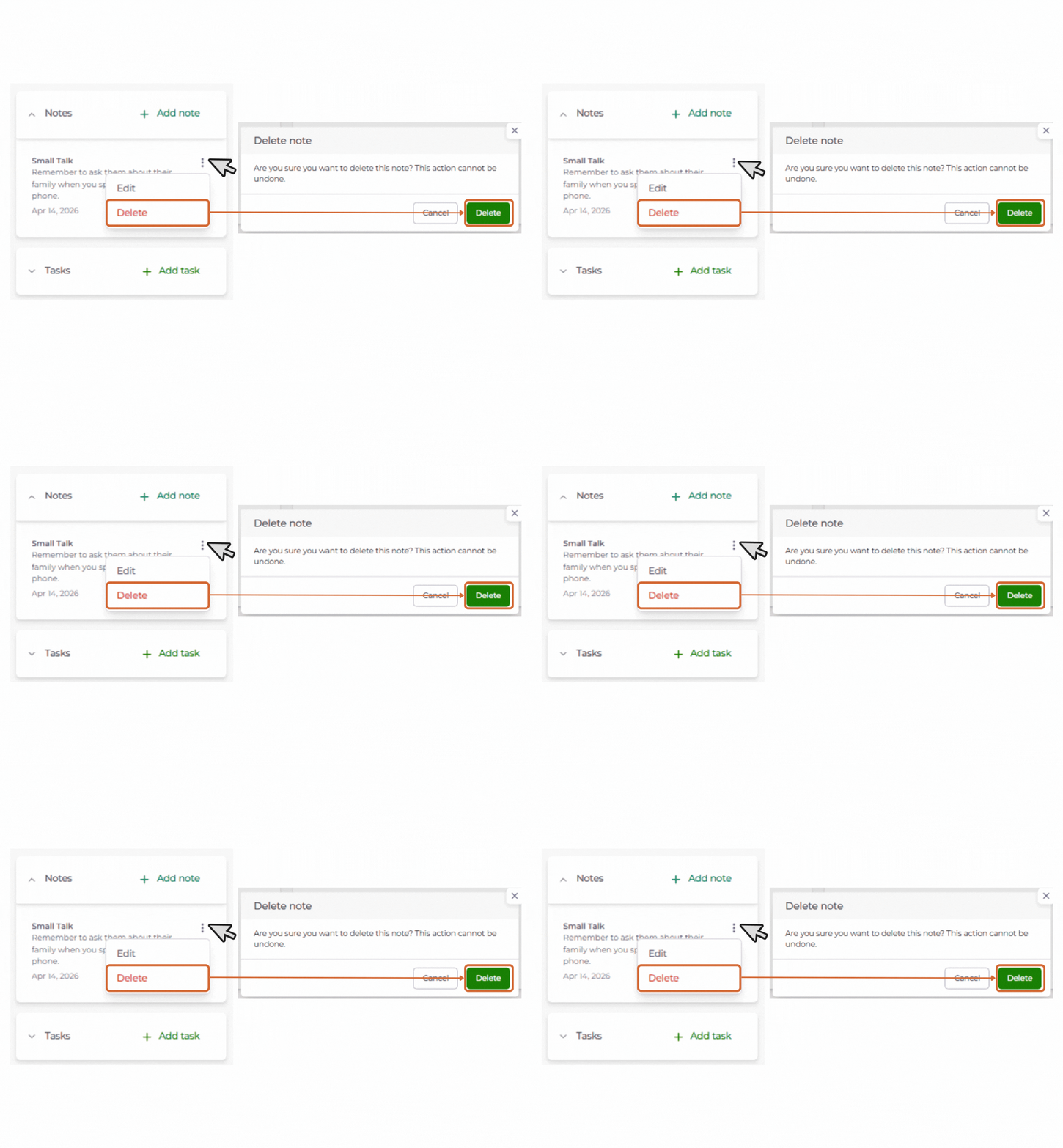
Click the three dots on the note and choose Delete. Confirm in the pop-up to permanently remove the note.
Adding tasks
Step 8
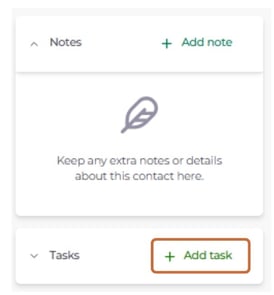
In the right-hand panel, click + Add task.
Step 9
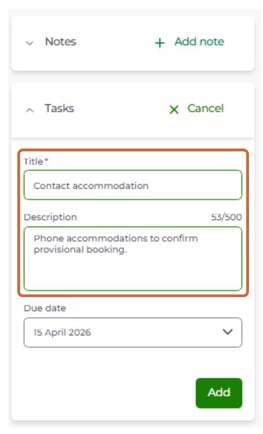
Enter a title in the Task Title field (required) and optionally add a description.
Step 10
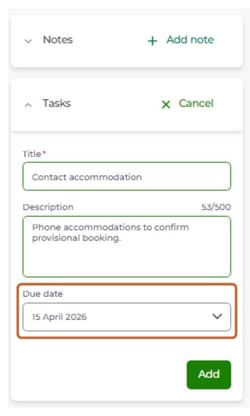
Set a Due date using the Select field.
Step 11
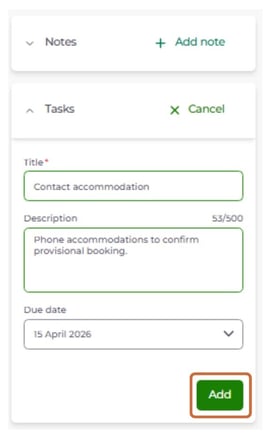
Select Add to save the task.
Managing tasks
Step 12
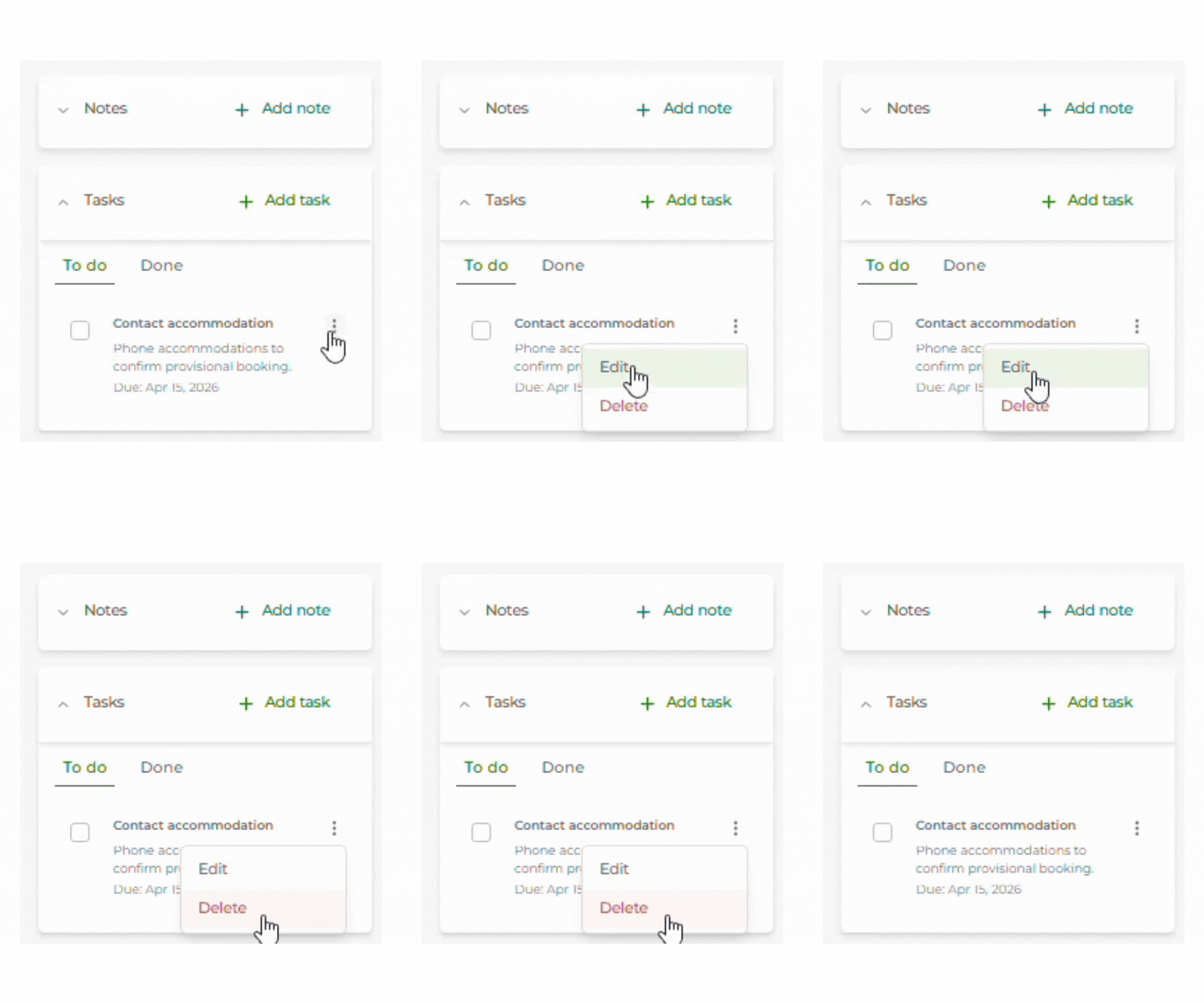
Saved tasks appear in the To do column. Use the three-dot menu on a task to:
- Edit - update the task details.
- Delete - remove the task entirely.
Step 13
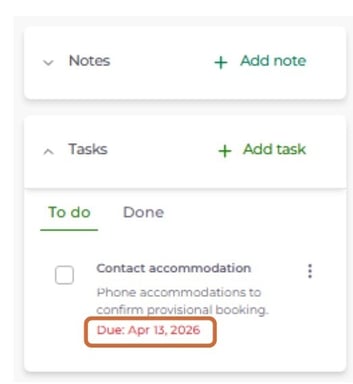
Any task past its due date will be highlighted in red in the To do column.
Step 14
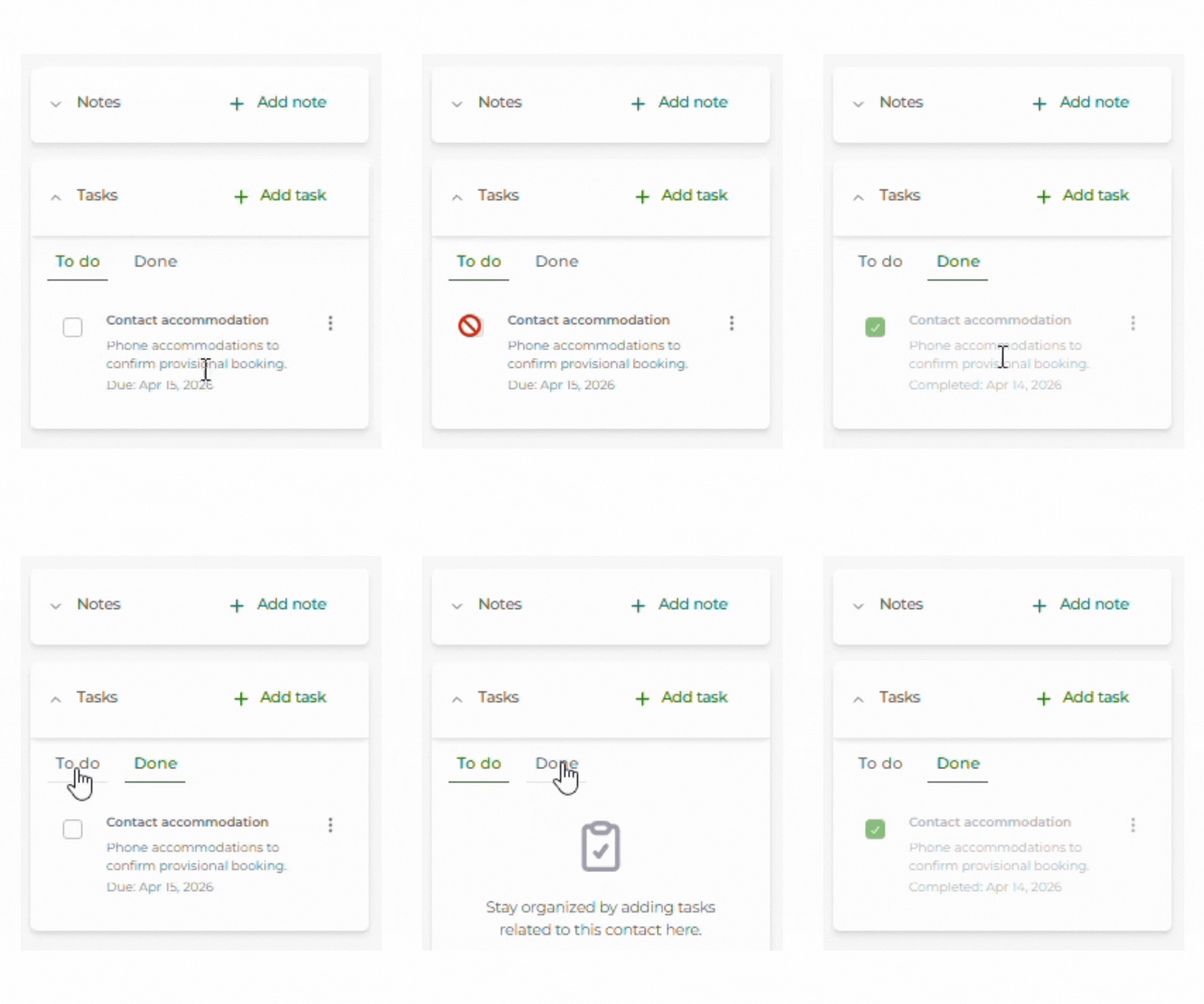
To mark a task as complete, tick the checkbox next to it. It will move to the Done column
Need help?
- Support: support@wetu.com
- Live chat: Available in your dashboard