
Quick Links
- Add overnight stops
- Build the hiking route
- Route options
- Need Help?
Add overnight stops
1. Open your itinerary in the Itinerary Builder and navigate to the Accommodation step.
Click the Accommodation button.
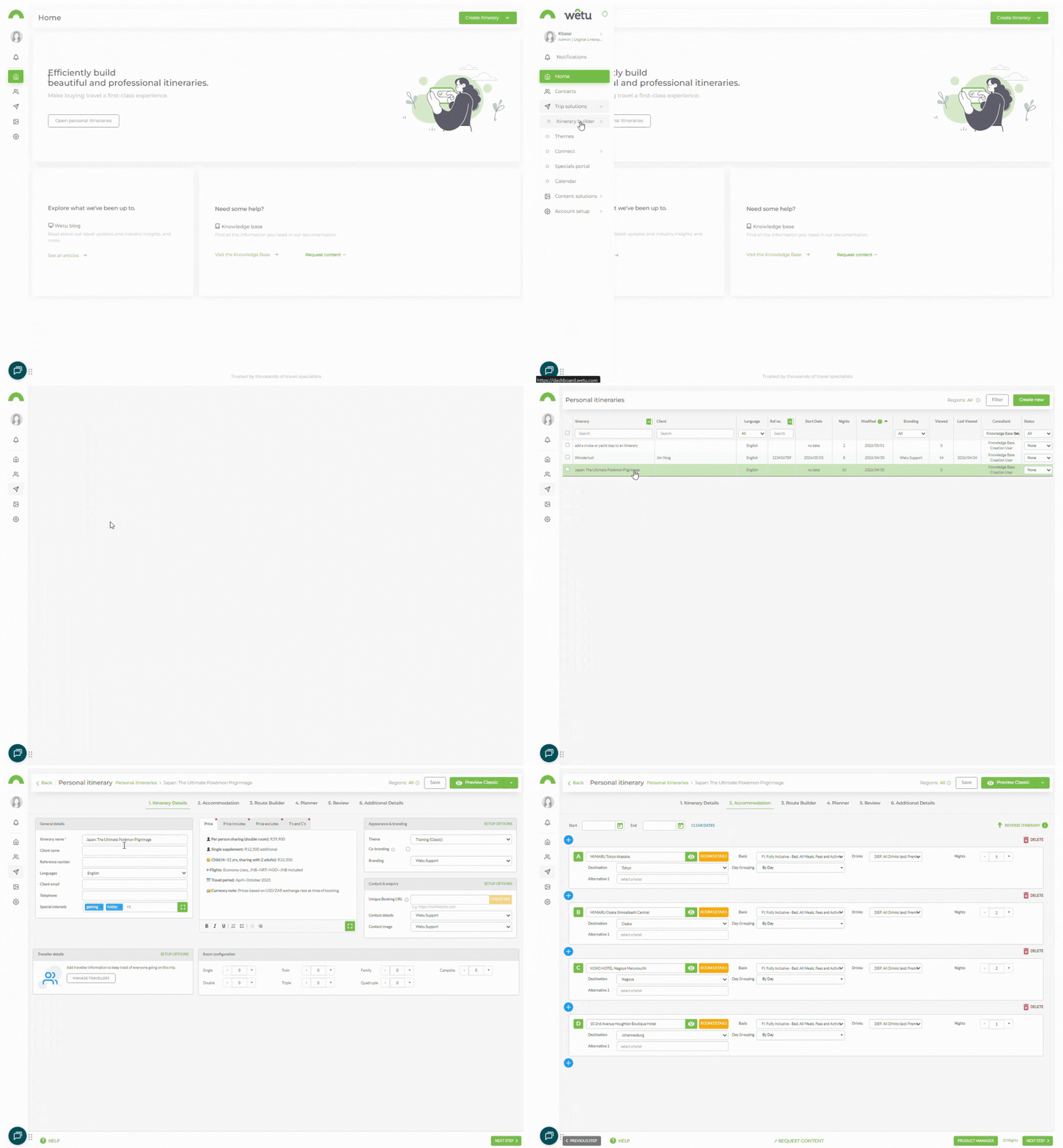
2. Type the name of the campsite or accommodation in the search field.
3. Select it from the dropdown list.
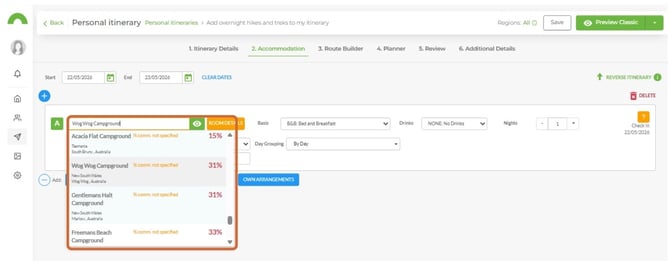
4. Repeat for each overnight stop on the trek.
Note: If a campsite or property is not found, contact contentservices@wetu.com to have it added.
Note: For guidance on configuring room types and meal details for each stop, refer to the article on
How do I add fixed accommodations to my itinerary?
Build the hiking route
1. Navigate to the Route Builder step.
2. From the Mode dropdown, select Hike.
3. The Fixed Route List - Hike browser will open with any predefined hiking routes available.
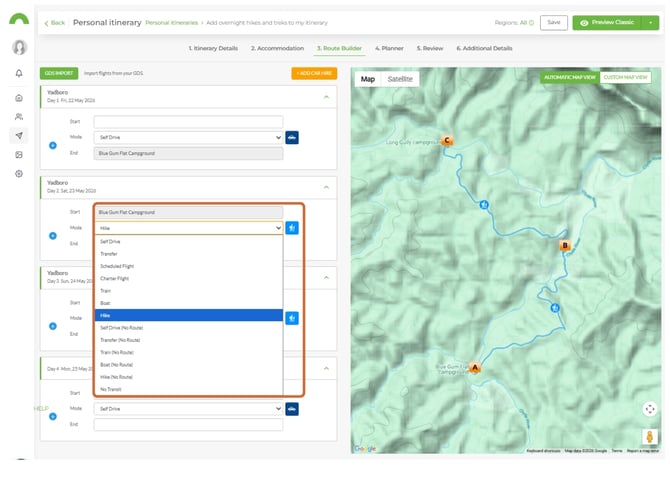
4. Select a fixed route if the one you need is available.
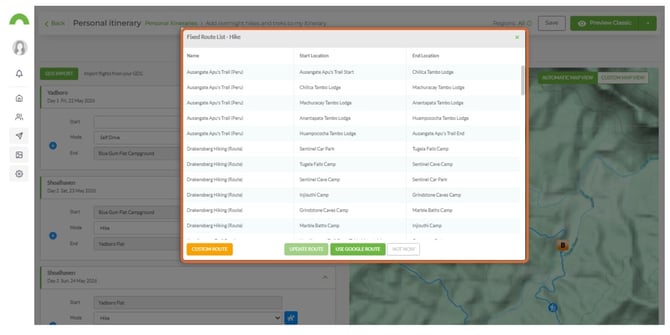
If your route is not in the predefined list, choose one of the options below.
Route options
Option 1 - Custom Route
Builds the route by placing markers on the map.
1. Select Custom Route.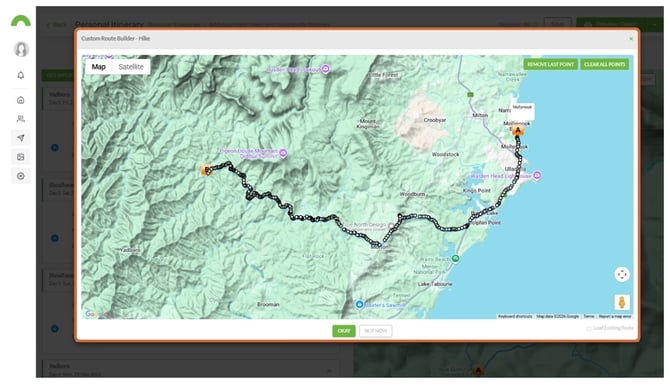
Tip: Zoom in to place markers more precisely for detailed routes. Add as many points as needed to match the actual trail as closely as possible.
Option 2 - Google Routes
Uses Google to automatically map the fastest route between overnight stops. This is the quickest method when Google can find a valid route.
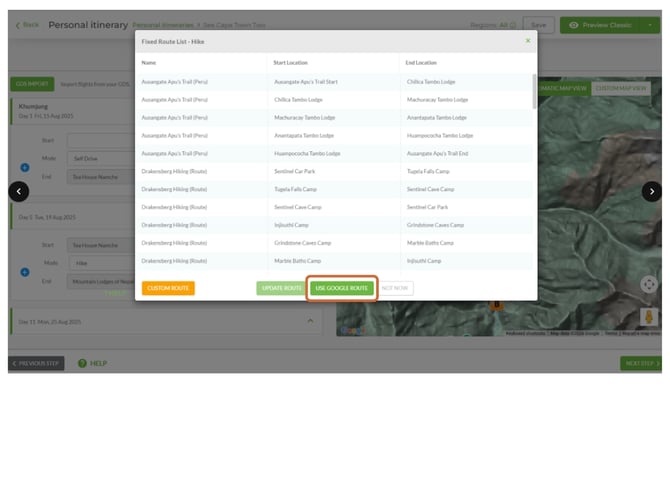
Note: If the Google Route button is not visible, Google could not find a valid route between the stops. In this case, use Custom Route or Hike (No Route) instead.
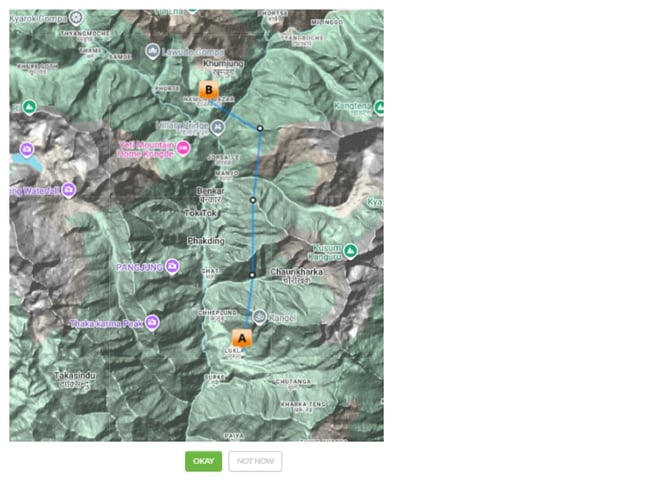
Option 3 - Hike (No Route)
Draws a direct line between stops without showing a specific trail. Use this when neither Google Routes nor Custom Route is practical.
Need help?
- Contact Support: support@wetu.com
- Live Chat: Available on your Dashboard