
Quick Links
- Pre-loaded routes
- Custom routes
- Train (No Route)
- Google Train Routing
- Need Help?
Navigating to the Route Builder
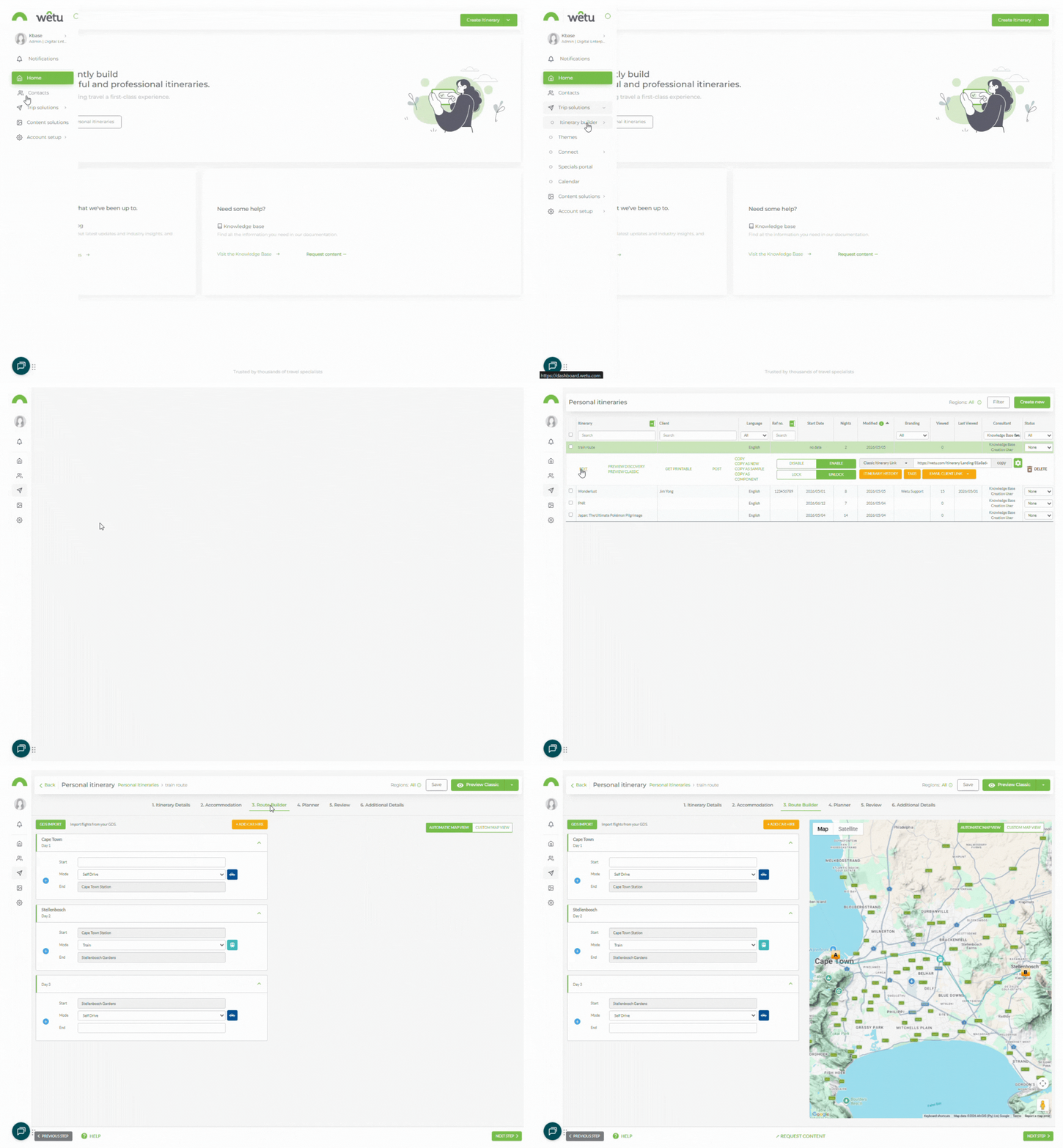
Train routes are added in the Route Builder step. You can choose from a pre-loaded route, build a custom route, use Google Train Routing, or opt for no specific route.
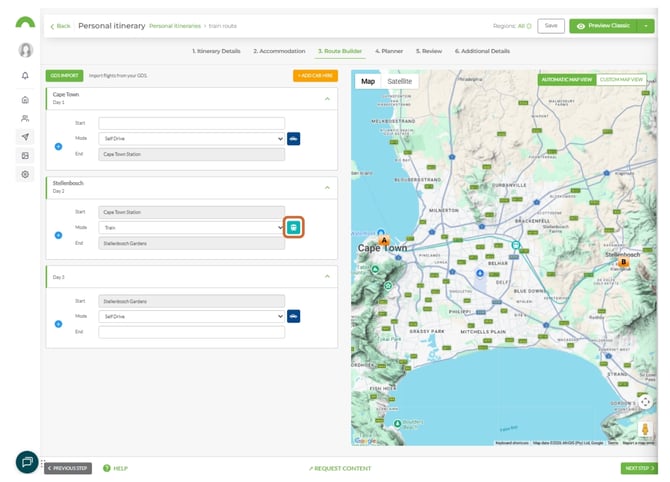
Pre-loaded routes
When you add a train as accommodation in the Accommodation step (e.g. Rovos Rail), the Mobile Components browser will appear with any pre-loaded routes for that provider.
1. Select the pre-loaded route from the Mobile Components browser in the Accommodation step.
2. Once selected, only the routes before and after the train trip need to be added in the Route Builder.
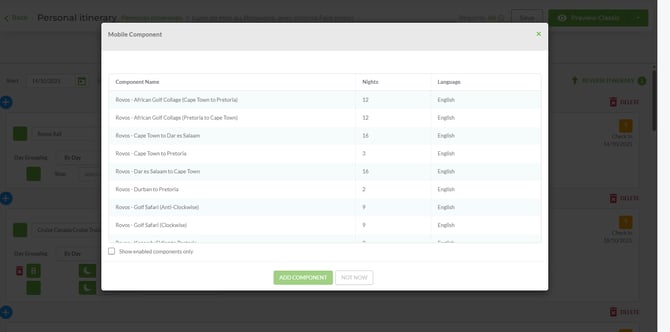
Note: If the Mobile Components browser does not list the route for your train accommodation, use Custom Routing or Google Train Routing instead.
Note: For non-accommodation train travel legs (e.g. a commuter or intercity train that is not a train hotel), add the route using Custom Routing or Google Train Routing.
Custom routes
1. In the Route Builder, to open the Fixed Route List - Train. From the Mode dropdown, select Train.
2. Click Custom Route at the bottom left of the screen.
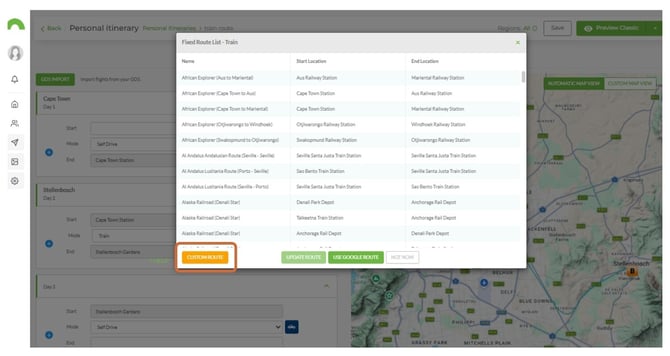
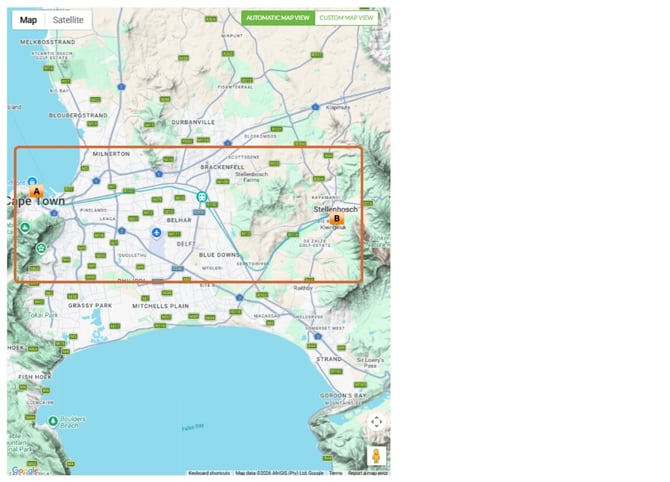
3. The Custom Route Builder - Train will open, showing the start point (A) and end point (B), or numbered stops if added manually in the Accommodation step.
4. Click on the map to place markers along the train route.
5. To undo the last point, click Remove Last Point in the top right corner.
6. Click Okay to save the route.
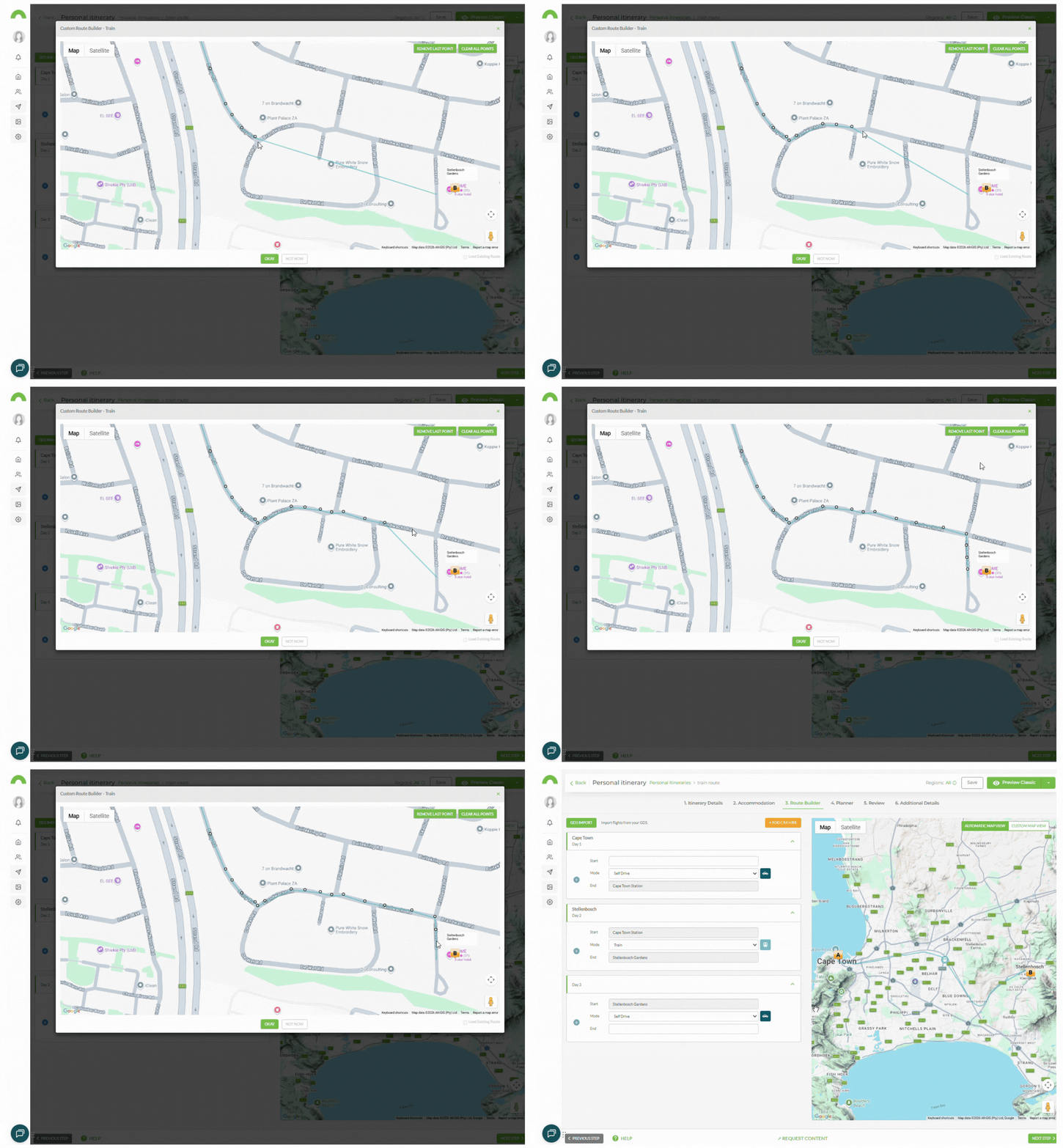
Note: To build a custom train route, you will need to know the exact path the train travels in order to place the points accurately on the map.
Train (No Route)
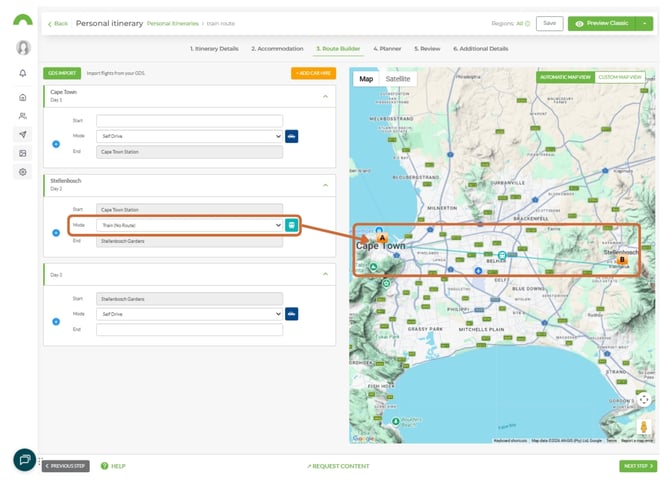
1. Select Train (No Route) from the mode dropdown.
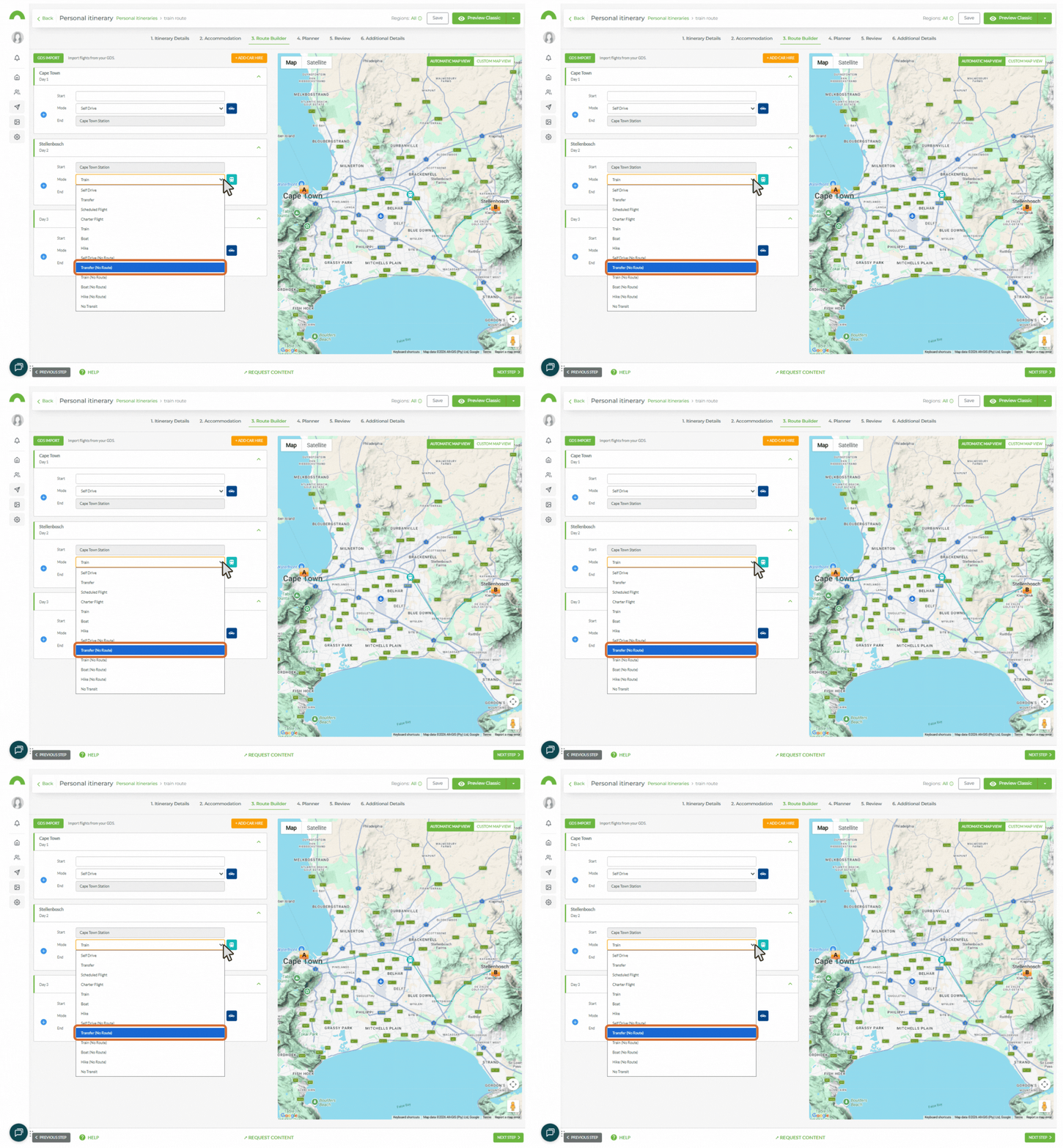
2. A direct line will be drawn between the start and end stations.
When to use this option
Use Train (No Route) when no specific route is available, but you still want to indicate the general direction of travel between two stations.
Google Train Routing
When building a custom route, a Google Train Route may be available between the two selected points.
1. Open the Custom Route Builder - Train.
2. If Google can recognise the two points, a Use Google Route button will appear.
3. Click Use Google Route to automatically draw the route on the map.
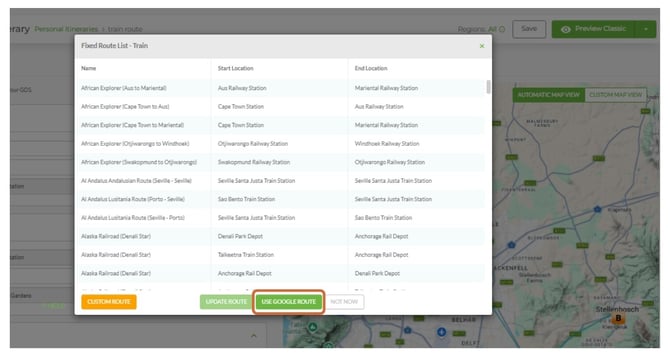
Note: If the Use Google Route button is not visible, Google could not find a route between the stops. Build a Custom Route or use Train (No Route) instead. Google Train Routing is currently best supported in Europe.
Need Help?
- Contact Support: support@wetu.com
- Live Chat: Available on your Dashboard