
Quick Links
- Navigate to the Itinerary Browser
- Add an identity
- Contact details and images
- Co-branding
- Need help?
1. Navigate to the Itinerary Browser
1. Navigate to Trip Solutions.
2. Click Itinerary Builder to open the dropdown menu.
3. Select the itinerary type you want to work with (e.g. Personal Itinerary).
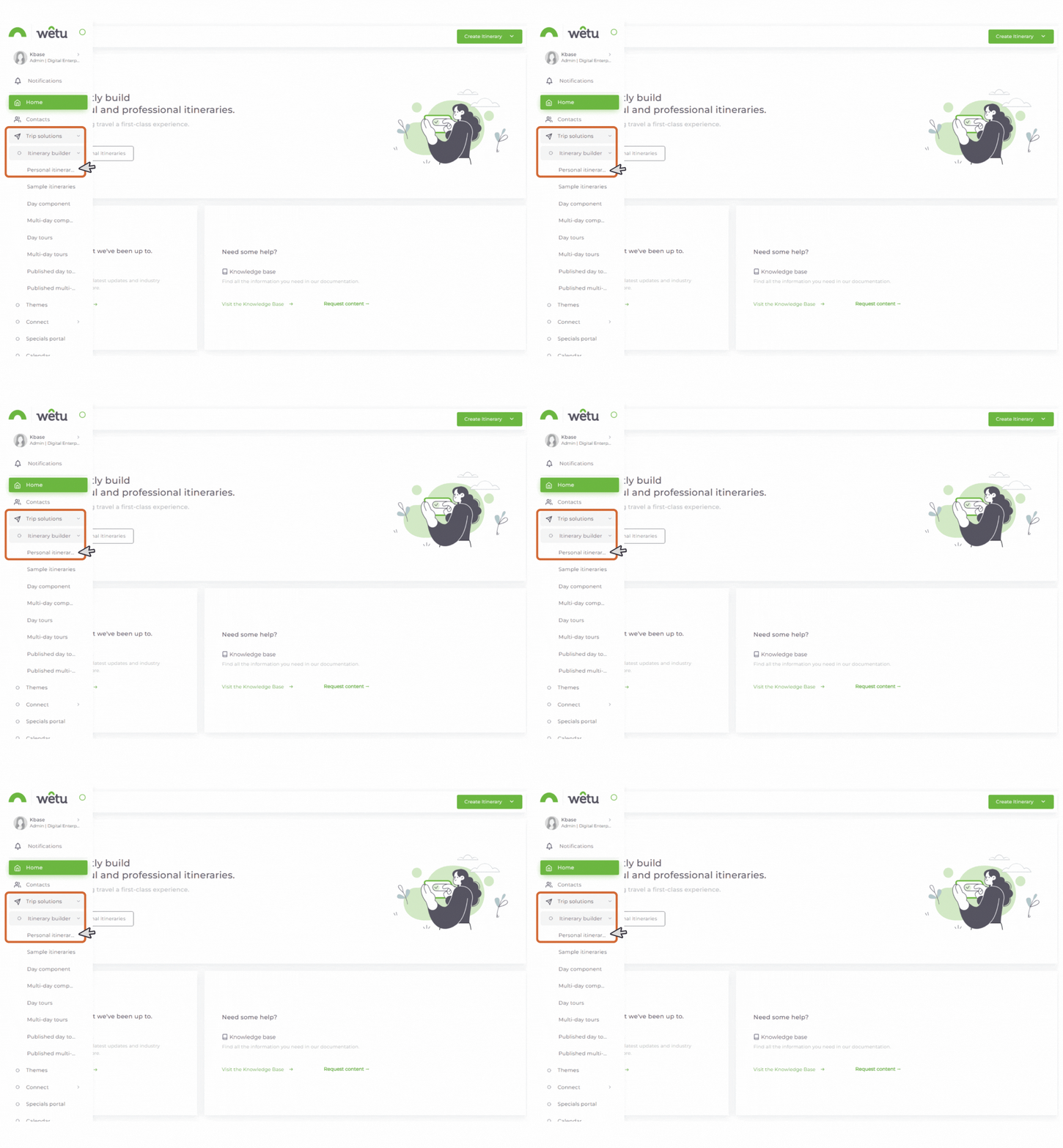
4. The Itinerary Browser will open.
5. Select the itinerary you want to brand and open it in the builder.
Prerequisite: Branding makes use of Identities created in Account Settings.
2. Add an identity
1. Open the itinerary in the Itinerary Builder.
2. Go to the Itinerary Details step.
3. Locate the Appearance and Branding section.
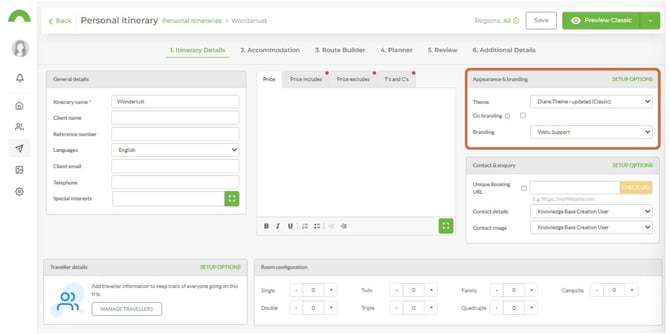
Default settings: By default, branding uses the Company Details. Contact details and image default to the User Details.
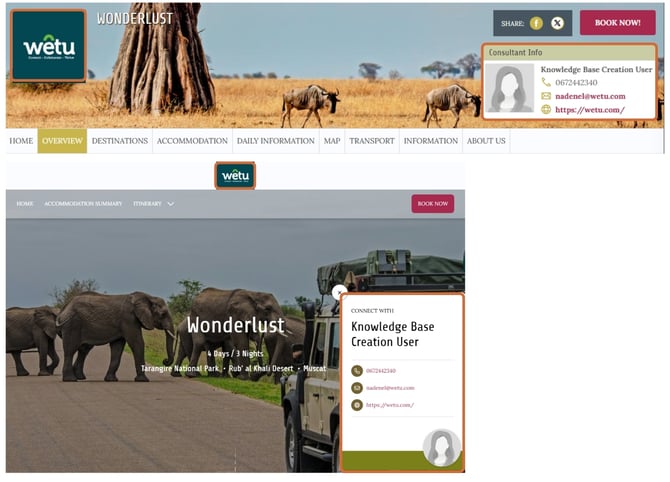
3. Contact details and images
1. Select an Identity from the dropdown.
2. The Identity's contact details and image will populate by default.
3. Choose your preferred combination of branding and contact details.
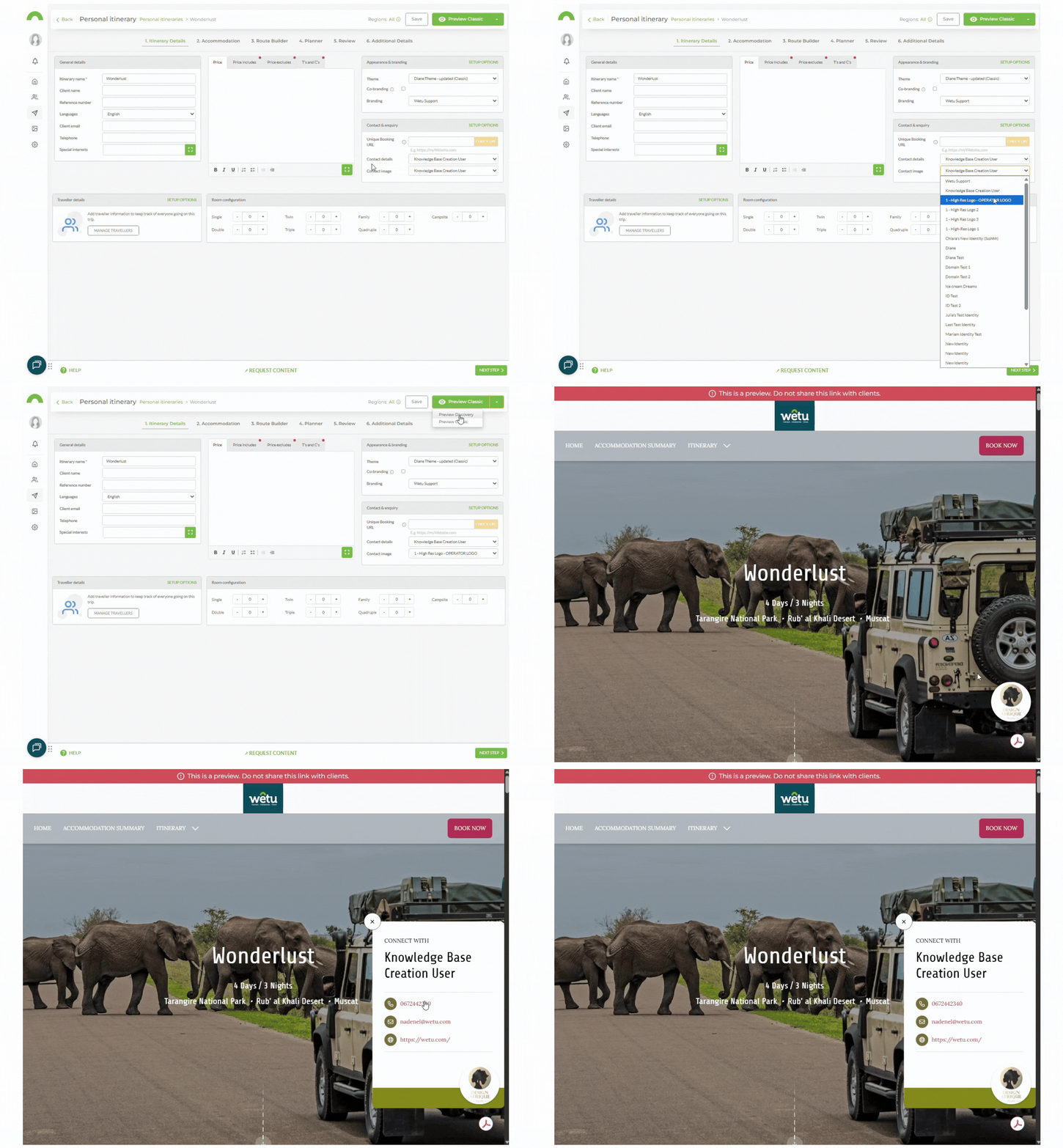
4. Co-branding
1. Select Co-branding in the Appearance and Branding section.
2. A Secondary Branding option will appear.
3. Note that only one set of contact details can be selected when co-branding is active.
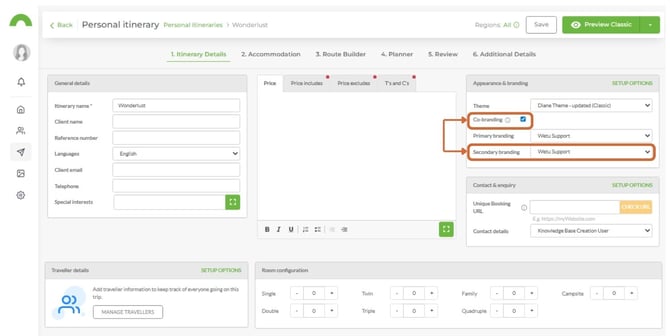
4. Swap the Primary and Secondary brands if needed - one will always default to the account Company Details.
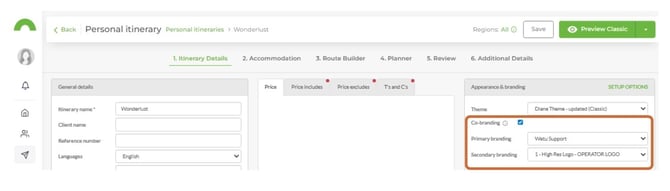
Primary Branding
|
Secondary Branding
|
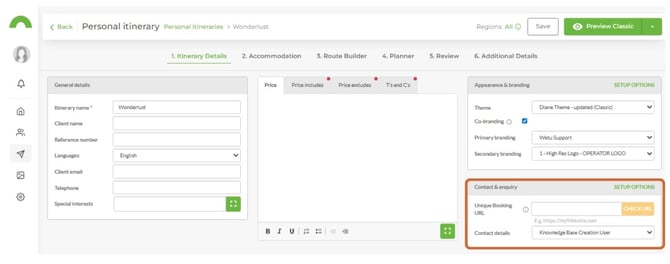
5. Select the contact details to display - these can be from any Identity within your Account Settings.
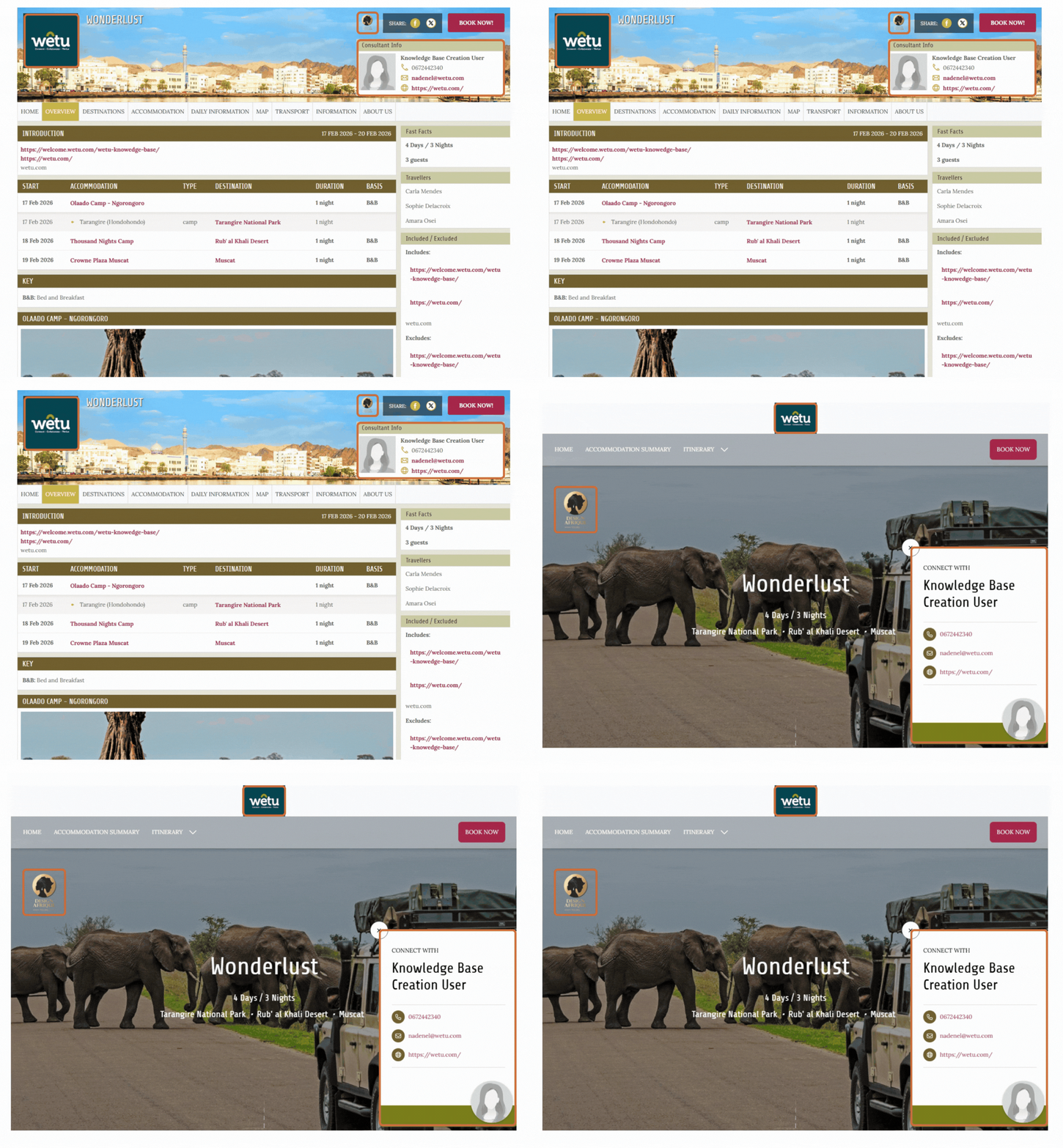
Co-branding example output
Primary Brand: Company - Secondary Brand: Identity - Contact Details: Identity
Need help?
- Contact Support: support@wetu.com
- Live Chat: Available on your Dashboard