
Quick Links
- Upload from your computer
- Add from Wetu Admin
- Where documents display
- Hide a document
- Need help?
Upload from your computer
1. Open the itinerary in the Personal Itineraries browser.
2. Navigate to Step 6: Additional Details.
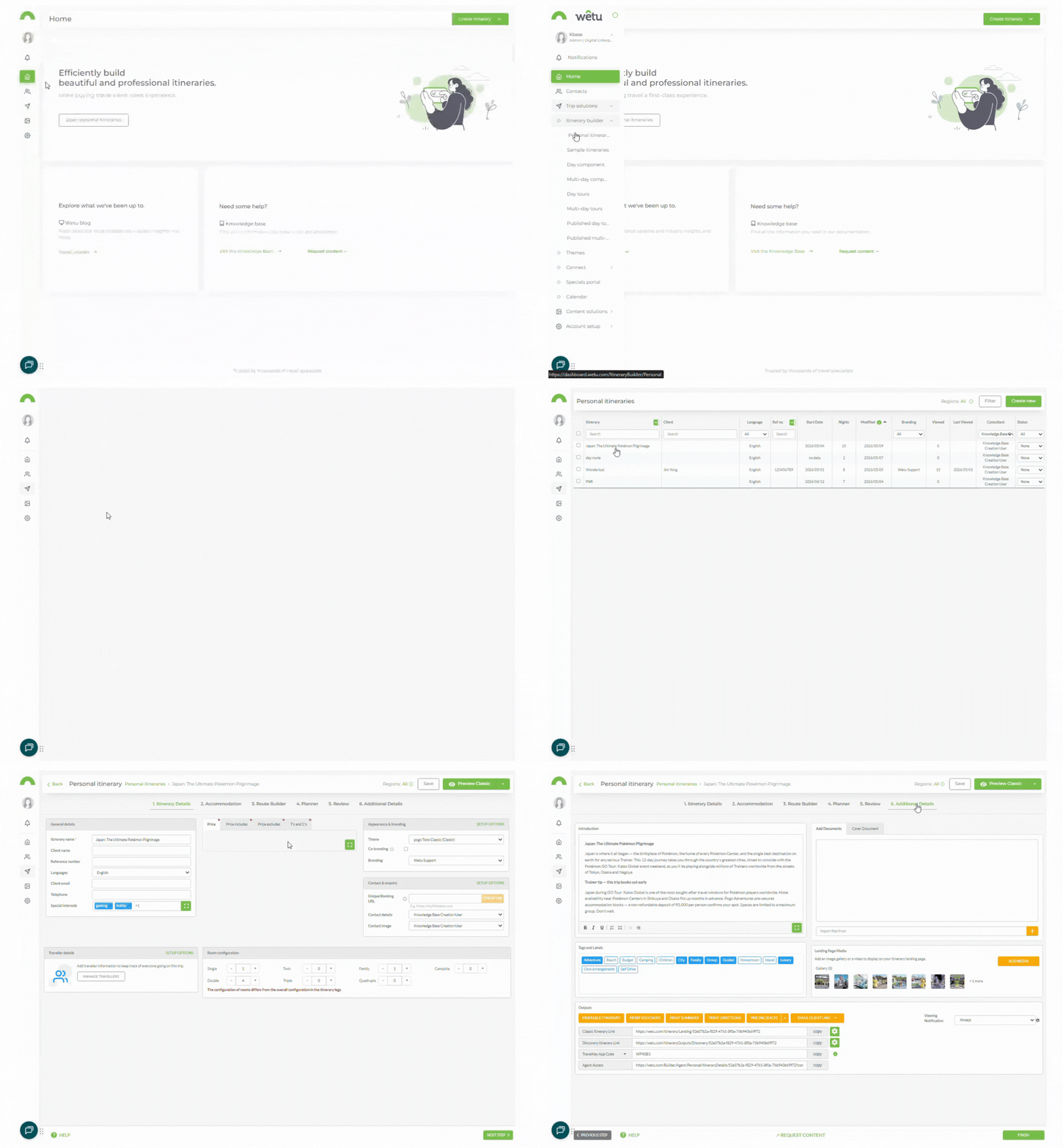
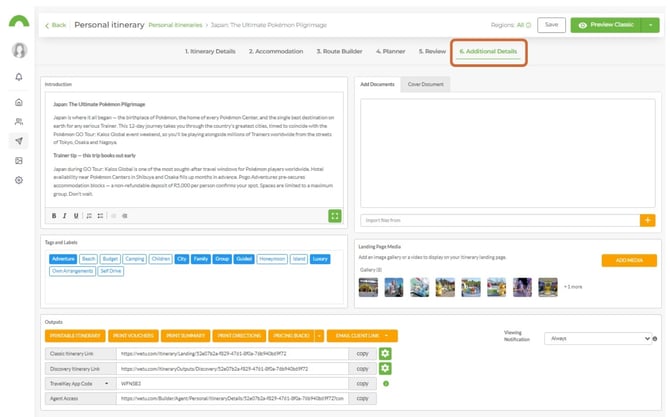
3. Click Add Documents (next to Cover Documents).
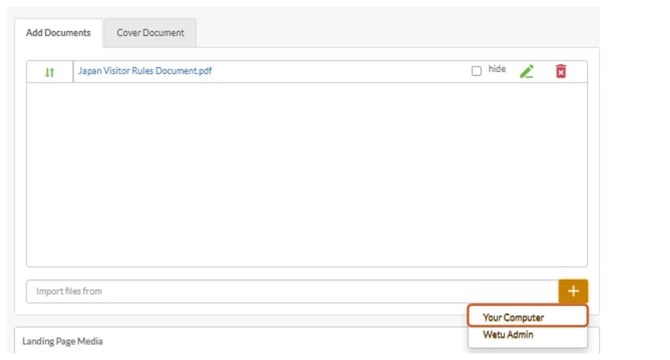
4. Click the orange + and select Your Computer.
5. Your file manager will open.
6. Select the document you want to upload and click Open.
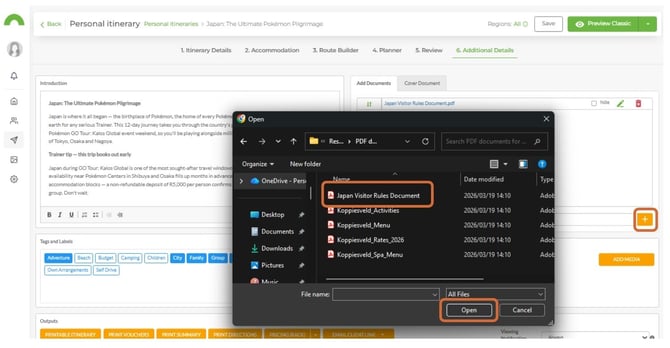
Tip: To upload multiple documents at once, place them all in one folder, then hold Ctrl (or Command on Mac) and click each file before clicking Open.
7. Once uploaded, the documents will appear in the Add Documents section.
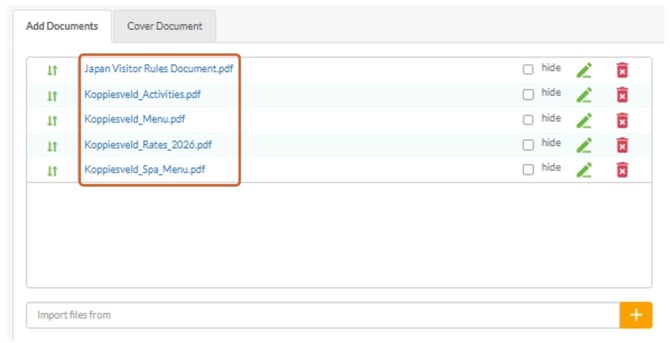
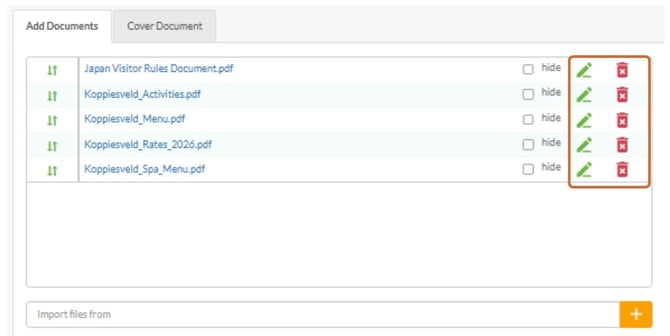
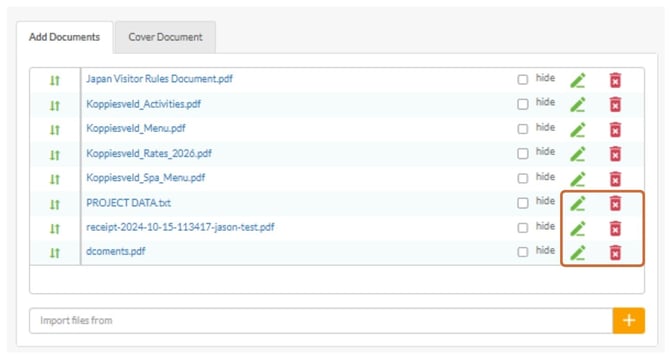
8. Click the trash can icon to remove a document.
9. Click the pencil icon to rename a document.
Add from Wetu Admin
1. In the Additional Details step, click Add Documents.
2. Click the orange + and select Wetu Admin.
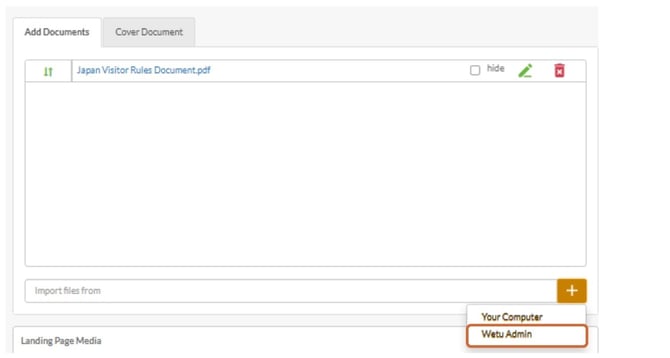
3. The File Attachments window will open, showing files uploaded to your Wetu account.
4. Tick the checkbox next to each document you want to attach.
5. Click Attach Documents.
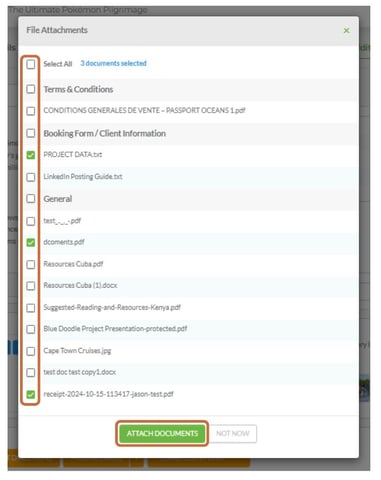
Note: Documents must be uploaded to Wetu Admin before they appear in the File Attachments window. Refer to the guide on uploading files to Wetu Admin for more information.
6. Once attached, the documents will appear in the Add Documents section.
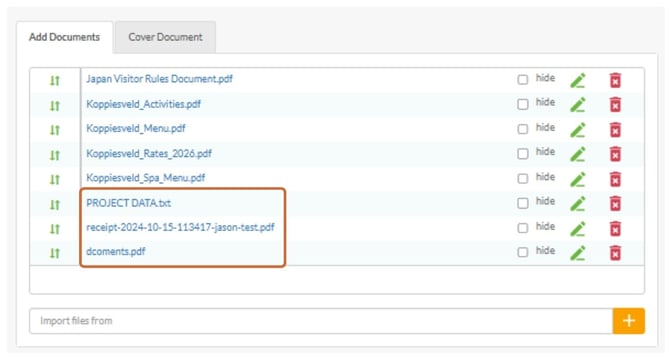
7. Click the trash can icon to remove a document.
8. Click the pencil icon to rename a document.
Where documents display
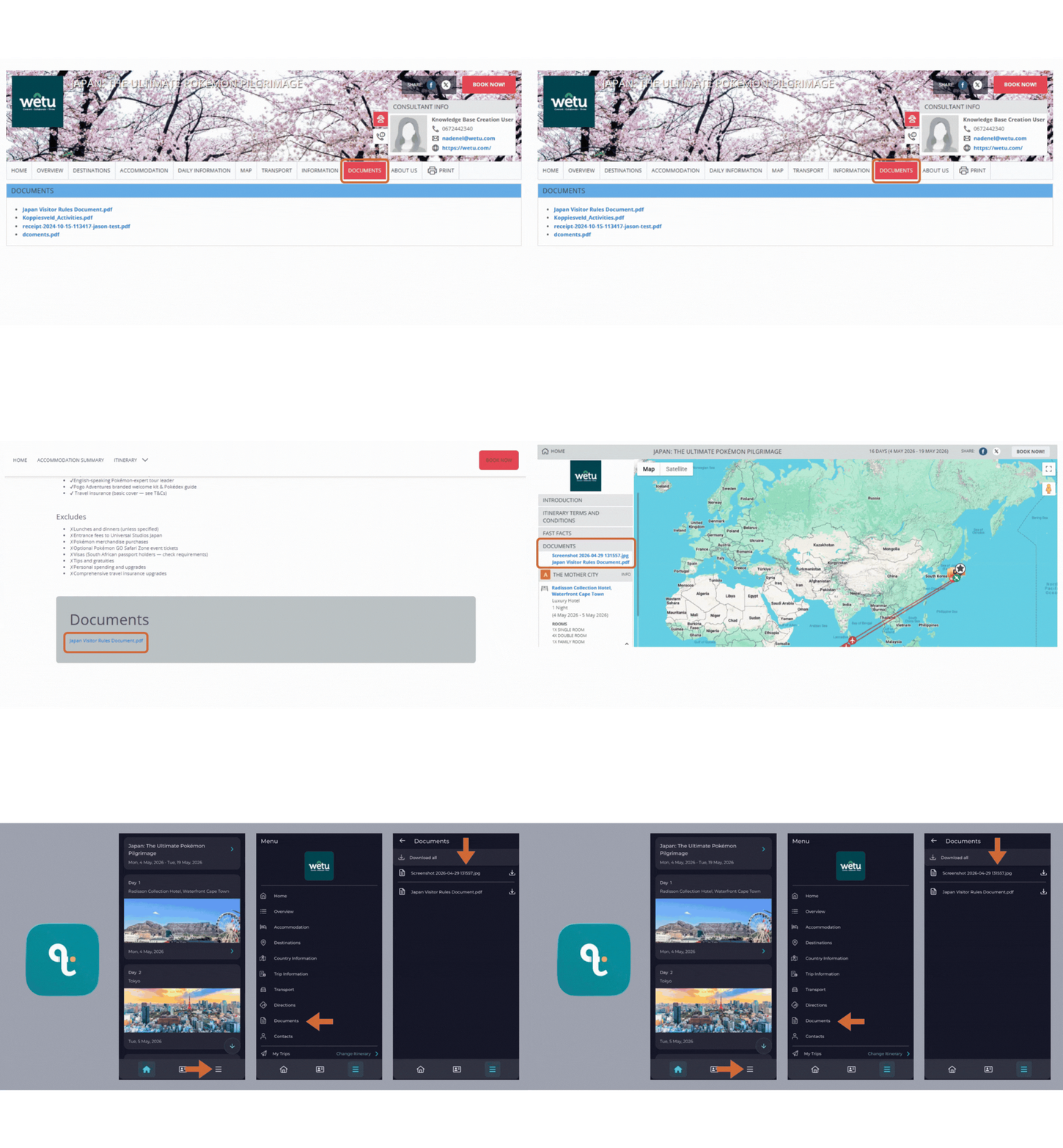
Attached documents are available on all digital itinerary outputs.
| Output | Where documents are accessible |
|---|---|
| Virtual Itinerary | In the itinerary document section |
| Digital Itinerary | In the itinerary document section |
| Mobile Responsive | In the itinerary document section |
| TravelKey App | Available as an attachment in the app |
Hide a document
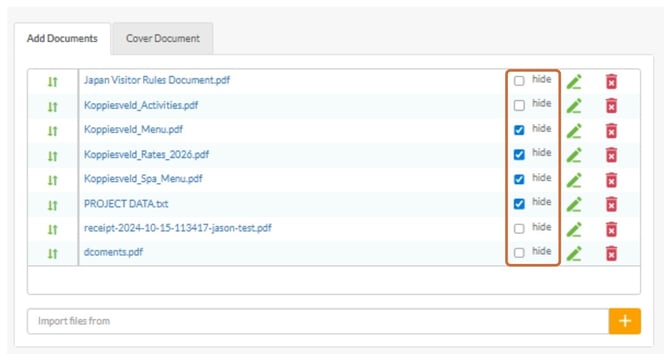
1. In the Add Documents section, locate the document you want to hide.
2. Tick the Hide checkbox next to the document.
3. The document will remain attached to the itinerary for your records but will not appear on any output.
Need Help?
- Contact Support: support@wetu.com
- Live Chat: Available on your Dashboard