
Quick Links
- Choosing Colours
- Need Help?
Navigating to Themes
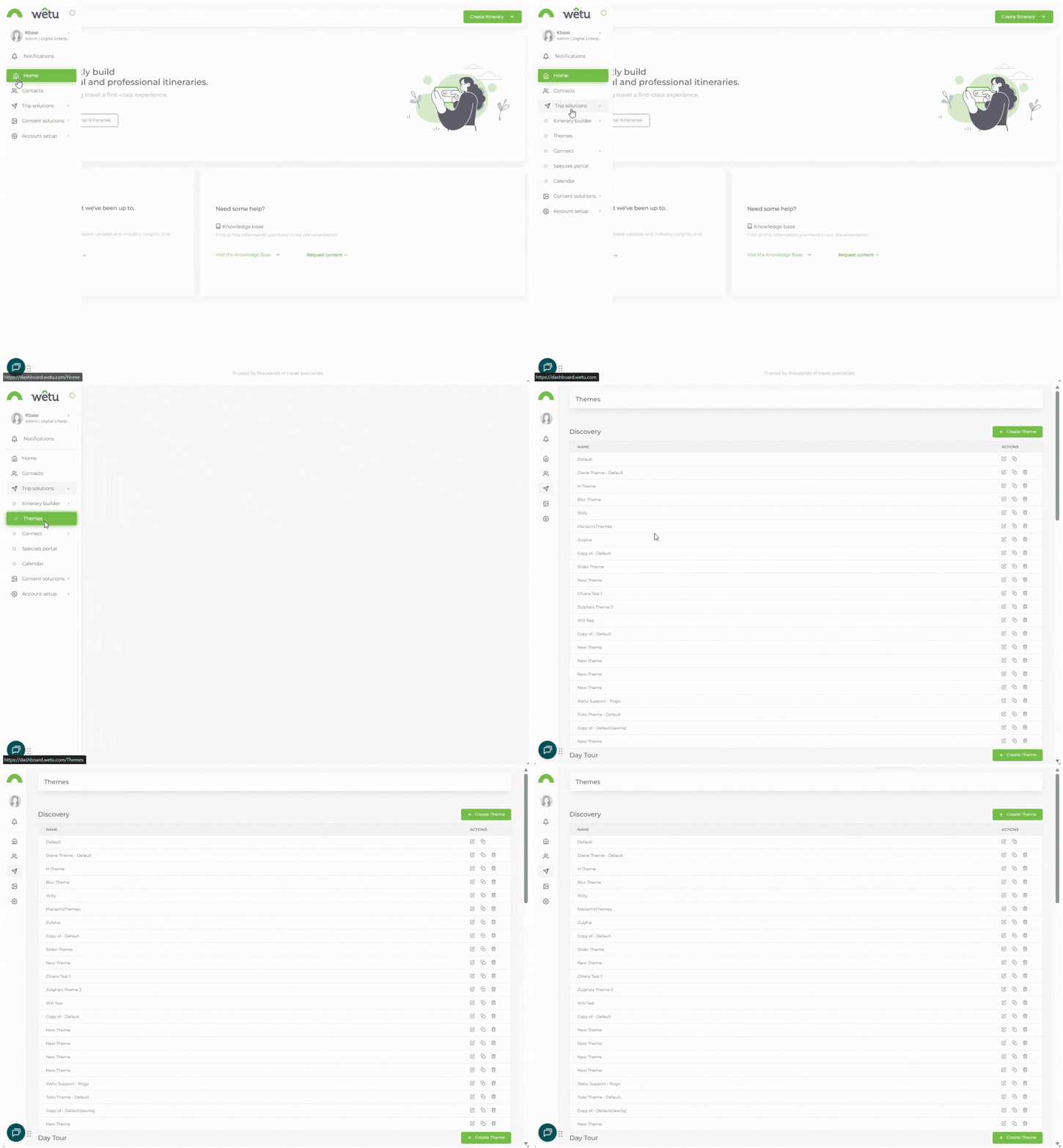
Choosing colours
When customising your itinerary theme, the colour picker appears wherever you can select a colour. There are three ways to enter or select your colour:
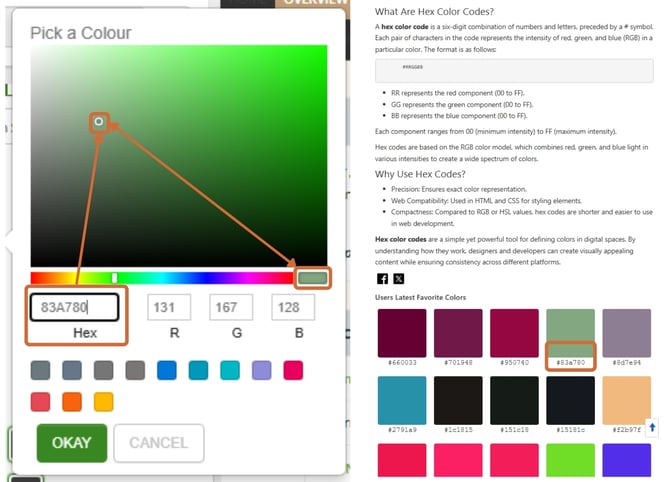
Hex colour codeEvery colour has a unique six-character Hex code (e.g. #6bb645). If you know your company's Hex code, type it directly into the Hex field and the correct colour will be selected automatically. If you need to find a Hex code, use a colour picker tool such as color-hex.com. |
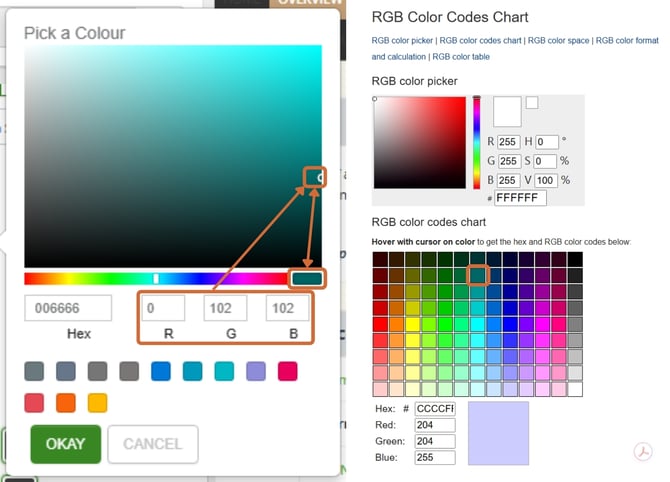
RGB colour valuesColours can also be defined using three numbers - Red, Green, and Blue (RGB). Enter the relevant values into the R, G, and B fields to select your exact company colour. If you need to find RGB values for a colour, use a tool such as Rapid Tables RGB colour chart. |
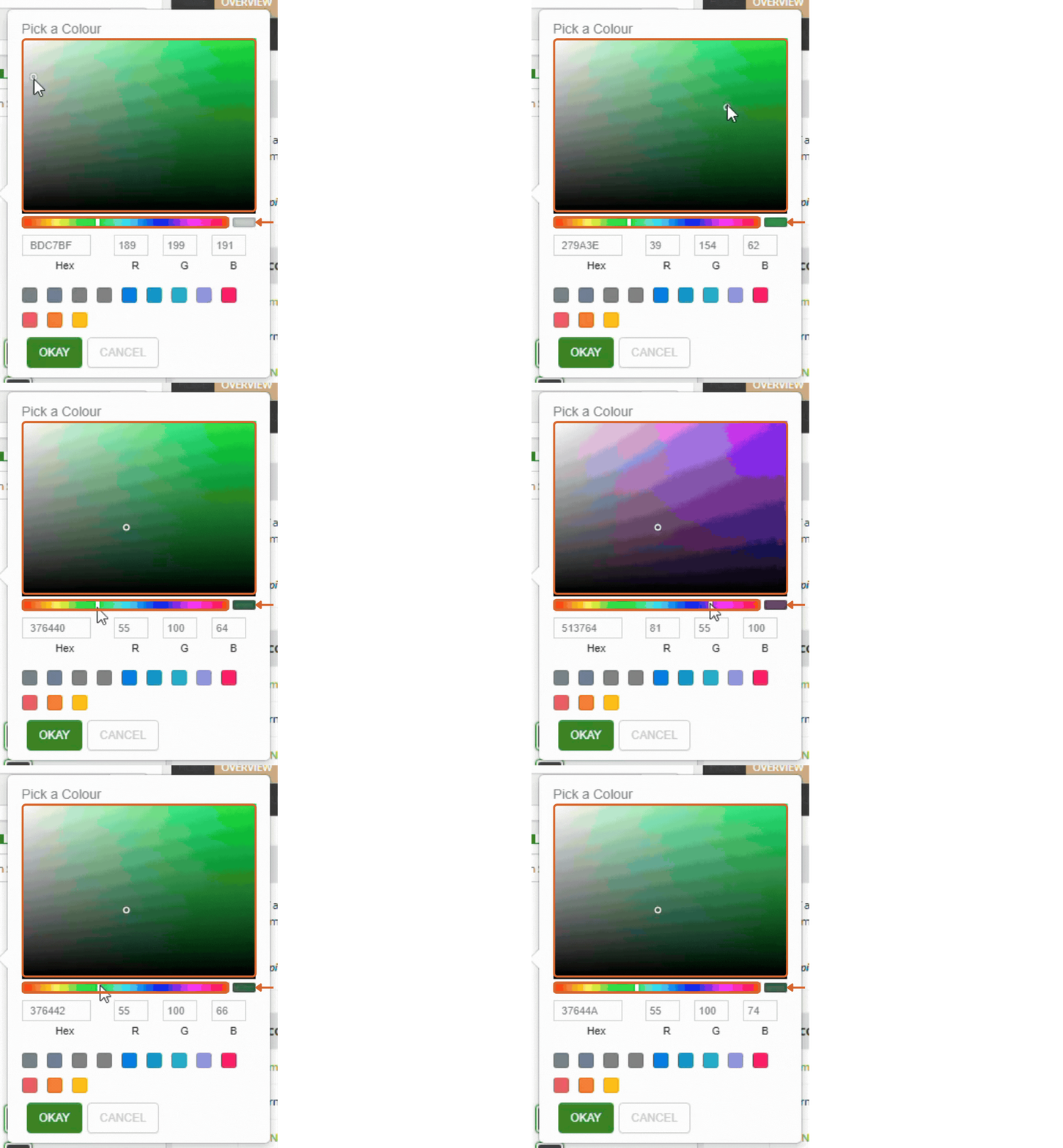
Visual colour pickerTo select a colour visually, use the horizontal colour bar at the bottom of the picker to choose a base colour, then click within the large colour block above it to select your exact shade. |
Tip: Use your exact company colours for consistency. Record the Hex code or RGB values for each colour you use in your theme so you can reapply the same shades accurately across all sections.
Need Help?
- Contact Support: support@wetu.com
- Live Chat: Available on your Dashboard