
Quick Links
- Upload company documents
- Visibility settings
- Where documents appear
- Need help?
Upload company documents
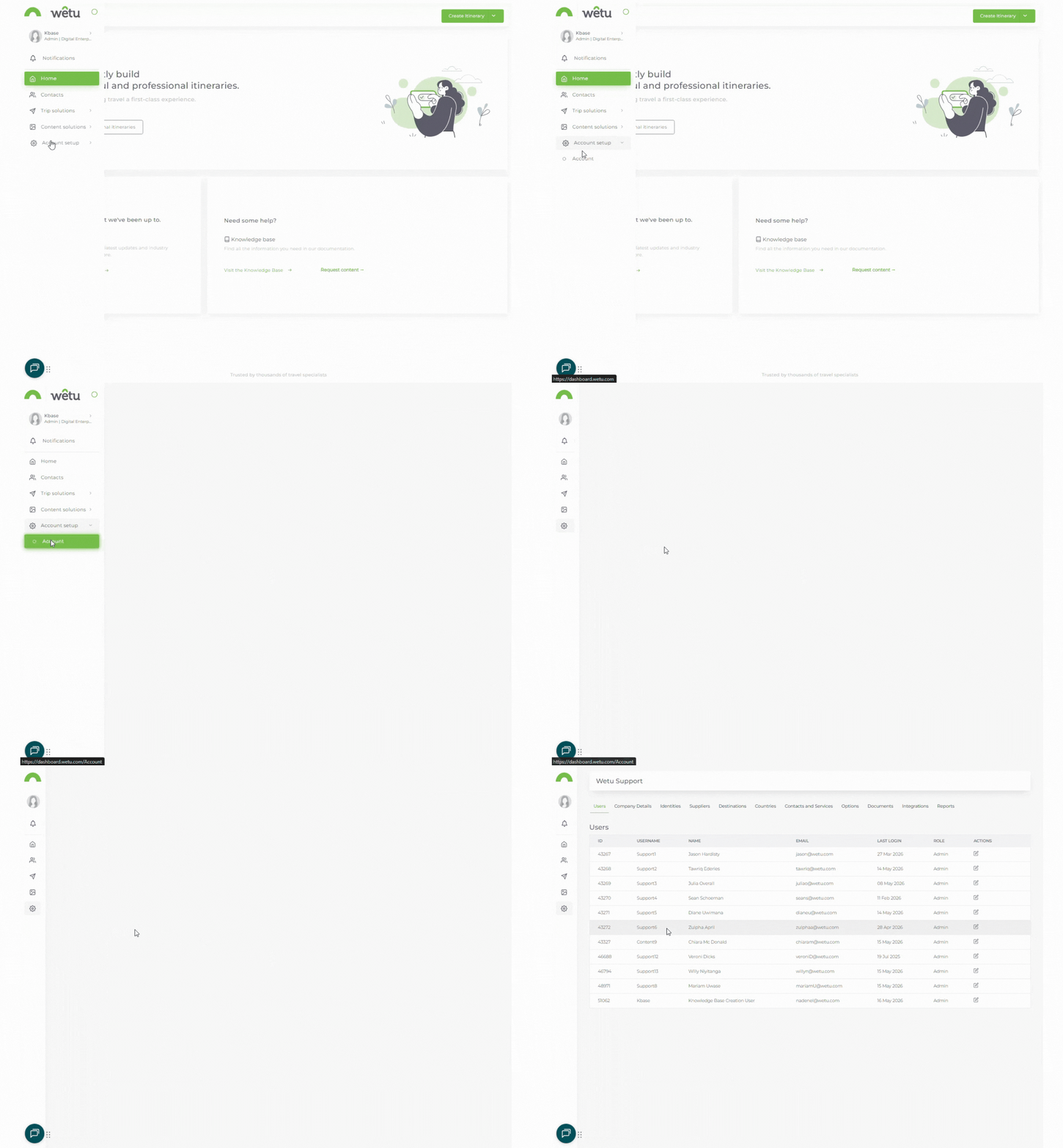
1. In the navigation panel, go to Account Setup › Account.
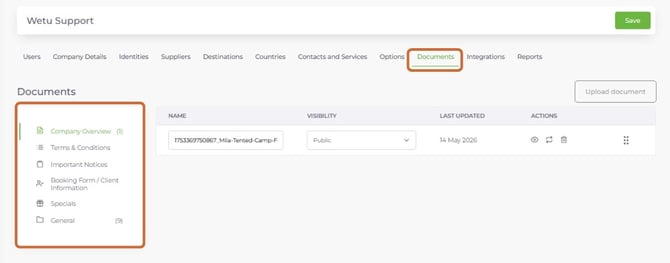
2. Click the Documentation tab.
3. On the left side, select the type of documentation you want to upload.
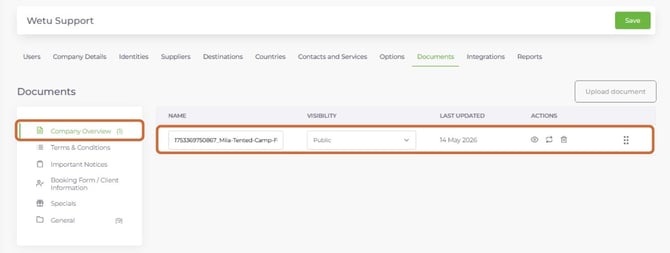
4. Click Upload Document and select the file from your computer.
5. Once uploaded, rename the file if needed.
6. Set the visibility level for the document.
7. Click Save.
Note: If you remove a document, click Save again for the removal to take effect.
Visibility settings
|
Setting |
Where the document appears |
|---|---|
|
Public |
Displays in the rebranded iBrochure sent to clients or linked to Digital Itineraries. |
|
Consultant |
Displays in the rebranded iBrochure when logged in, the Consultant Portal, and the Itinerary Builder. |
|
Consultant & Agent |
Displays in the rebranded iBrochure when logged in, the Consultant Portal, and the Itinerary Builder. |
Where documents appear
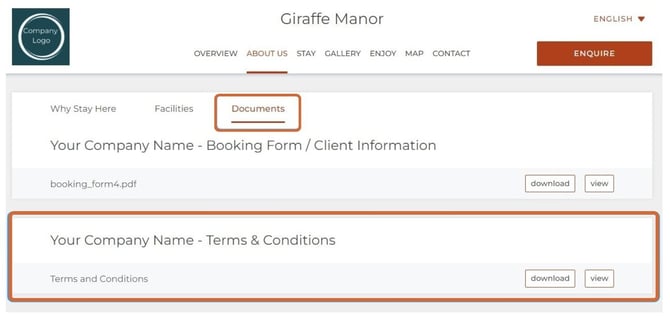
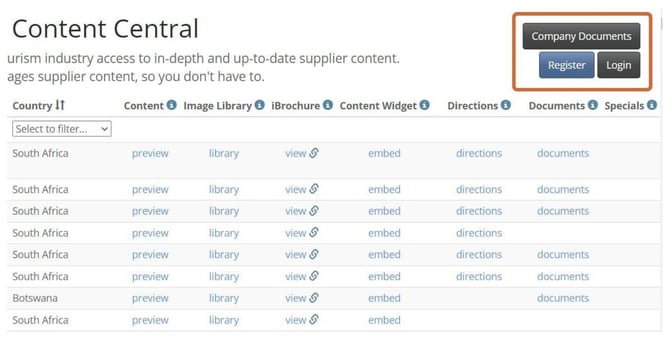
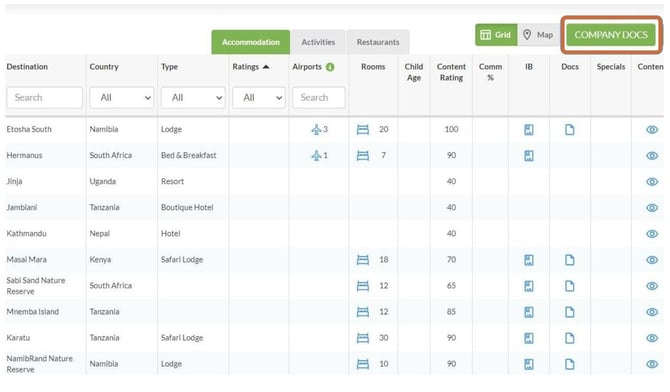
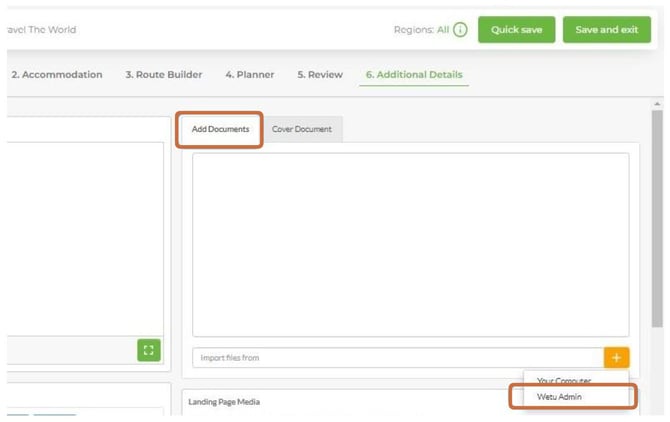
Depending on the visibility setting, uploaded company documents can appear in the following locations:
|
Rebranded iBrochure |
|
|
Content Central |
 |
|
Consultant Portal |
 |
|
Itinerary Builder |
 |
Need help?
- Contact Support: support@wetu.com
- Live Chat: Available on your Dashboard