
Quick Links
- Getting started
- Creating a contact
- Adding client details
- Capturing preferences
- Traveller information
- Saving the contact
- Need help?
Getting started
Step 1
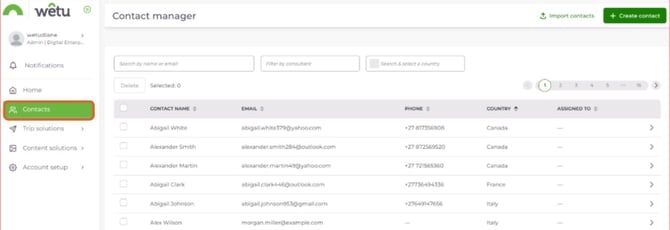
Select Contacts from the left-hand navigation bar.
Creating a contact
Step 2
Click the + Create contact button in the top right-hand corner.
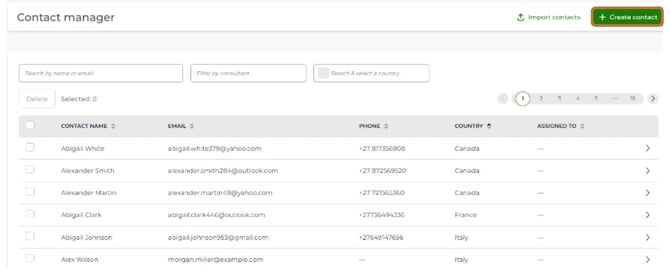
Note: The default view shows all contacts already on your account. If no contacts have been created, this list will be blank.
Adding client details
Step 3
Fill in the Contact Form with your client's information:
- Title (e.g., Mr, Ms, Dr)
- First Name (required)
- Last Name (required)
- Phone Number
- Nationality
- Date of birth
- Gender
- Body weight
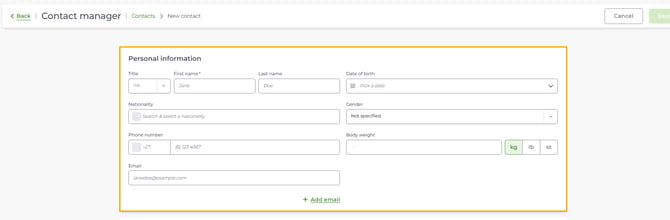
Note: The more complete the information, the easier it will be to personalise communication and keep your records accurate.
Capturing preferences
Step 4
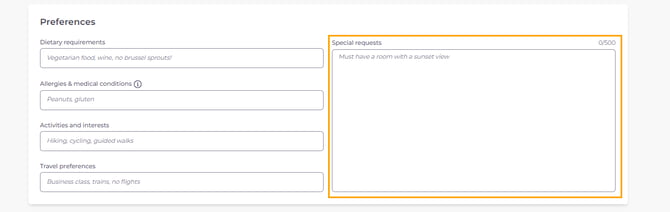
In the Preferences field, start typing to add a tag (e.g., hiking). Press Enter to save it as a tag.
Use tags to capture information across several categories.
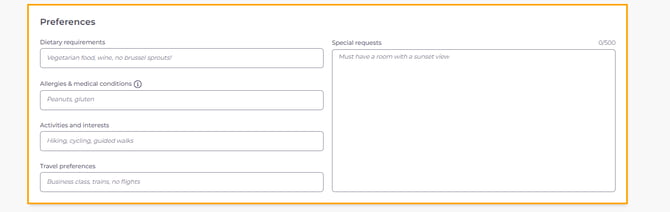
Note: Once a tag is saved, it stays in your account. Next time you type the same word in another contact form, it will appear as a suggestion.
Step 5
Use the Special Requests field to record any free-text details that don't fit into a tag (e.g., requires wheelchair access or prefers early check-in).
Traveller information
Step 6
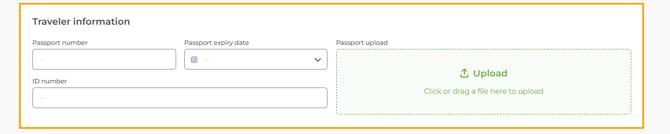
Complete the remaining fields:
- Passport Number - record the traveller's passport details for quick reference.
- Passport expiry date - record the traveller's passport expiry date.
- Passport upload - upload a copy of the traveller's passport.
- ID Number - capture their national identification number (if relevant).
- Assigned to - by default, the traveller is assigned to the signed-in user. Re-assign to another team member if needed.
- Contact Source - select where this contact originated from the drop-down.

Saving the contact
Step 7
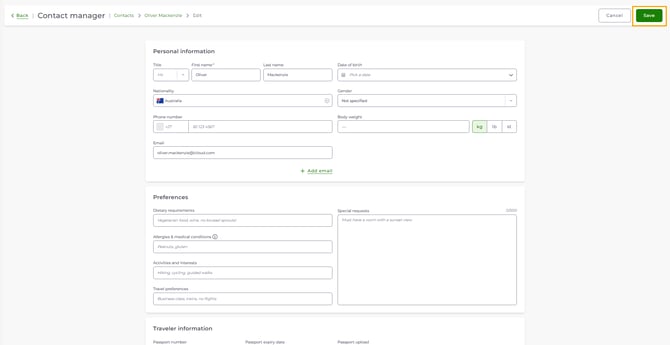
Select Save to create the contact. You will be returned to the contacts list view.
Need Help?
- Support: support@wetu.com
- Live chat: Available in your dashboard