
Quick Links
- Getting started
- Step 1: Itinerary Details
- Step 2: Accommodation
- Step 3: Route Builder
- Step 4: Planner
- Step 5: Additional Details
- Publish and unpublish
- Need Help?
Availability: The Day Tour Builder is available on Digital Enterprise and Day Tour packages. Availability may vary depending on your account.
Getting started
1. From the Dashboard, navigate to Trip Solutions › Multi-Day Tours in the navigation panel.
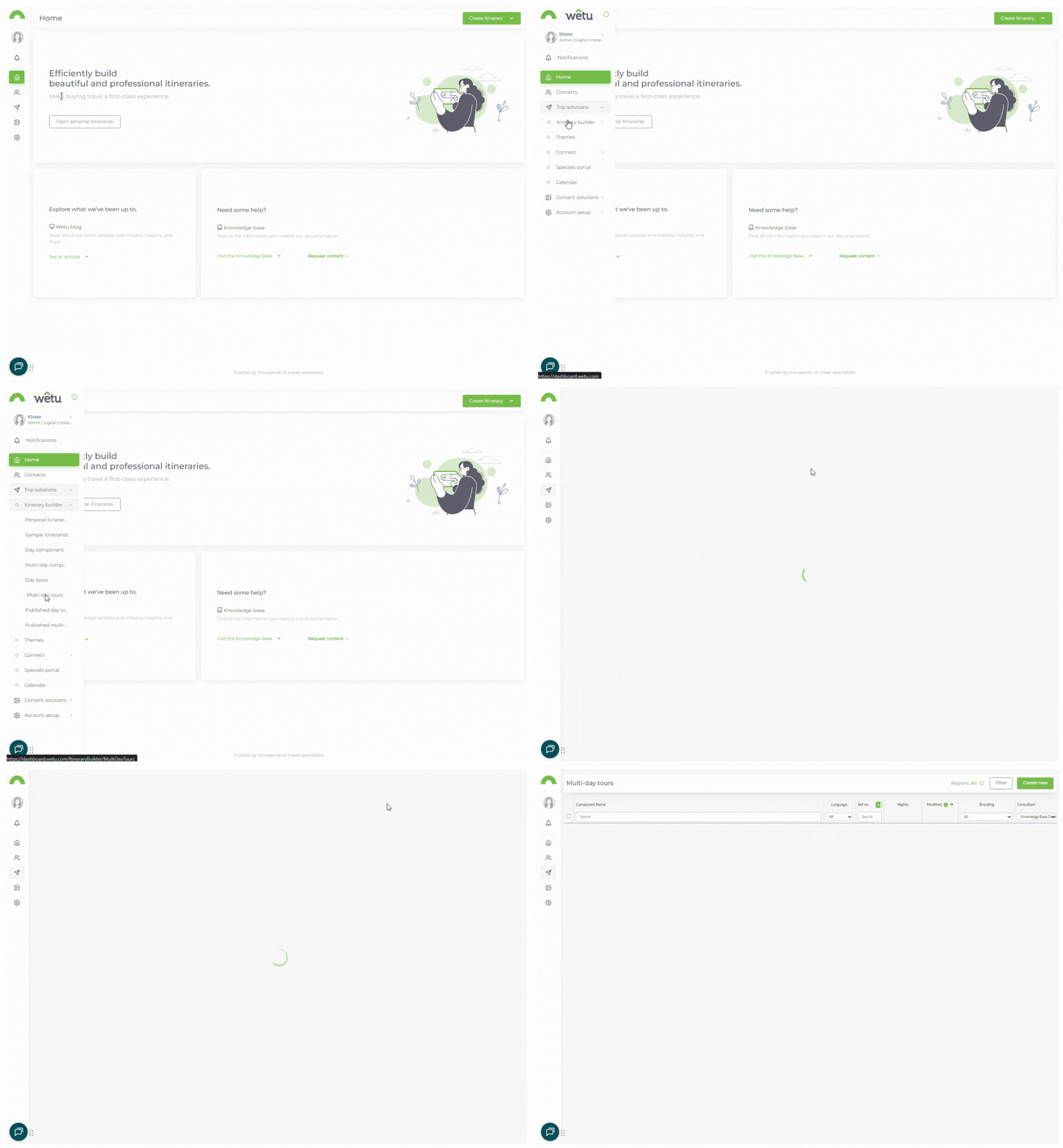
2. Click Create New to start a new tour, or select an existing tour to edit it.

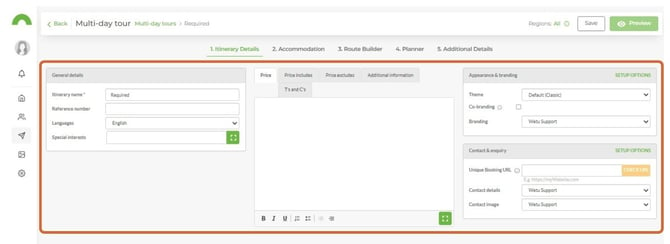
Step 1: Itinerary Details
Only the Itinerary Name is mandatory. All other fields are optional - any field left blank will simply not appear on the output.
Step 2: Accommodation
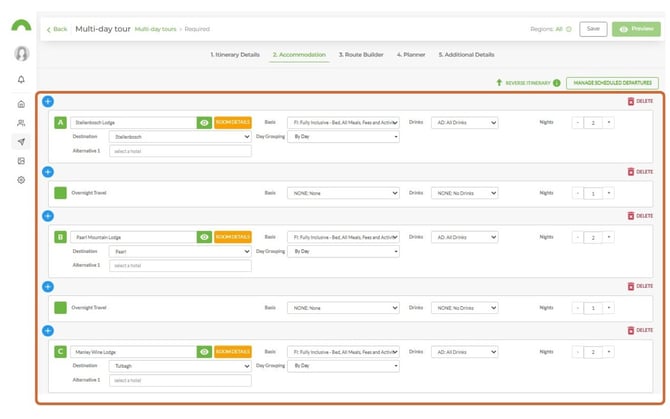
Set up the accommodation, own arrangements, and overnight travel for the tour.
1. Add fixed accommodation entries for each night of the tour.
2. Add any overnight travel arrangements (overnight flights, trains, boats) as needed.
3. Alternatively, add a Multi-Day Component - a pre-built accommodation block that can be reused across multiple tours.
Note: If an accommodation you need is not in Wetu, contact contentservices@wetu.com and the team will advise whether it can be loaded.
Step 3: Route Builder
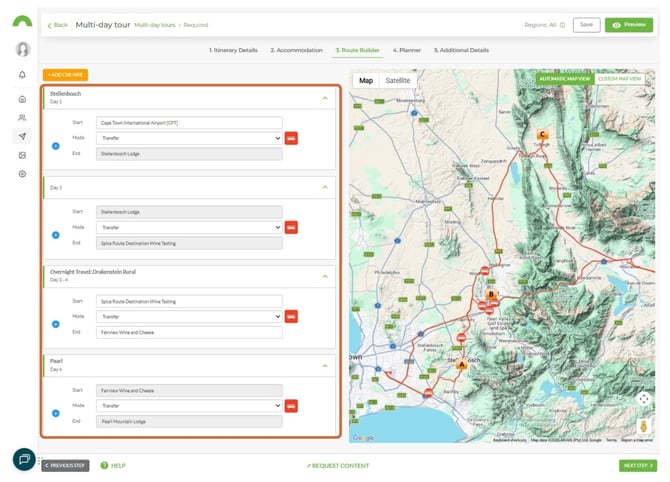
Plan how clients travel between each location - flights, transfers, self-drive, and so on. The Route Builder automatically pulls in the accommodation from the previous step.
1. Review the routing legs that have been automatically populated from the Accommodation step.
2. Set the mode of transport for each leg.
3. Add transport details using the icon next to each mode.
Step 4: Planner
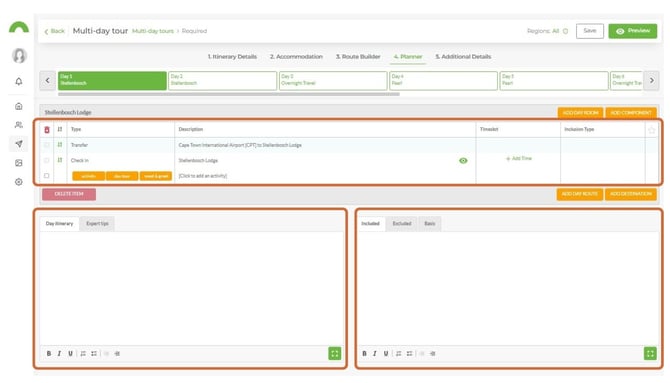
Add the day-by-day content for the tour.
1. Add activities from the preloaded list or as free text.
2. Add Day Tours and Meet & Greet details where relevant.
3. Add Day Notes,Expert Tips, and Included/Excluded information for each day.
4. Add Day Components to insert pre-built activity blocks.
Step 5: Additional Details
Add the final tour content - introduction, documents, and tags.
1. Add an Introduction to the tour.
2. Attach any documents - such as booking forms, packing lists, or country information - from your computer or your Wetu account.
3. Add tags or labels to categorise the tour.
4. Scroll to the bottom of the step to access the outputs.
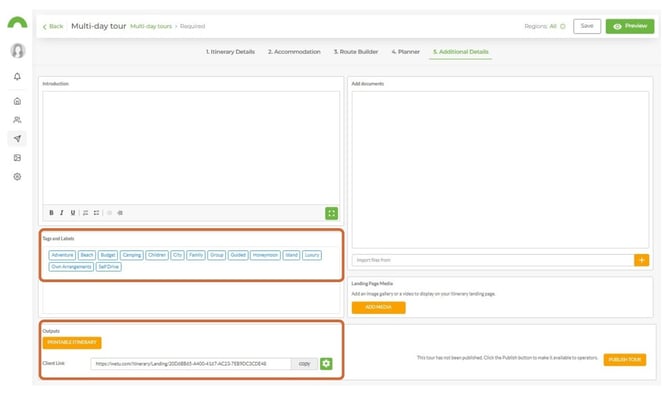
Outputs:
Printable Itinerary - downloads a Word document of the tour.
Client Link - copy and paste into an email to share the digital version of the tour with your client.
Publish and unpublish
Publish
1. In the Additional Details step, click the orange Publish Tour button.
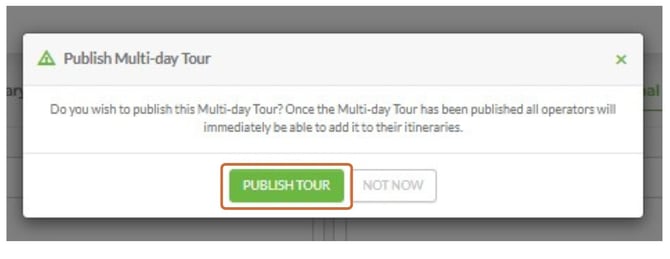
2. Confirm the pop-up to publish.
3. Once published, operators and agents can search for and add the tour to their itineraries.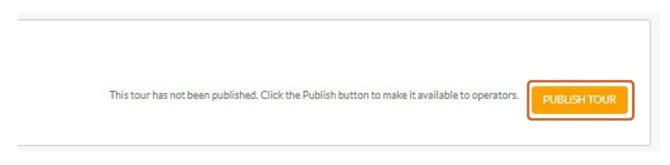
Unpublish
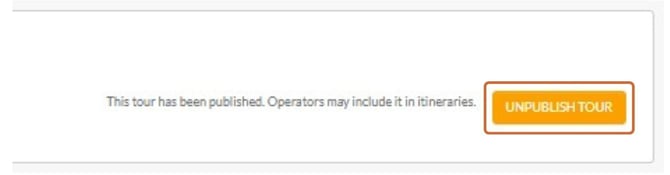
1. In the Additional Details step, click Unpublish Tour.
2. Confirm the pop-up - the tour will be unpublished.
3. The tour can be republished at any time.
Note: If you want to use the tour for internal use only, do not publish it.
Need Help?
- Contact Support: support@wetu.com
- Live Chat: Available on your Dashboard