
Quick Links
- Access supplier directions
- Direction types
- Directions to property
- Directions from property
- Use in the Itinerary Builder
- Needhelp?
Access supplier directions
1. In the navigation panel, go to Account Setup > Account.
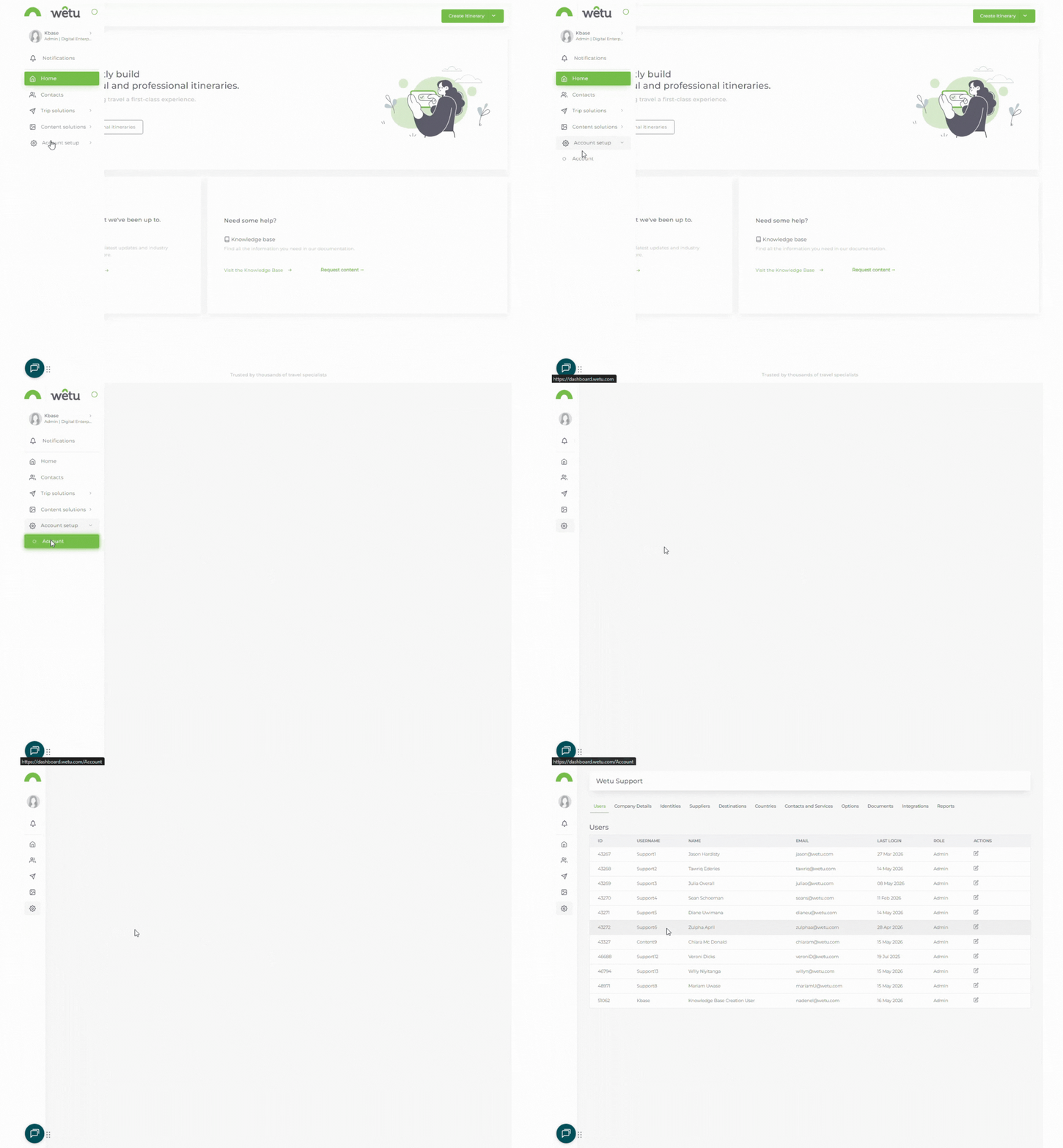
Note: If you do not have access to the Account function, ask the person who manages your Wetu account to grant you permission.
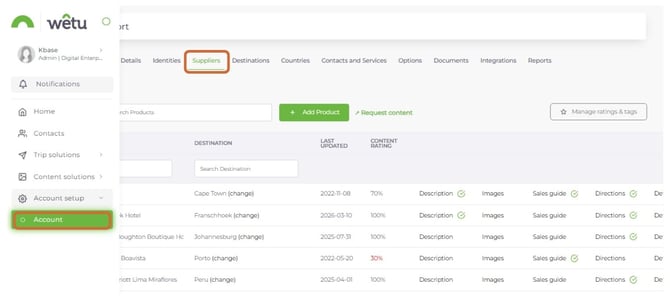
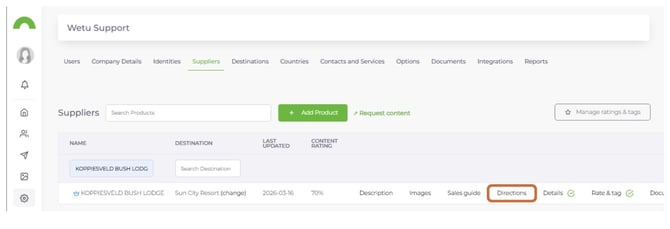
2. Click the Supplier tab to view all available suppliers.
Direction types
From the dropdown on the left of the Directions window, select:
-
Directions to Property - routes that bring the traveller to this supplier
-
Directions from Property - routes that take the traveller away from this supplier
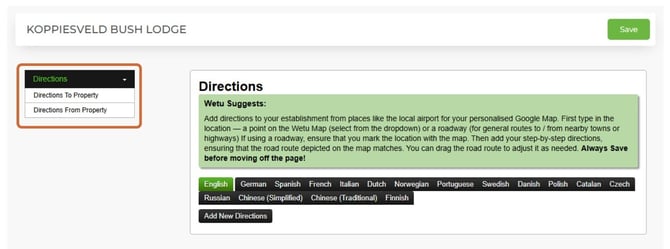
Note: Each custom direction is created per language. The itinerary must be set to the same language for the custom directions to appear in the output.
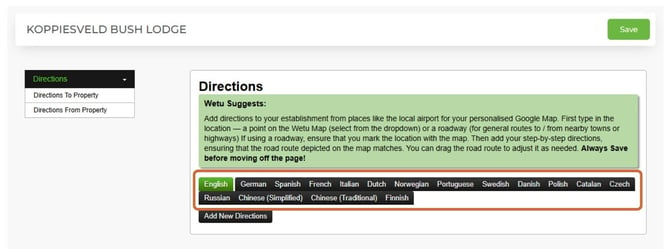
Directions to property
1. Click Directions to Property, select your preferred language, then click Add New Directions.
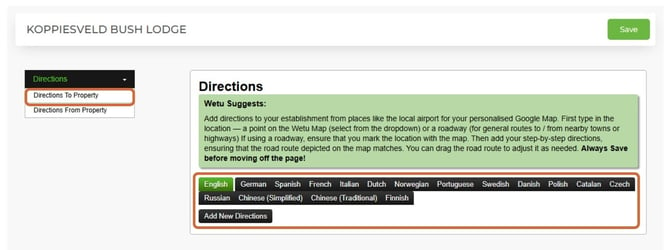
2. Select the Starting Point - an existing stay, accommodation, or supplier in the Wetu system.
Note: The Starting Point field only accepts locations that exist in the Wetu system. It is not a free-text field.
Set a starting point using the map
1. Select the From a roadway radio button.
2. Click Set Position - a red location pin appears on the map.
3. Drag and drop the pin to the desired starting point on the roadway.
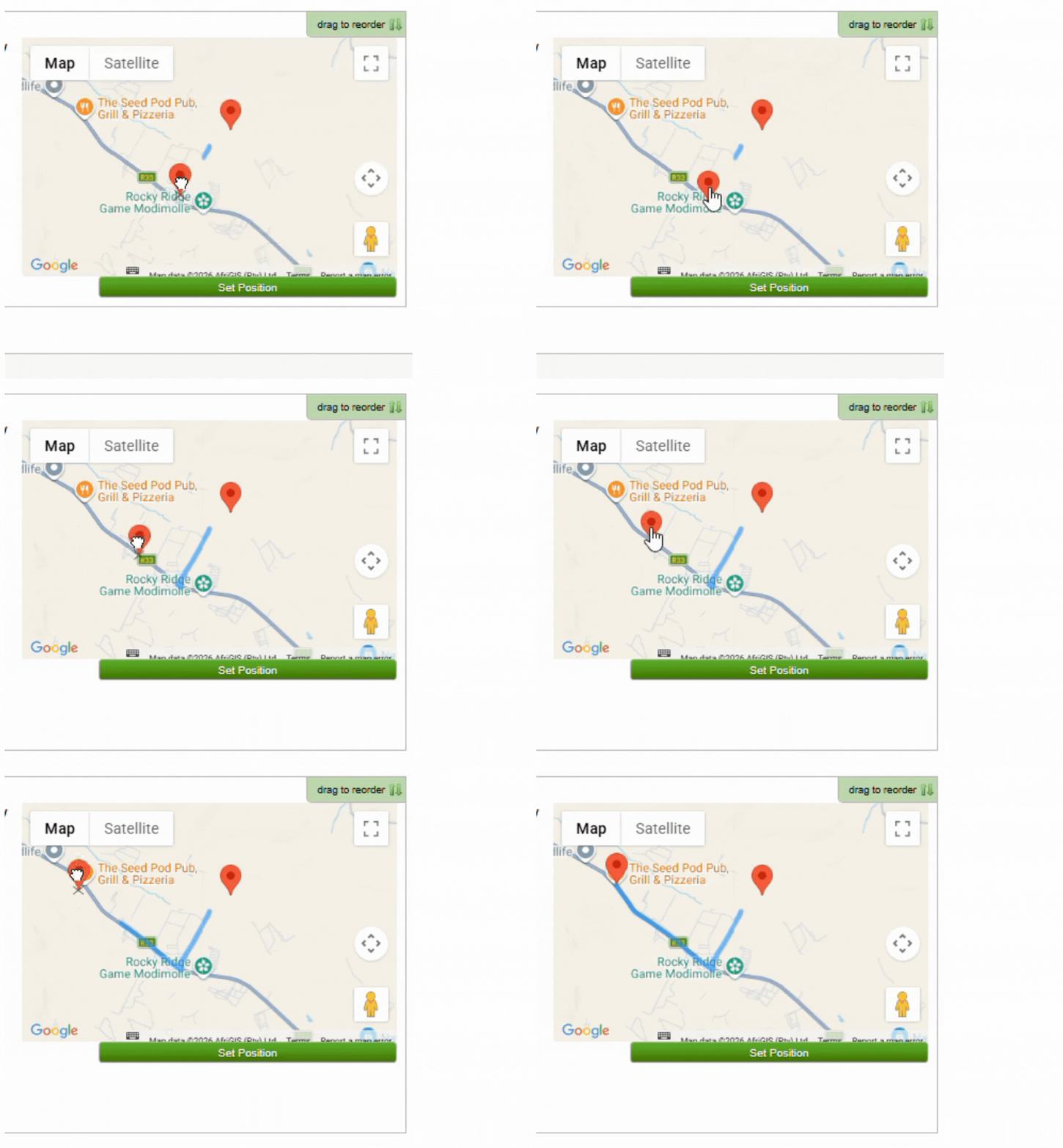
Once the pin is placed, the system pulls directions from Google Maps. The route appears as a blue line and written step-by-step directions populate on the left.
Note: If Google Maps cannot generate directions for the selected location, no blue route line will appear and no written directions will be displayed.
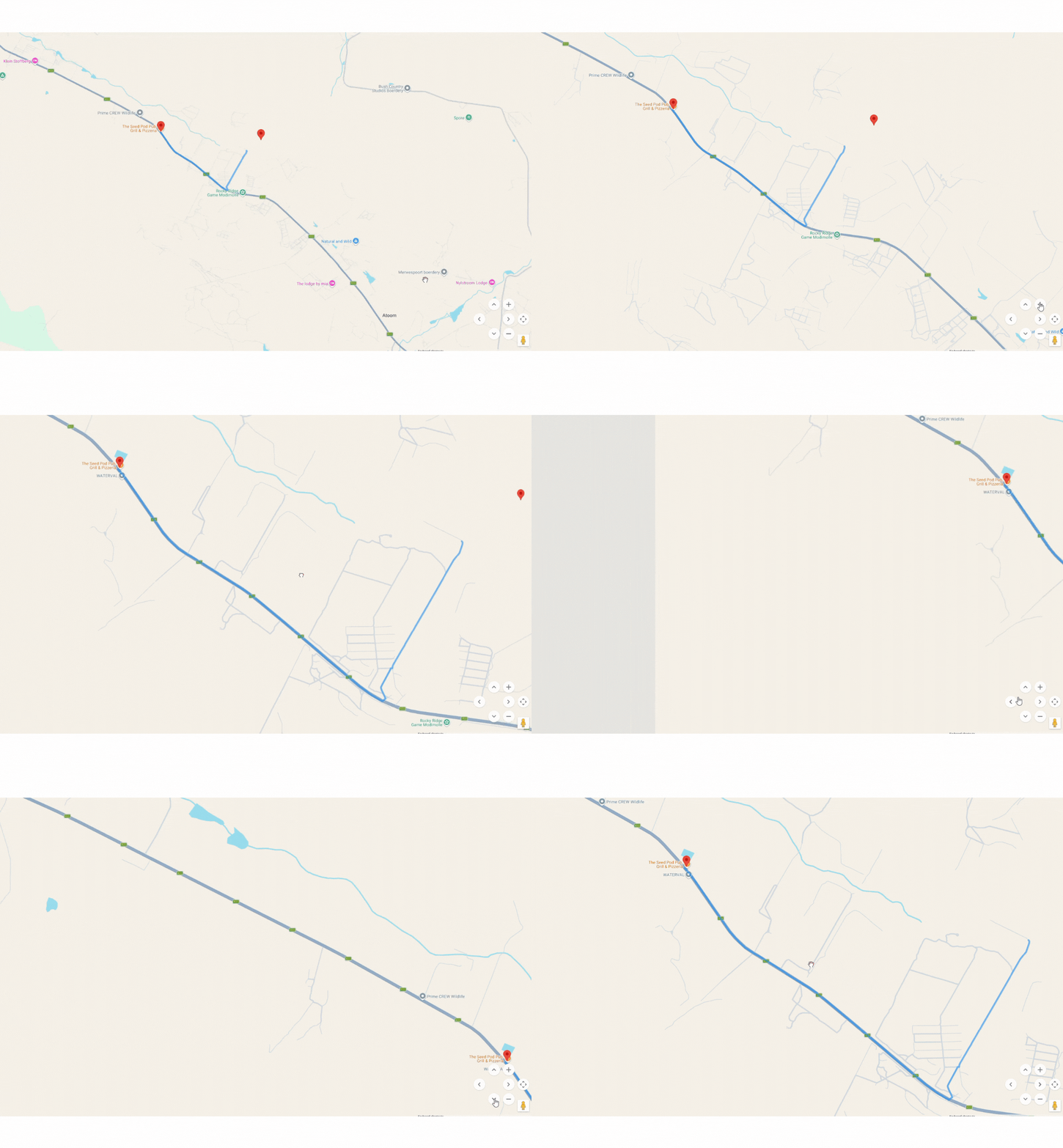
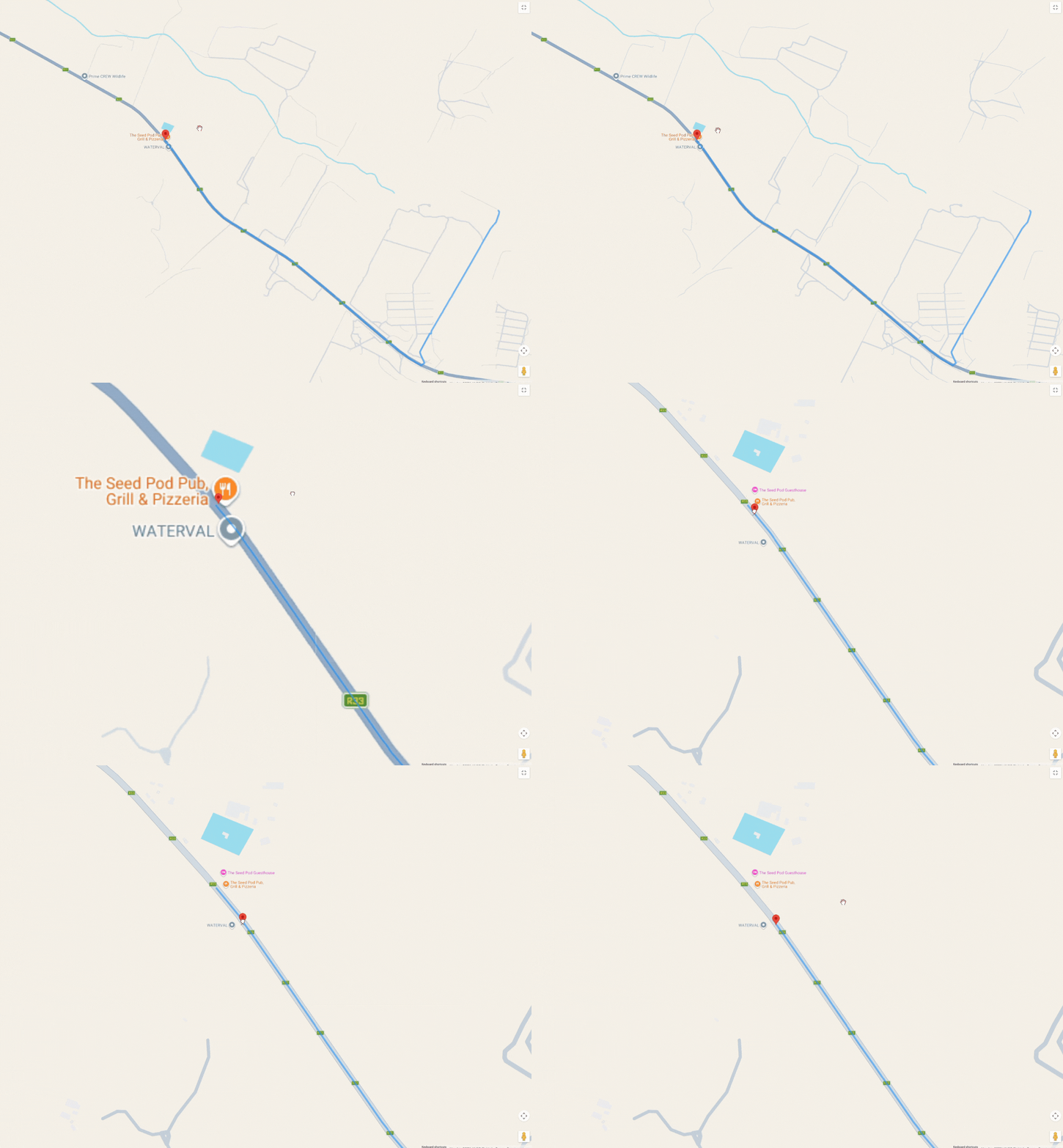
Adjust the map route
1. Zoom in using the zoom controls or scroll with the cursor to view smaller roads. Toggle to full-screen view for a clearer workspace.
2. Drag the blue route line to change the path - the written directions on the left update automatically.
Edit the written directions
1. Click into the text field and type over the auto-generated directions to customise them.
2. Use the red cross icon to delete individual direction lines.
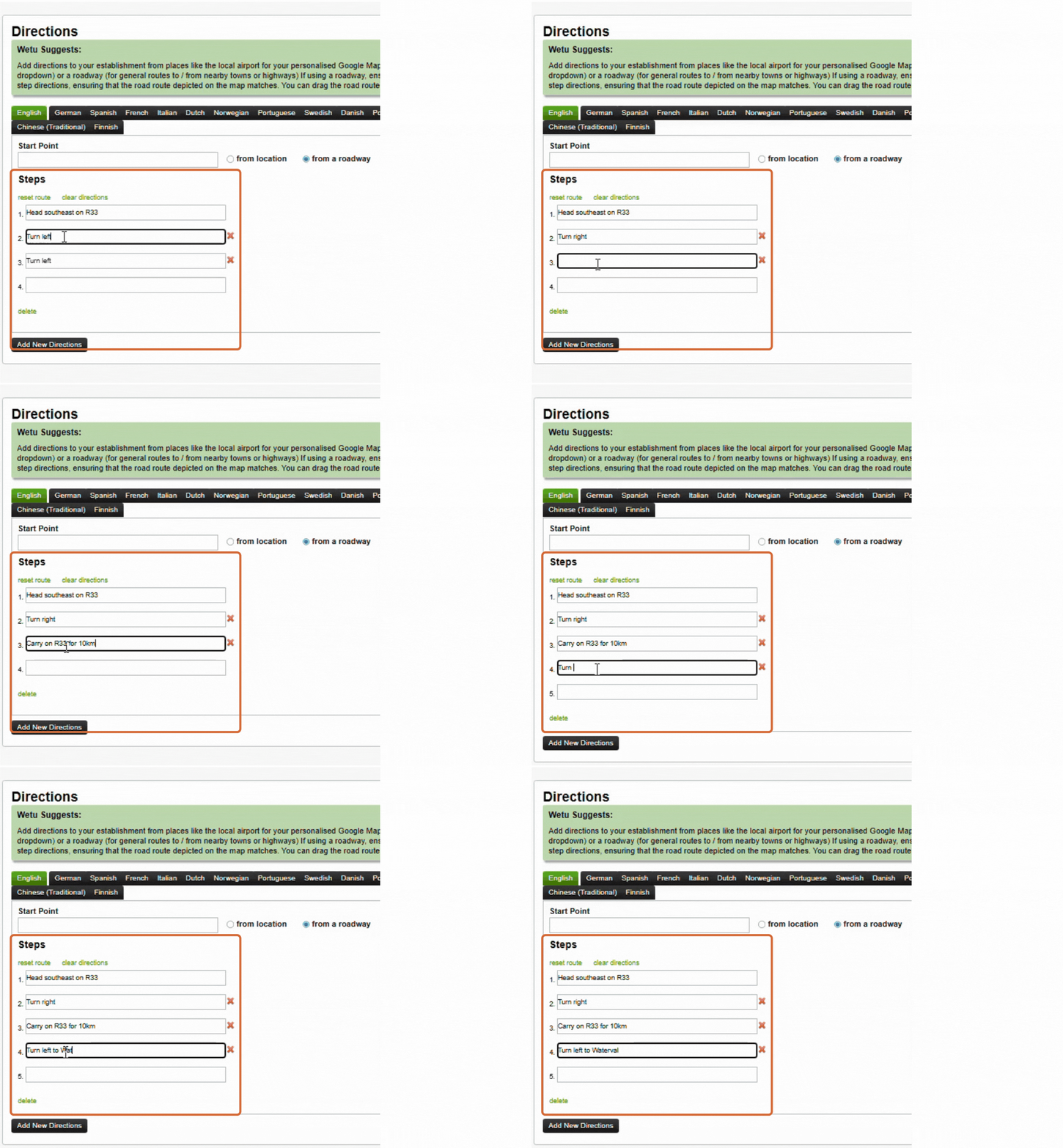
Note: Each written direction line has a 140-character limit.
3. Click Save.
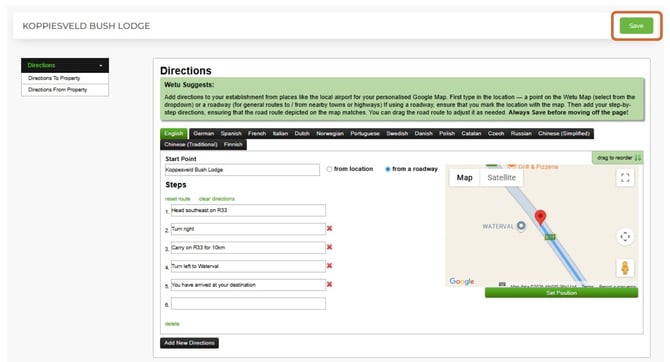
Important: Always click Save before leaving the page - unsaved changes will be lost. Saved custom routes apply when the same two accommodations are used in the same order in the Itinerary Builder.
Directions from property
1. Click Directions from Property, choose your preferred language, then click Add New Directions.
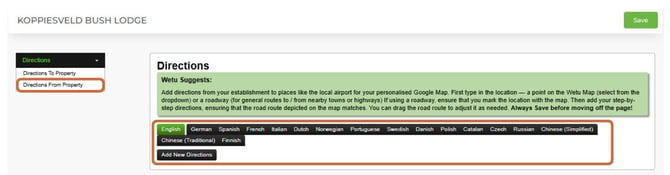
2. Select the End Point - an existing stay, accommodation, or supplier in the Wetu system.
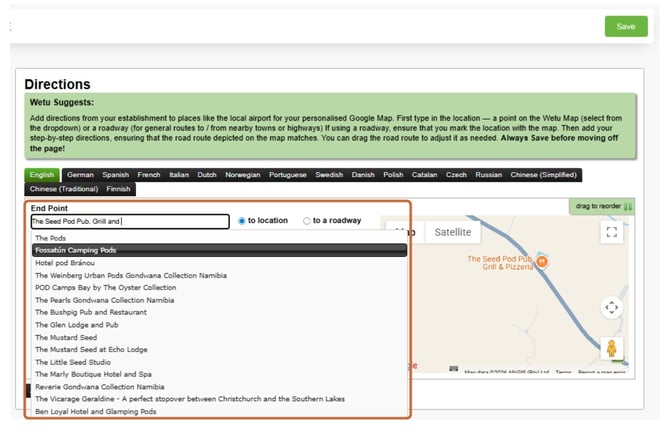
Note: The End Point field only accepts existing locations in the Wetu system. It is not a free-text field.
Follow the same steps as Directions to Property to set the route on the map, adjust the blue line, edit written directions, and save.
Use custom directions in the Itinerary Builder
Set up the itinerary
-
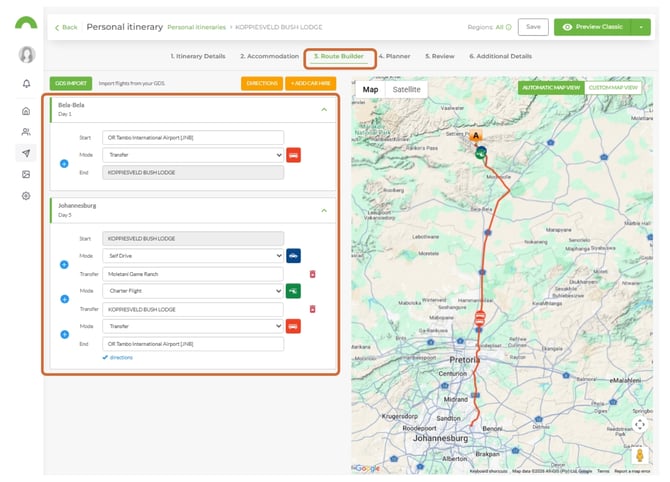
In Step 2: Accommodation, add the supplier and the relevant starting or end point in the correct order.
-
Ensure the itinerary language matches the language used when setting up the custom directions.
Access directions in Step 3
-
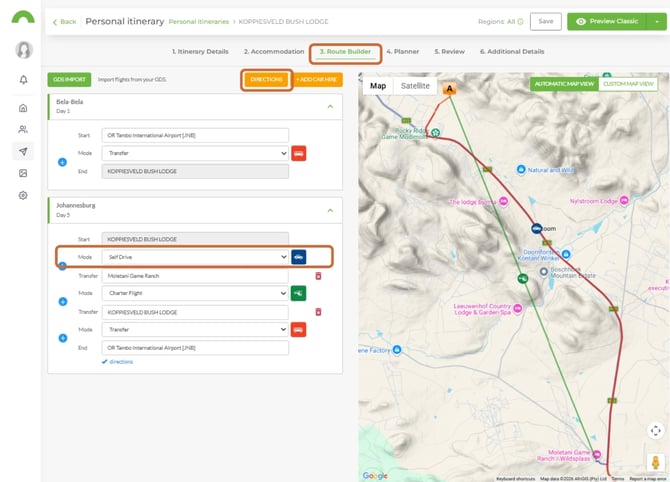
Navigate to Step 3: Route Builder.
-
Set the transport mode to Self Drive.
-
Click the Directions button to view or select the custom directions.
Need Help?
- Contact Support: support@wetu.com
- Live Chat: Available on your Dashboard