
Quick Links
- Create a Meet and Greet service
- Add images
- Add a Meet and Greet to an itinerary
- Output display
- Need Help
Create a Meet and Greet service
1. In the navigation panel, go to Account Setup › Account.
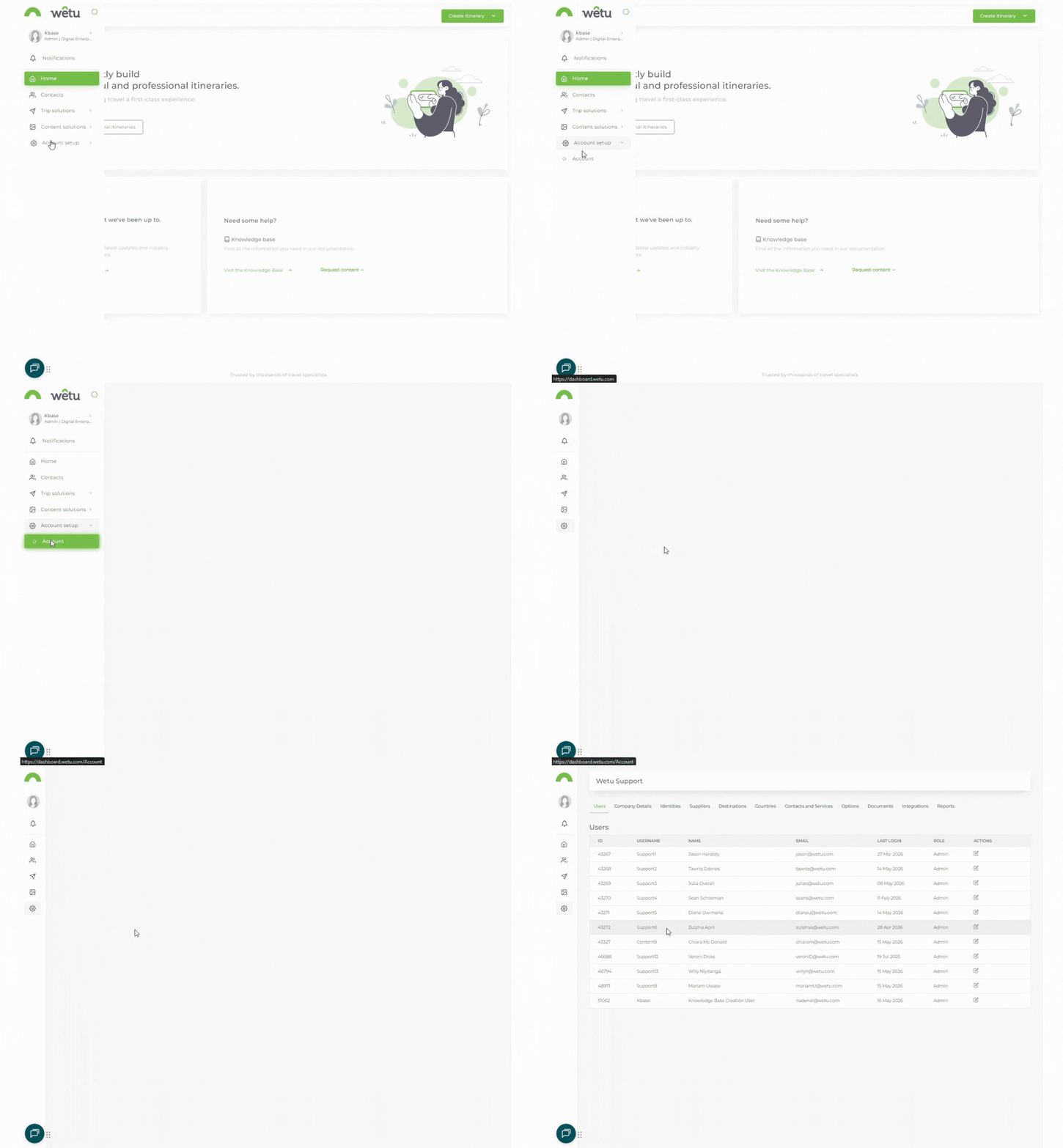
2. Click the Contacts and Services tab.

3. Click + Add Meet and Greet.
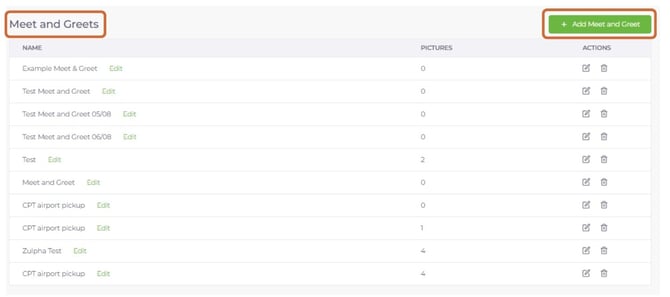
4. Enter a name for the service in the pop-up and click Save.
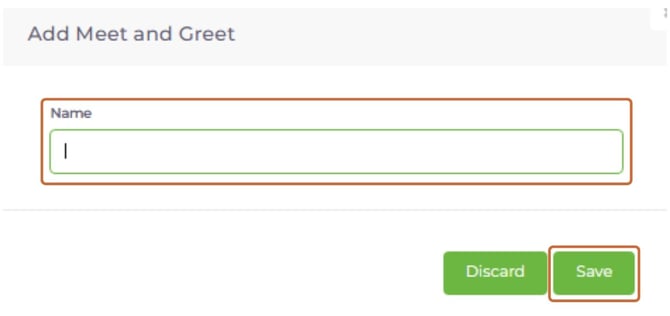
Tip: Name the service as specifically as possible so it is easy to identify when selecting from a list in the Itinerary Builder. Write descriptions in the third person.
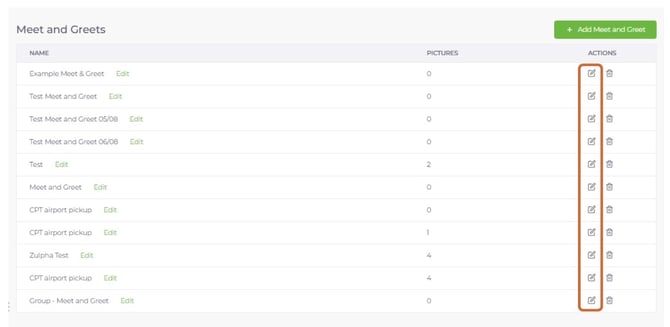
5. Click the edit icon next to the service to open the profile editor.
6. Add a description for the service.
Add images
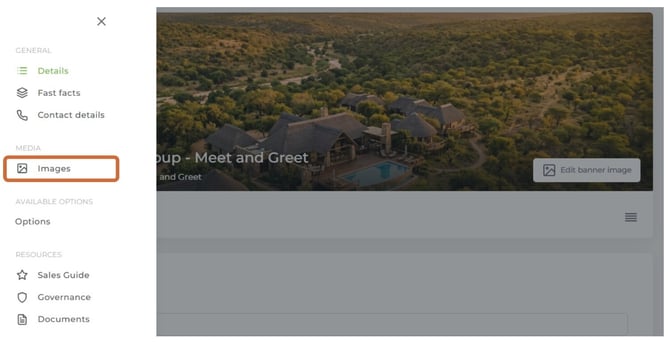
1. In the profile editor, click Images or drag and drop images to upload them.
2. In the confirmation pop-up, tick I confirm we have permission to use the images.
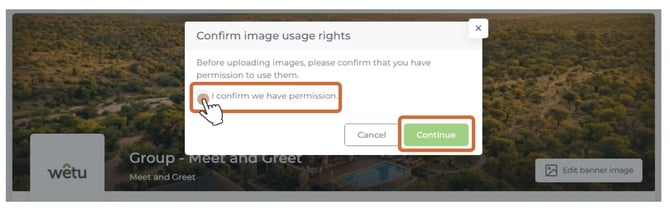
Note: Images are saved automatically - there is no Save button for the images section.
Image guidelines
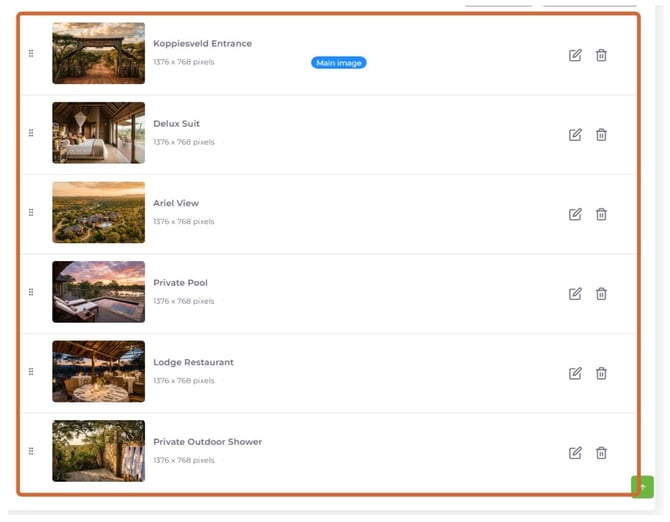
- Use high-resolution images - above 500 KB, preferably above 3 MB, and at least 2 MP
- Use landscape orientation - most screens are wider than they are tall
- Images under 300 KB will not display well on a client's full screen
- Choose images that tell a story and reflect the destination or experience
Add a Meet and Greet to an itinerary
From your pre-loaded services
1. In Step 4: Planner, navigate to the day the Meet and Greet should appear.
2. Click Meet & Greet.
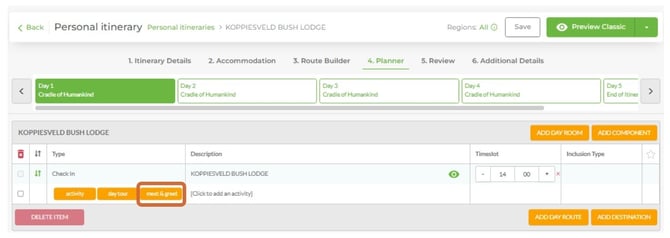
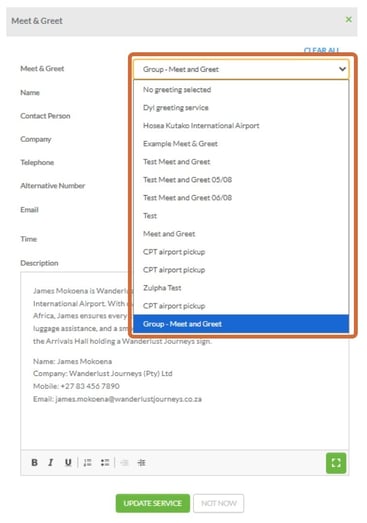
3. Select the service from the dropdown - the name, description, and images will populate automatically.
Manually (one-off)
1. Click Meet & Greet and enter the name and description directly in the pop-up.
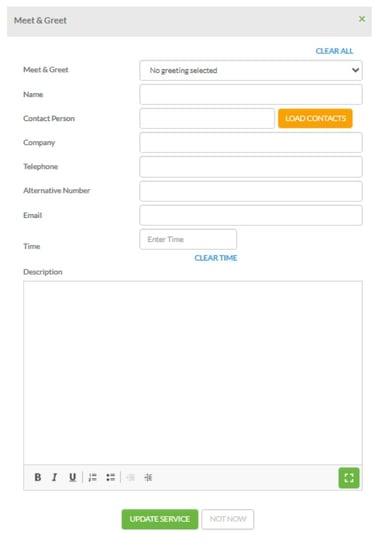
Note: Details entered manually are only available for this itinerary and cannot be saved for reuse. Images cannot be added when entering details manually in the Itinerary Builder.
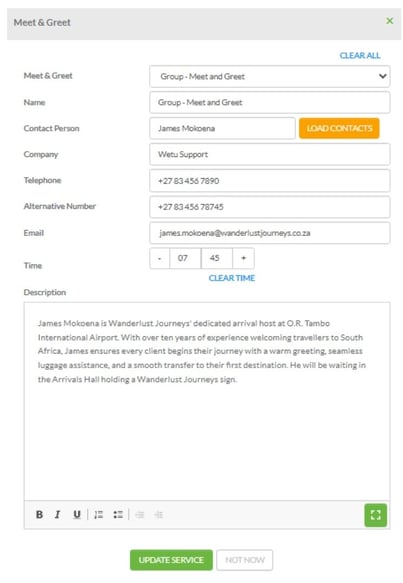
2. Add contact details by loading from your contact list or entering them manually.
3. Set the time if needed.
4. Click Update Service to save.
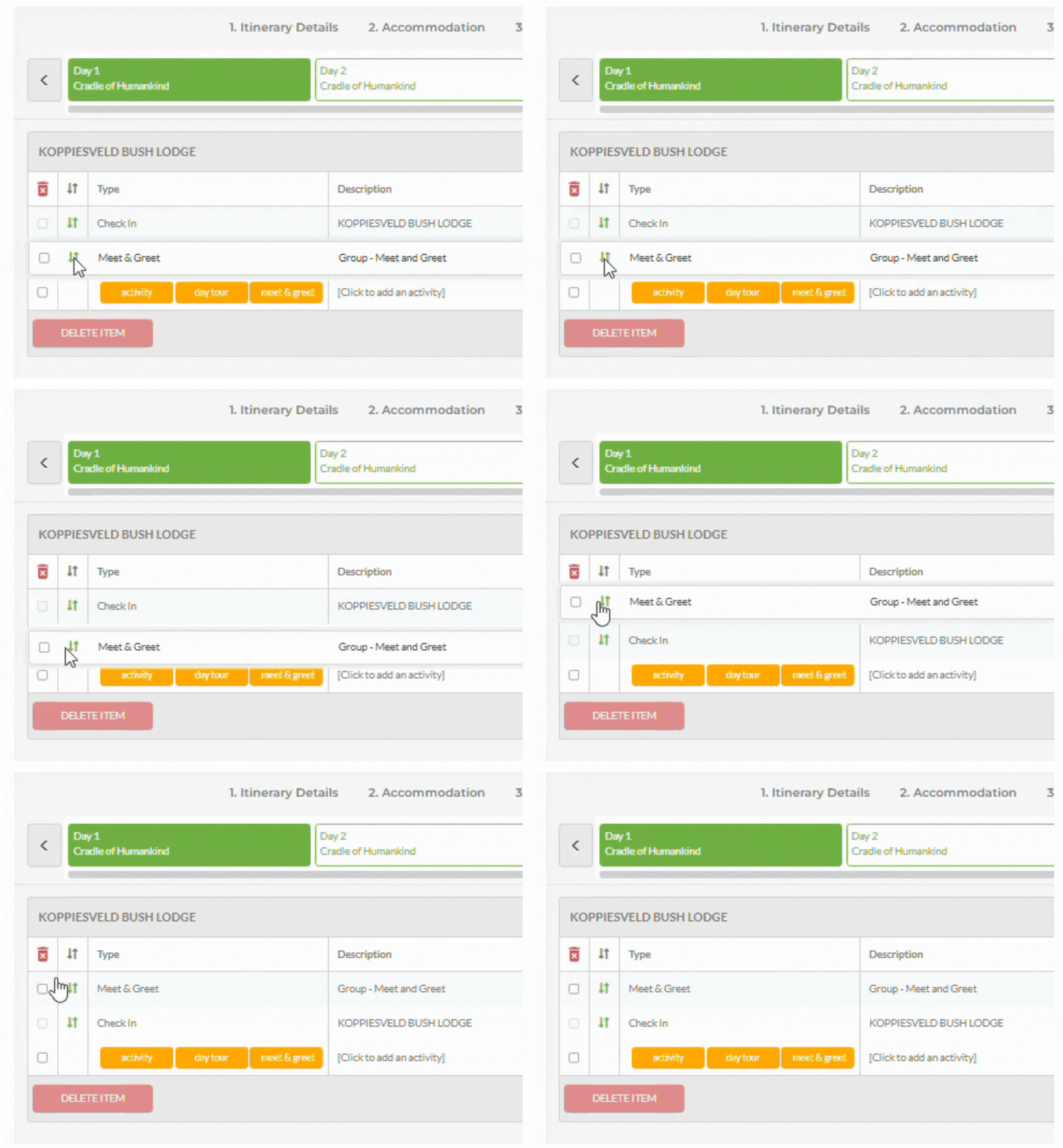
5. To reorder the Meet and Greet relative to other activities, click and hold the green arrows, then drag it to the correct position.
Output display
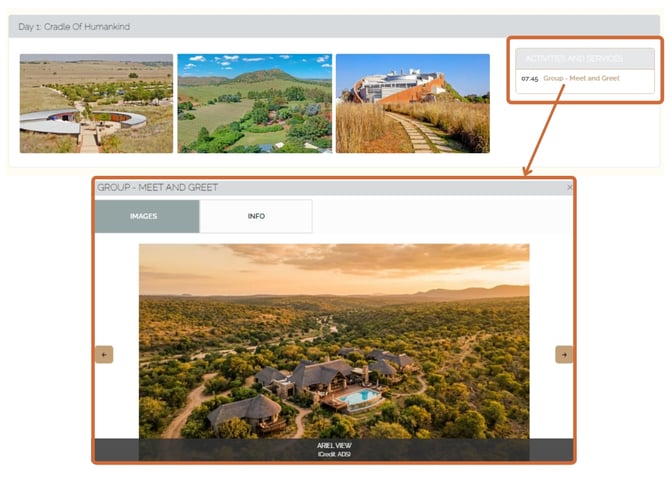
Once added to an itinerary, the Meet and Greet will display on the digital itinerary outputs.
Need Help?
- Contact Support: support@wetu.com
- Live Chat: Available on your Dashboard