
(Basic Setup)
Quick Links
- How to navigate to profiles
- Step 1: Start creating your profile
- Step 2: Select your reservation system
- Step 3: Select your profile type
- Step 4: Select your profile category
- Step 5: Add profile name and description
- Step 6: Add your location
- Step 7: Associate destinations
- What happens next?
- Saving your progress
- Editing your basic information
- Troubleshooting
- Need help?
- Related Articles
Before you start
Make sure you have:
- [ ] Completed your Wetu account registration
- [ ] Logged into your Wetu dashboard
- [ ] Your property/business name ready
- [ ] A compelling description (2-4 paragraphs)
- [ ] Your exact location/address
- [ ] Allowed 10-15 minutes for this basic setup
What comes after this? Once you complete these basic steps, you'll add photos, facilities, and specific details in the following steps.
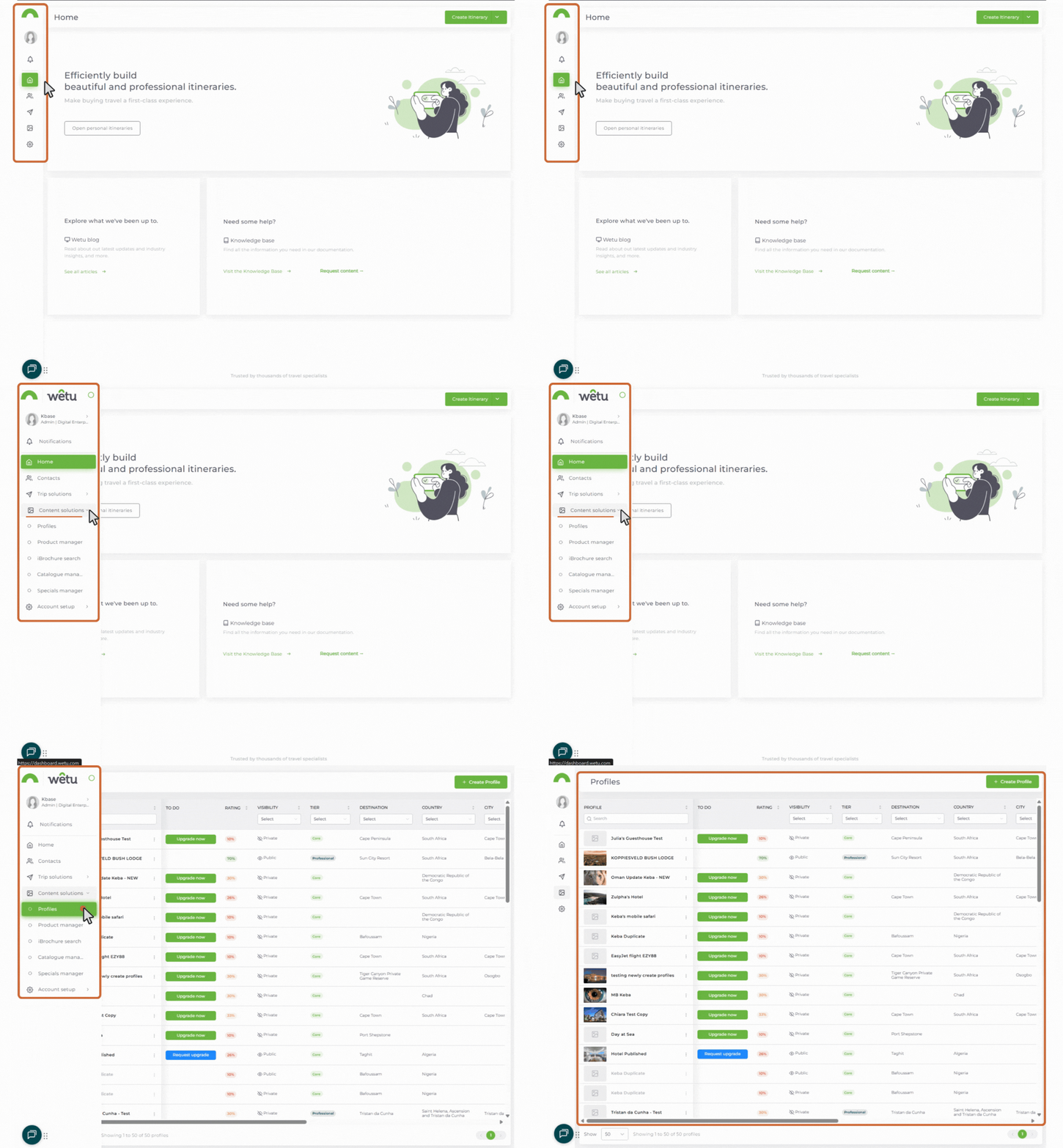
How to navigate to profiles
1. Log in to your Wetu account.
The menu expands when you move your mouse over it, revealing labelled icons.
.jpg?width=114&height=195&name=finding%20profiles%20(1).jpg)
Step 1: Start creating your profile
1. From your Wetu Dashboard, navigate to the "Profiles" section
2. Click "Create Profile"
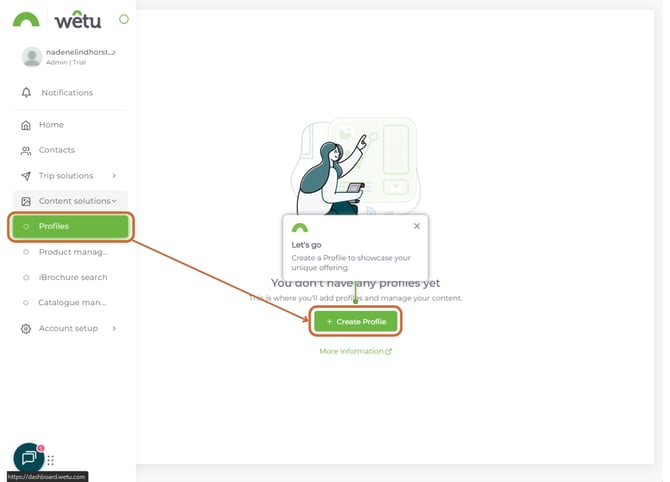
Note: The profile creation wizard will open.
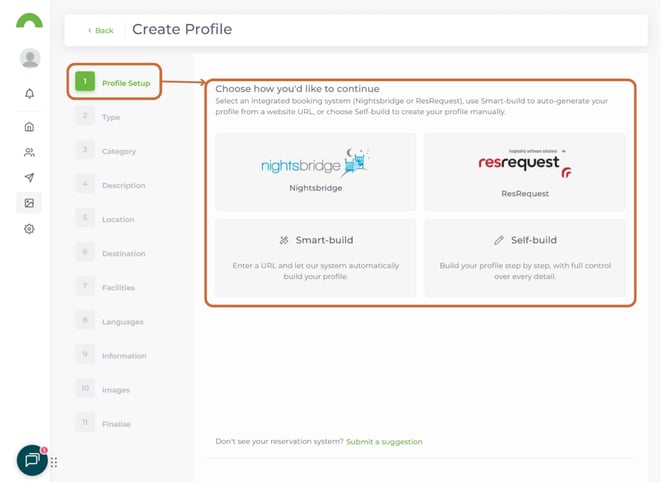
Step 2: Select your reservation system
Choose whether you use an external reservation/booking system.
Options:
- Specific reservation system (Nightsbridge or Resrequest)
- Smart Build (AI)
- Self-build
1. Select your option from the dropdown
2. Click "Next"
Don't have a reservation system? Select "Self-build" - you can still create a complete profile.
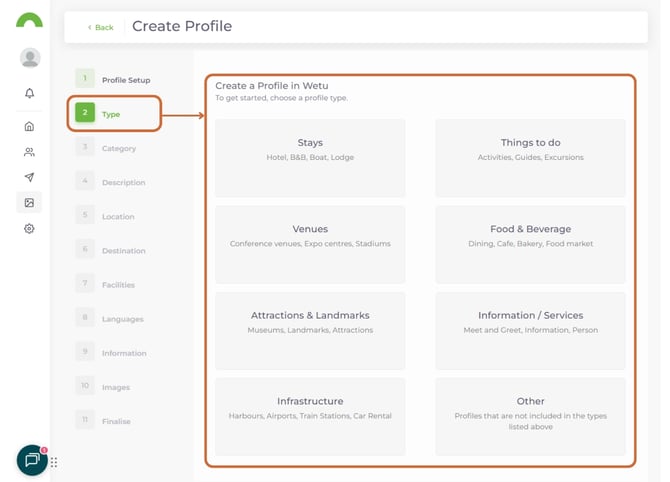
Step 3: Select your profile type
Choose the type that best describes your offering.
Available types:
- Accommodation - Hotels, lodges, resorts, guesthouses, camps
- Restaurant - Dining establishments
- Activity - Tours, adventure experiences
- Attraction - Tourist attractions, museums, landmarks
- Transport service - Transfers, car rentals, shuttles
- DMO - Destination Marketing Organizations
1. Select your profile type
2. Click "Next"
Important: Choose carefully - this affects which fields you'll complete later. You can create multiple profiles if you offer different types of services.
Step 4: Select your profile category
Within your chosen type, select a more specific category.
Example categories for Accommodation:
- Luxury Lodge
- Boutique Hotel
- Safari Camp
- Guesthouse
- Resort
- Self-Catering
- Bed & Breakfast
- Tented Camp
Example categories for Activities:
- Safari
- City Tour
- Adventure Activity
- Cultural Experience
- Water Sports
- Wildlife Experience
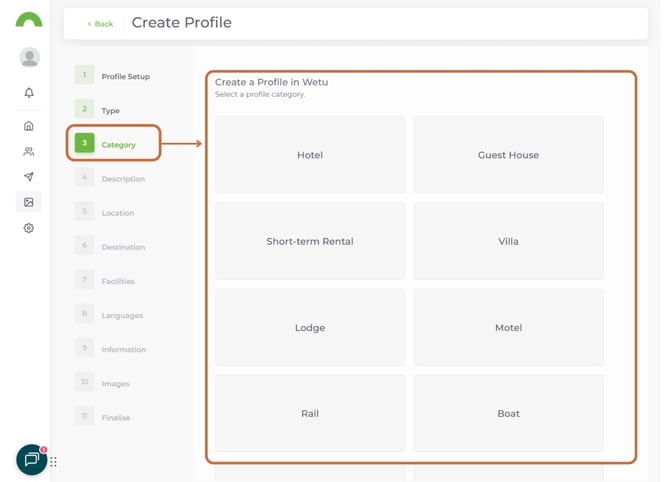
1. Select the category that best fits your offering
2. Click "Next"
Tip: Be specific - "Luxury Lodge" is more helpful to travel agents than just "Accommodation."
Step 5: Add profile name and description
This is your first chance to make an impression on travel agents.
Profile Name
Use your official property or business name exactly as you want it to appear.
Examples:
- "Wanderlust Safari Lodge"
- "The Garden Route Restaurant"
- "Cape Town Adventure Tours"
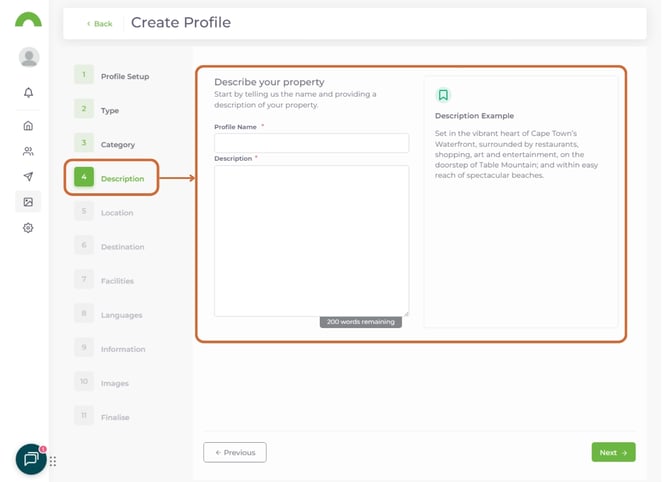
Profile Description
Write a compelling description that showcases what makes you special.
What to include:
- Location context - Where you are and what's nearby
- Unique features - What sets you apart
- Key amenities - Most important facilities/services
- Experience/atmosphere - The feeling guests can expect
- Target audience - Who you're perfect for
Writing tips
Do:
- Be specific with details (distances, numbers, features)
- Focus on experiences, not just features
- Mention proximity to major attractions/parks
- Use descriptive, engaging language
- Keep it 2-4 paragraphs (150-200 words)
Don't:
- Use generic phrases like "world-class" without backing them up
- Write one long paragraph - break it up
- Include pricing (that goes elsewhere)
- Use ALL CAPS or excessive punctuation!!!
- Copy from other sources (be original)
1. Enter your Profile Name
2. Write your Description
3. Click "Next"
Step 6: Add your location
Accurate location information is critical - travel agents use this for route planning and logistics.
You have two ways to set your location:
Option A: Type your address
1. Enter your full address in the address field
2. Start typing and select from the dropdown suggestions
3. The map will automatically place a pin at your location
4. Verify the pin is accurate
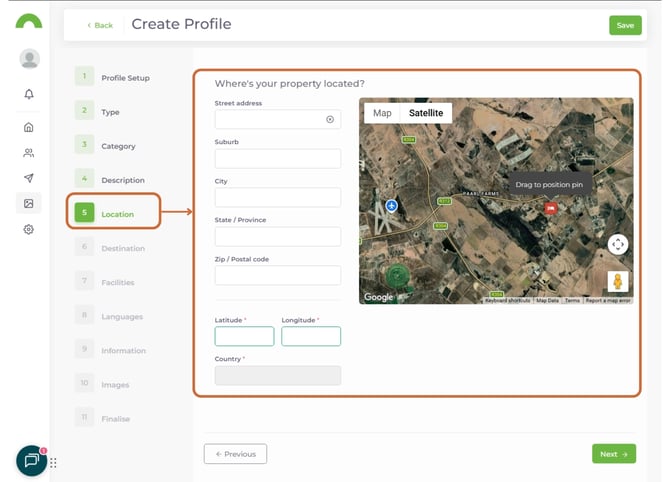
Note: Alternatively you can insert GPS coordinates directly into the Latitude and Longitude fields.
Option B: Drag the map pin
1. Zoom in on the map to find your property
2. Drag the pin to your exact location
3. The address field will auto-fill based on the pin position
4. Verify the address is correct
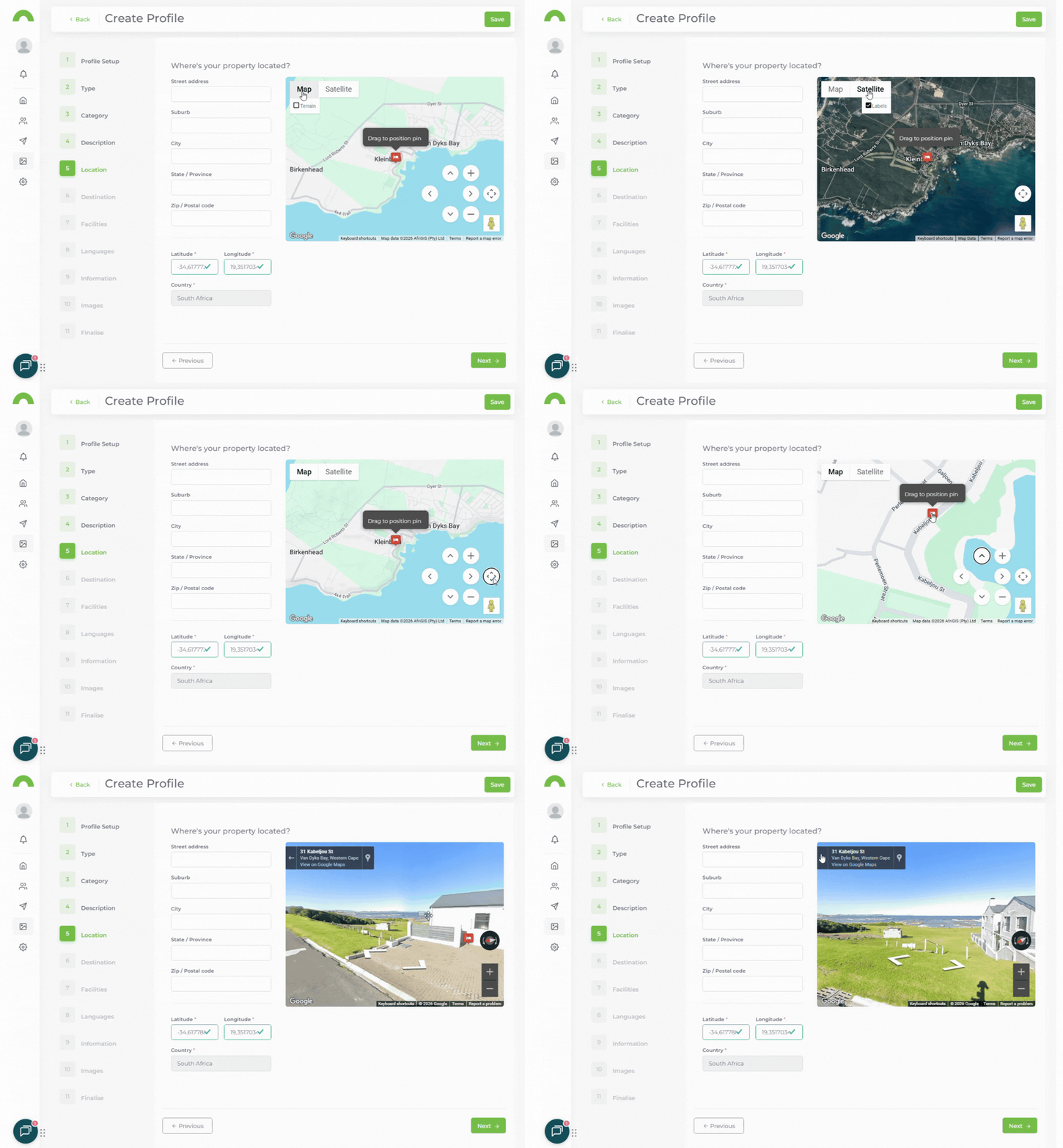
Verifying accuracy
Double-check that:
- The pin is exactly on your property (not nearby)
- The address matches your actual location
- The coordinates look correct
4. Click "Save"
5. Click "Next"
Why accuracy matters: Incorrect locations cause logistical issues for agents planning routes, and may result in your profile not appearing in location-based searches.
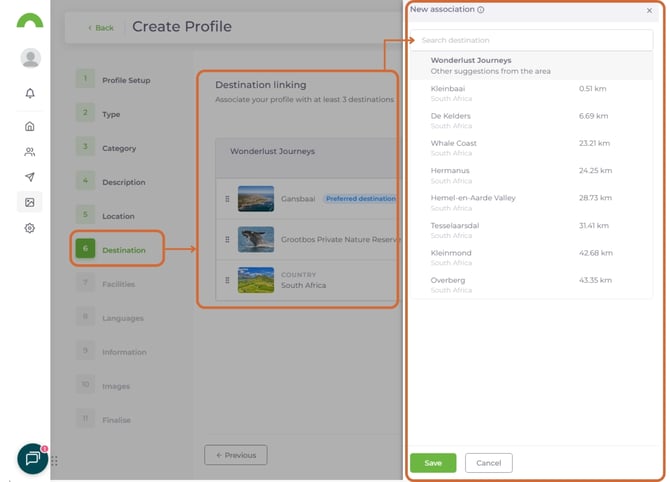
Step 7: Associate destinations
Link your profile to at least 2 destinations to improve discoverability.
1 destination is automatically added when the location is added.
This makes 3 destinations added to your profile.
What are destinations?
Destinations are major attractions, parks, cities, or regions that travel agents search for when planning trips.
Examples:
- Kruger National Park
- Cape Town
- Victoria Falls
- Table Mountain
- Serengeti
- Masai Mara
Adding destinations
1. Click "Associate destinations"
2. A search box will appear
3. Type the name of a relevant destination
4. Select from the dropdown results
5. Repeat to add at least 2 destinations
Choosing the right destinations
Select destinations based on:
- Proximity - Major attractions within 50km
- Same region - Broader area destinations
- Key selling points - What travelers come to see
Example for a Kruger area lodge:
- Kruger National Park (specific)
- Mpumalanga (broader region)
- Blyde River Canyon (nearby attraction)
Example for a Cape Town hotel:
- Cape Town (city)
- Table Mountain (attraction)
- V&A Waterfront (neighborhood/area)
6. Once you've selected at least 2 destinations, click "Next"
Why 3 minimum? More destinations = more search results = more visibility to travel agents.
What happens next?*
1. Add photos to your profile →link to Article 9b
- Upload 6+ high-quality images
- Add titles and photography credits
2. Complete your profile details →link to Article 9d
- Select facilities and amenities
- Add contact information
- Specify languages spoken
3. Add room types →link to Article 9c (Accommodation only)
- Set up sleeping arrangements
- Configure room facilities
Saving your progress
Your profile automatically saves as you move through each step. You can:
- Close and return later - Your progress is saved
- Continue to the next section - Keep building your profile
- Access from Dashboard - Go to Profiles > Draft Profiles
Tip: Complete your entire profile before publishing for maximum impact.
Editing your basic information
Need to change something?
1. Go to Dashboard > Profiles
2. Find your draft profile
3. Click "Edit"
4. Navigate to the section you want to change
5. Make updates and click "Save"
Troubleshooting
The destination I need isn't showing up
Try variations:
- "Kruger National Park" vs "Kruger Park"
- Regional names (e.g., "Mpumalanga" if specific park isn't listed)
- Nearby major cities
My map pin won't stay in the right place
- Make sure you click "Save" after dragging the pin
- Try using the address field instead of manual pin placement
- Refresh the page and try again
I want to change my profile type
You may need to start a new profile with the correct type. Contact support if you've already invested significant work: support@wetu.com
Need help?
For profile creation support:
- Email: support@wetu.com
- Live chat: Available in your dashboard
vs.1.0.24.02.2026
Related Articles
Building your profile:
- How do I add photos to my supplier profile?
- How do I complete my supplier profile details?
- How do I add room types and sleeping arrangements?
Getting started:
- How do I register my property or business in Wetu?