
Quick Links
- Getting started
- Disable an itinerary, component, or tour
- Enable an itinerary, component, or tour
- Need Help?
Getting started
1. Navigate to Trip Solutions.
2. Click Itinerary Builder to open the dropdown menu.
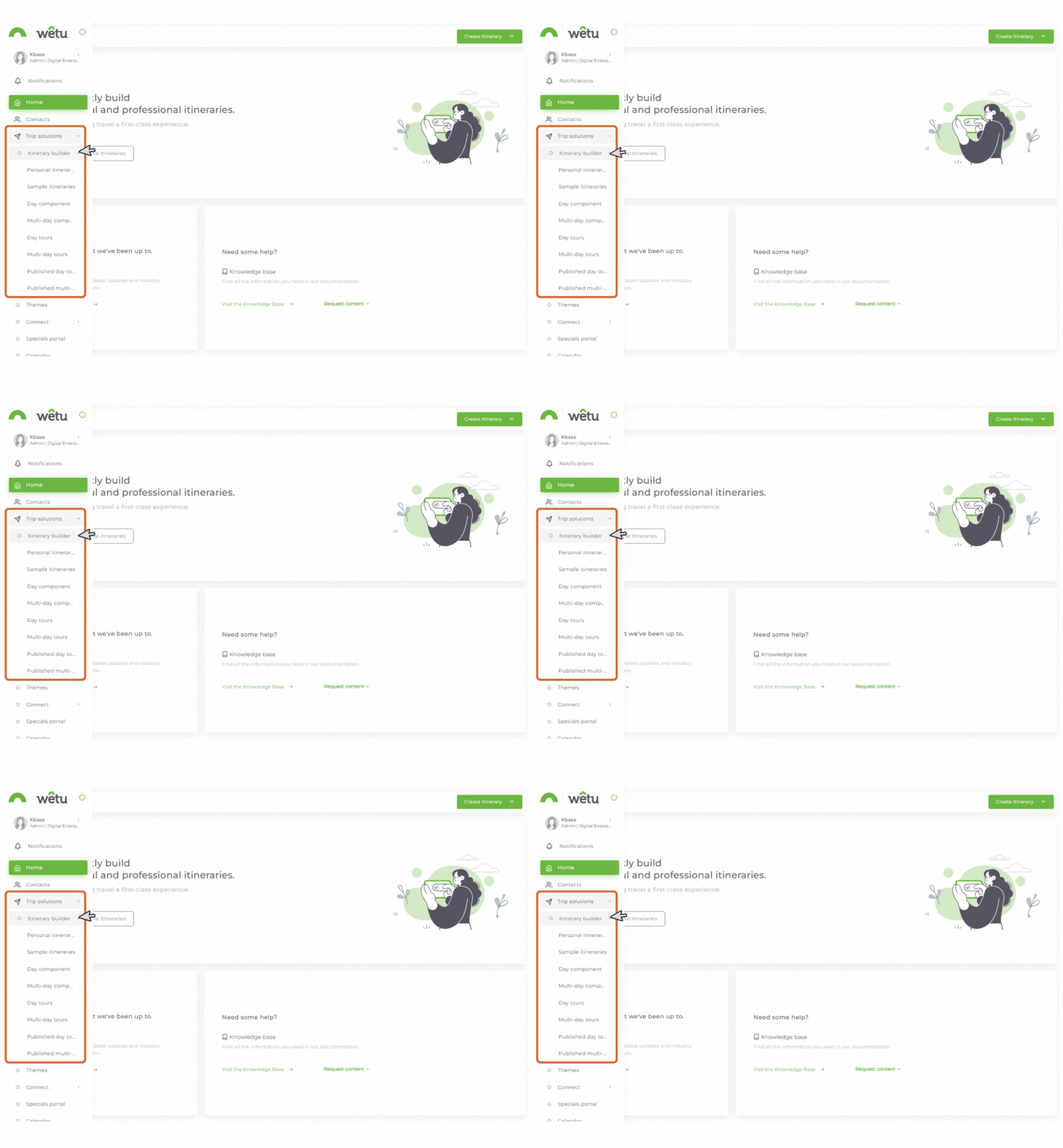
3. Select the itinerary type you want to work with (e.g. Personal Itinerary).
4.The Itinerary Browser will open with your existing itineraries listed on the right-hand side.
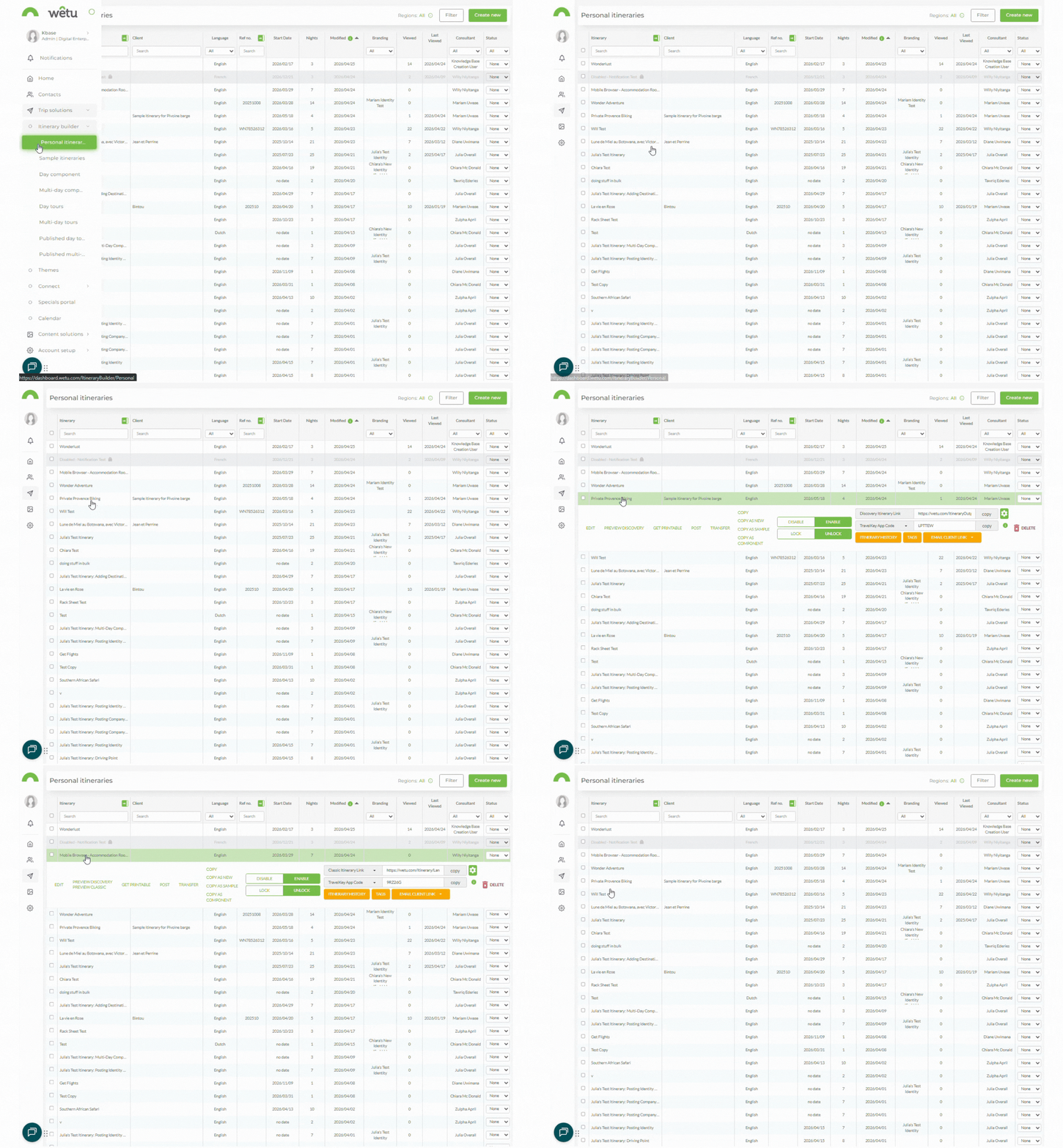
Note: The disable and enable functions apply to Personal Itineraries, Sample Itineraries, Components, and Publishable Tours. The options available may vary depending on the functionality enabled on your account.
Disable an itinerary, component, or tour
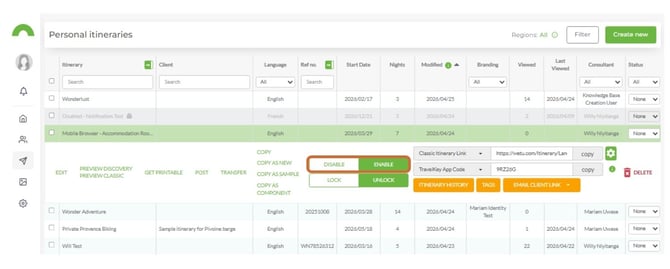
To disable a single itinerary:
- In the Itinerary Browser, click on the itinerary you want to disable.
- Click the Disable/Enable toggle switch.
- The itinerary will appear greyed out to confirm it has been disabled.
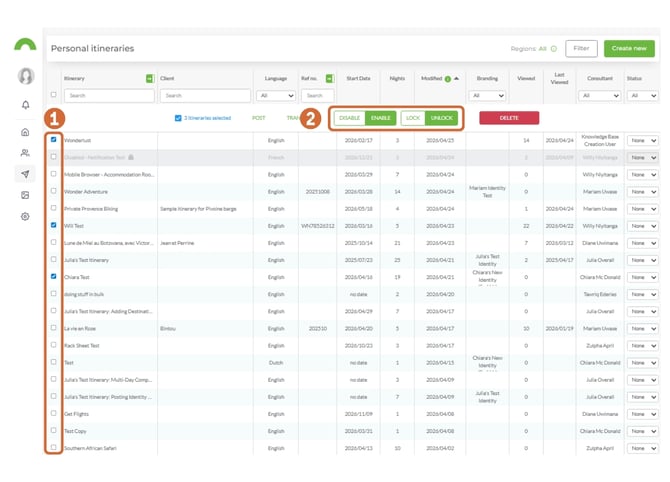
To disable multiple itineraries at once:
- In the Itinerary Browser, select the radio button next to each itinerary you want to disable.
- A menu will appear at the top of the screen.
- Click Disable to disable all selected itineraries.
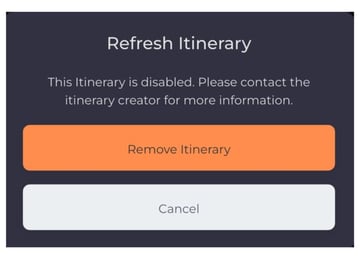
What travellers will see: Once disabled, travellers will no longer be able to access the Digital, Discovery, or Virtual itinerary. They will see a message on the landing page directing them to contact you for more information.
TravelKey App
Classic
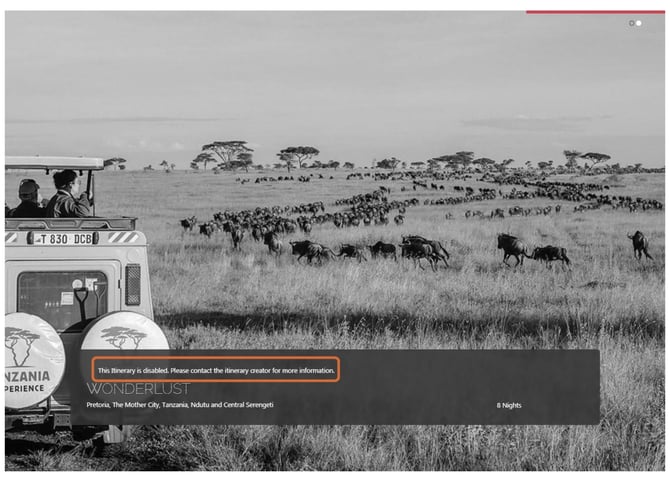
Discovery
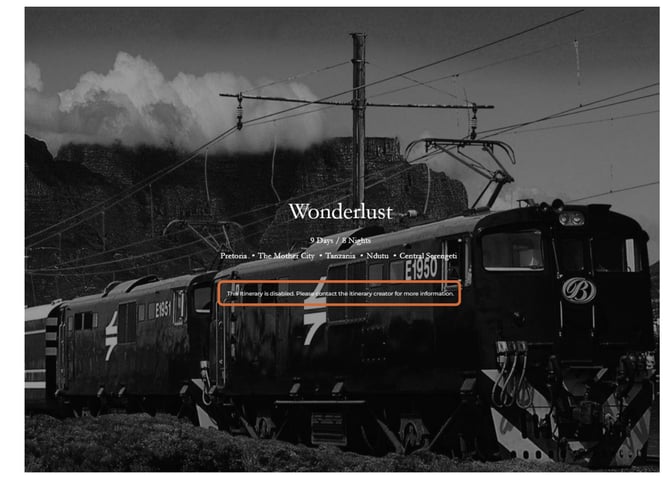
Note: The display travellers see may vary depending on your package and chosen output.
Enable an itinerary, component, or tour
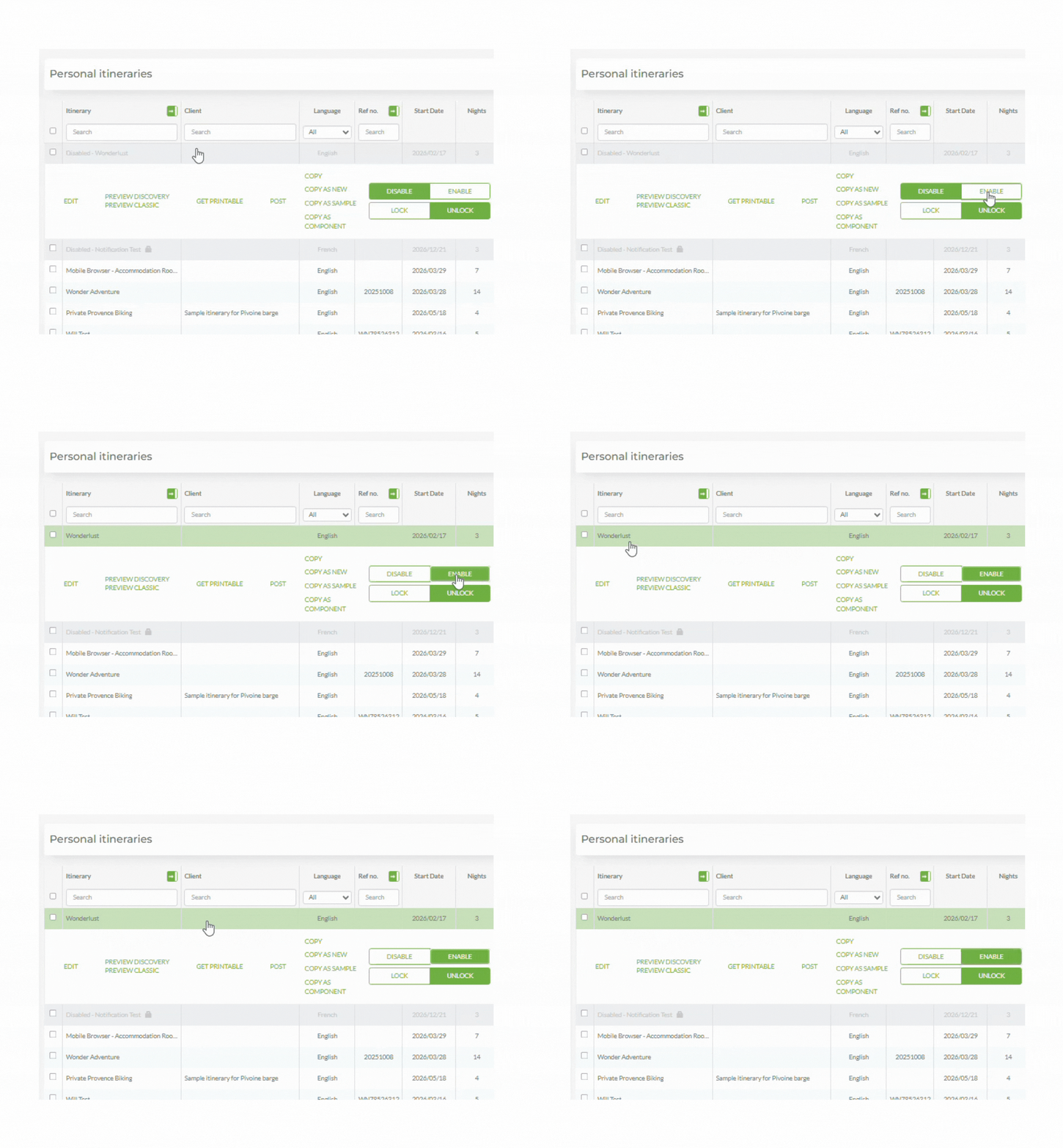
- In the Itinerary Browser, click on the itinerary you want to re-enable.
- Click Enable.
- The itinerary is now active and accessible to travellers.
Need Help?
- Contact Support: support@wetu.com
- Live Chat: Available on your Dashboard