
Quick Links
- How to navigate to profiles
- Accessing your profile
- General information
- Fast Facts
- Facilities
- Contact Details
- Social Media
- Location
- Associations (Destinations)
- Images
- Sleeping Arrangements
- Documents
- Integrations
- Best practices
- Need help?
How to navigate to profiles
1. Log in to your Wetu account.
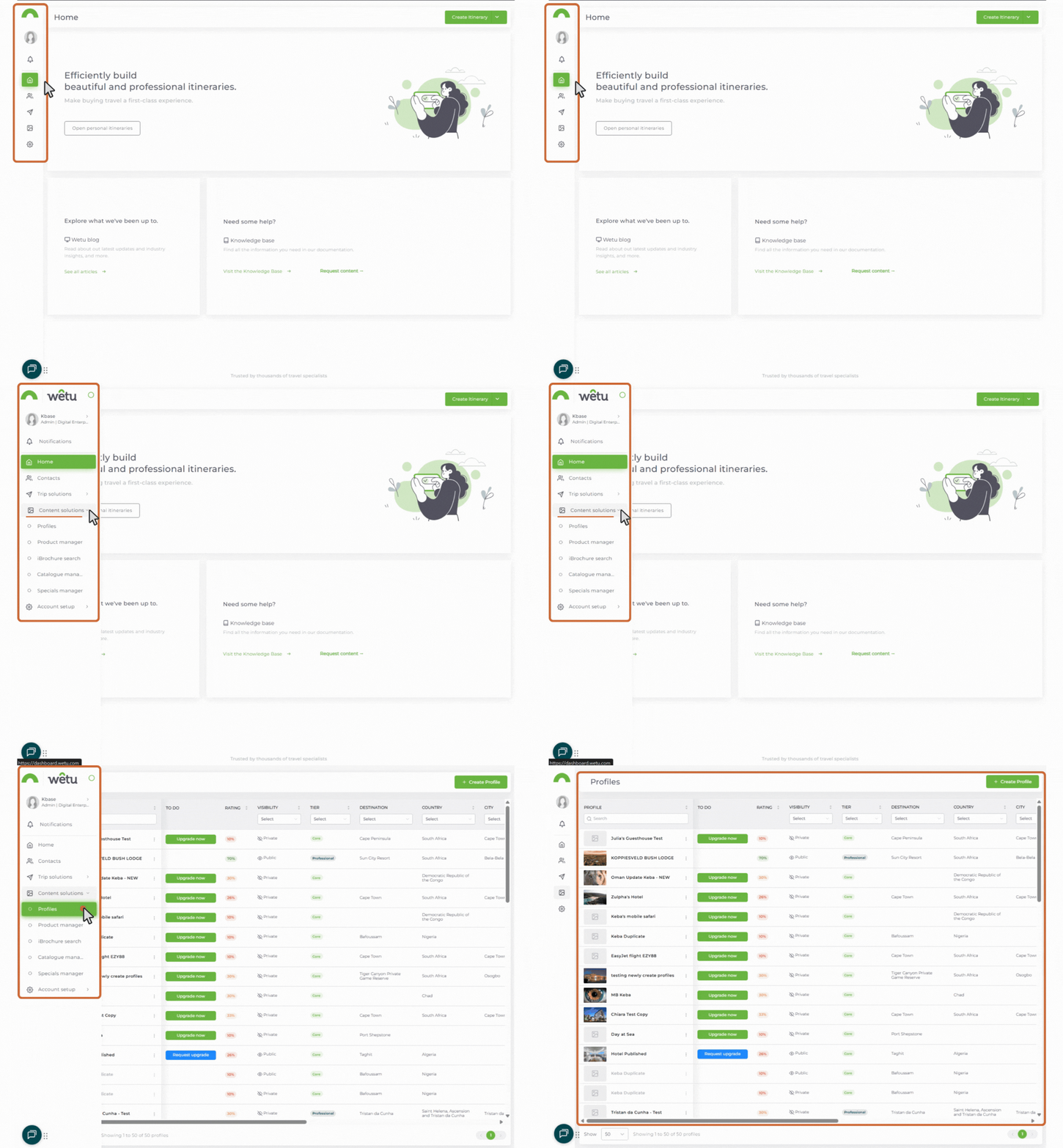
The menu expands when you move your mouse over it, revealing labelled icons.
.jpg?width=114&height=195&name=finding%20profiles%20(1).jpg)
This takes you to the Profiles landing page.
Accessing your profile
1. Click "Profiles" in the main navigation
2. Find your profile in the Profile Library
4. Click the three dots (⋮) next to your profile name
5. Select "Edit Profile"
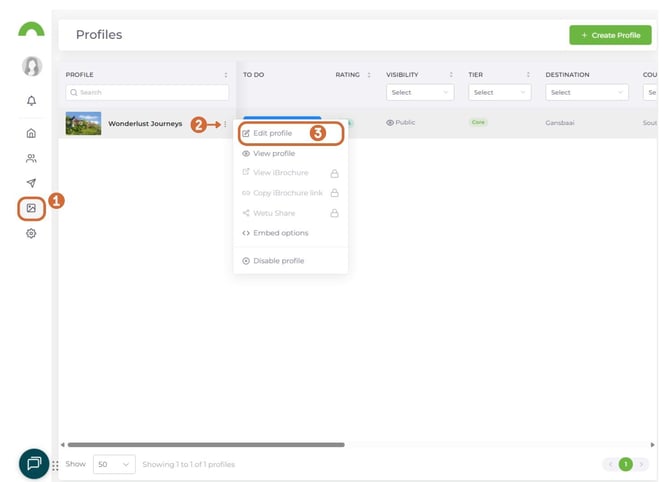
Tip: If you don't see the sidebar on the left, make sure you are zoomed out to 100% on your screen.
General information
Details
Update your core profile information:
Profile Name
- Your official property or business name
- Appears in itineraries and search results
Description
- Detailed overview of your offering
- Displays in Wetu outputs and itineraries
- 2-4 paragraphs recommended
Alias (internal only)
- Helps you distinguish profiles with the same name/location
- Only visible to you, not travel agents
Tags
- Add keywords to improve search visibility
- Examples: "luxury," "family-friendly," "eco-lodge," "beachfront"
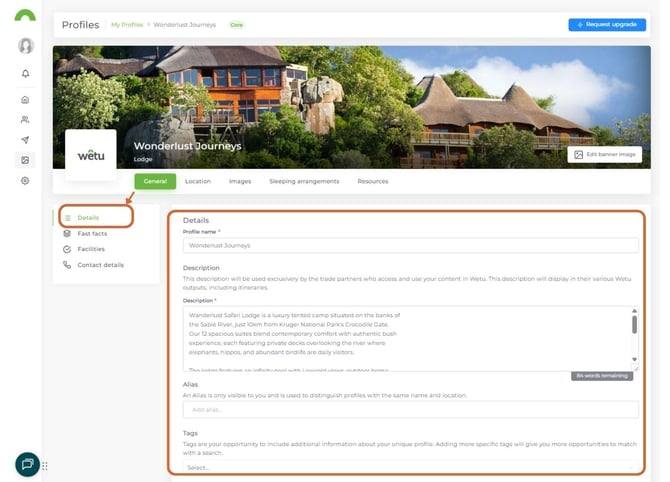
Click "Save" after making changes.
Fast Facts
Add quick reference details that appear in digital itineraries:
Quality & Rating
- Quality assurance body (if applicable)
- Star rating
- Alternative rating
Property Details
- Number of rooms
- Minimum child age
- Check-in time
- Check-out time
Languages
- Languages your staff speaks
- Select all that apply
Special Capabilities
- Accessibility features
- Family-friendly amenities
- Specific interests catered to
Tour Operator Guidance
- Special instructions for agents
- Booking notes or requirements
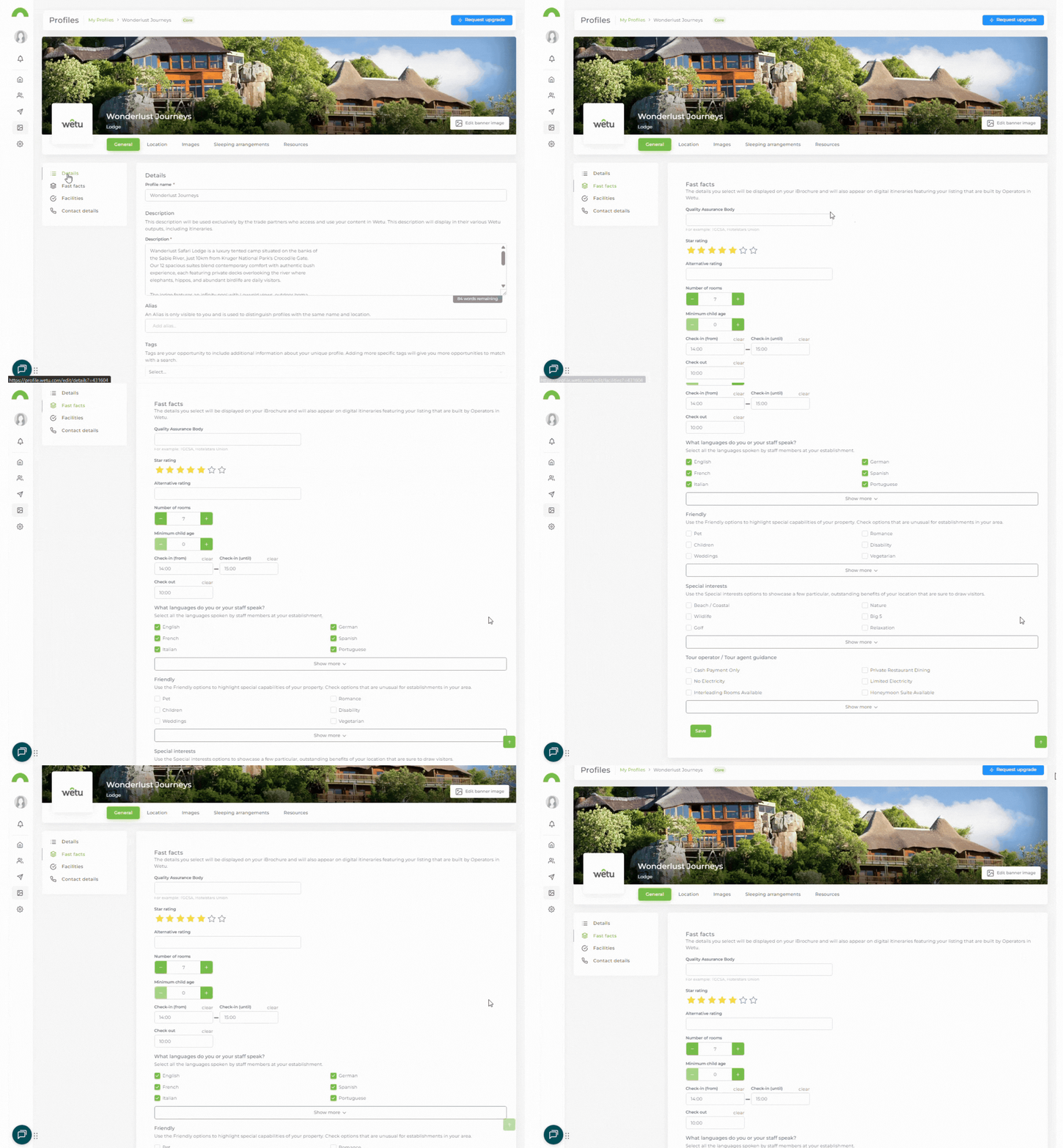
Tip: Complete all applicable fields - this helps agents match your property with the right clients.
Facilities
Select all facilities and amenities you offer:
Categories:
- General facilities
- Connectivity (WiFi, internet)
- Sleeping arrangements
- Available services
- Activities on-site
- Activities nearby
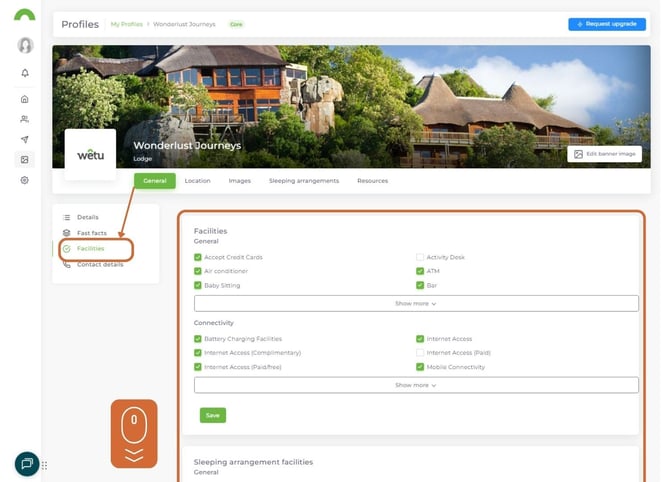
Tick all boxes that apply. Be honest - only select what you actually provide.
Contact Details
Basic Contact
- Front desk / reservations number
- Email address
- Website link
- Booking form link (if not using a booking system)
Specific Contacts
1. Click "Select Contact"
2. Choose contact type (accounts, marketing, sales, etc.)
3. Add name, phone, email for each
4. Click "Save"
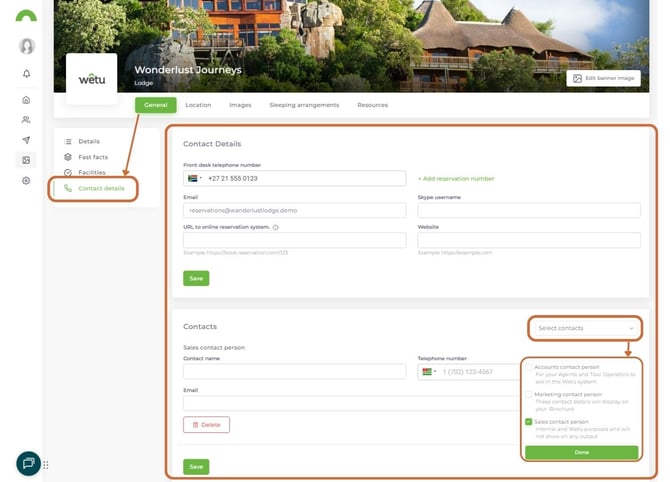
Why add specific contacts? Helps agents reach the right department quickly.
Social Media
Link your social media pages to boost visibility:
1. Click "Select Social Media Accounts"
2. Choose platforms (Facebook, Instagram, Twitter, etc.)
3. Paste the full URL for each platform
4. Click "Save"
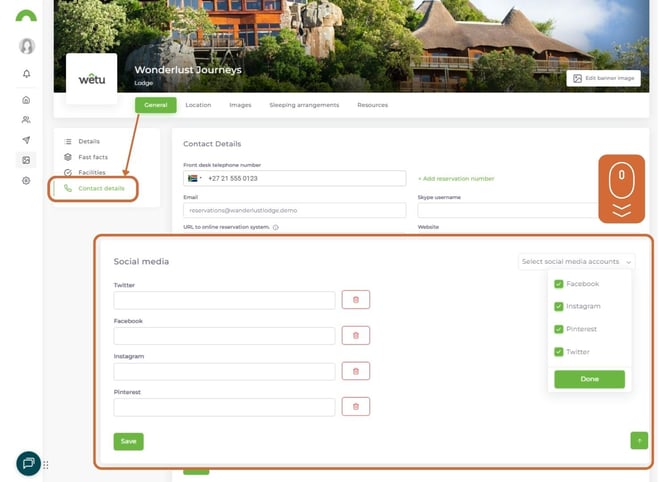
Why link social media?
- Strengthens brand recognition
- Provides agents with additional content
- Shows you're active and current
- Helps clients discover more about you
Location
Update your address and location details:
Street Address
- Full physical address
- Update if you've moved or address has changed
Nearby Airport
- Add closest airport for travel planning
Driving Point (optional)
- If the pin doesn't point to your entrance, move it
- Click and drag the blue car icon to the correct location
- Click "Update"
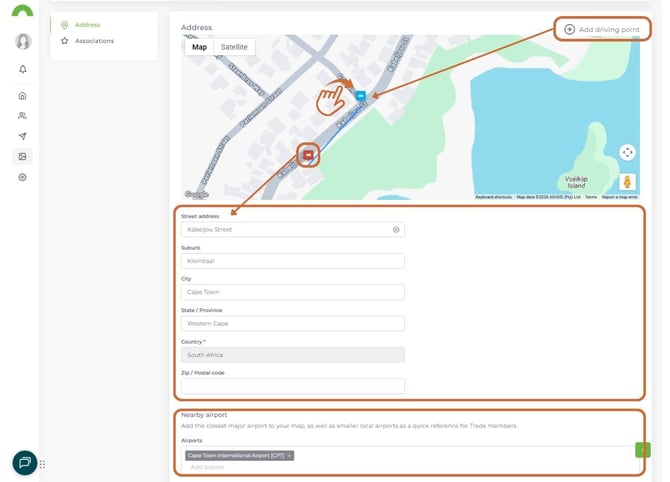
Driving points: Useful if routing goes to the main gate instead of your property entrance.
Click "Save" to apply changes.
Note: Vehicles, boats, and trains profile types don't have location options.
Associations (Destinations)
Link your profile to relevant destinations:
View current destinations:
- See destinations added during initial profile creation
Add new destinations:
1. Click "Associate Destinations"
2. Type destination name in search bar
3. Select from dropdown
4. Click "Save"
Remove destinations:
- Click the bin icon next to any destination
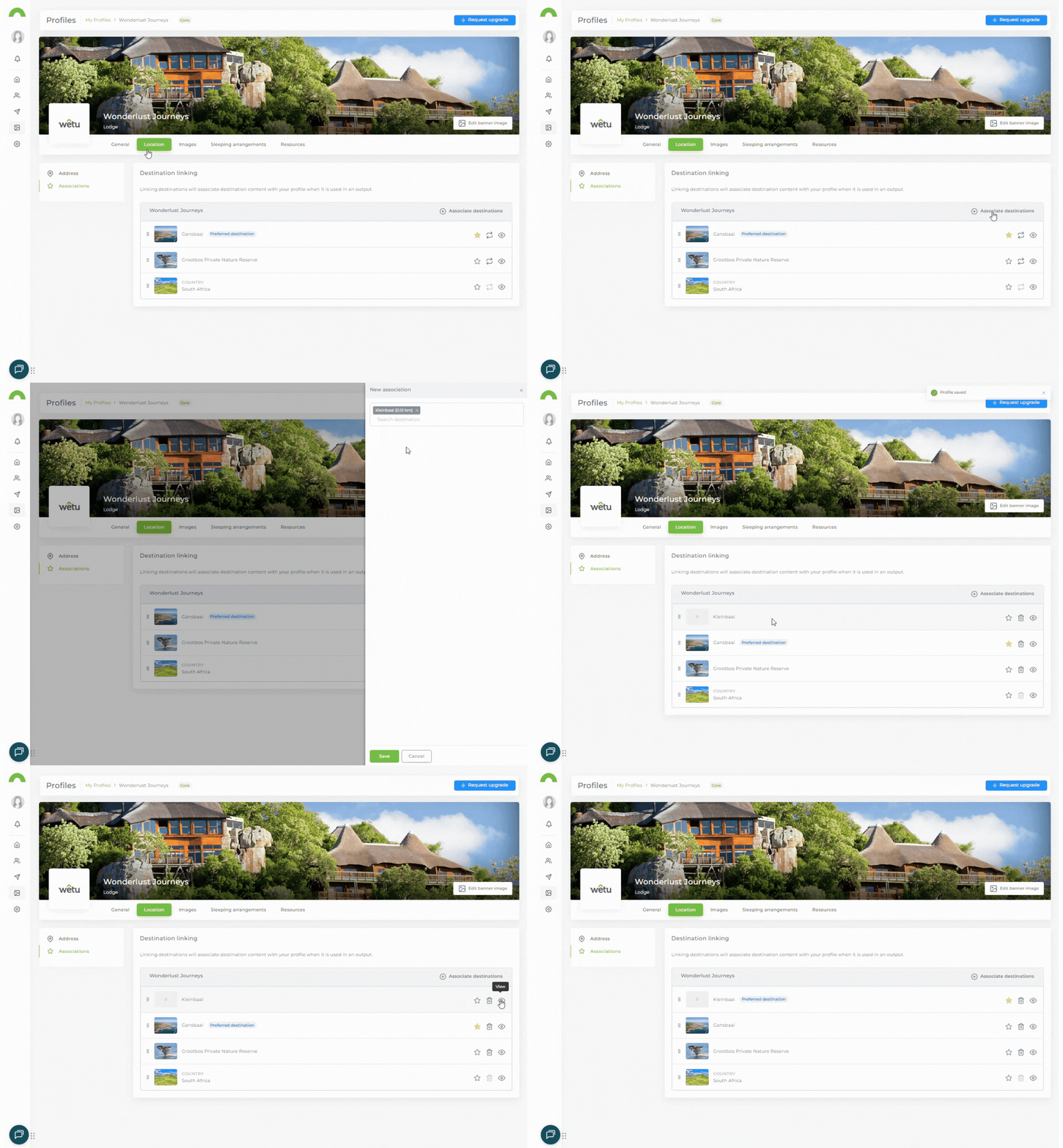
Why add destinations? Helps travel agents find you when planning trips to those areas.
Images
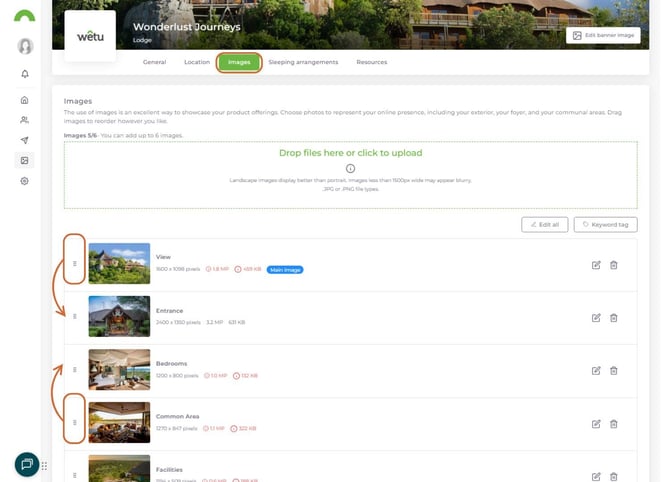
Manage your profile photos:
A maximum of 6 images (cannot delete original 6, but can replace them)
Reorder images:
1. Click and hold the 6 dots (⋮⋮) next to an image
2. Drag to new position
3. Your first image is your cover photo
Replace images:
- Click the arrows icon to upload a replacement
Edit image details:
- Click the pencil icon for individual edits
- Or click "Edit All" to update all at once
- Add title for each image
- Add photography credit
Bulk credit editing:
- If all photos are from the same source
- Enable "All images provided by the same source"
- Credit applies to all images automatically
Click "Done" to save.
Sleeping Arrangements
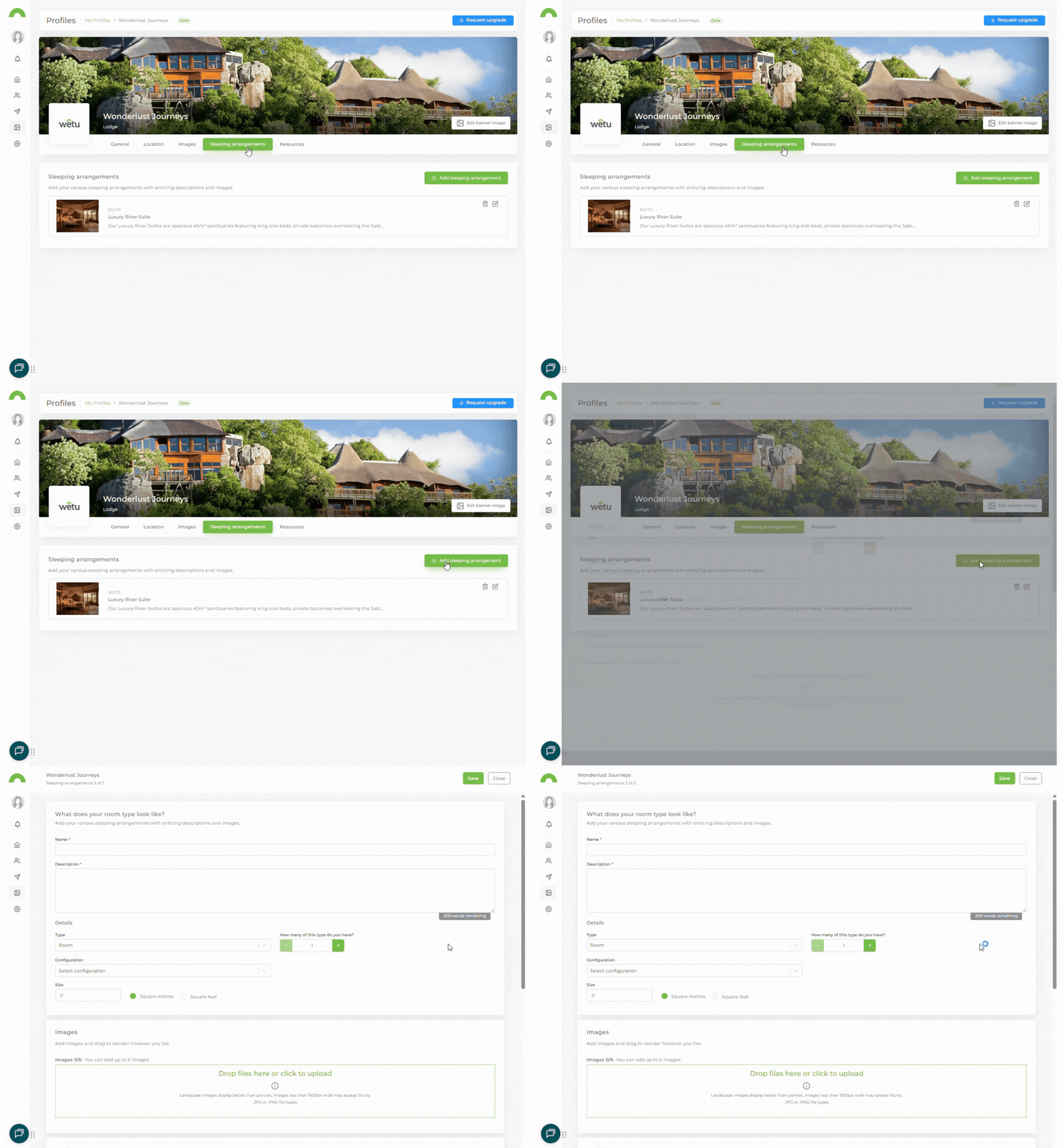
Add or update room types (accommodation profiles):
View existing:
- See sleeping arrangements added during creation
Add new sleeping arrangement:
1. Click "Add Sleeping Arrangement"
2. Add name and description
3. Optionally add:
- Room details
- Room-specific images
- Room facilities
4. Click "Save"
Profile type variations:
- Activities & Attractions: Activity options (not sleeping arrangements)
- Food & Beverage: Spaces
- Vehicles: Sleeping arrangements and services
- Venues: Sleeping arrangements and venues
Documents
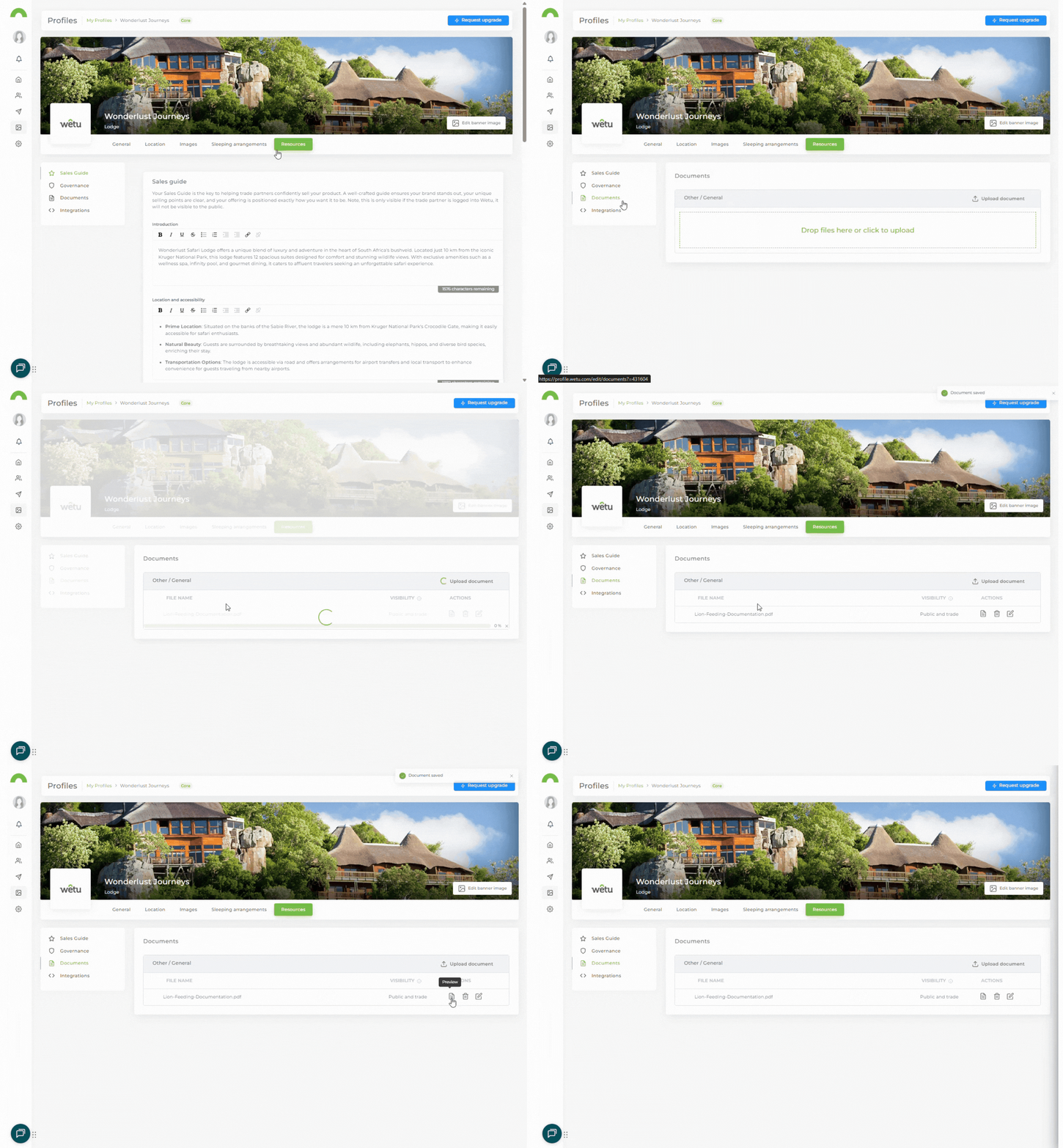
Upload important documents or notices
1. Click "Upload Document"
2. Browse and select file from your computer
3. Once uploaded, click the pencil icon to edit:
- Change file name
- Set visibility (public, private, agents only)
4. Click "Save"
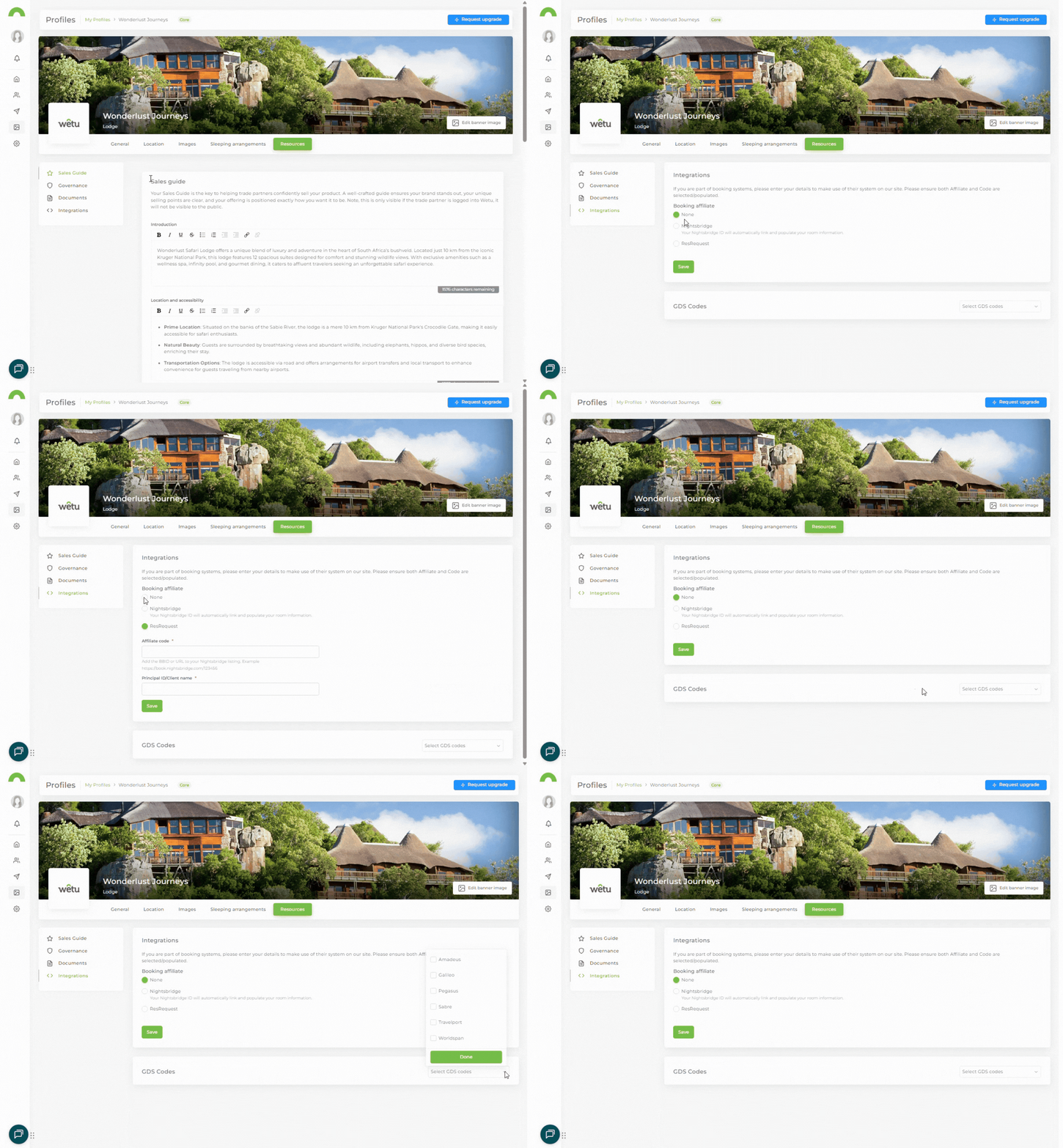
Integrations
Booking Affiliates
Connect your reservation system:
1. Select your booking affiliate from dropdown
2. Add your affiliate code
3. Click "Save"
GDS Codes
If integrated with Global Distribution Systems:
1. Click "Select GDS Codes"
2. Choose platforms you use (Amadeus, Sabre, etc.)
3. Add your GDS codes for each platform
4. Click "Save"
Best practices
Keep information current
- Review your profile quarterly
- Update photos seasonally
- Refresh descriptions when you renovate or add amenities
- Verify contact details are monitored
Complete all sections
- More information = better search visibility
- Agents prefer detailed profiles
- Incomplete profiles get fewer bookings
Use high-quality images
- 6 images maximum
- Professional photography preferred
- Show variety (exterior, rooms, facilities, dining, views)
Update tags regularly
- Add seasonal tags
- Include destination-specific keywords
- Think about what agents search for
Need help?
For profile editing support:
- Email: support@wetu.com
- Live chat: Available in your dashboard
back to top
vs.1.0.03.03.2026