
Quick Links
- Add an Own Arrangement
- Map Own Arrangements in the Route Builder
- Important notes
- Need help?
Add an Own Arrangement
1.Open your itinerary in the Itinerary Builder and navigate to the Accommodation step.
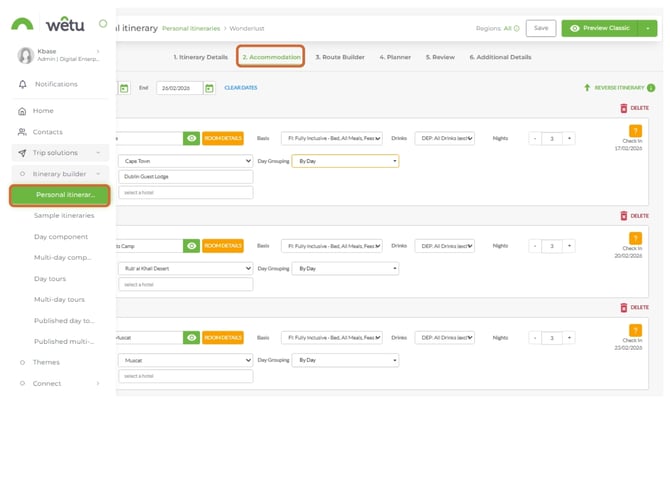
1. Add your regular accommodation entries until you reach the point in the tour where the client has made their own arrangements.
2. At that point, click Own Arrangements instead of Accommodation.
3. If you know the accommodation name, enter it. If not, enter the general area (e.g. Durban, Kruger National Park, Okavango Delta).
4. Enter the number of nights and any other relevant details.
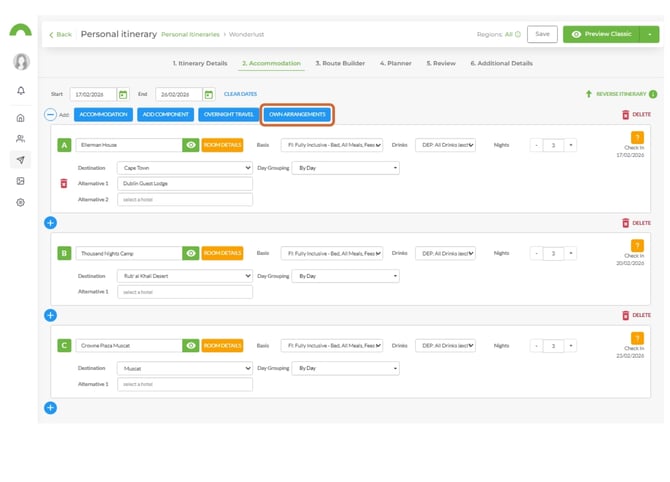
Note: Own Arrangements can be added at any point in the Accommodation step.
Map Own Arrangements in the Route Builder
1. Navigate to the Route Builder step.
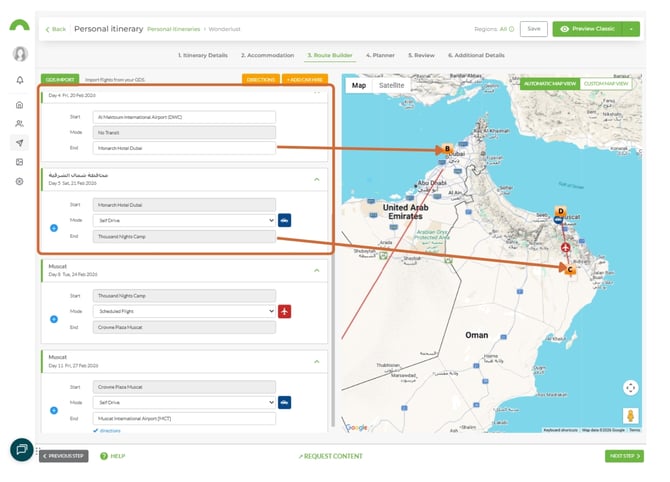
2. Note that the map will not automatically connect the Own Arrangements point - it requires manual routing guidance.
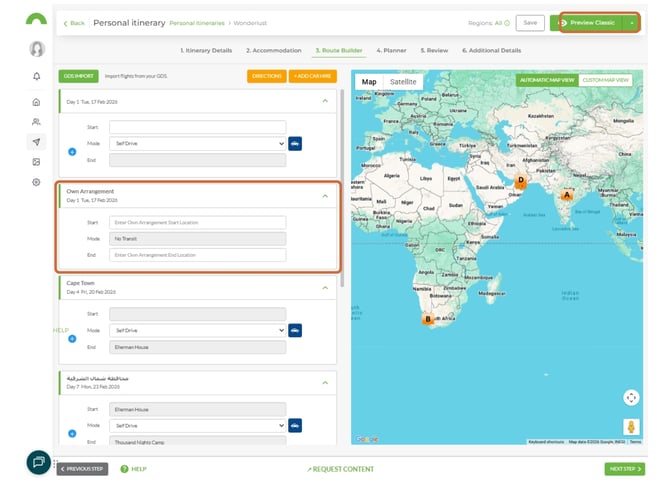
3. Select the mode of transportation from the previous accommodation to the Own Arrangements start point.
4. Enter a start location (drop-off point) and an end location (pick-up point) for the Own Arrangements leg.
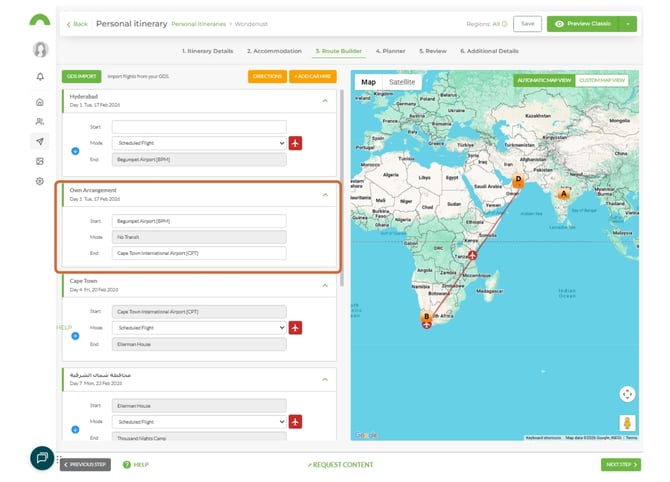
Important: Choose specific Wetu-linked locations for routing - such as lodges, national parks, airports, harbours, malls, or waterfronts. Avoid using general place names like towns or cities, as these will produce inaccurate routing.
Note: Even if you entered a general area (e.g. Cape Town) in the Accommodation step, you must select a specific location (e.g. Cape Town International Airport) in the Route Builder for routing to display correctly.
Important notes
- You can add flight or transfer information to the legs before and after an Own Arrangements section. Select the icons next to the mode of transport to add this information.
- You cannot select a mode of transport between the start and end points of an Own Arrangements entry.
- If the start and end points are in different destinations, there will be a gap in the routing - for example, if the drop-off point is Cape Town International Airport and the pick-up point is Eastgate Airport, the travel between the two will not display on the map.
- Multiple Own Arrangements can be added to one itinerary, including back-to-back entries.
Tip - back-to-back Own Arrangements
If you have arranged flights or transfers between consecutive Own Arrangements, split them into separate entries for the best routing output. For example, if clients fly Cape Town → Durban (3 nights own) → Johannesburg (2 nights own), create two separate Own Arrangement entries rather than one 5-night entry. This allows the flight routing between the two destinations to display correctly.
Need Help?
- Contact Support: support@wetu.com
- Live Chat: Available on your Dashboard