
Quick Links
- Getting started
- Adding and editing country information
- Country images
- Country banner image
- Need help?
Getting started
Step 1
From the navigation panel, select Account setup, then select Account.
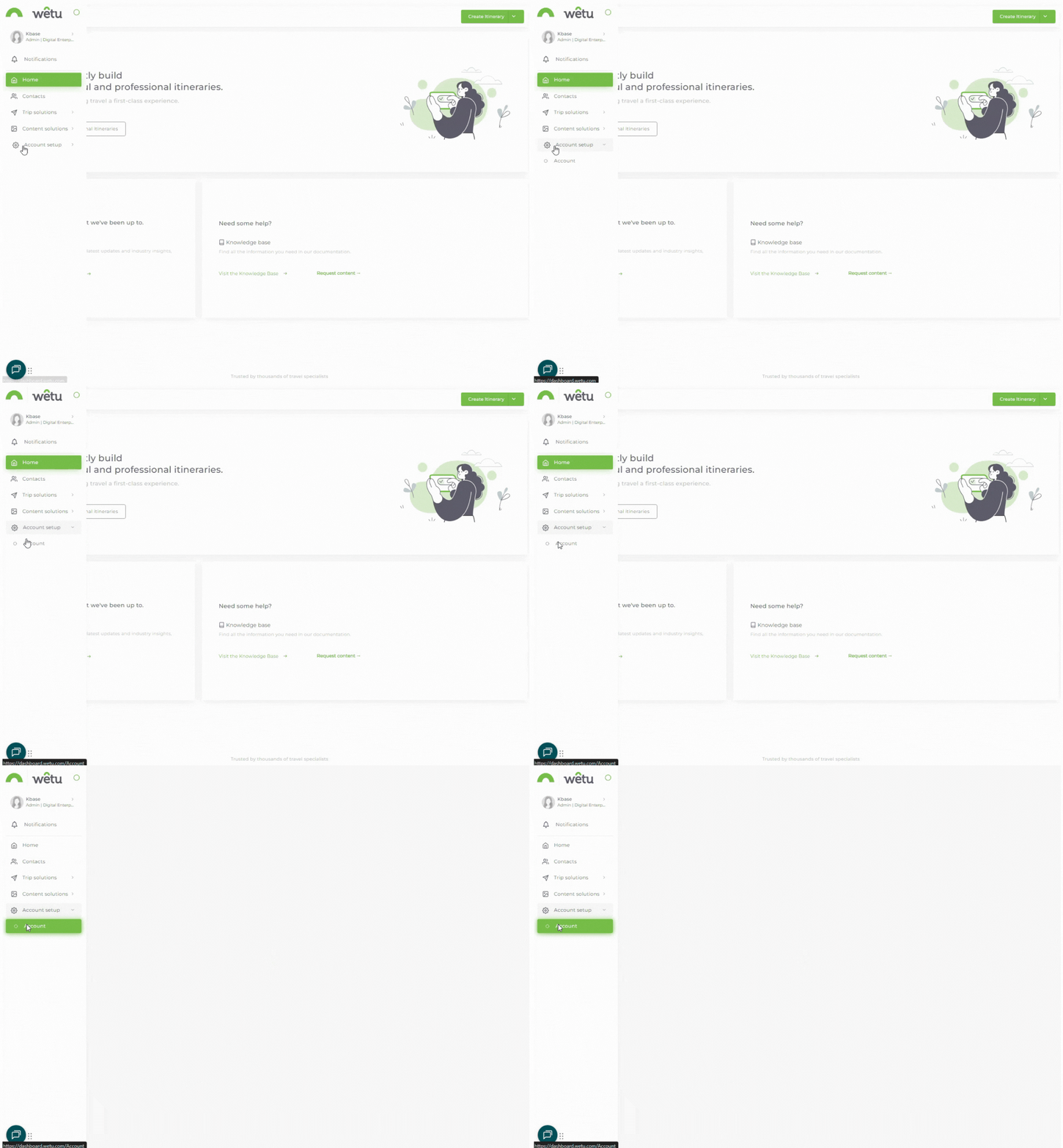
Adding and editing country information
Step 2
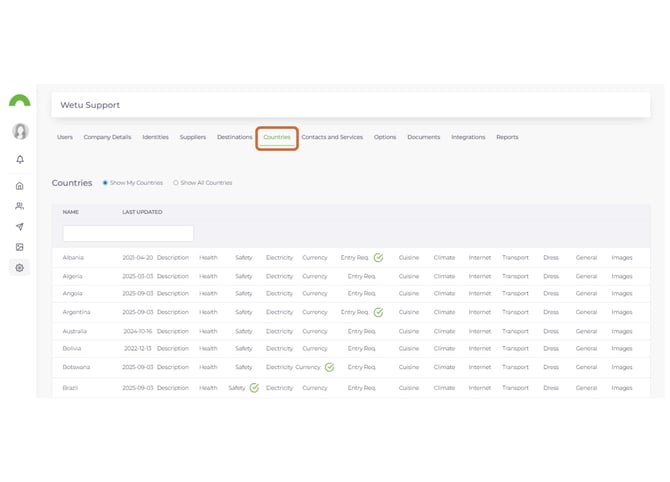
In Account, select the Countries tab.
Step 3
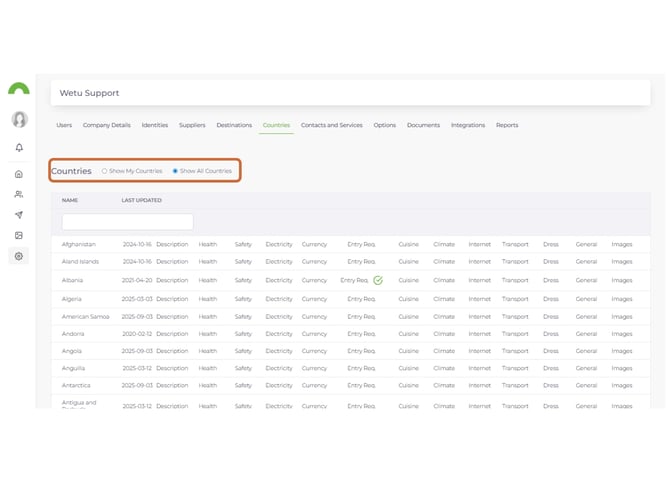
The list shows countries included in your itineraries. To view all available countries, select Show All Countries.
Step 4
Select any field next to a country (Description, Health, Safety, etc.) to open a pop-up where you can add or edit the information. Select Save to save your changes
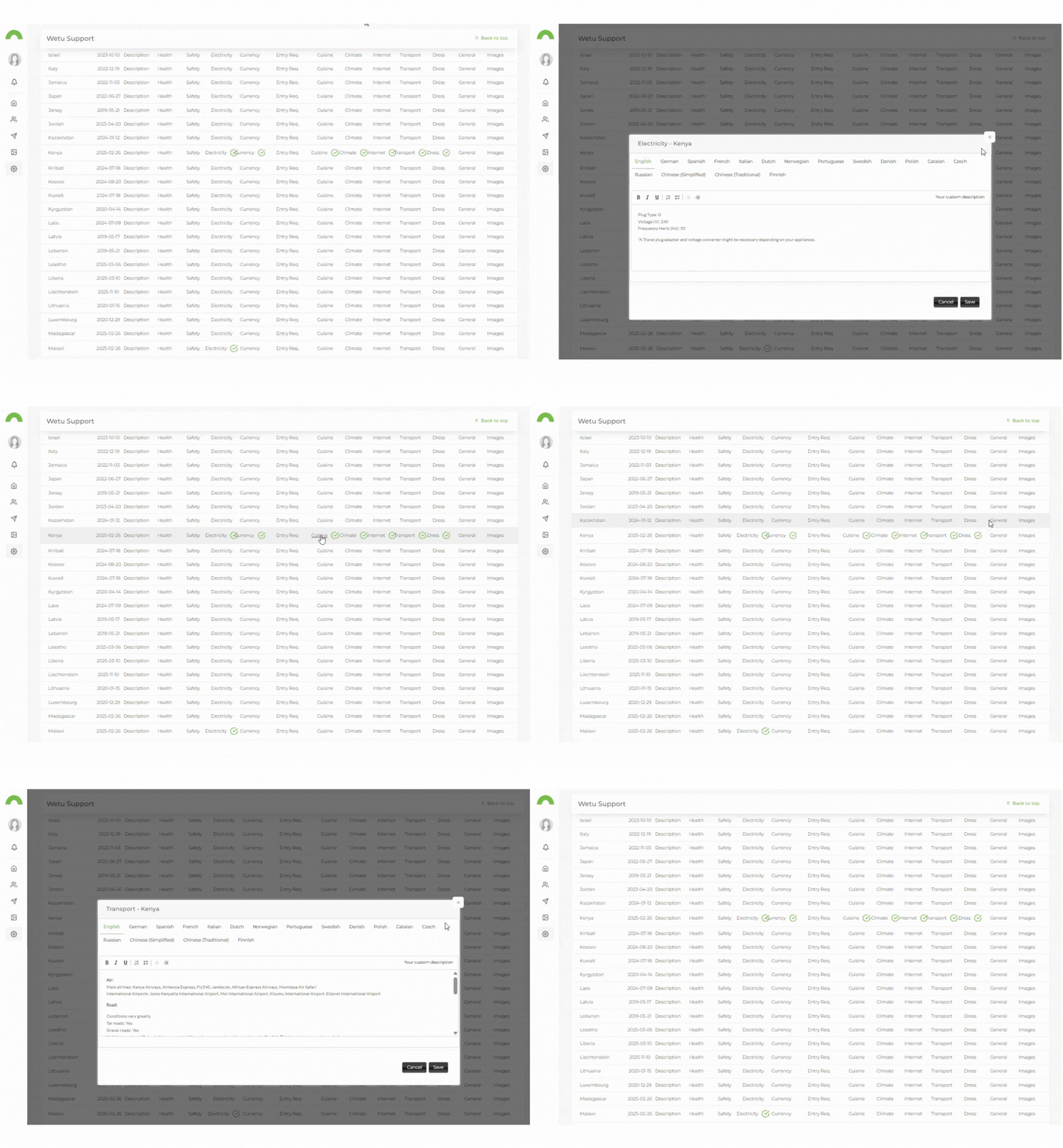
Note: Wetu does not pre-load information for Health, Safety, and Entry Requirements as these details change regularly.
Step 5
A green tick will appear next to each field that has personalised information entered.
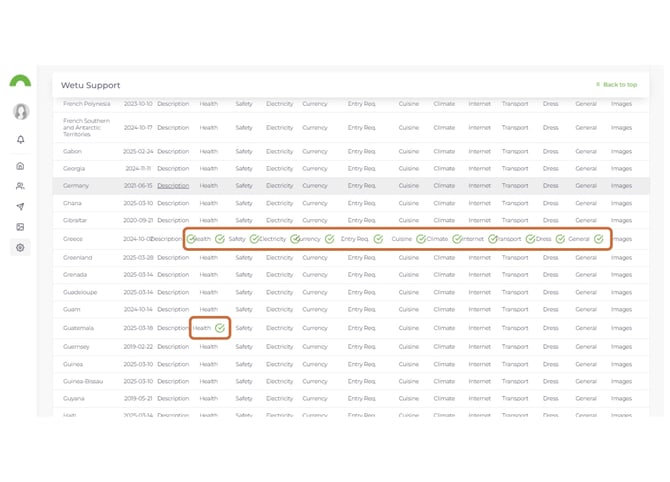
Note: Wetu pre-loads some information, but once you edit a field, it will no longer be maintained by Wetu. You are responsible for keeping the information up to date and accurate.
Country images
Step 6
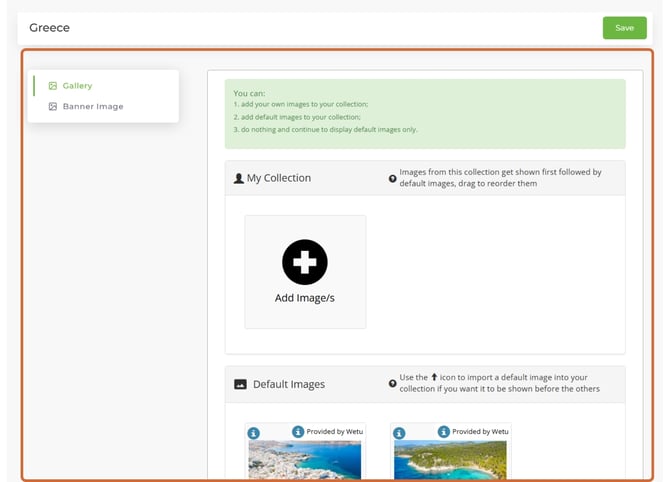
Select Images next to a country. A new tab will open showing My Collection and the Default Images loaded by Wetu.
Step 7
To add your own images, select Add Image/s to upload from your computer.
To import a default Wetu image into your collection, select the up arrow icon below it.
Images in My Collection are only visible in your account.
Step 8
Once images are added to My Collection, select your display option and select Save:
- Use/show my collection first then default images - your images display first, followed by Wetu's default images.
- Use/show images from my collection only - only your images display. Use this option to hide default images.
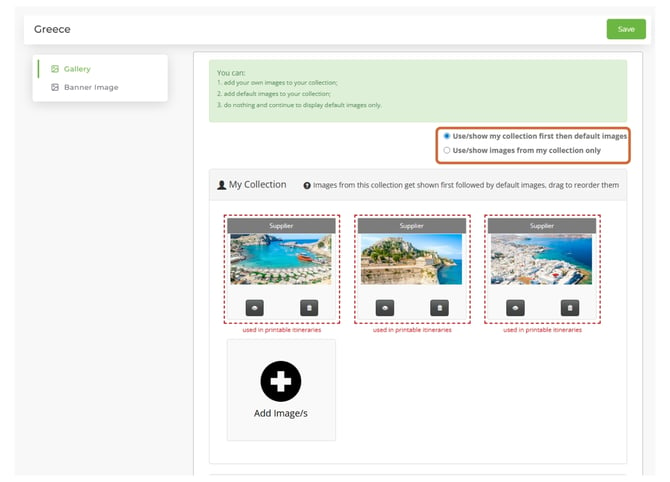
Default images cannot be deleted.
Country banner image
Step 9
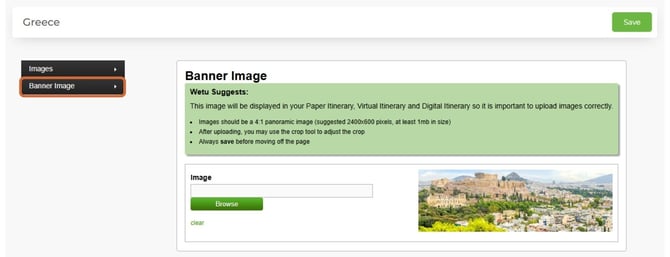
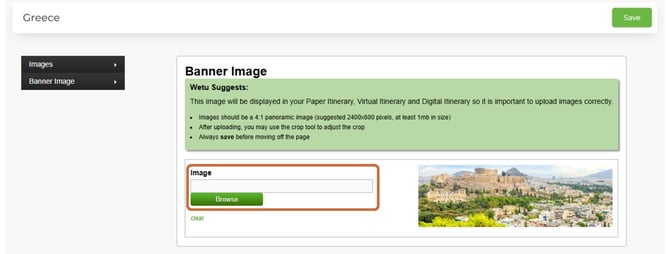
In the images screen, select Banner Image from the left-hand menu.
The banner image displays on the printable itinerary alongside the country name.
Step 10
The current banner image is displayed. To replace it, select Browse to upload a new image from your computer.
Image guidelines: 4:1 panoramic, suggested size 2400 x 600 px, at least 1MB. Use the crop tool to adjust after uploading.
Select Save.
Caution: Ensure you have permission from the content owner before uploading images to avoid copyright issues. Wetu is not responsible for any issues that occur.
Need help?
- Support: support@wetu.com
- Live chat: Available in your dashboard