
How do I manage personal and sample itineraries in a trip?
Each trip can have one personal itinerary and multiple sample itineraries. You manage both from the Trip Panel.
Quick Links
- Overview
- Add a personal itinerary
- Manage a personal itinerary
- Sample itineraries
- Business rules
- Need Help?
Note: Each trip can have one personal itinerary and multiple sample itineraries. You manage both from the Trip Panel.
Overview
| Itinerary type | How many per trip | What it is |
|---|---|---|
| Personal itinerary | One | The working itinerary for the client's trip |
| Sample itinerary | Multiple | Inspiration or templates that can be reviewed, linked and copied into a personal itinerary. Sample itineraries are reference material only and never replace the trip's personal itinerary. |
Add a personal itinerary
Each trip can have one personal itinerary. If the trip doesn't have one yet, there are two ways to add one:
| Option | What it does |
|---|---|
| Create from scratch | Creates a brand new personal itinerary |
| Copy a sample itinerary | Creates a new personal itinerary using a sample itinerary as the starting point |
1. In the Personal Itinerary section of the Overview tab, select +.
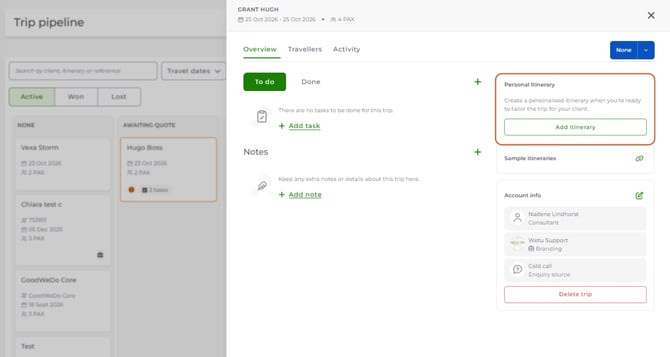
2. Choose Create new itinerary or Copy sample itinerary.
3. Select Add itinerary.
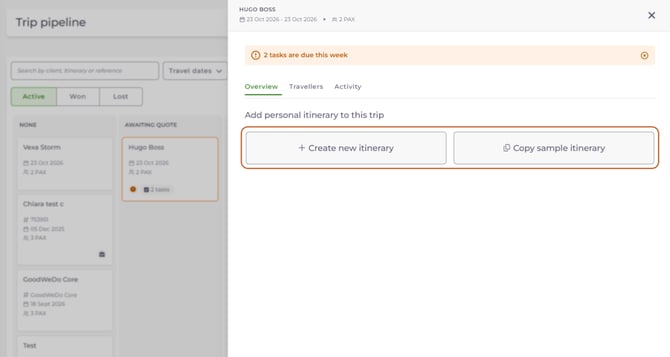
The new personal itinerary is automatically linked to the trip, and the Trip Panel refreshes to show it.
Note: You can't link an existing personal itinerary to a trip. Every personal itinerary in Wetu already has its own trip.
Copy a sample itinerary
How you copy a sample itinerary depends on how many sample itineraries are already linked to the trip:
|
Sample itineraries linked |
Do this |
|---|---|
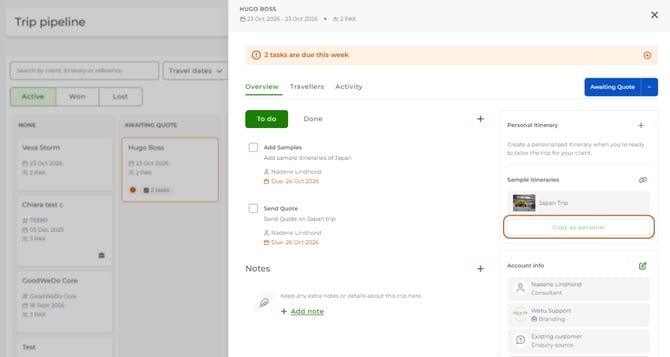
| None | Select + in the Personal Itinerary section, then Copy sample itinerary. Search for and select a sample itinerary, then select Add itinerary. |
| One | Select Copy as personal. Trip Pipeline creates a personal copy straight away. |
| More than one | Select Copy as personal, then choose which linked sample itinerary to copy. |

A new personal itinerary is created from the sample and becomes the trip's linked personal itinerary.
Manage a personal itinerary
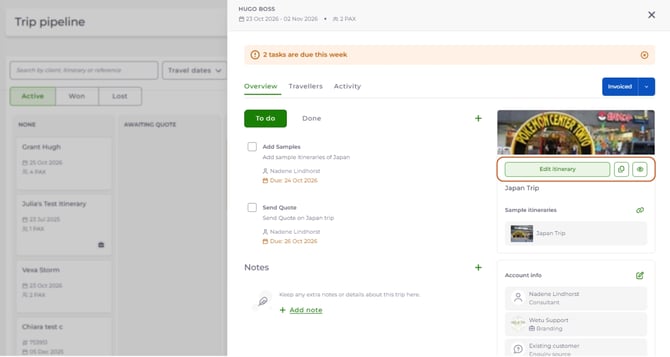
Once a personal itinerary is linked, you can manage it directly from the trip:
| Action | What it does | How |
|---|---|---|
| Edit itinerary | Opens the linked personal itinerary in the Itinerary Builder. Saved changes are reflected automatically in the trip. | Select Edit itinerary, make your changes and save. |
| Copy itinerary links | Copies any supported itinerary link directly from the trip | Select the copy icon next to Edit itinerary, then choose the link to copy. |
| Preview | Shows the linked itinerary without leaving the trip. Works the same as the existing Wetu preview. | Select the Preview (eye) icon next to the copy icon. |
| Remove | Unlinks the itinerary from the trip. The itinerary stays in Wetu and can be linked to another trip later. | Select Remove, then confirm. |

Itinerary link types
Examples include:
- Discovery link
- TravelKey App link
- Agent access link
- Classic link
- TravelKey download link
Sample itineraries
A trip can have multiple sample itineraries linked. They are reference material only and never replace the trip's personal itinerary.
Add a sample itinerary
- Select the link icon beside Sample itineraries.
- Search for a sample itinerary.
- Select one or more sample itineraries.
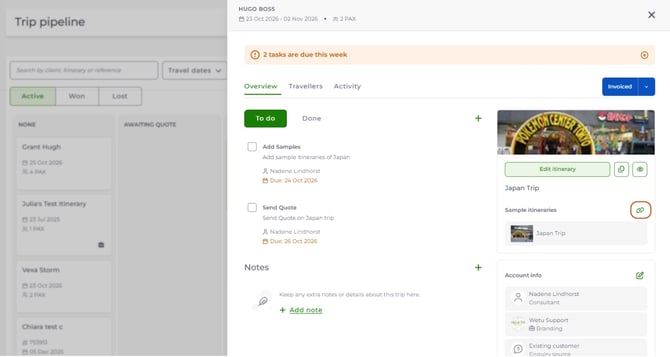
The selected sample itineraries are linked to the trip.
Review a sample itinerary
You can preview any linked sample itinerary before deciding whether to use or copy it.
- Select a linked sample itinerary.
- Open the itinerary preview.
- Review the itinerary.
- Close the preview to return to the trip.
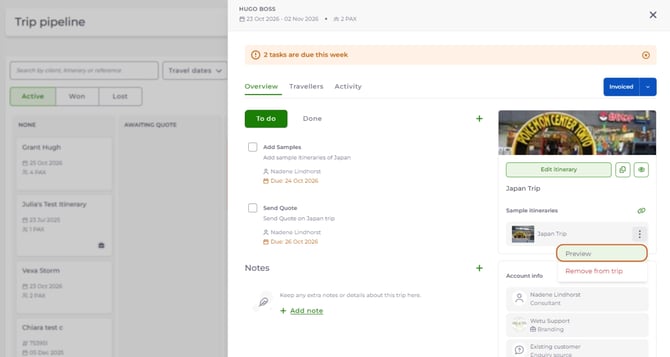
| The preview: |
|
Remove a sample itinerary
- Select Remove on the sample itinerary.
- Confirm the removal.
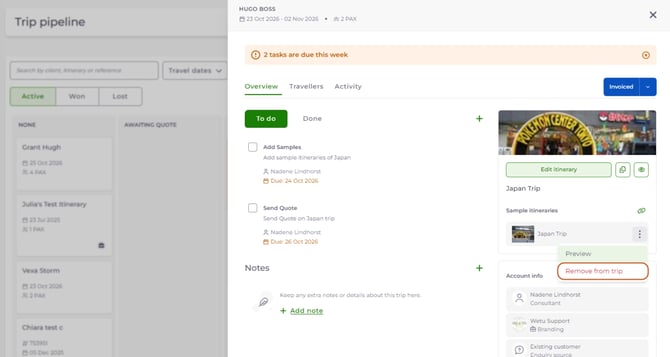
The sample itinerary is unlinked from the trip.
| Removing a sample itinerary: |
|
Business rules
| Rule | Personal itinerary | Sample itinerary |
|---|---|---|
| How many per trip | One | Multiple |
| Linking to trips | Linked to one trip at a time. If it's already linked to another trip, it can't be selected when searching and you are prompted to open the existing trip instead. | Can be linked to multiple trips |
| Creating | Creating a new personal itinerary automatically links it to the trip | Copying a sample itinerary always creates a new personal itinerary |
| Removing | Removes the link only. The itinerary is not deleted. | Removes the link only. The original stays in the itinerary library and can be reused. |
| Editing and previewing | Can be edited, disabled, locked and previewed directly from the trip. Changes are reflected in the trip straight away. | Can be previewed at any time |
Need help?
Contact Wetu Support at support@wetu.com.
Chat to us Live on your dashboard.