
Quick Links
- Opening the Status Management panel
- Status categories
- Adding a status
- Renaming a status
- Reordering statuses
- Moving statuses between categories
- Deleting a status
- Status limits
- Important rules
- Best practice
- Need Help?
Statuses represent the stages a trip moves through during its lifecycle. They determine how trips are organised on the board and show where each booking sits in your operational process.
Opening the Status Management panel
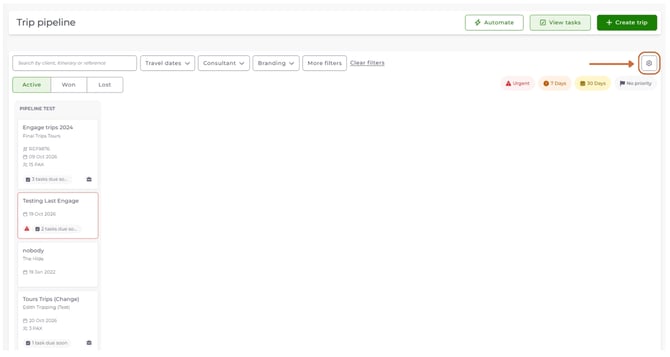
1. Go to Trip Pipeline.
2. Select the Settings cog in the top right corner.
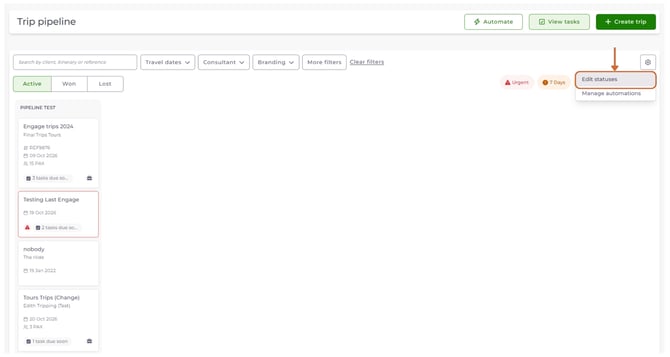
3. Select Edit statuses.
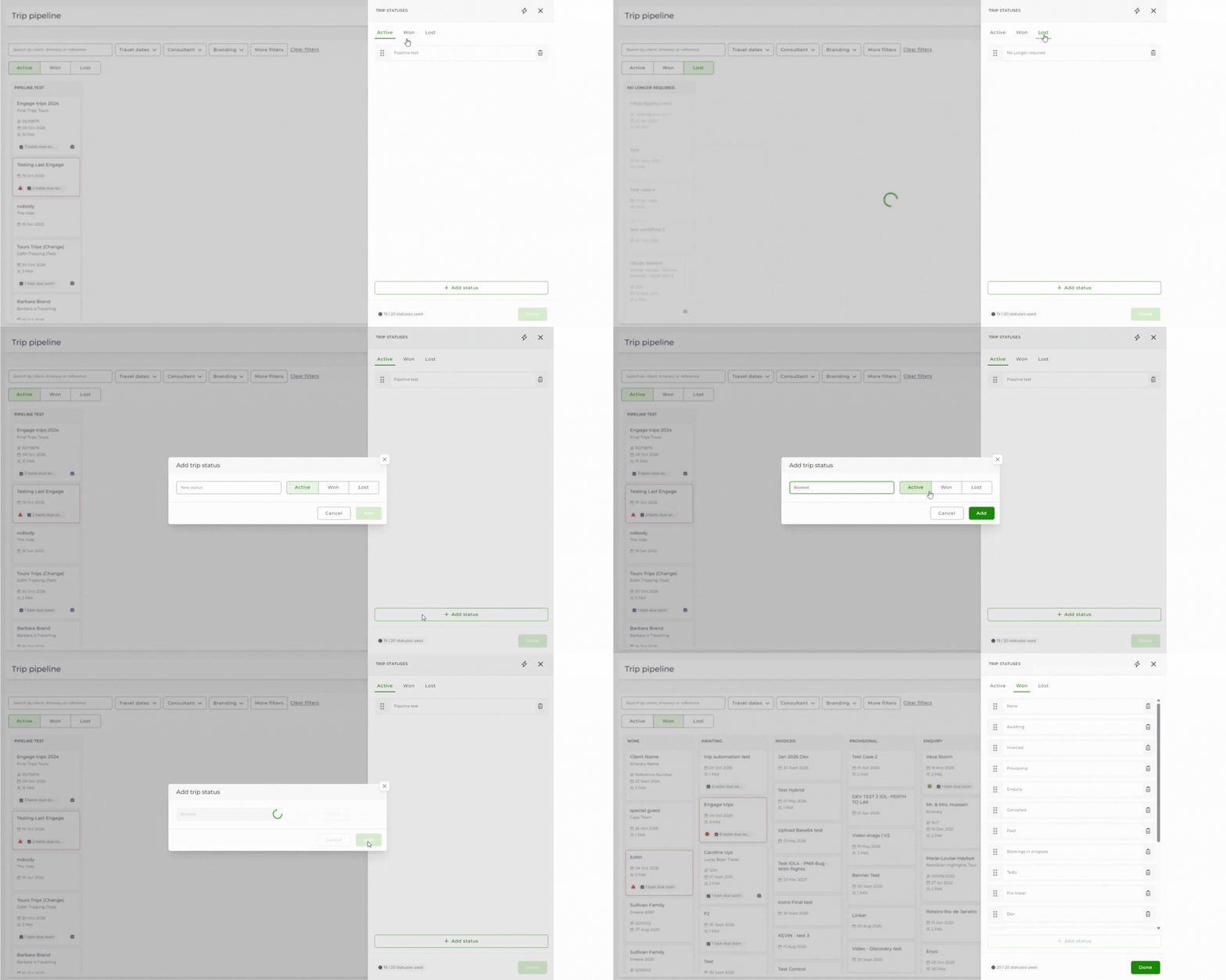
The Workflow statuses panel opens.
Status categories
Statuses are organised into three categories.
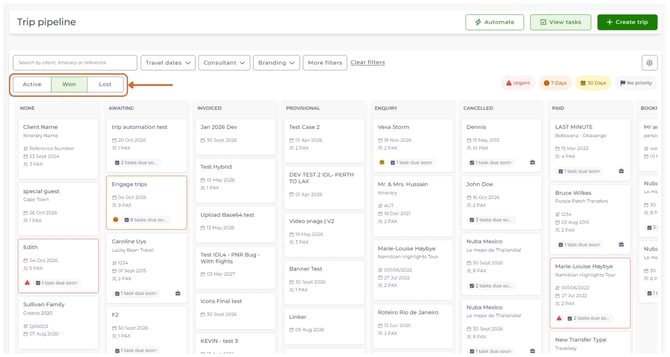
Active
Active statuses represent trips that are currently being worked on. Examples include:
- Enquiry
- Awaiting quote
- Quoted
- Provisional
- Invoiced
- Payment due
- Paid
- Booked
Won
Won statuses represent trips that have successfully completed the sales process. Examples include:
- Travelled
- Completed
- Return Client
Lost
Lost statuses represent trips that did not proceed. Examples include:
- Cancelled
- Did not book
- Consultant Error
Tip: You can type status names in upper or lower case. They always appear in upper case on the board.
Adding a status
To create a new status:
1. Open the appropriate category tab.
2. Select Add Status.
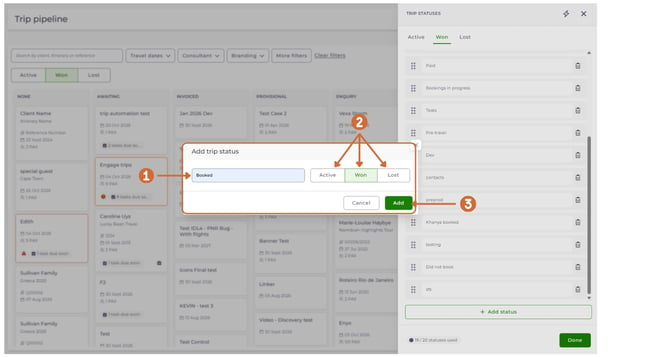
3. Enter a name for the new status.
4. Select Save.
The new status is immediately available in Trip Pipeline.
Renaming a status
To rename a status:
1. Select the status name.
2. Enter the new name.
3. Select Save.
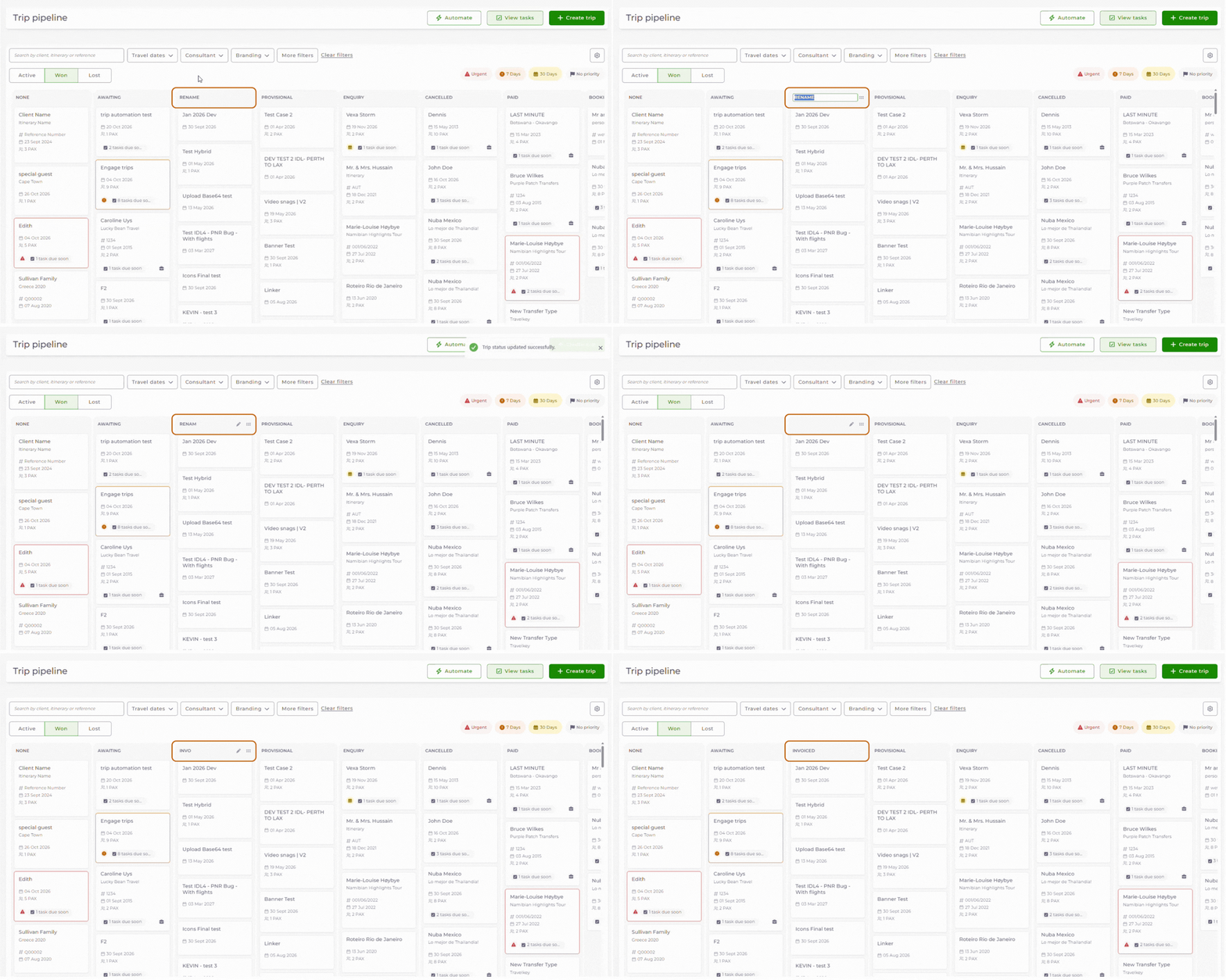
The updated name is reflected throughout Trip Pipeline.
Reordering statuses
Statuses can be reordered to match your business workflow.
To reorder a status:
1. Select and hold the drag handle.
2. Drag the status to its new position.
3. Release the status.
4. Select Save.
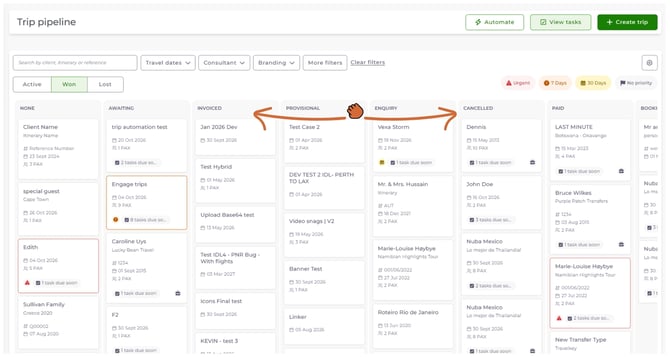
The order of statuses determines the order of columns displayed in Trip Pipeline.
Tip: We recommend arranging statuses to reflect the natural progression of a booking, from enquiry through to completion.
Moving statuses between categories
Statuses can be moved between the Active, Won, Lost and Archived categories.
To move a status:
1. Select and drag the status.
2. Hover over the destination category tab.
3. Drop the status into the new category.
4. Select Save.
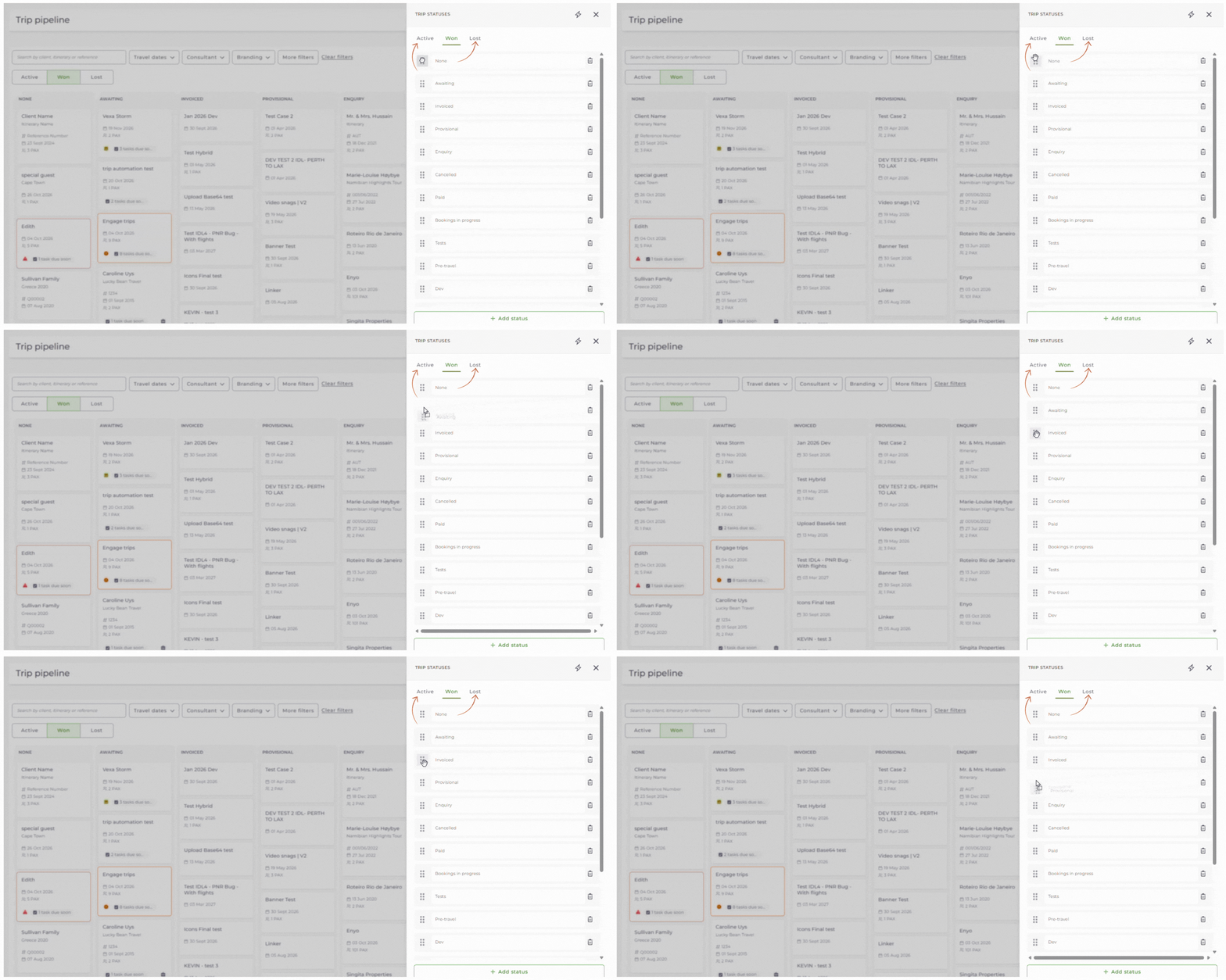
The status is moved to the selected category.
| Example: A status such as Booked may start in Active. If your workflow changes, you can move it into Won if it better represents a successful outcome in your business process. |
Deleting a status
You can delete statuses you no longer need. When you delete a status, you choose another status to move its trips to.
1. Select the Settings cog in the top right corner of Trip Pipeline.
2. Select Edit statuses.
3. Select the trash can icon next to the status you want to delete.
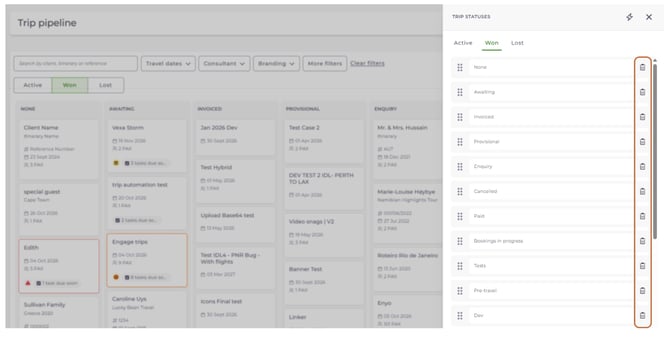
4. In the Delete trip status window, use and move trips to to choose the status the trips should move to.
5. Select Delete.
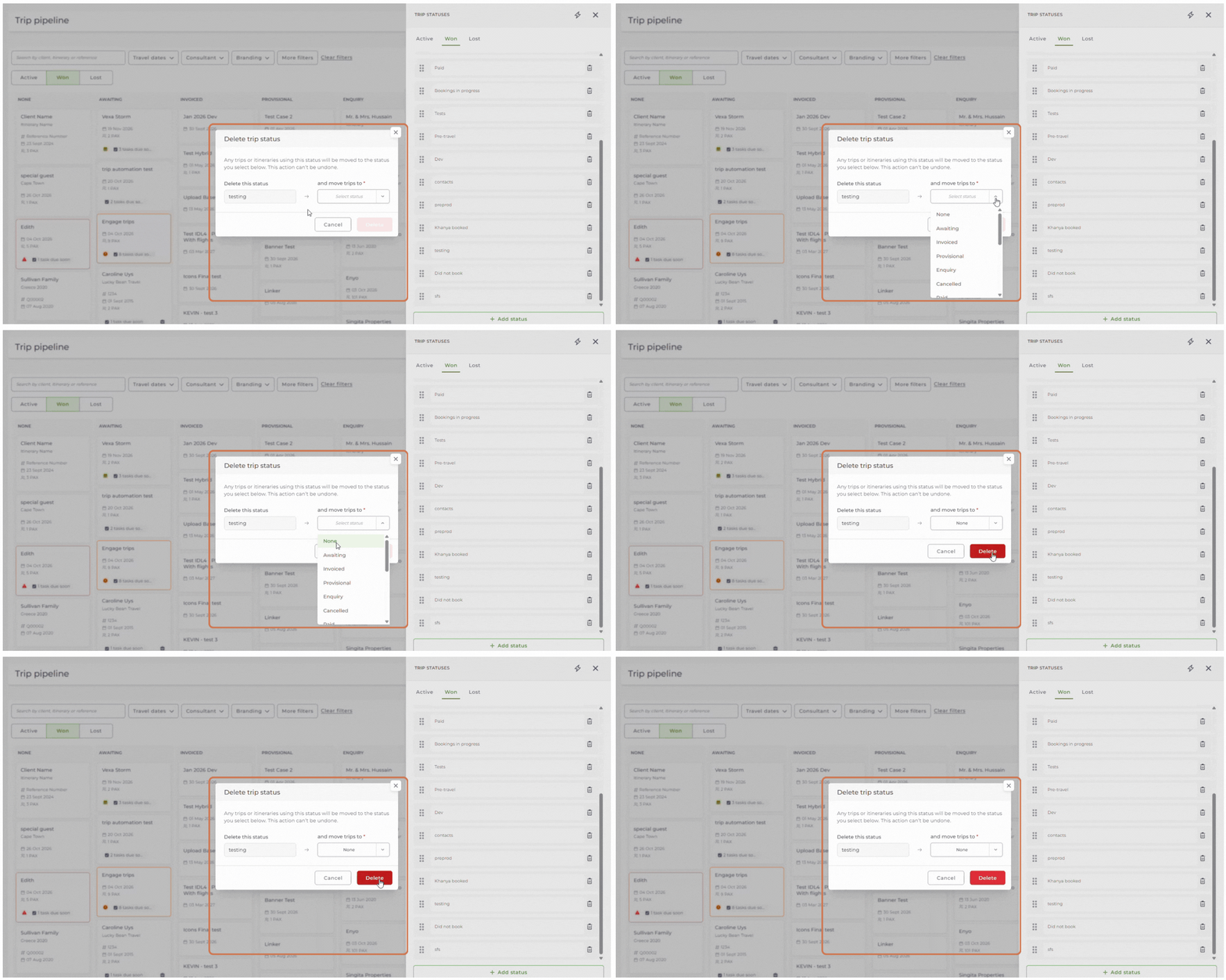
Note: Any trips or itineraries using the deleted status are moved to the status you select. This action can't be undone.
Status limits
Trip Pipeline supports a maximum of 20 workflow statuses across the Active, Won and Lost categories combined.
Once you reach the maximum, you can't create more statuses until you delete an existing status.
Important rules
The following rules apply when managing statuses:
- An account can have a maximum of 20 statuses across Active, Won and Lost.
- Active must contain at least one status.
- Won must contain at least one status.
- Lost must contain at least one status.
- A status can't be deleted until you select a status to move its trips to.
- Changes are not applied until you select Save.
- Selecting Cancel discards any unsaved changes.
Best practice
When designing your workflow:
- Keep status names clear and easy to understand.
- Avoid creating unnecessary statuses.
- Use statuses to represent meaningful business milestones.
- Review your workflow regularly as your business processes evolve.
- Keep the number of statuses manageable so Trip Pipeline stays easy to use.
A well-structured workflow makes it easier for consultants to understand what action is required and where each trip sits in the booking journey.
Tip: Your statuses are unique to your business. Trip Pipeline is designed to adapt to your workflow, rather than forcing you into a predefined process.
Need help?
Contact Wetu Support at support@wetu.com.
Chat to us Live on your dashboard.