
Quick Links
- Filtering the accommodation list
- Viewing supplier content
- Customising supplier information
- Preferred suppliers
- Activities
- Restaurants
- Best practices for Product Manager
- Troubleshooting
- Need help?
1. Filtering the accommodation list
Use the filter to identify accommodations that suit your needs.
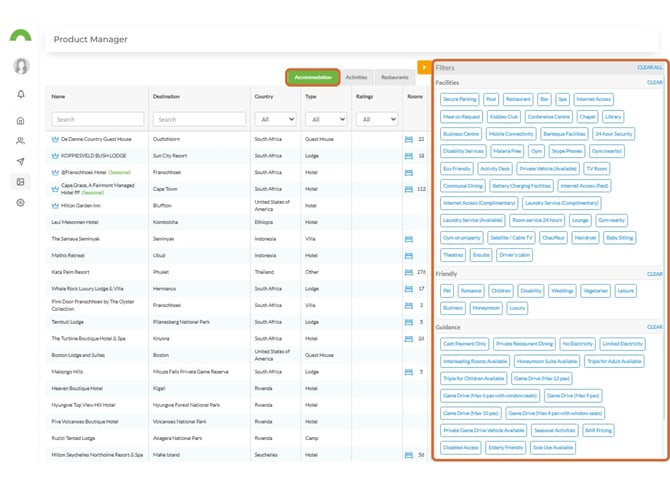
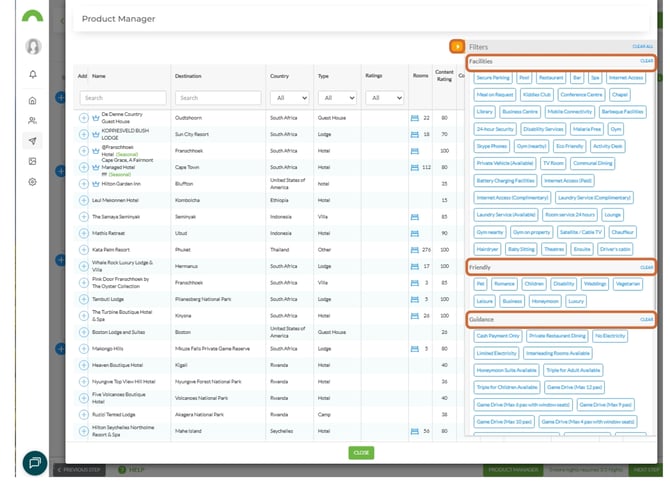
The filter allows you to narrow down accommodations by Facilities, Friendly, and Guidance, depending on what the suppliers have loaded.
2. Viewing supplier content
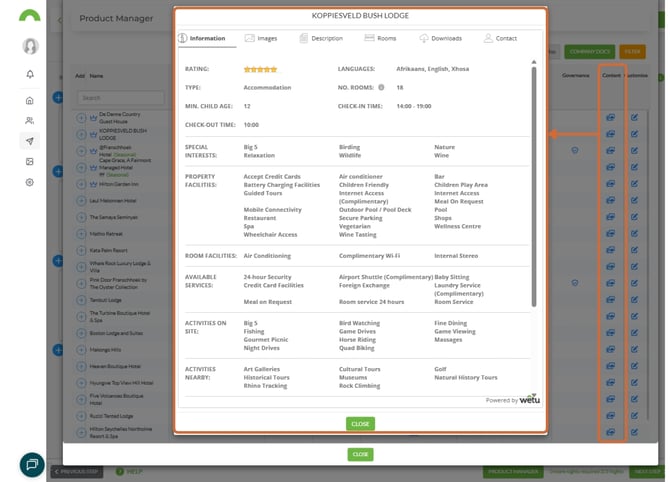
Click the Content icon on a supplier card to open a basic view of all the content loaded for that supplier.
3. Customising supplier information
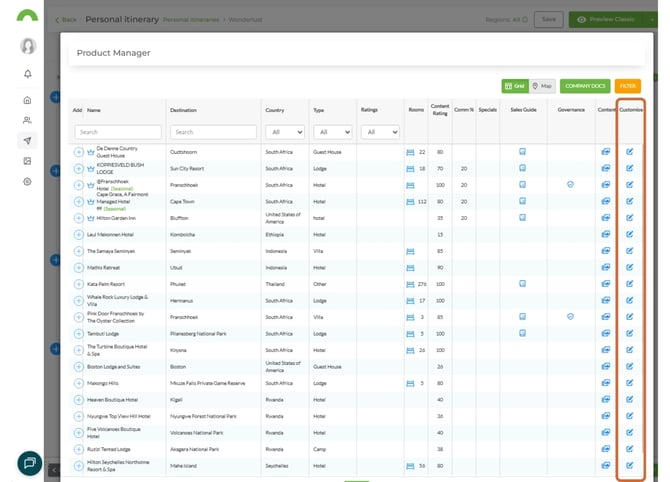
Admin access required. Only users with Admin access will have the Customise option.
Click the Customise option on a supplier card. This opens the Supplier section of Account Settings, where the information can be managed.
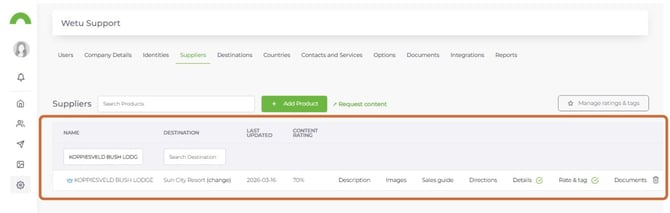
Tip: The Product Manager can be a powerful tool to streamline your itinerary-building process. We recommend creating a project plan to add all the information needed, as well as an ongoing maintenance plan. New and existing team members can easily find information, reducing wasted time, questions, and human error. Store your commission information and internal notes for company-wide visibility, from anywhere.
4. Preferred suppliers
Preferred suppliers are managed in the Account Settings, under the Supplier tab.
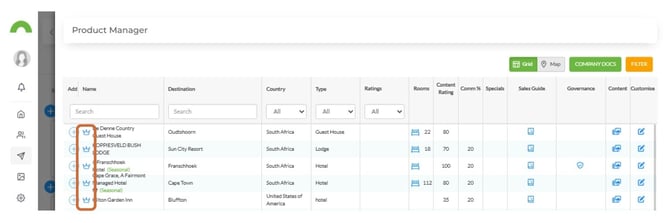
Tip: Marking suppliers as preferred helps your team identify trusted partners quickly when building itineraries.
5. Activities
The Activities tab lists activity suppliers in your Product Manager.
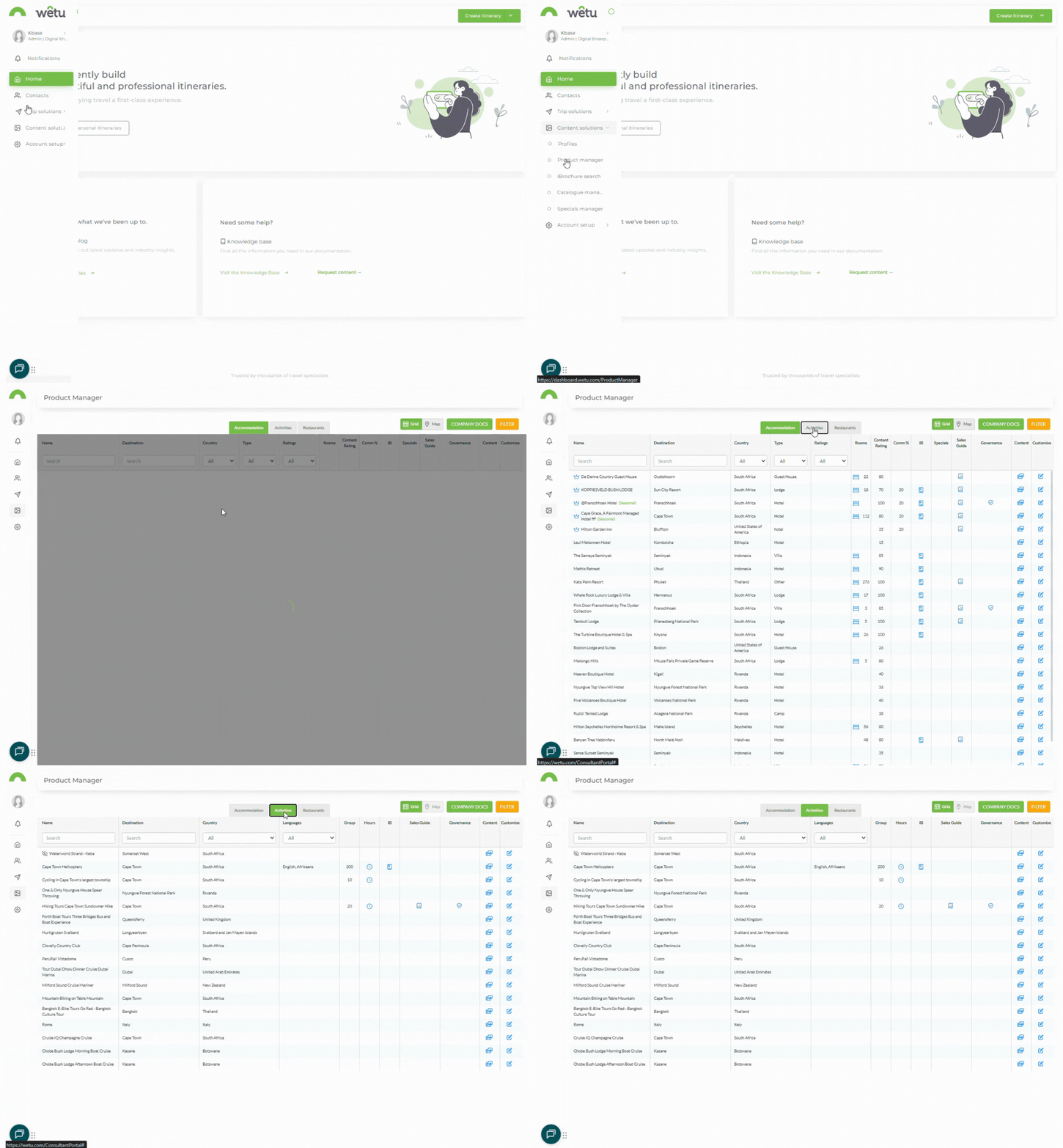
Note: Activities need to be manually added in the Supplier section of Account Settings.
6. Restaurants
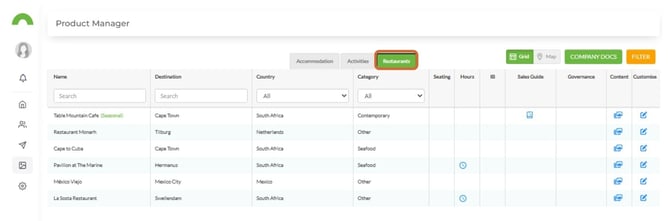
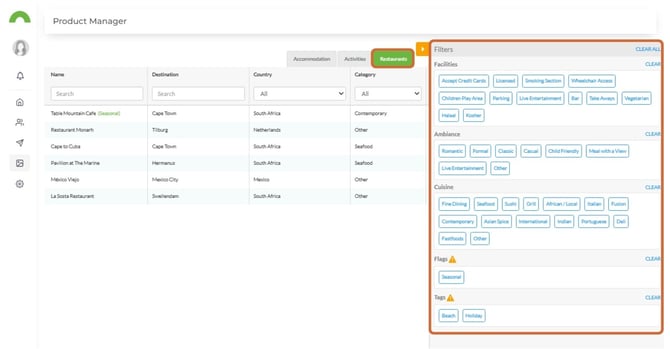
Note: Restaurants need to be manually added in the Supplier section of Account Settings.
Restaurants can be filtered by Destination, Country, and Category.
Best practices for Product Manager
Create a project plan
Initial setup:
1. Identify all key suppliers
2. Gather commission information
3. Collect documentation
4. Add internal notes
5. Set flags and tags
6. Mark preferred suppliers
Allocate time:
- Initial setup: 2-4 weeks (depending on supplier count)
- Ongoing maintenance: 2-4 hours monthly
Ongoing maintenance plan
Monthly tasks:
- ☑ Update commission rates
- ☑ Add new suppliers used in itineraries
- ☑ Remove inactive suppliers
- ☑ Refresh internal notes
- ☑ Update contact information
Quarterly tasks:
- ☑ Review all supplier information
- ☑ Verify rate sheets current
- ☑ Update contracts and documentation
- ☑ Audit flags and tags
- ☑ Clean up duplicates
Annually:
- ☑ Comprehensive supplier audit
- ☑ Renegotiate commissions
- ☑ Update preferred supplier list
- ☑ Archive inactive suppliers
back to top
Troubleshooting
Supplier not showing in Product Manager
- Check if used in any itineraries yet
- Mobile accommodations/cruises don't appear currently
- Manually add activities and restaurants in Supplier Section
- Refresh the page
Can't customise supplier information
- Verify you have Admin access
- Contact account owner to grant permissions
- Try different browser
- Clear cache and retry
Filters not working
- Ensure suppliers have facility information loaded
- Check if properties have been categorised
- Refresh Product Manager
- Try clearing all filters and starting over
Commission information not displaying
- Verify it's been added in Supplier Section
- Check Admin added it (consultants can't edit)
- Refresh the page
- Contact support if issue persists
Preferred suppliers not showing badge
- Confirm marked as preferred in Account Settings > Supplier Tab
- Refresh Product Manager
- Check filter isn't hiding them
- Verify user permissions
Need Help?
- Live Chat: Available on your dashboard
Previous article in this series
What is the Product Manager?
Learn what the Product Manager is, who can access it, and how to navigate the Accommodation tab and view modes.