
Who should register a profile?
Wetu profiles are designed for:
- Accommodation providers: Hotels, lodges, resorts, guesthouses, camps
- Restaurants: Dining establishments featured in travel itineraries
- Activity Provider: Tour guides, adventure activities
- DMOs (Destination Marketing Organizations): Tourism boards and regional marketing bodies
Why register?
- Showcase your property or service to thousands of travel agents
- Get featured in professional itineraries and proposals
- Manage your own content, photos, and descriptions
- Connect with tour operators who can send you business
- It's completely free!
Before you start
Make sure you have:
- [ ] Your business email address
- [ ] Basic company information (name, location, phone number)
- [ ] Your website URL (if you have one)
- [ ] 5-10 minutes to complete the registration
Tip: Have your company logo and photos ready, you'll be able to add them to your profile after registration.
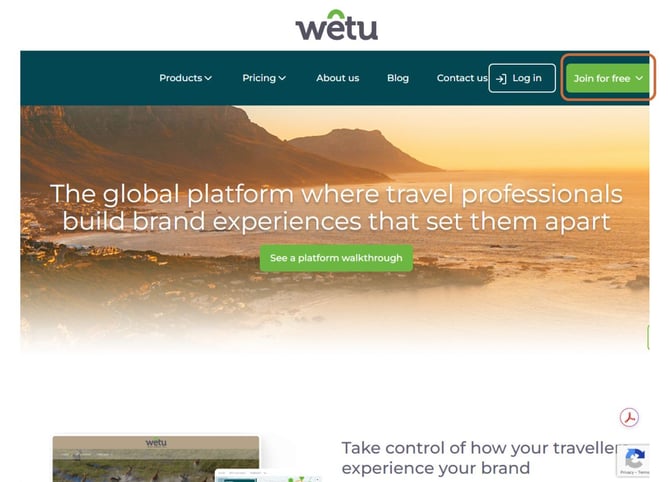
Step 1: Go to the Wetu registration page
1. Navigate to https://www.wetu.com/
2. Click "Join for Free" or "Sign Up"
Step 2: Select your account type
1. On the registration page, you'll see different account type options
2. Select "DMO / Accommodation / Restaurant / Activities"
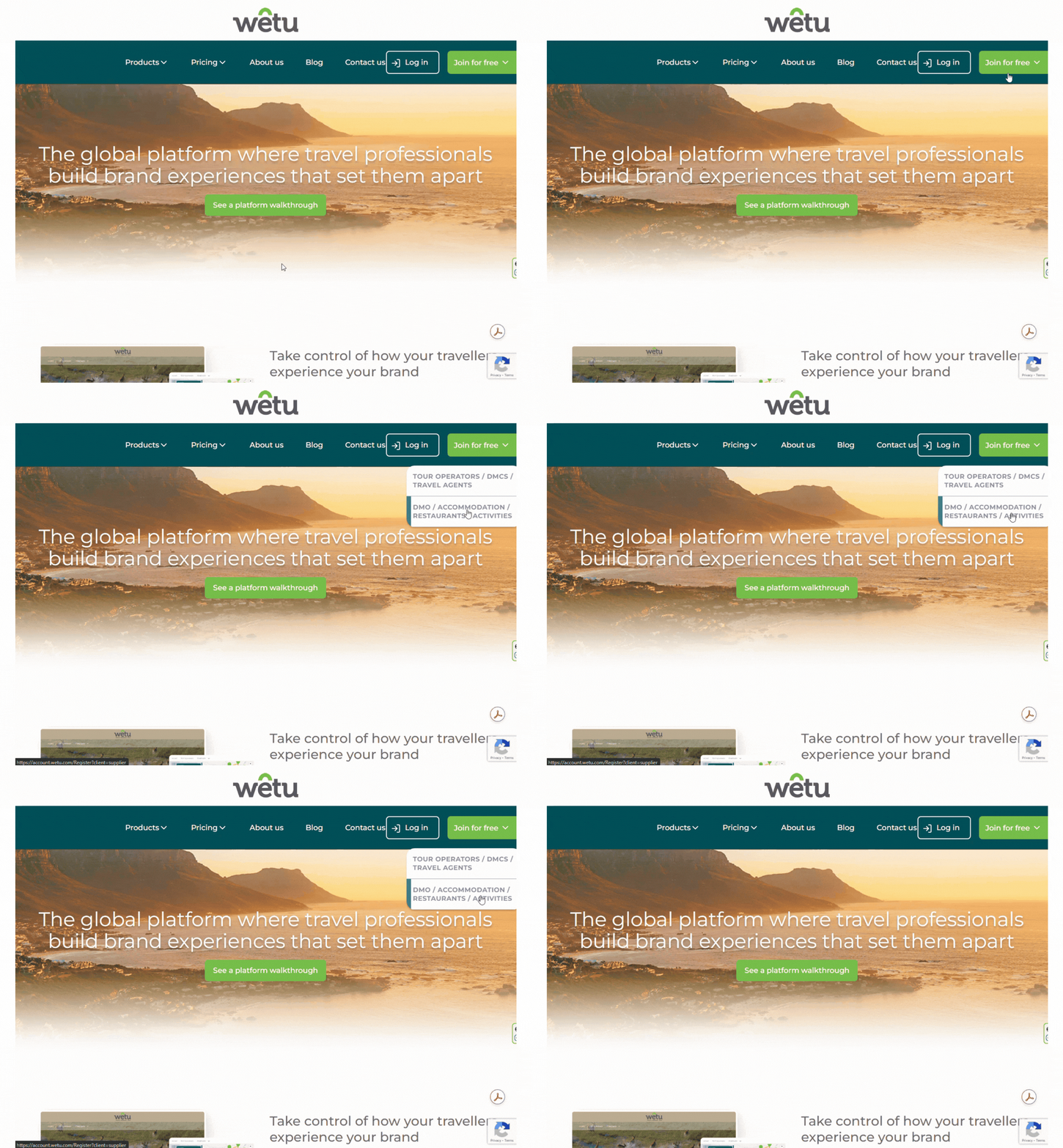
Note: This is the correct option for property and service providers. The other options are for travel agents and tour operators.
Step 3: Create your account
1. Enter your email address (use your business email)
2. Create a strong password
- Minimum 8 characters
- Mix of letters and numbers recommended
3. Tick the checkbox: "I accept the terms of use and privacy policy"
4. Complete the "I'm not a robot" verification (reCAPTCHA)
5. Click "Register"
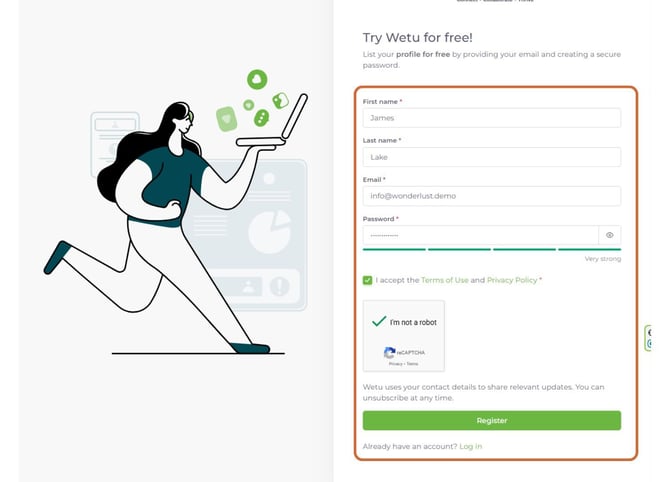
Note: Your account is now created, you'll receive a verification email.
Step 4: Verify your email address
1. Check your email inbox for a message from Wetu
2. Look for the subject line: "Verify your Wetu account" or similar
3. Click "Verify Email Now" in the email
Can't find the email? Check your spam or junk folder. If it's not there, you can request a new verification email from the login page.
Step 5: Log in to your new account
1. Enter your email address
2. Enter your password
3. Complete the "I'm not a robot" verification
4. Click "Login"
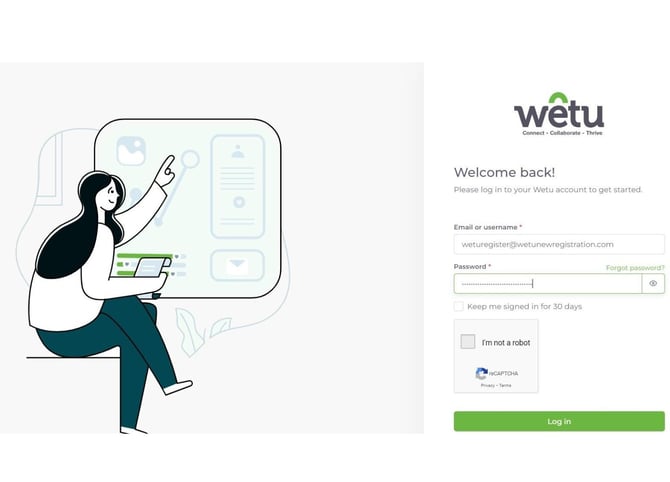
You're now logged in to Wetu!
Step 6: Choose your product type
You'll be asked to select what best describes your offering.
Options include:
- Accommodation (hotel, lodge, resort, guesthouse)
- Restaurant
- Activity (safari, tour, adventure experience)
- Destination (DMO or tourism board)
- Multiple types (if you offer more than one)
1. Select the option that best matches your business
2. Click "Next"
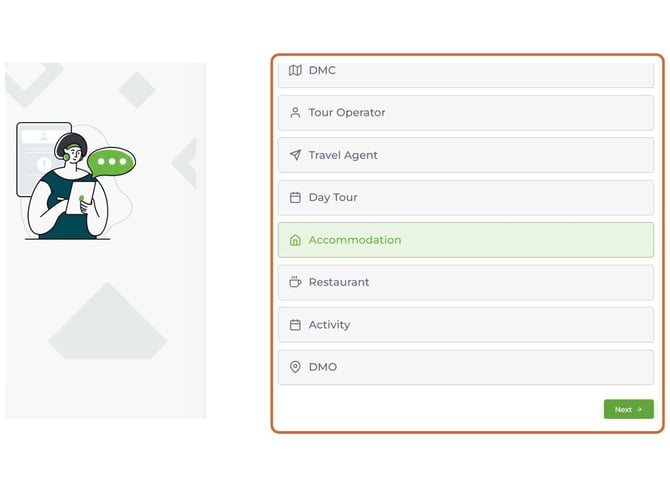
Tip: If you offer multiple types (e.g., accommodation + restaurant), you can select multiple categories or choose the primary one.
Step 7: Complete your business details
Fill in your basic business information:
Required fields:
- First Name: Your name
- Last Name: Your surname
- Company Name: Your property or business name
- Business Location: Country and city/region
- Phone Number: Contact number with country code
- Website: Your website URL (if you have one)
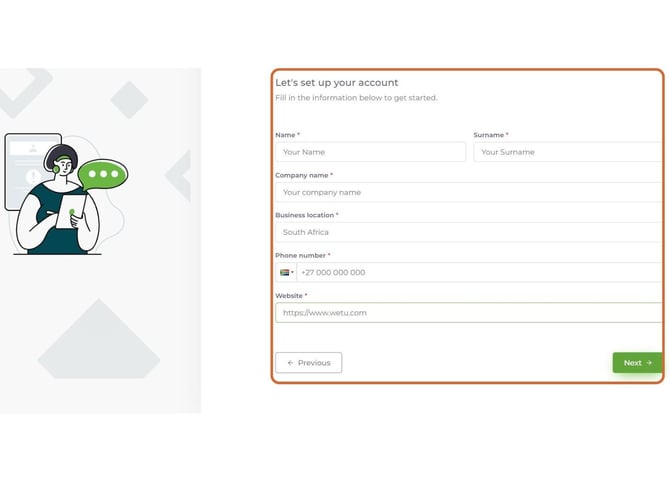
1. Complete all required fields
2. Click "Next"
Note: Your basic profile information is saved.
Step 8: Access your dashboard
1. You'll see a confirmation screen
2. Click "Go to Dashboard"
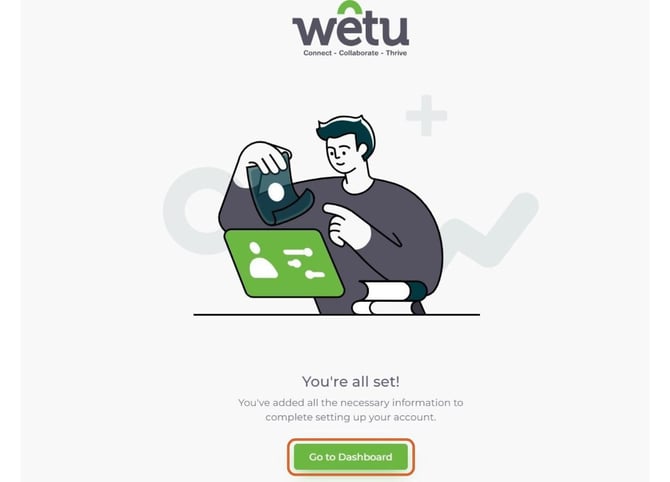
Congratulations! Your Wetu profile is now registered.
Need help?
If you encounter any issues during registration:
- Check your email- Verification emails sometimes take a few minutes
- Try a different browser - Clear cache if the page isn't loading correctly
- Contact support - Email support@wetu.com with your issue
- Check spam folder - Verification emails sometimes end up there
The Wetu team is here to help you get set up successfully!
vs.1.0.23.02.2026
Related Articles
Building your profile:
- How do I create my supplier profile? (Basic Setup)
- How do I add photos to my supplier profile?
- How do I add room types and sleeping arrangements?
- How do I complete my supplier profile details?