
Quick Links
- Send an itinerary email
- Personalise the message
- Email templates
- Need Help?
Send an itinerary email
1. Open the itinerary in the Itinerary Builder.
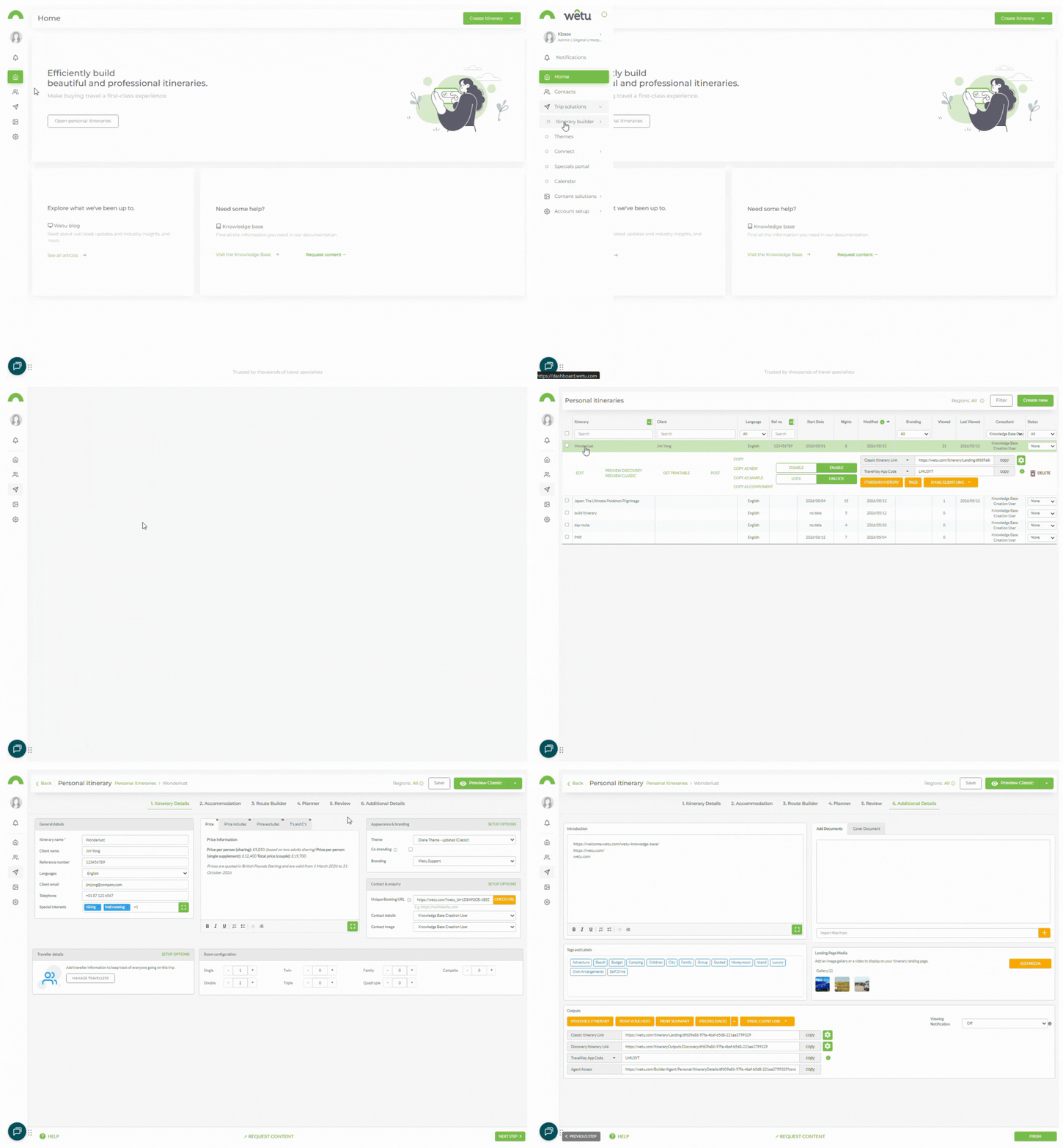
2. Navigate to Step 6: Additional Details.
3. Click Email Client Link and select the itinerary output you want to send (e.g. Classic or Discovery).
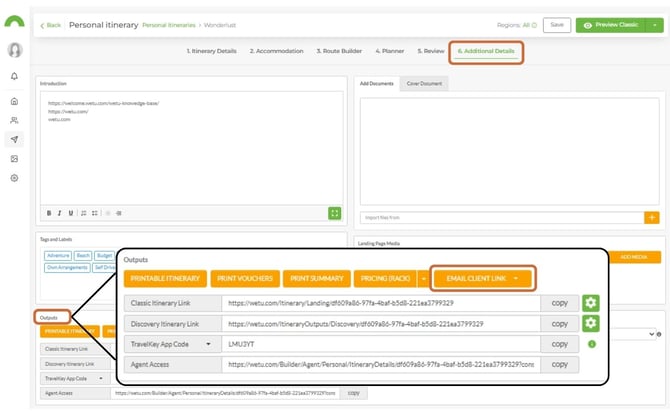
- To - Enter the client's email address. If an email was added in Step 1: Itinerary Details, it will pre-populate. To send to multiple recipients, separate addresses with a comma ( , ) or semicolon ( ; ).
- From - Select the sending address from your Company Details email or your user account email.
- Subject - Enter or amend the subject line.
- Template - Select an email template.
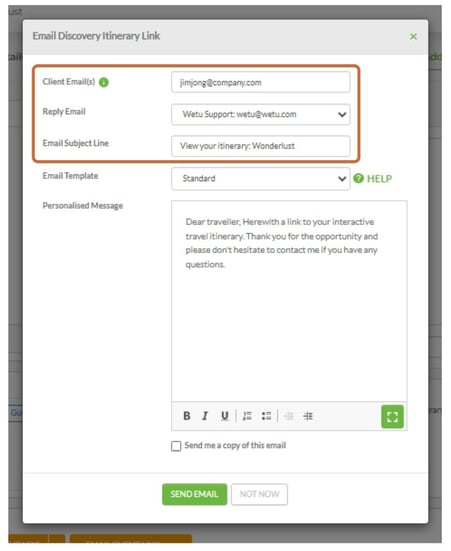
- Message - Enter or amend the personalised message.
back to top
Personalise the message
Each template includes a text field pre-populated with a generic message. You can amend or completely replace this before sending.
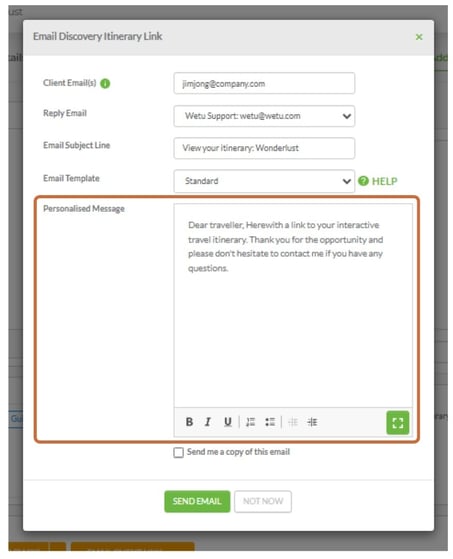
Tip: The ideal message length is between 150 and 180 characters. There is no hard character limit.
Email templates
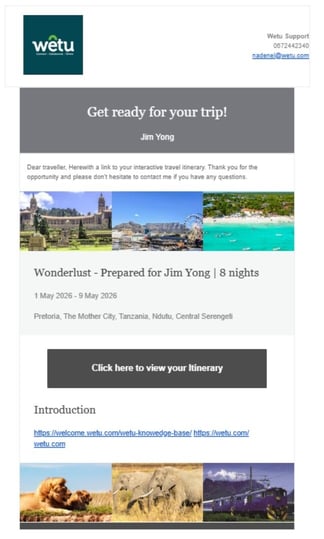
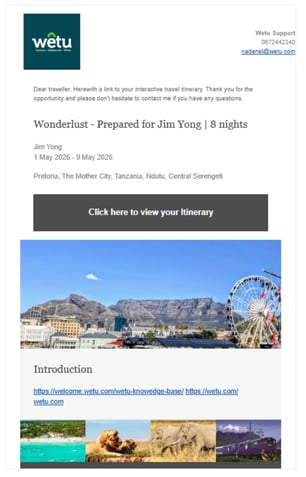
There are three email templates to choose from:
|
Standard Clean, straightforward layout with itinerary link and message |
Hero Features a large hero image at the top of the email |
Sidebar Two-column layout with a sidebar for additional content |
Standard
Hero
Sidebar
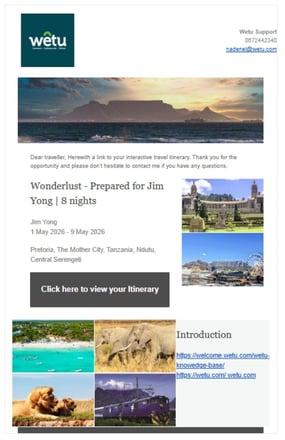
Note: If no Trip Summary has been entered, that section will not appear on the Standard and Hero templates. On the Sidebar template, it will be replaced by the "About Us" section.
Need Help?
- Contact Support: support@wetu.com
- Live Chat: Available on your Dashboard