
Quick Links
- Access the Calendar
- Create a reminder
- Edit or delete reminders
- Points to note
- Need help?
Access the Calendar
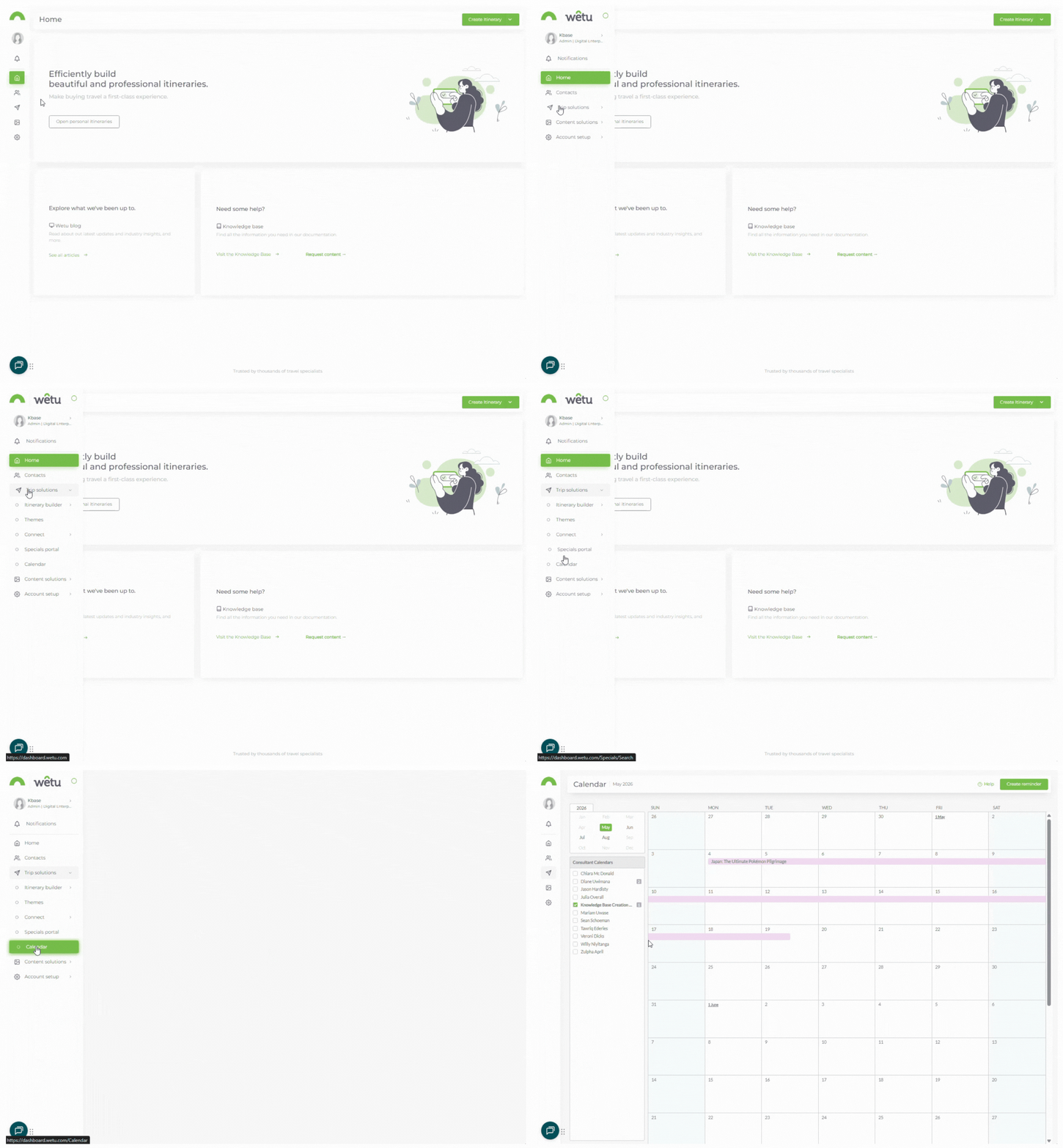
1. From your Wetu account, navigate toTrip Solutions › Calendar.
Note:
Itineraries only appear in the Calendar when their status is set to Booked, Travelled, or Paid.
If no itineraries have these statuses, a pop-up will appear with instructions. The status can be changed in the Itinerary Browser.
2. If the pop-up appears, select Visit Itinerary Builder to update itinerary statuses, or select View Calendar to continue.
Create a reminder
1. In the Calendar, click Create Reminder in the top right corner.
2. In the pop-up, enter the reminder details, what you want to be reminded of and when (before or after the start or end of the trip).
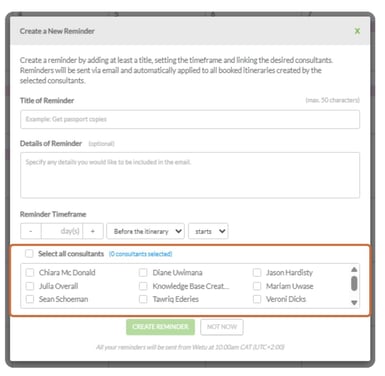
3. Select the consultants who should receive the reminder.
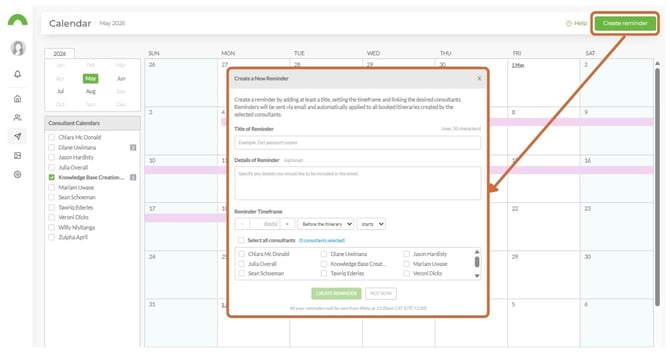
4. To send the reminder to all consultants, tick Select all consultants. To select specific consultants, tick the checkbox next to each name.
Tip: To receive reminders, ensure consultant email addresses are updated in each user's Personal Details profile.
Edit or delete reminders
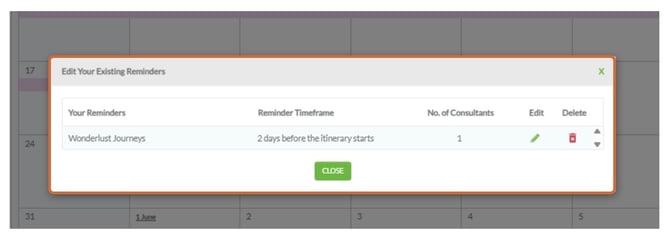
1. Once reminders have been created, an Edit Reminders option will appear next to the Create Reminder button in the top right corner.
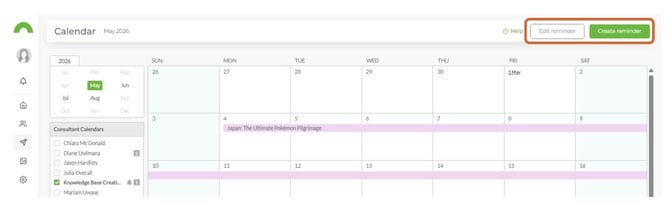
2. Click Edit Reminders to update or permanently delete existing reminders.
Points to note
- Reminders can be created, edited, and viewed by all users, regardless of user rights.
- Reminder emails are sent to the email address in each consultant's Personal Details section.
- When a reminder is due, the recipient receives an email with the details specified at the time the reminder was set up.
Need Help?
- Contact Support: support@wetu.com
- Live Chat: Available on your Dashboard