
Quick Links
- Getting started
- Transfer an itinerary or component
- Need Help?
Getting started
- Navigate to Trip Solutions.
- Click Itinerary Builder to open the dropdown menu.
- Select the itinerary type you want to work with (e.g. Personal Itinerary).
- The Itinerary Browser will open.
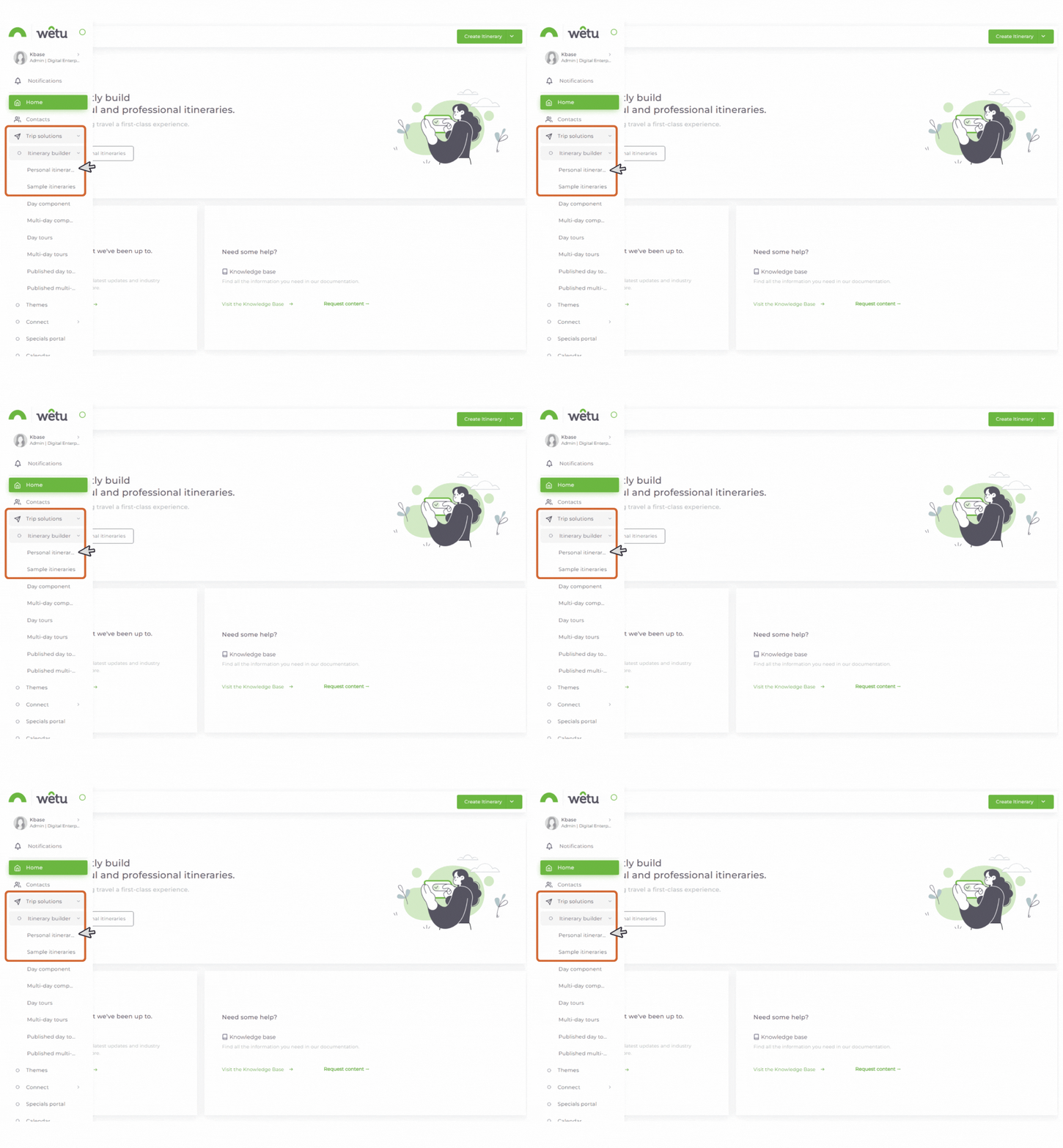
Note: You can transfer both Personal Itineraries and Sample Itineraries.
Transfer an itinerary or component
1. In the Itinerary Browser, locate the Consultant column.
2. From the dropdown, select the name of the consultant whose itinerary you want to transfer.
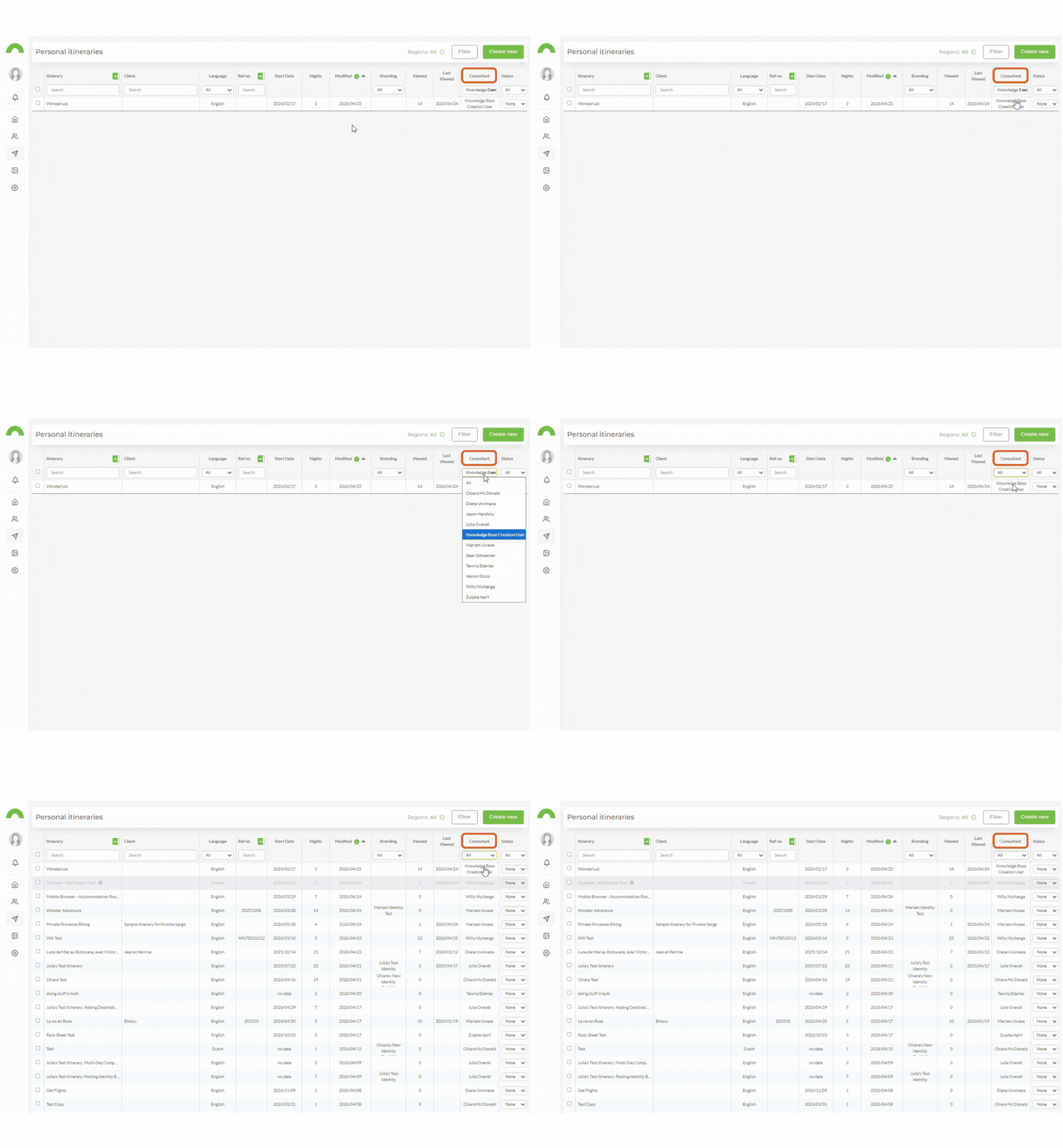
3. A list of that consultant's itineraries will appear.
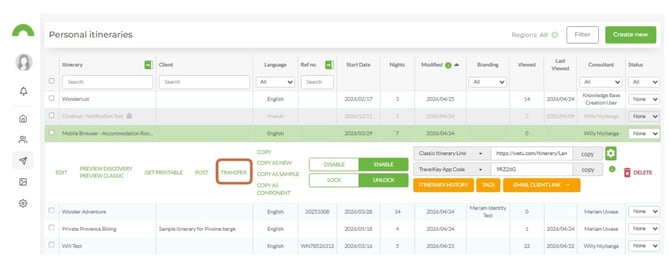
4. Select the itinerary you want to transfer.
5. Click Transfer.
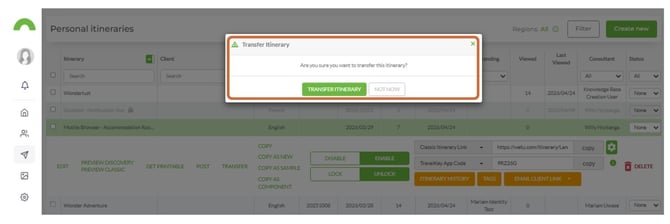
6. A confirmation prompt will appear. Click Transfer Itinerary to confirm.
7. The itinerary will now appear in the Itinerary Browser of the receiving consultant.
8. From there, it can be edited and the output will reflect the receiving consultant's contact details.
Need help?
- Contact Support: support@wetu.com
- Live Chat: Available on your Dashboard