
Quick Links
- How to navigate to profiles
- Accessing media management
- Images
- Videos
- Virtual tours
- Appearances
- Best practices
- Troubleshooting
- Need help?
Before you start
Professional profiles only: This functionality is only available for Professional profiles. Core profiles are limited to 6 images.
Want to upgrade? Contact sales@wetu.com
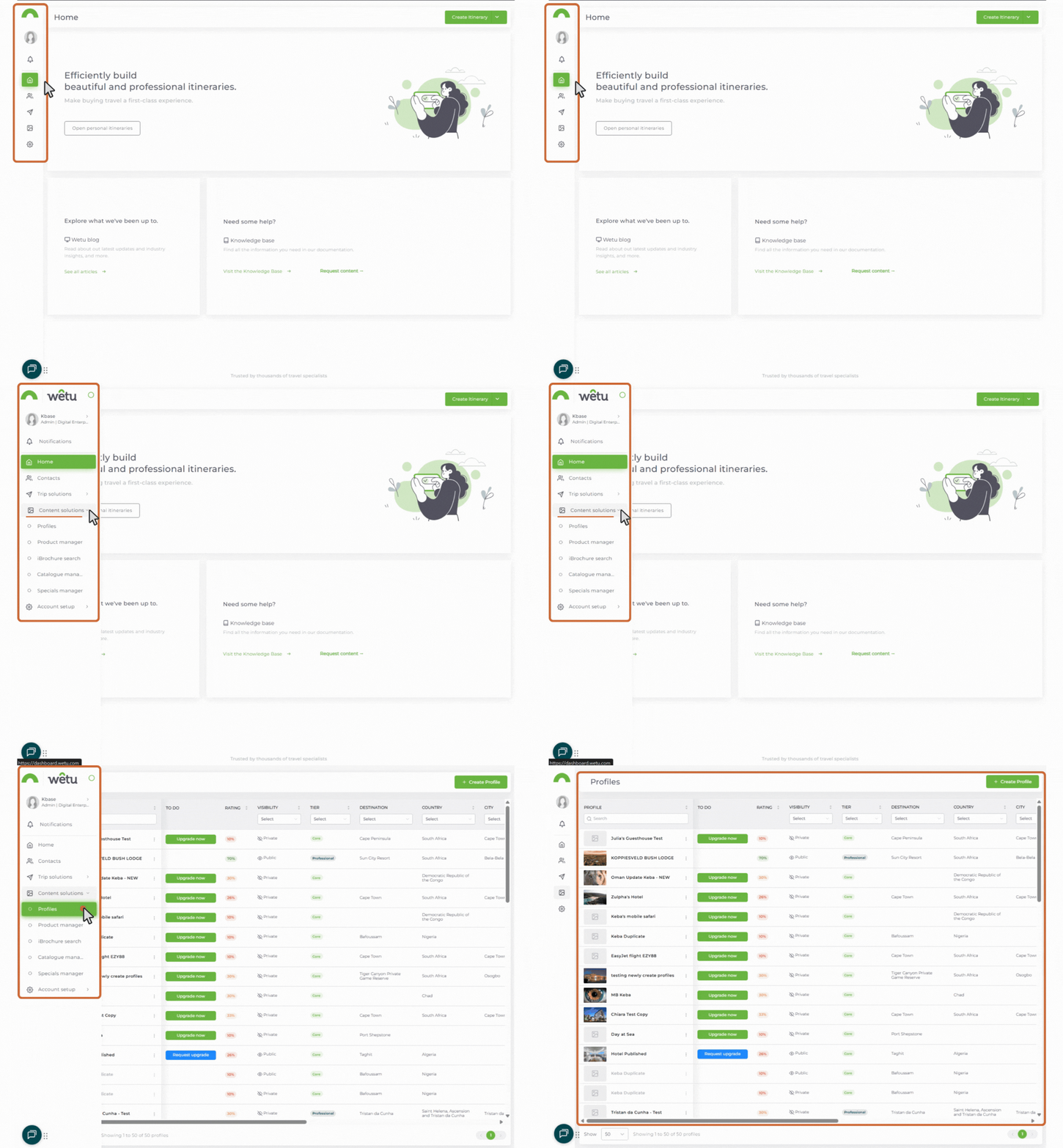
How to navigate to profiles
1. Log in to your Wetu account.
The menu expands when you move your mouse over it, revealing labelled icons.
.jpg?width=114&height=195&name=finding%20profiles%20(1).jpg)
This takes you to the Profiles landing page.
Accessing media management
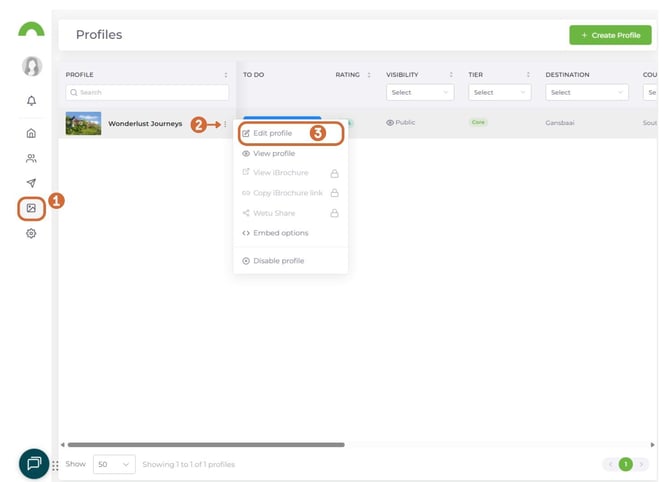
1. Click "Profiles" to open your Profile Library
2. Click the three dots (⋮)
3. Select "Edit Profile"
4. Navigate to the "Media" section
Images
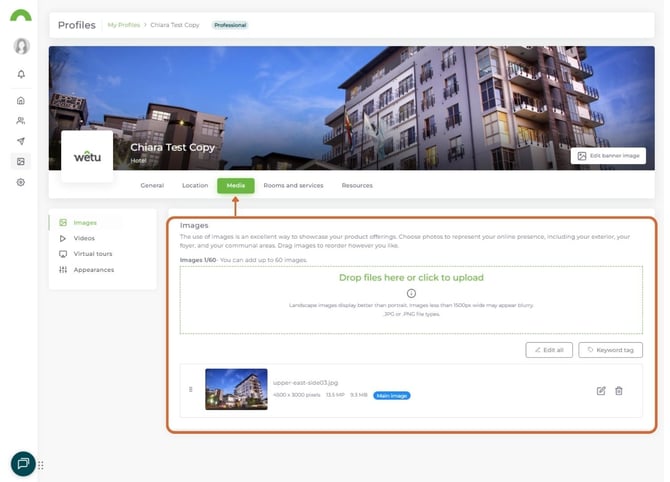
Viewing your current images
When you open the Images section, you'll see all photos you added during profile creation.
Adding more images
1. Click "Drop files here" or drag and drop images directly
2. Select multiple images from your computer
3. Wait for upload to complete
4. Images appear in the grid
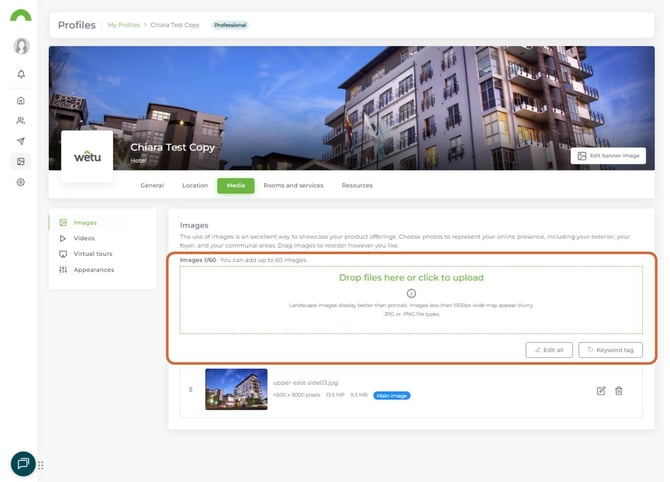
Recommended: 10-15 high-quality photos for best presentation
Rearranging images
Your first image is your cover photo - it's what appears in search results.
To reorder:
1. Click and hold an image
2. Drag to the desired position
3. Drop in place
4. Order saves automatically
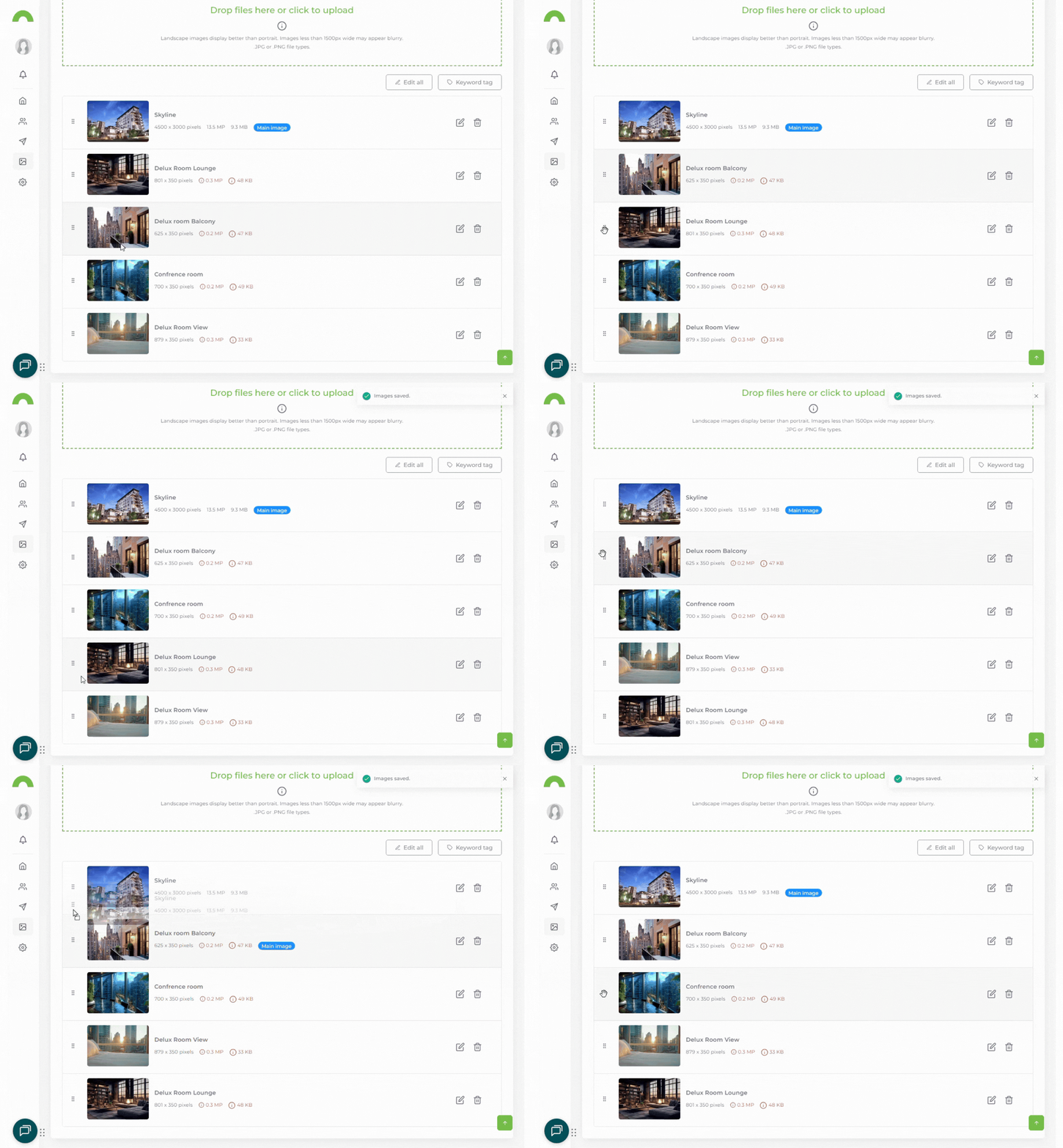
Tip: Put your best, most impressive photo first.
Editing image details
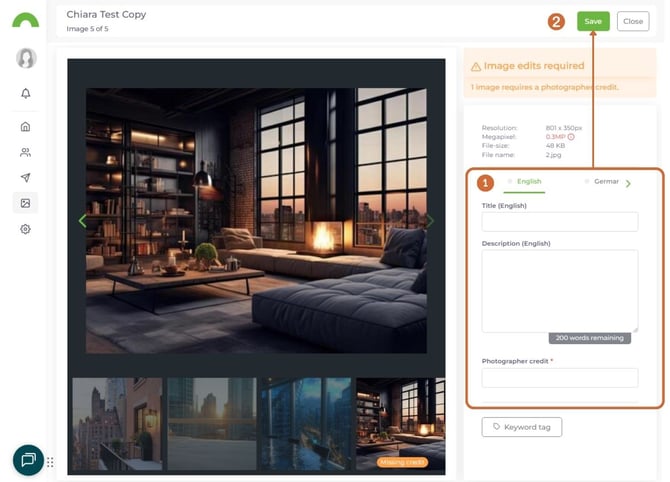
Edit a single image:
1. Click the pencil icon on the image
2. Update:
- Title
- Photography credit
- Alt text (for accessibility)
3. Click "Save"
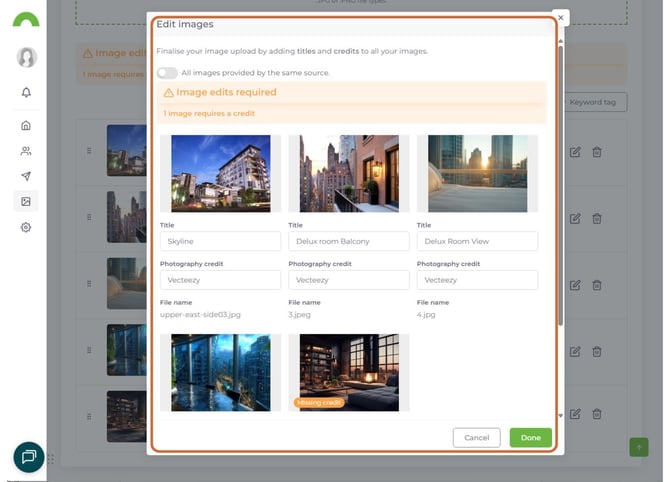
Edit multiple images at once:
1. Click "Edit All" tab
2. Update all titles and credits in one view
3. Enable "All images provided by the same source" if all photos are from one source
4. Click "Save All"
Deleting images
Note: You must maintain a minimum of 6 images in your profile.
1. Find the image you want to remove
2. Click the bin icon
3. Confirm deletion
Images are removed immediately.
Videos
Adding videos
You have two options for adding videos:
Option 1: Embed from YouTube or Vimeo
Option 2: Upload from your computer
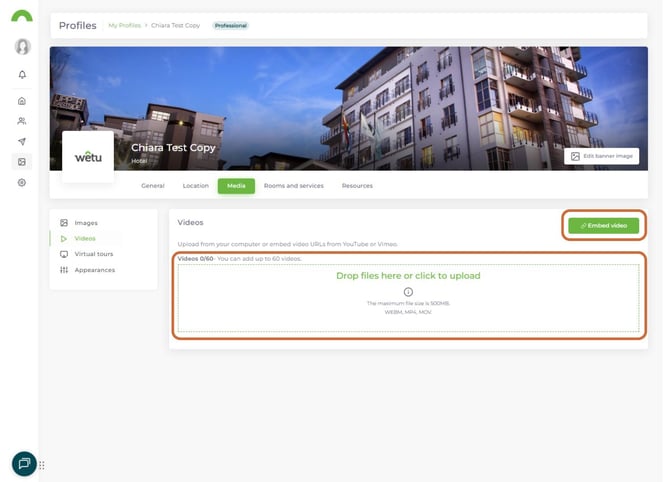
Embed videos (YouTube or Vimeo)
1. Click "Embed Video"
2. Paste the video URL from YouTube or Vimeo
- Example: `https://www.youtube.com/watch?v=xxxxxxx`
- Example: `https://vimeo.com/xxxxxxx`
3. Add a title for the video
4. Click "Embed Video"
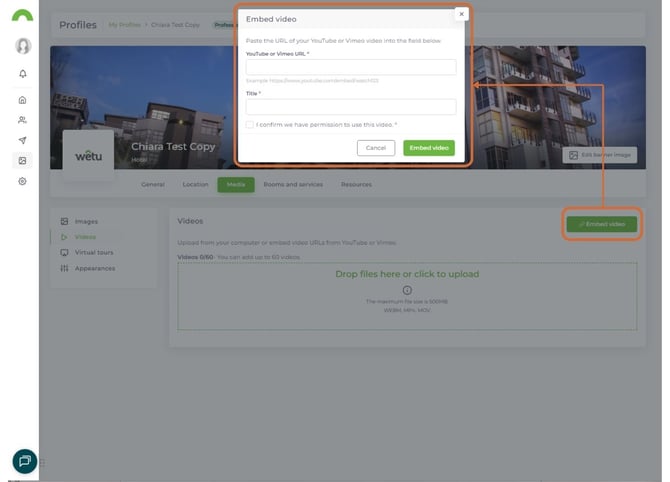
Recommended: Embedding is faster and doesn't use your storage.
Upload videos from your computer
1. Click "Drop files here" in the Videos section
2. Select video file from your computer
3. Wait for upload (may take several minutes for large files)
Video requirements:
- Maximum file size: 500MB
- Accepted formats: WEBM, MP4, MOV
- Recommended: 1080p resolution, under 5 minutes length
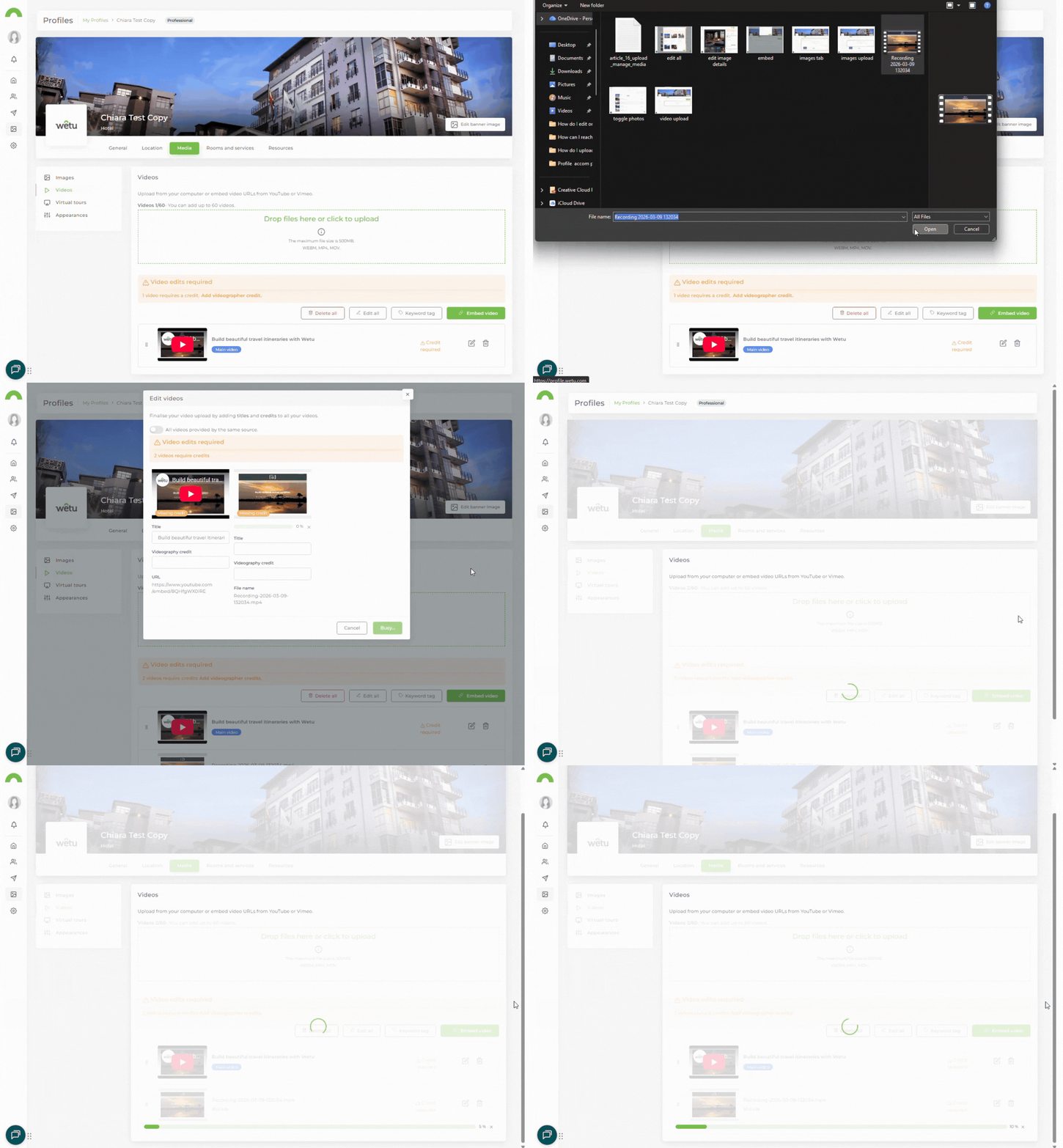
Tip: For videos over 500MB, upload to YouTube and embed instead.
Managing videos
Edit video details:
1. Click the pencil icon on the video
2. Update title or description
3. Click "Save"
Delete a video:
1. Click the bin icon
2. Confirm deletion
Virtual tours
Add 360° virtual tours or interactive property tours to give clients an immersive experience.
Adding a virtual tour
1. Navigate to the "Virtual Tours" section
2. Click "Add Virtual Tour"
3. Paste the embed link from your virtual tour provider
- Matterport
- 360° tour platforms
- Other virtual tour services
4. Add a title (e.g., "Property Virtual Tour," "360° Room View")
5. Click "Embed Virtual Tour"
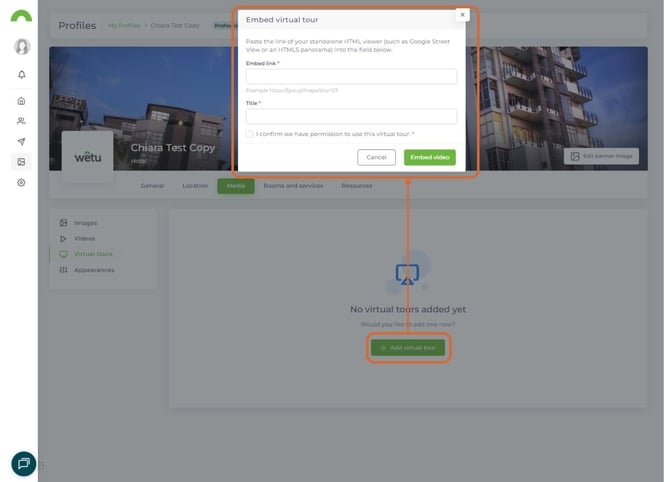
Where to get embed links:
- Matterport: Share > Embed
- Most platforms: Look for "Share" or "Embed" options
Managing virtual tours
Edit tour details:
1. Click the pencil icon
2. Update title or embed link
3. Click "Save"
Delete a tour:
1. Click the bin icon
2. Confirm deletion
Appearances
Customize how your images appear on your landing page, sliders, and covers.
What are Appearances?
Landing Page Image - The main visual displayed on the iBrochure landing page.
Slider Images - Images that rotate in the slideshow
Cover Image - The thumbnails shown on the iBrochure overview page that link to the different content sections.
Setting custom appearance images
By default, Wetu automatically selects images from your gallery. You can override this:
To set a custom landing page image:
1. Click "Landing Page" section
2. Select an image from your gallery
3. Or upload a new one specifically for landing page
4. Click "Save"
To set slider images:
1. Click "Slider Images"
2. Select 3 images to rotate
3. Arrange in order
4. Click "Save"
To set a cover image:
1. Click "Cover Image"
2. Choose a wide, landscape-oriented image
3. Click "Save"
Pro Tip: The aspect ratio for cover images changes dynamically depending on whether one or two content blocks are displayed. Recommended dimensions: 1768 × 614px to ensure the image scales correctly in both layouts
If you don't set custom images, Wetu uses your first 3-5 photos automatically.
Best practices
Images
Quality:
- High resolution (minimum 1920 x 1080px)
- Well-lit and professionally composed
- Diverse shots (exterior, interior, facilities, views)
Quantity:
- Minimum: 6 images (required)
- Recommended: 10-15 images
- Professional properties: 15-20+ images
Organization:
- Put best photo first (cover image)
- Group similar content together
- Update seasonally
Videos
Content:
- Property tours (2-5 minutes)
- Highlight reels (30-60 seconds)
- Experience showcases (activities, dining, amenities)
Technical:
- Keep under 500MB if uploading
- Or use YouTube/Vimeo embedding
- Add captions for accessibility
- Include strong opening shot
Titles:
- Descriptive and clear
- Example: "Luxury Suite Walkthrough"
- Example: "Safari Experience Highlights"
Virtual tours
When to add:
- 360° room tours
- Full property walkthroughs
- Interactive floor plans
- Unique viewing experiences
Platforms:
- Matterport (most common)
- Kuula
- Google Street View trusted
- Custom 360° solutions
Troubleshooting
Images won't upload
- Check file size (under 25MB each recommended)
- Verify format (JPG or PNG)
- Try uploading fewer images at once
- Check internet connection
Video upload is stuck
- File may be too large (500MB max)
- Use YouTube/Vimeo embed instead
- Check internet speed (slow connections may timeout)
- Try a different browser
Virtual tour won't embed
- Verify you're using the embed link, not the regular URL
- Check with tour provider for correct embed code
- Some platforms require specific formatting
Can't rearrange images
- Clear browser cache
- Try a different browser (Chrome recommended)
- Ensure you're clicking and holding (not just clicking)
Need help?
For media upload support:
- Email: support@wetu.com
- Live chat: Available in your dashboard
For upgrading to Professional:
- Email: sales@wetu.com
vs.1.0.09.03.2026