
Quick links
- What is Agent Access?
- Generate the Agent Access link
- What agents can change
- Need Help?
What is Agent Access?
Agent Access is used by DMCs and Tour Operators who want to share itineraries with Travel Agents who do not have a Wetu account. The link gives the agent the ability to make limited changes to the itinerary before forwarding it to their clients - or they can forward it unchanged.
Note: Agent Access is only available on the Digital Enterprise Operator Package and must be enabled upon request. Contact support@wetu.com to enable this feature.
Generate the Agent Access link
Important: Make a copy of the original itinerary before sharing the Agent Access link. Any changes an agent makes will overwrite the original itinerary.
1. Open the itinerary in the Itinerary Builder and navigate to Step 6: Additional Details.
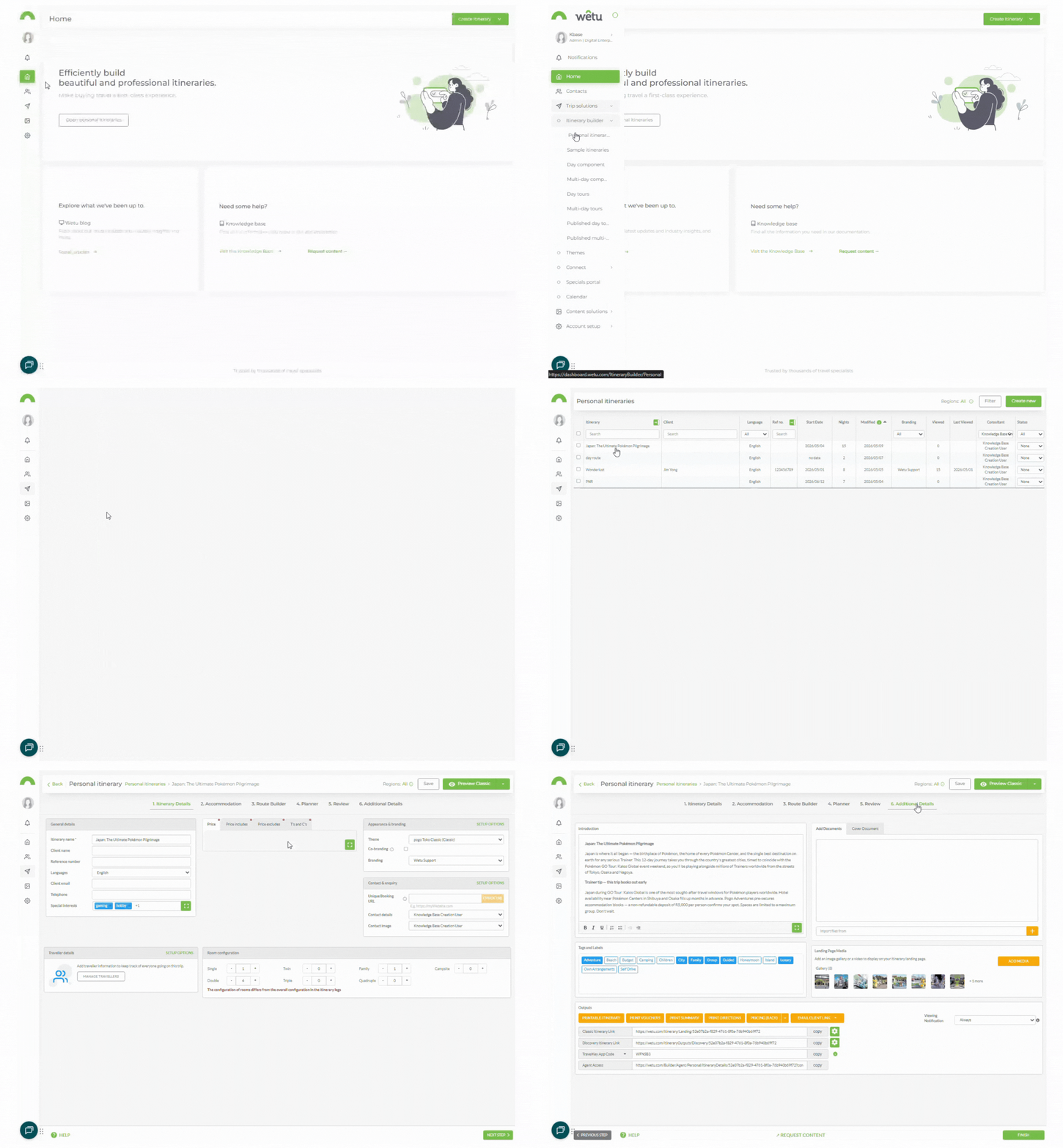
2. Scroll to the bottom left of the screen.
3. Locate the Agent Access field - the link is automatically generated when the feature is enabled.
4. Copy the link and send it to the relevant Travel Agent.
What agents can change
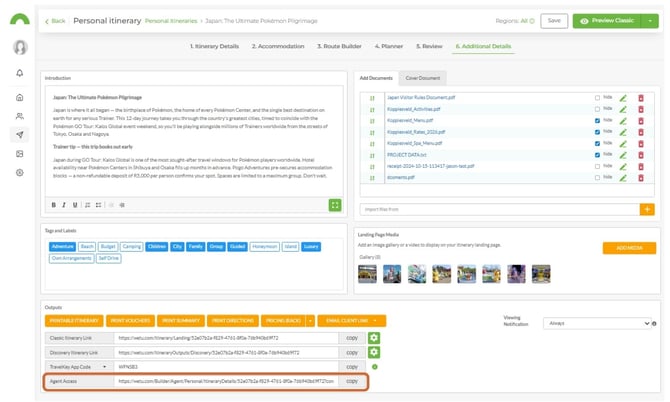
Agents can edit only specific fields through the Agent Access link. Core itinerary content - activities, accommodation, and routing - cannot be added or removed.
Itinerary Details step
| Field | What agents can do |
|---|---|
| Itinerary Name | Rename the itinerary |
| Client Name | Update the client name to personalise for their client |
| Language | Change the language of the itinerary |
| Introduction | Add or update the trip introduction |
| Documents | Add or remove documents attached to the itinerary |
| Outputs | Access all Wetu outputs, including sending the itinerary unbranded |
| Pricing Details | Update pricing, Includes/Excludes, and Terms and Conditions |
| Special Interest | Add or remove special interest categories |
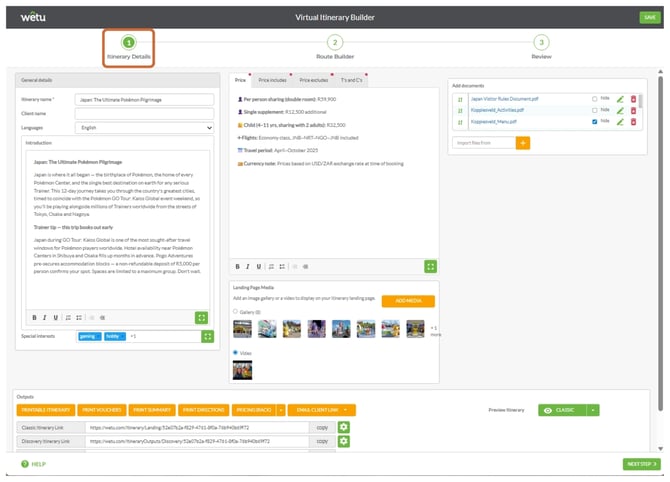
Note: Itinerary Details can also be amended in the Review step under Itinerary Overview.
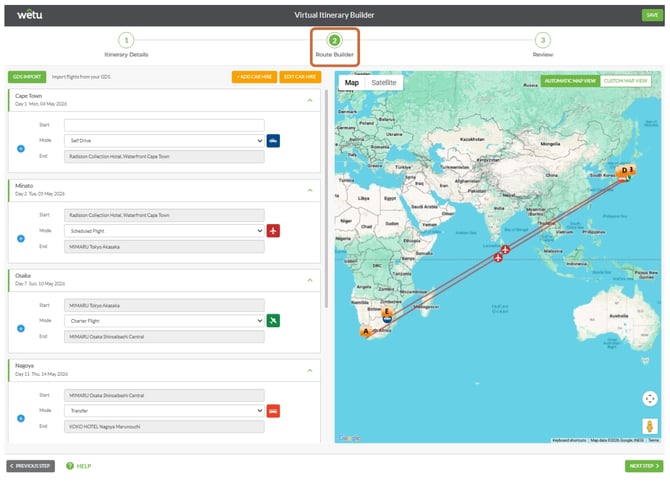
Route Builder step
- Add and remove car hire
- Add transfer details
Review step
The Review step works the same way as in a standard Wetu account. The following fields are editable:
Itinerary Overview
-
Client email and telephone number
-
Branding (if included in the package)
-
Traveller names
-
Add and remove important contacts
-
Room type, basis, and drinks
Travel Details
-
Add or remove car hire details
-
Update flight details
-
Update transfer details
Daily Information
-
Day itinerary notes
-
Expert tips
-
Daily includes, excludes, and basis
-
Update voucher details for activities
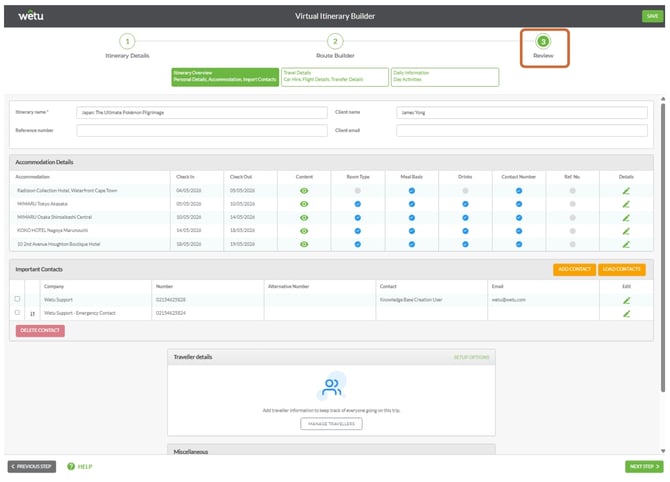
Note: No additional activities or accommodation can be added through Agent Access. Only the fields listed above can be changed.
Need Help?
- Contact Support: support@wetu.com
- Live Chat: Available on your Dashboard