
Quick Links
- What is the Catalogue Manager?
- Accessing Catalogue Manager
- Creating a new catalogue
- Adding chapters
- Adding sample itineraries
- Choosing itinerary layout
- Adding iBrochures
- Mixing content types
- Saving and activating your catalogue
- Customizing catalogue display
- Editing catalogue images
- Best practices for catalogues
- Sharing your catalogue
- Managing multiple catalogues
- Example catalogue structures
- Updating your catalogue
- Troubleshooting
- Need help?
What is the Catalogue Manager?
The Catalogue Manager lets you create curated collections of your travel products:
- Sample itineraries
- iBrochures
- Published tours (day tours and multi-day tours)
All in one shareable link.
Use cases:
- Portfolio presentations
- Regional offerings
- Seasonal collections
- Product categories (luxury, adventure, family)
- Client-specific selections
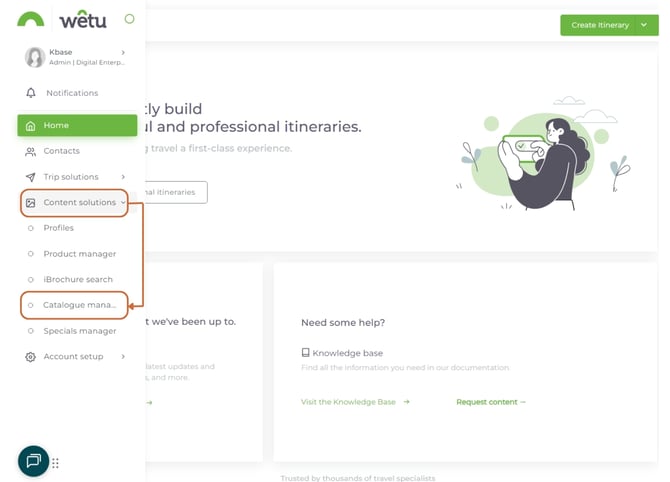
Accessing Catalogue Manager
1. Navigate to Content Solutions in your main menu
2. Click "Catalogue Manager"
Creating a new catalogue
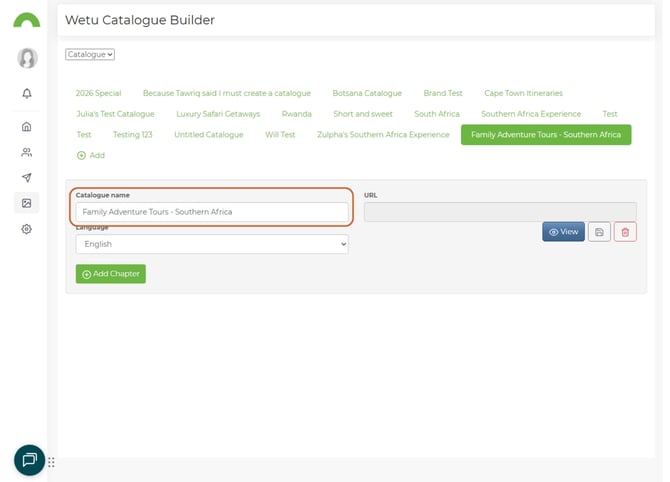
Step 1: Name your catalogue
1. Give your catalogue a name
- This appears as the main heading
- Make it descriptive and professional
Step 2: Select language
Choose the language of the content you want to add.
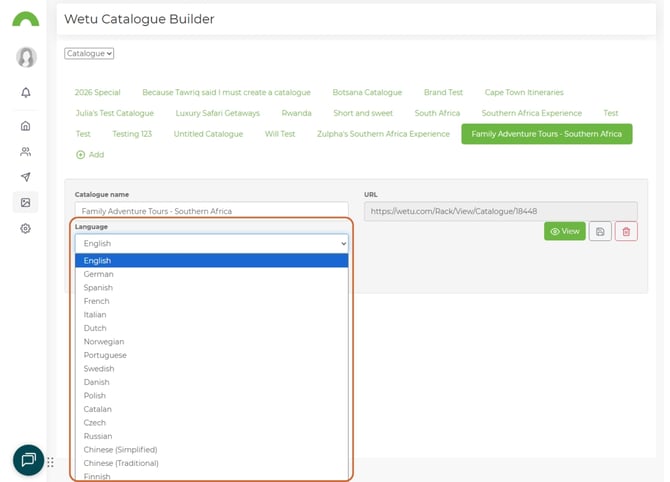
Important: Language determines which content is available to add.
- English catalogue = English itineraries and iBrochures only
- German catalogue = German-translated content only
Tip: Create separate catalogues for different language markets.
Adding chapters
Catalogues are organized into chapters with headings.
Why use chapters?
Chapters let you group content logically:
- By destination (Kenya, Tanzania, South Africa)
- By type (Safari, Beach, City)
- By duration (Short breaks, Week-long, Extended)
- By style (Luxury, Mid-range, Budget)
Adding sample itineraries
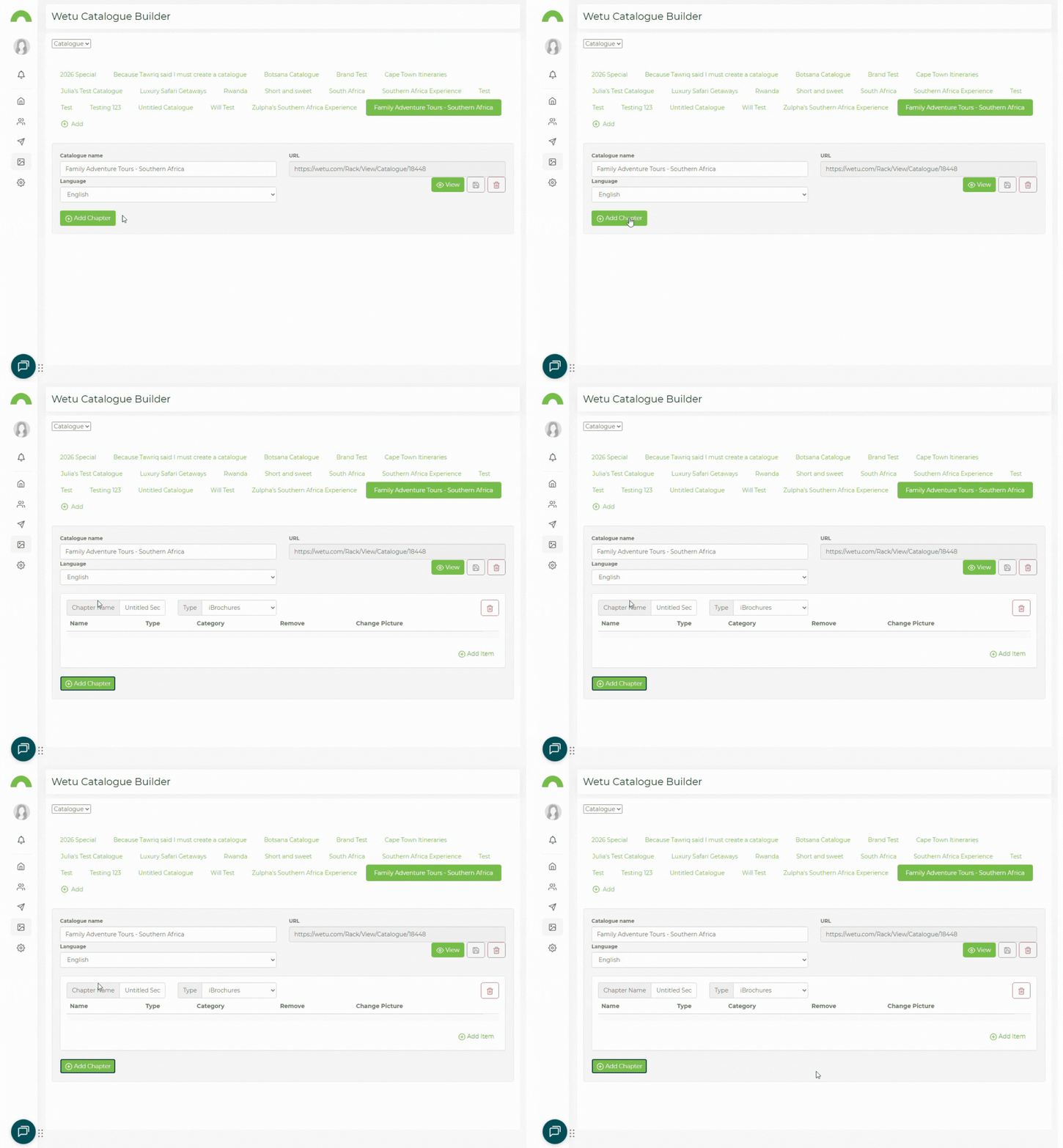
Step 1: Create a chapter for itineraries
1. Click "Add Chapter"
2. Give the chapter a name (e.g., "Classic Safari Itineraries")
3. Click "Add Item"
Step 2: Select itineraries
A list appears showing:
- Sample itineraries from your account
- Day tours from your account
- Multi-day tours from your account
- Published day tours from other users
- Published multi-day tours from other users
Step 3: Filter and search
Use filter functions to find specific itineraries:
- Filter by type (Sample, Day Tour, Multi-day)
- Search by name
- Filter by destination
- Sort by date created
Step 4: Select and add
1. Select itineraries by clicking checkboxes
2. Select multiple at once
3. Click "Add Selected Items" (shows count in brackets)
Itineraries are now added to your chapter.
Choosing itinerary layout
When adding sample itineraries, you can choose how they display:
Layout options
Option 1: Classic Theme
- All itineraries display with your default Classic theme
- Consistent look throughout
Option 2: Default Discovery Theme
- All itineraries display with Default Discovery theme
- Modern, visual presentation
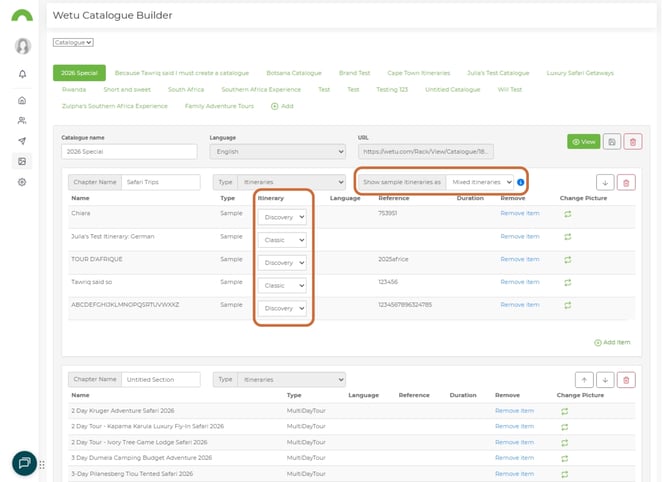
Option 3: Mixed
- Choose a different theme for **each itinerary individually
- Flexibility for varied presentations
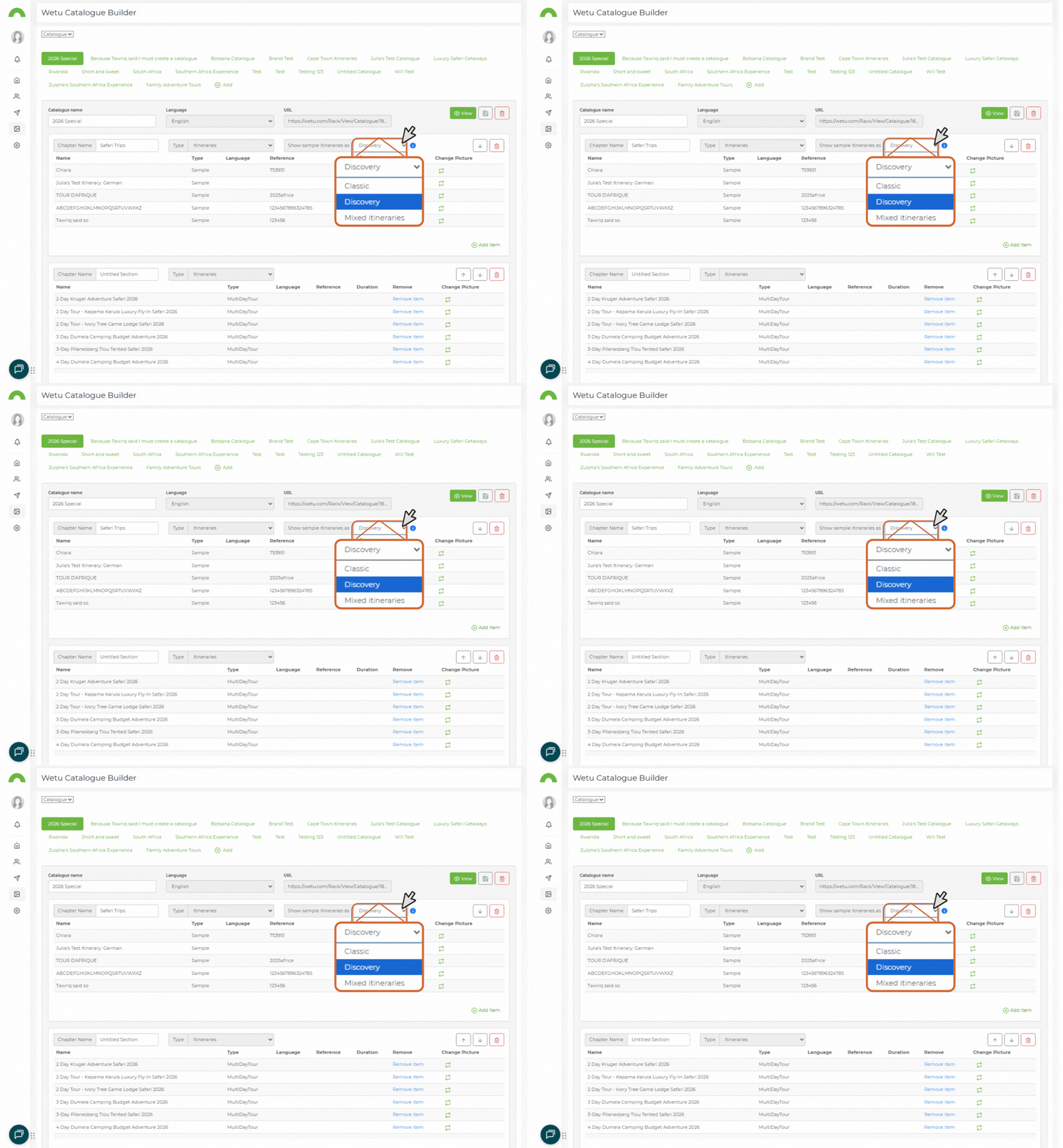
Recommended: Use Mixed for maximum flexibility, especially if showcasing different types of trips.
Mixed layout example
Adding iBrochures
Chapters can also include iBrochures alongside itineraries.
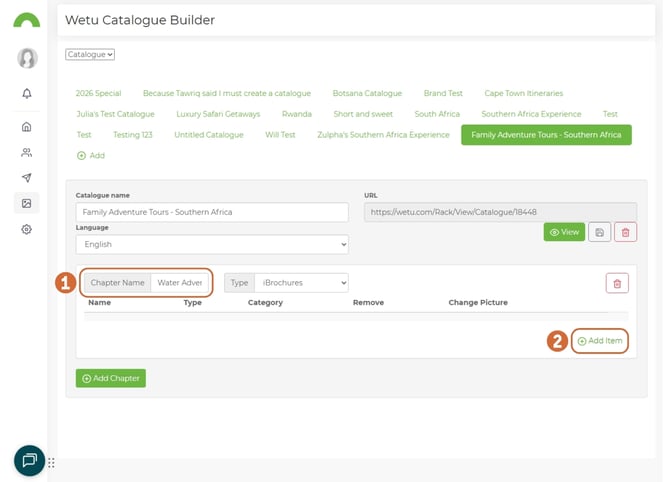
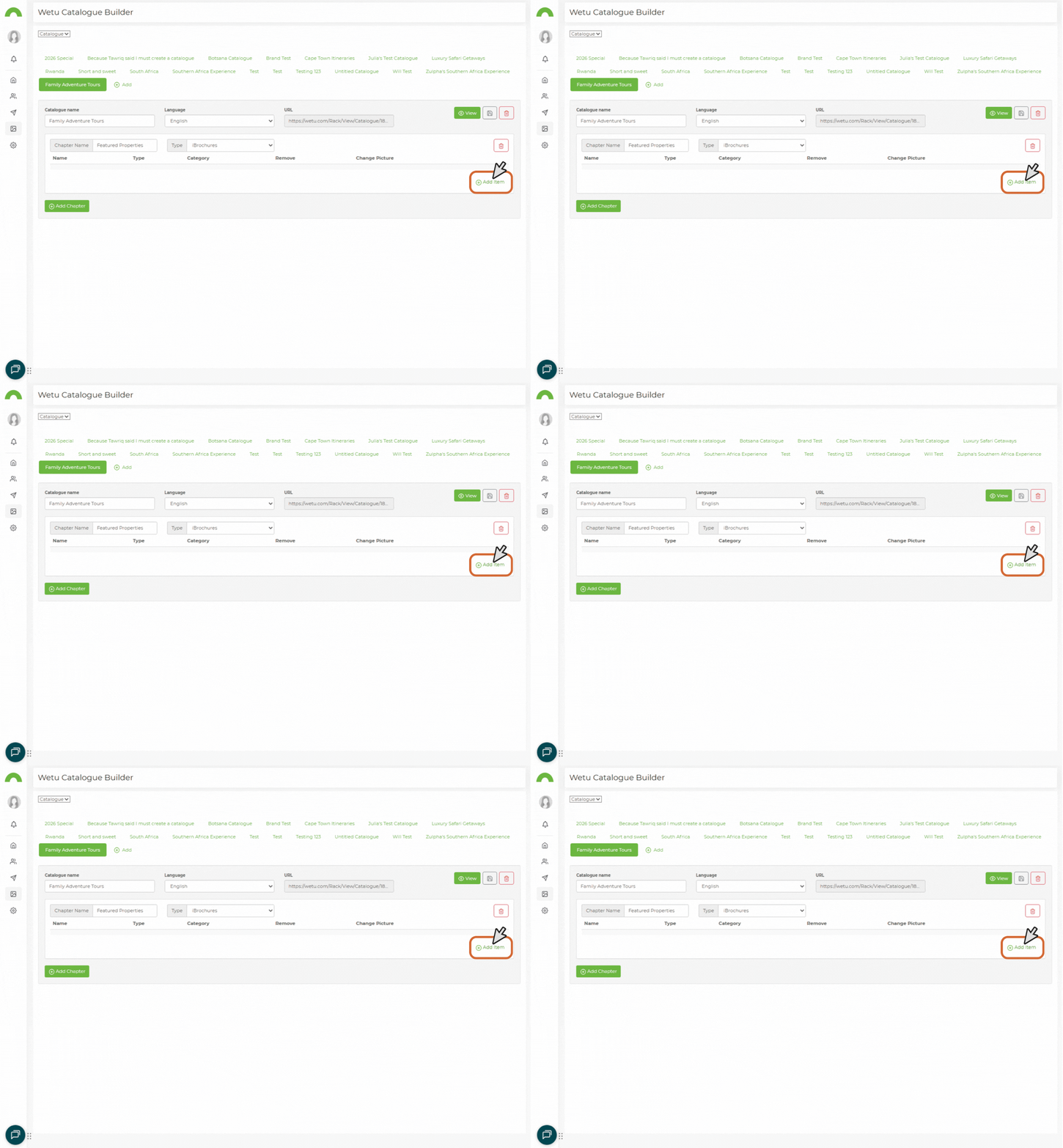
Step 1: Add iBrochure chapter
1. Click "Add Chapter"
2. Name the chapter (e.g., "Featured Properties")
3. Select "iBrochure" as type
4. Click "Add Item"
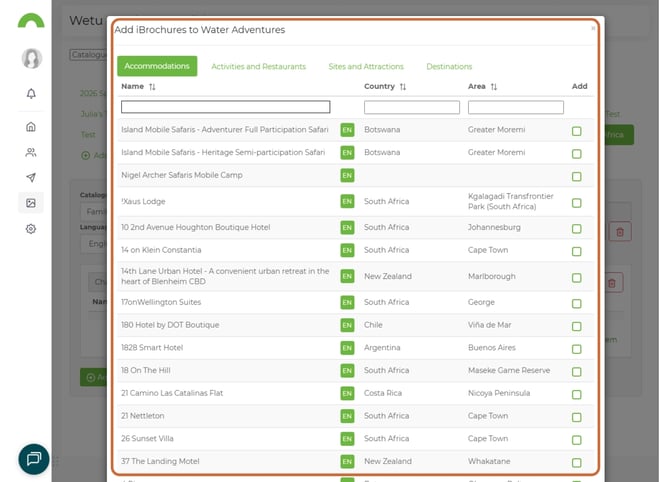
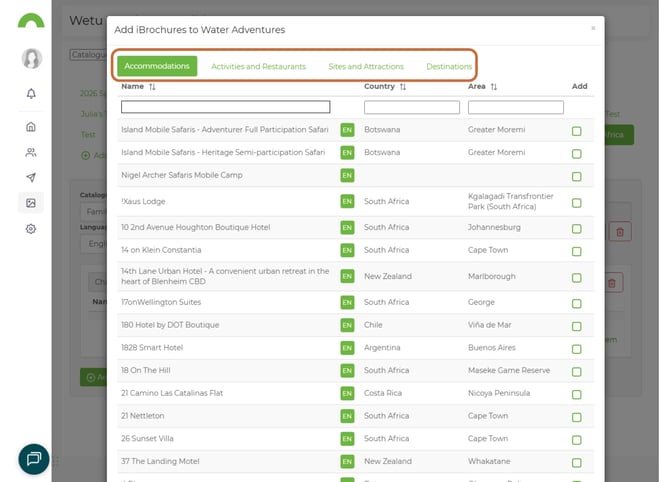
Step 2: Select iBrochures
A list of all public Professional profiles appears.
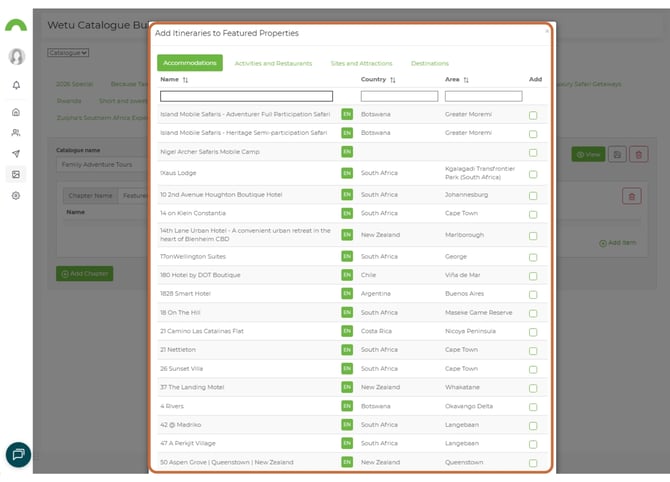
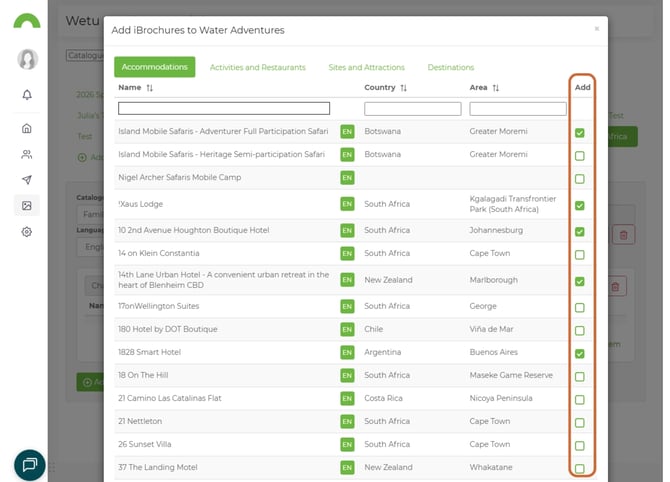
Step 3: Add selected iBrochures
1. Select iBrochures using checkboxes
2. Click "Add Selected Items (3)" (number shows count)
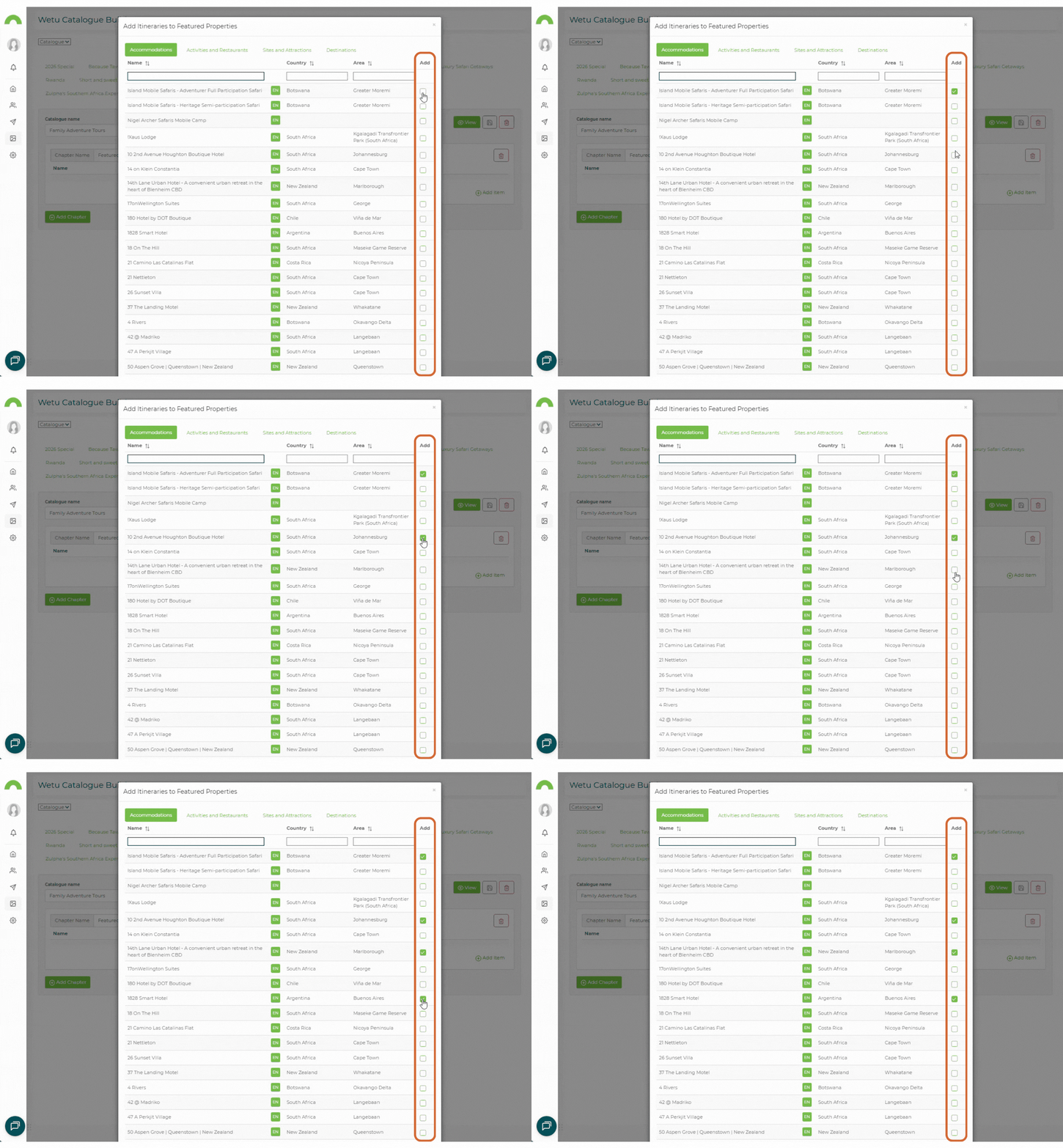
iBrochures are now in your chapter
Mixing content types
You can create chapters with:
- Only itineraries
- Only iBrochures
- Mix of both
Example catalogue structure:
- Chapter 1: "Classic Safari Itineraries" (5 sample itineraries)
- Chapter 2: "Featured Safari Lodges" (8 iBrochures)
- Chapter 3: "Coastal Extensions" (3 sample itineraries)
- Chapter 4: "Beach Resorts" (6 iBrochures)
Saving and activating your catalogue
Save to generate link
1. Click "Save" at the top
2. A catalogue link appears
3. The View button turns green and activates
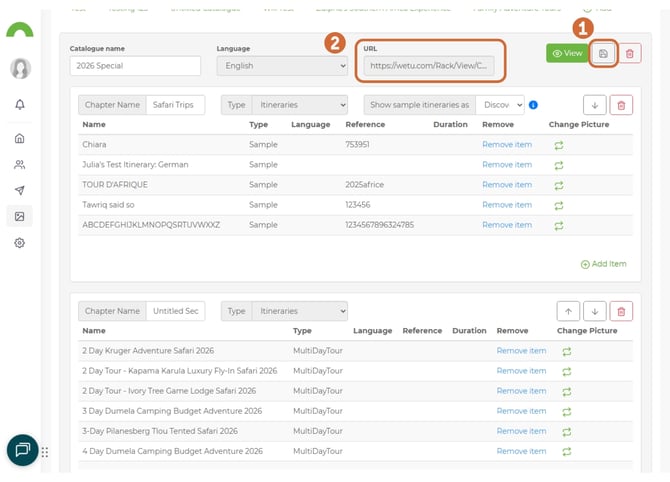
Critical: You must save before the catalogue link works.
View your catalogue
Click the green "View" button to preview.
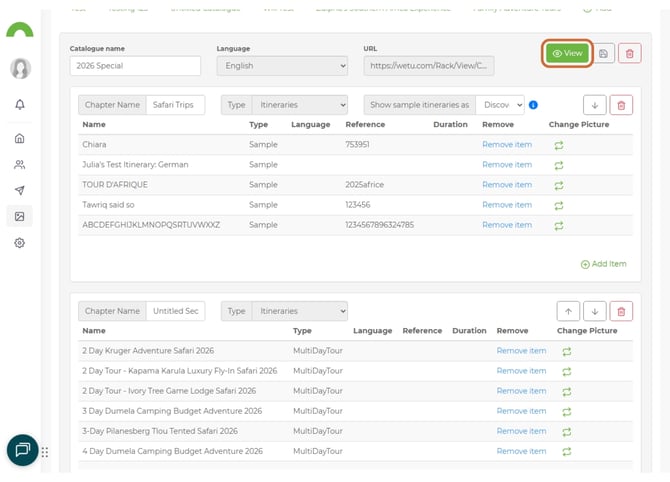
The catalogue opens in a new tab showing your organized content.
Customizing catalogue display
Toggle between view modes
The catalogue automatically displays with images, but you can switch views.
View options (top right):
- Image view (default) - Visual cards with images
- List view - Text-based list format
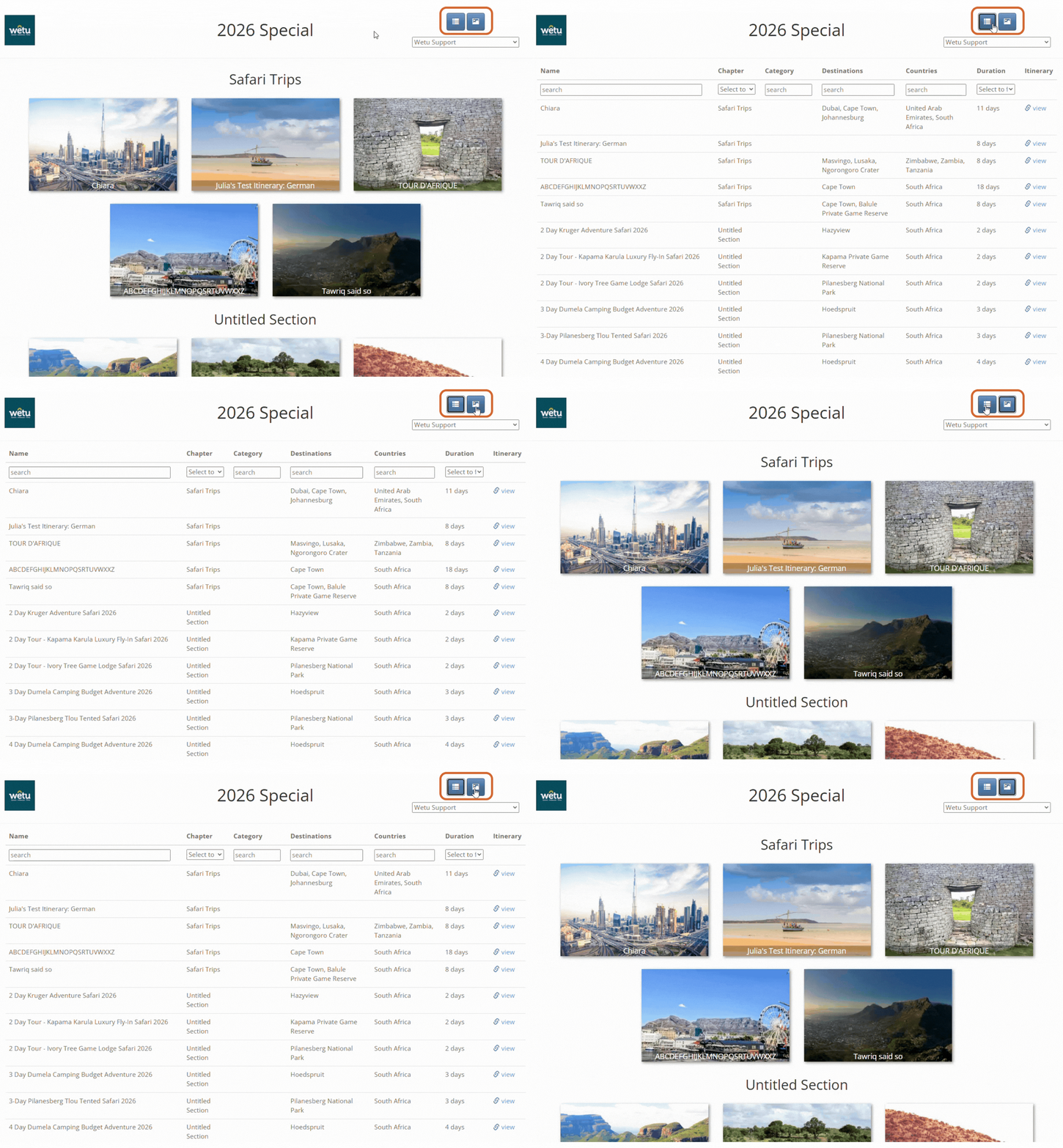
Clients prefer: Image view for browsing, List view for quick scanning.
Editing catalogue images
Why customize images?
By default, the image for each itinerary is linked to the first destination.
Problem: This can cause duplications if multiple itineraries start in the same place.
Solution: Customize images for better visual variety.
How to change images
1. Find the itinerary in your catalogue
2. Click the image icon next to it
3. A selection window opens showing available images
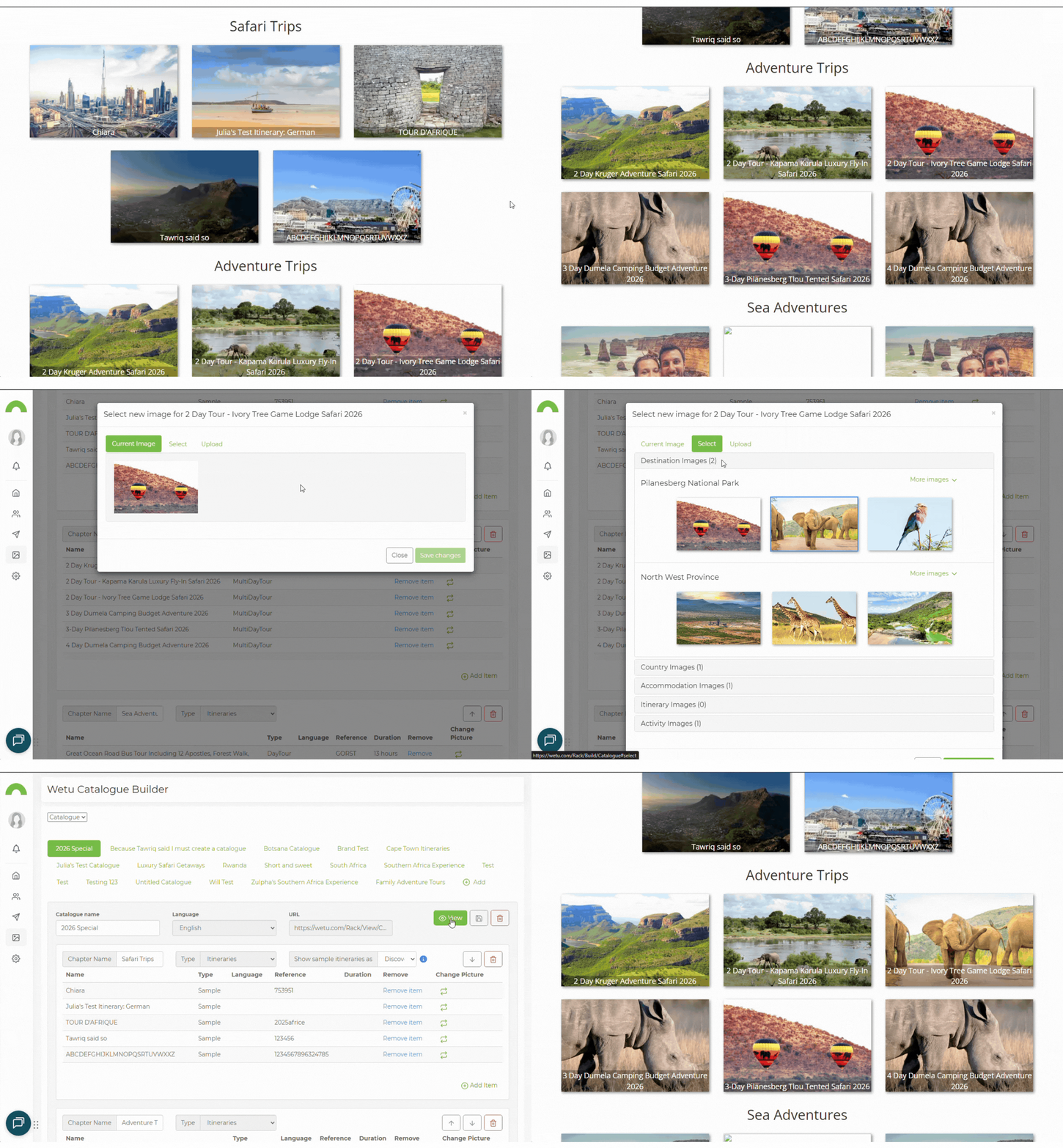
Select or upload image
Option 1: Select from available
- Navigate through images from the itinerary
- Click to select your preferred image
Option 2: Upload new
- Upload a custom image
- Choose something distinctive
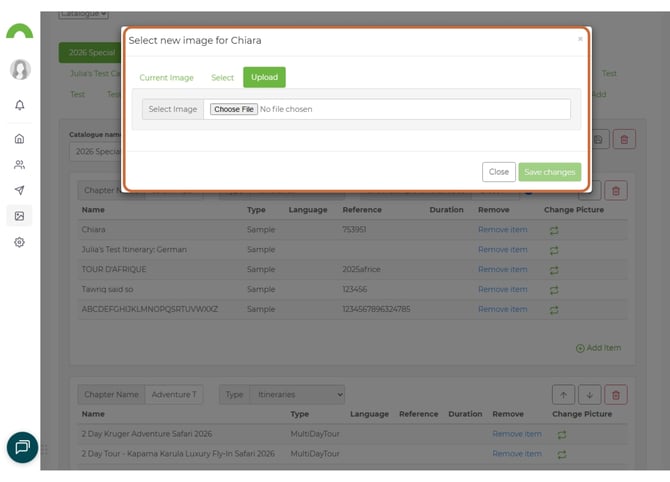
3. Click "Save" in the image selector
4. Click "Save" on the main catalogue
The image refreshes using the same catalogue link.
Best practices for catalogues
Organize logically
Good chapter organization:
- By destination: Kenya | Tanzania | South Africa
- By experience: Safari | Beach | Cultural
- By duration: Short Breaks | Week-long | Extended
- By style: Luxury | Adventure | Family
Choose diverse images
For visual appeal:
- Vary images across itineraries
- Avoid repetitive first-destination images
- Use stunning, high-quality photos
- Show variety of experiences
Custom image tips:
- Wildlife for safari itineraries
- Beach scenes for coastal trips
- Cultural moments for experiential tours
- Aerial shots for overview itineraries
Name chapters clearly
Don't: "Chapter 1," "Section A," "Tours"
Do: "Classic Kenya Safaris," "Luxury Lodge Experiences," "Beach Extensions"
Keep catalogues focused
Do:
- Group related content
- Create multiple catalogues for different audiences
- Update regularly
- Limit to 5-8 chapters for easy navigation
Don't:
- Mix unrelated products
- Create one massive catalogue with everything
- Use vague chapter names
- Let catalogues become outdated
Use mixed layouts strategically
When to use Mixed:
- Showcasing different trip types (safari vs beach)
- Varying client preferences
- Different visual styles needed
- Portfolio diversity important
When to use consistent theme:
- Brand consistency critical
- All similar trip types
- Simpler, streamlined presentation
Sharing your catalogue
Copy and share the link
Once saved, your catalogue has a permanent shareable link.
Share via:
- Email to clients and agents
- Website links
- Email signatures
- Social media (trade groups)
- Sales presentations
- Proposals
Who to share with
Ideal for:
- Prospective clients browsing options
- Travel agents needing your full portfolio
- Tour operators exploring partnerships
- Corporate travel managers
- Event planners
- Destination wedding coordinators
Managing multiple catalogues
Create separate catalogues for:
Different markets:
- North American clients (English)
- European clients (German, French)
- Asian markets (various languages)
Different audiences:
- Luxury travelers
- Adventure seekers
- Family travelers
- Honeymooners
Different regions:
- East Africa
- Southern Africa
- Indian Ocean Islands
Different seasons:
- Summer experiences
- Winter getaways
- Shoulder season specials
Example catalogue structures
Example 1: Comprehensive Portfolio
Catalogue: "Kenya Complete - All Experiences"
Chapters:
1. Classic Safari Itineraries (8 itineraries)
2. Luxury Safari Lodges (12 iBrochures)
3. Beach & Coastal Add-Ons (5 itineraries)
4. Coastal Resorts (6 iBrochures)
5. Cultural & City Tours (4 itineraries)
Audience: Trade partners wanting full overview
Example 2: Client-Specific
Catalogue: "Anderson Family - Safari Options"
Chapters:
1. Family-Friendly Safari Itineraries (6 itineraries)
2. Recommended Family Lodges (8 iBrochures)
3. Beach Extensions for Kids (3 itineraries)
Audience: Specific client with family focus
Example 3: Seasonal Collection
Catalogue: "Great Migration Experiences 2025"
Chapters:
1. July-August Migration Itineraries (10 itineraries)
2. Migration Route Camps (15 iBrochures)
3. Extended Migration Tours (5 itineraries)
Audience: Seasonal wildlife focus
Updating your catalogue
When to update
Update immediately when:
- New itineraries created
- iBrochures added or removed
- Seasonal changes
- Images need refreshing
- Content becomes outdated
Review regularly:
- Monthly for active portfolios
- Quarterly for stable offerings
- Before major sales pushes
How to update
1. Open Catalogue Manager
2. Find your catalogue
3. Click "Edit"
4. Add/remove/reorder chapters
5. Add/remove itineraries or iBrochures
6. Change images if needed
7. Click "Save"
The same link updates automatically.
Troubleshooting
Catalogue link not working
- Did you click save?
- Copy the link again (may have changed)
- Try opening in incognito mode
- Check internet connection
Itineraries not appearing in selection
- Check language settings
- Verify itineraries are published
- Ensure you have Sample itineraries created
- Try different filters
Images not updating
- Click save after selecting new image
- Click save on main catalogue
- Clear browser cache
- Refresh the catalogue link
View button not turning green
- Catalogue must be saved first
- Refresh the page
- Check that chapters have content
- Try a different browser
Can't add iBrochures
- Verify they're Professional profiles
- Check they're published
- Confirm language match
- Ensure they're public profiles
Need help?
For Catalogue Manager support:
- Email: support@wetu.com
- Live chat: Available in your dashboard
For itinerary creation:
- Ensure sample itineraries are created first
- iBrochures require Professional profiles
vs.1.0.17.03.2026