
Quick Links
- Generate a Print Summary
- Customisation options
- Download and send
- Print family styles
- Need Help?
Generate a Print Summary
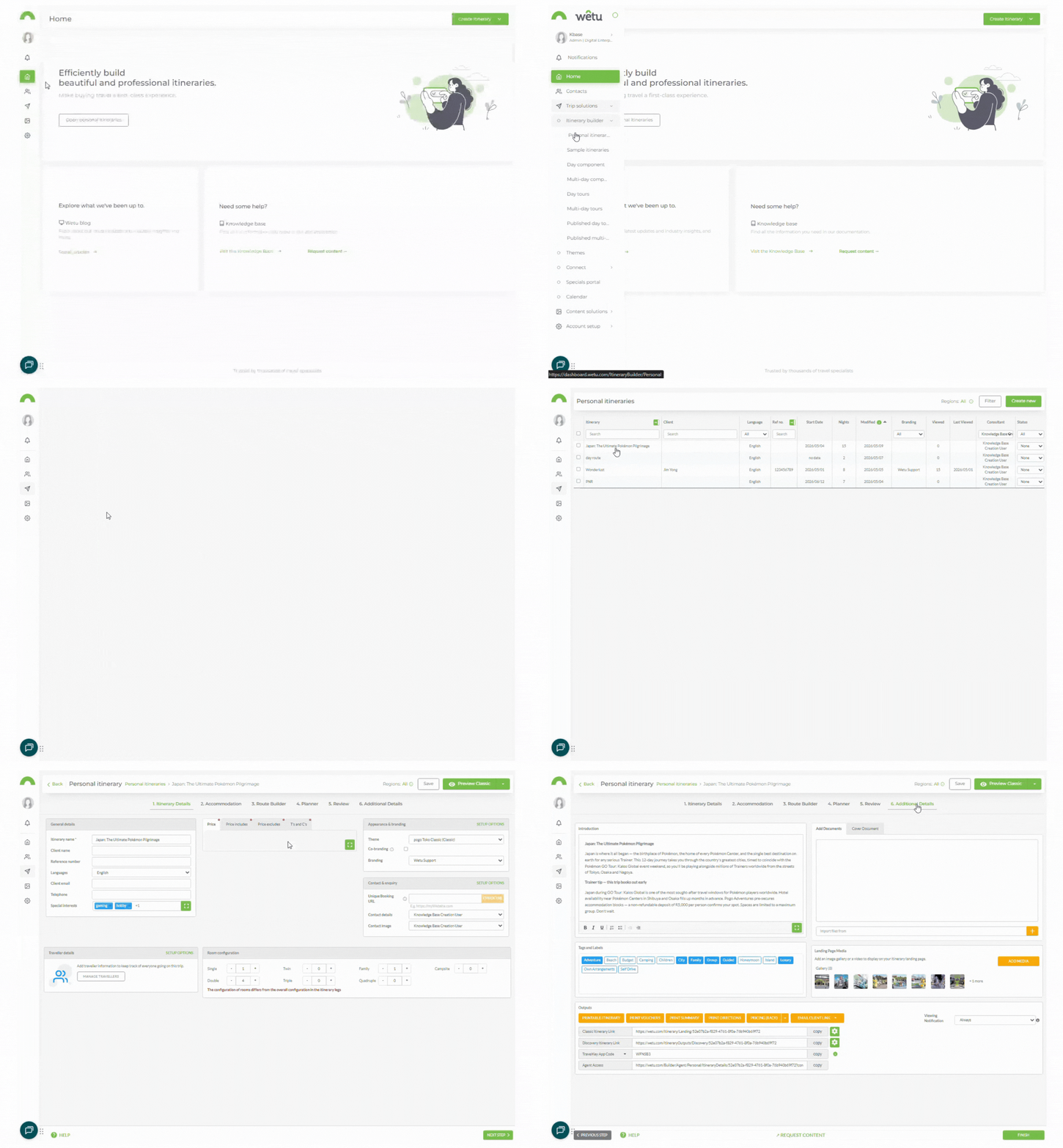
1. Open the itinerary in the Itinerary Builder and navigate to Step 6: Additional Details.
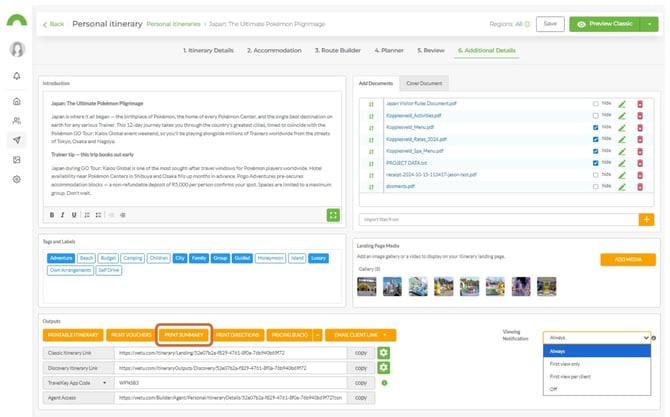
2. Scroll to the bottom of the page and click Print Summary (third button from the left under Outputs).
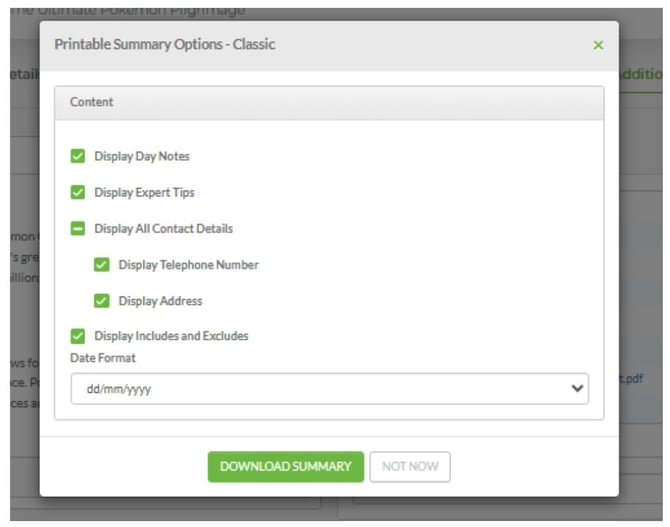
3. The Printable Summary Options window will open. The print family in use (Classic or Contemporary) is shown at the top of the window.
Note: If the Admin has not given consultants access to customise print options, the summary will download immediately with default settings and this window will not appear.
Customisation options
| Option | Description |
|---|---|
| Display Day Notes | Include or exclude day notes added in Step 4: Planner. |
| Display Expert Tips | Include or exclude expert tips added in Step 4: Planner. |
| Display Telephone Number | Include or exclude the supplier's telephone number. |
| Display Address | Include or exclude the supplier's address. |
| Display Includes and Excludes | Include or exclude the includes and excludes information set per day in Step 4: Planner. |
| Date Format | British (dd/mm/yy) or American (mm/dd/yy) |
Download and send
1. Once all options are set, click Download Summary at the bottom of the window.
2. The summary will download in Microsoft Word format.
3. Open in Microsoft Word to format or edit as needed.
Note: If nothing happens when you click Download Summary, pop-ups may be blocked in your browser. Allow pop-ups for Wetu in your browser settings and try again.
Note: Once downloaded, any edits made in Microsoft Word will not update in Wetu - the two are independent.
The Print Summary can be sent to clients or ground handlers as an email attachment, or uploaded to the Virtual or Digital Itinerary as a downloadable document link. Refer to the article on attaching documents for instructions.
Print family styles
The appearance of the Print Summary depends on the print family selected in Admin.
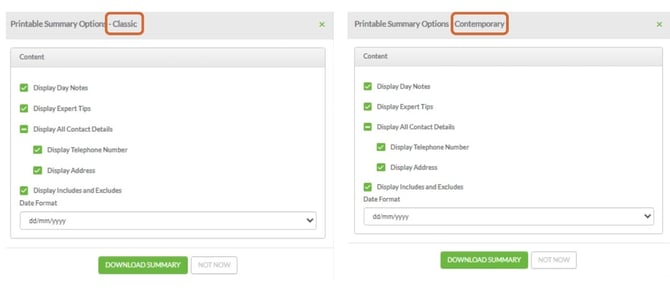
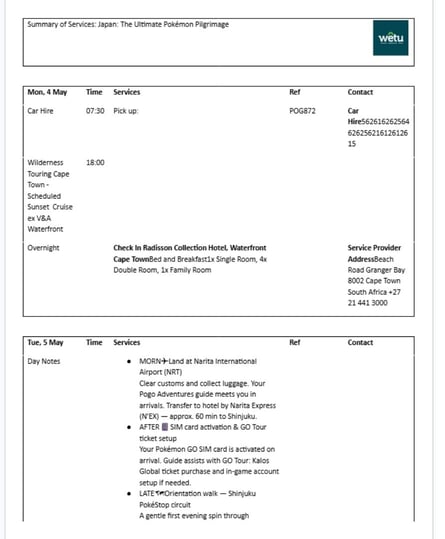
ClassicA simple, print-friendly layout containing only essential information. No hero image or colour beyond the branding logo. |
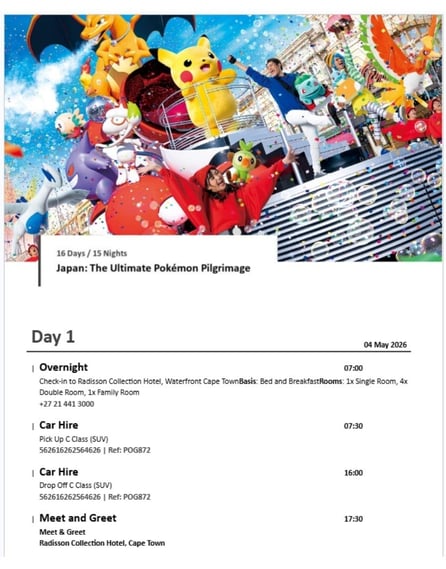
ContemporaryIncludes a hero image at the beginning of the summary. Uses font size and colour to make the document quick and easy to read. |
Classic Output
Contemporary Output
Tip: Speak to the Administrator on your team to change from Classic to Contemporary or vice-versa.
Need Help?
- Contact Support: support@wetu.com
- Live Chat: Available on your Dashboard