
Quick Links
- Open Dolphin Connector
- Connect to Your Booking
- Itinerary Created Screen
- Need Help?
1. Open Dolphin Connector
1. Log in to Wetu and navigate to your Dashboard.
2. Select Connect, then select Bookings.
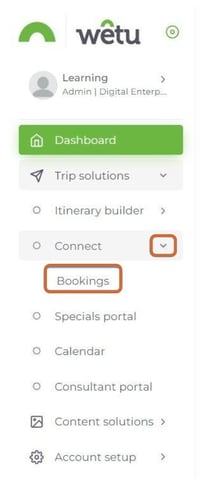
3. The Wetu / Dolphin Connector will open, displaying a list of all folders sent to Wetu.
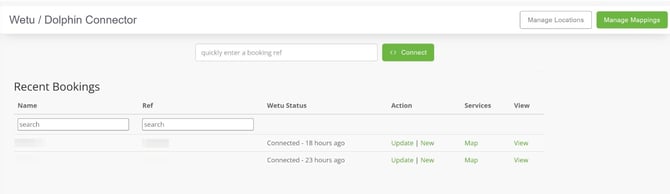
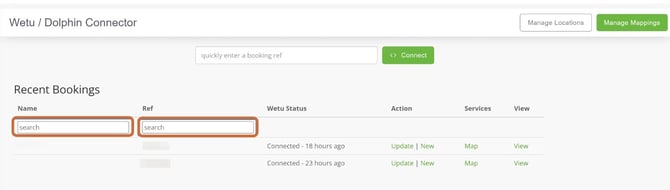
4. Search for an existing folder using any of the following methods:
- Name - Search by folder name as loaded in Dolphin.
- Ref - Search by folder reference as loaded in Dolphin.
2. Connect to Your Booking
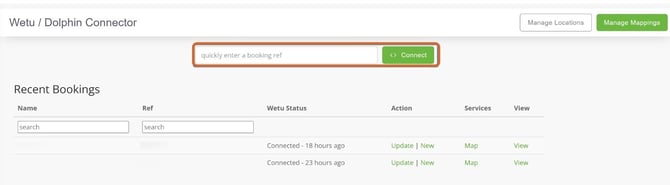
1. To connect to a new folder, enter the folder reference number in the Booking reference number field and select Connect.
Important: Your booking folder needs to contain at least one Accommodation in order to generate a Wetu Itinerary.
2. The mapping screen containing all services for that booking will open. The Mapping column shows how each service is mapped. If there are services that still need to be mapped, the Mapping column will show Map Now and a grey Skip option will appear in the top right-hand corner. Select Map Now next to each service line to map it.
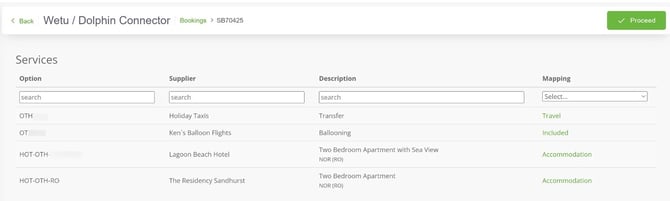
This document will give you more information on mapping your services.
3. Itinerary Created Screen
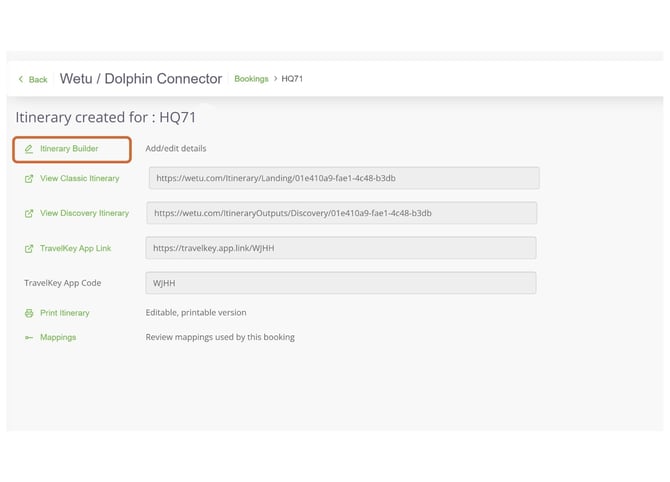
1. Once all services are mapped and you have selected either the green Proceed or the grey Skip option, the system will generate your itinerary and the Itinerary Created Screen will open.
2. From this screen you can select Itinerary Builder to open and edit your itinerary.
For more information on Dolphin, visit www.dolphind.com
Need Help?
For support reach out to the Wetu enterprise team.
enterprise@wetu.com