
Quick Links
- How the workflow builder works
- Building your automation step by step
- Helpful tips
- Trip card colours
- Common workflows (linked article)
- Need Help?
1. How the workflow builder works
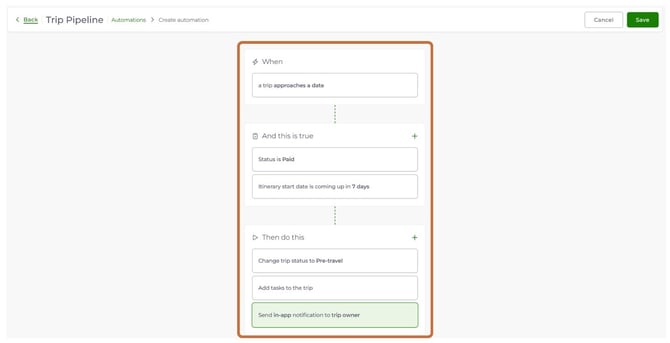
Every automation follows one simple sentence:
The builder has three blocks that match this sentence:
Each item you add inside a block is called a node.
When (Trigger)
The trigger tells Wetu when to look at your trips. Choose one of these:
- is updated: Runs as soon as someone on your team changes something on a trip, such as its status. Use this for "as soon as X happens" workflows.
- approaches a date: Wetu checks your trips in the background every 30 minutes. Use this for deadlines and travel dates. It works best with at least one date condition.
And this is true (Conditions)
Conditions narrow things down to the exact trips you care about. You can add as many as you like. Every condition must be true for the automation to run.
Then do this (Actions)
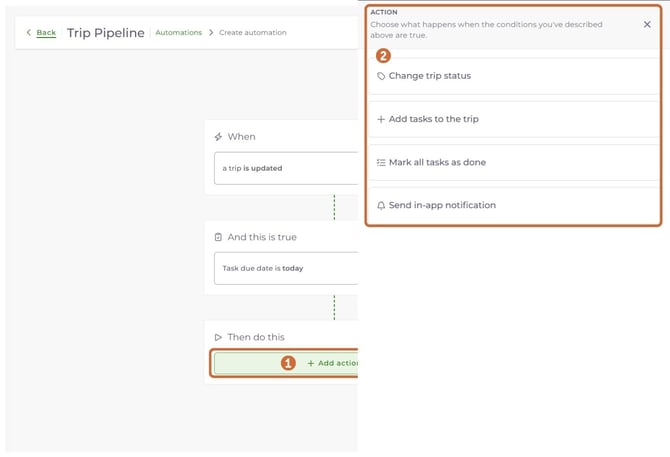
Actions are what Wetu does automatically once the trigger runs and all your conditions are true. You can add several actions to one automation.
- Change trip status: Moves the trip to a status you choose.
- Add tasks to the trip: Adds a to-do list. Each task needs a title and can have a description. Tasks are assigned to the trip owner.
- Mark all tasks as done: Closes every task on the trip.
- Send in-app notification: Sends a reminder inside Wetu to the trip owner, all users (consultants), all admin users or specific people. You can choose more than one person.
2. Building your automation step by step
Step 1
Start a new automation1. Click the Automate button in the top right of the Trip Pipeline.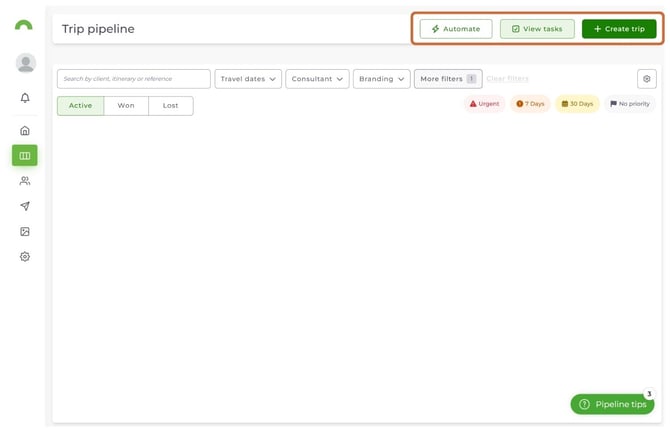 2. Start from scratch or pick a ready-made starting point:
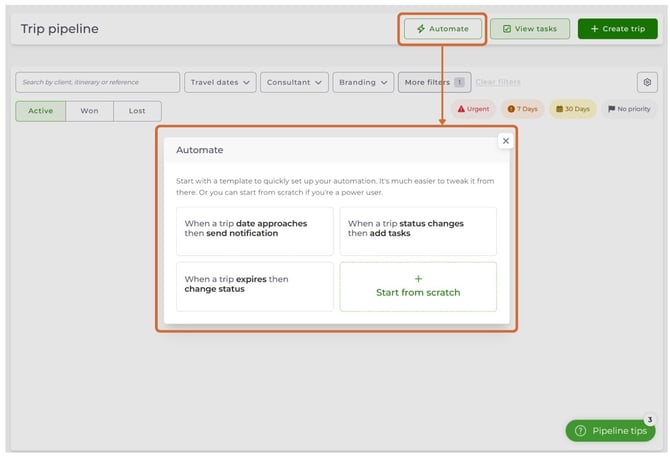
|
Step 2
Set up the trigger1. Click the When block. It's already on the screen. The side panel opens.2. Choose is updated or approaches a date. |
Step 3
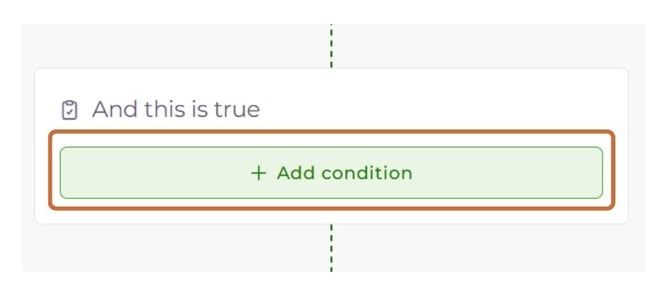
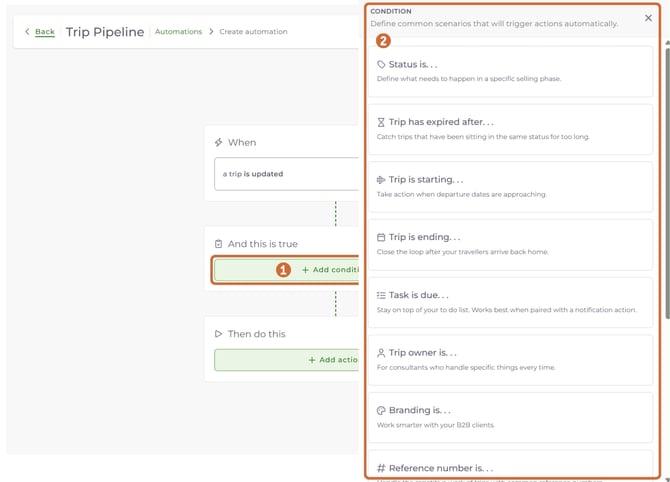
Add conditions1. Click + Add condition under And this is true. A panel opens with every available condition.
|
Step 4
Add actions1. Click + Add action under Then do this.
|
Editing a node
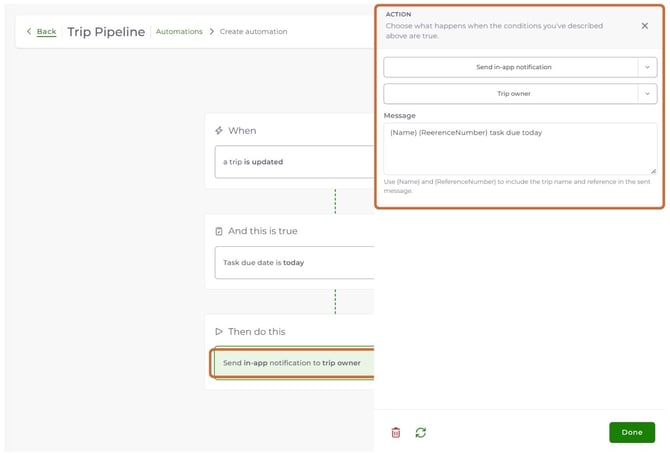
- Click any node to open its settings in the side panel.
- Fill in the details, such as which status, how many days, the task names or your notification message.
- Click Done, the X or anywhere outside the panel to close it. Your changes are kept.
Adding more nodes
Once a block has at least one node, the button changes to a small +.
- Click + to add another condition or action.
Example: Status is Booked and Trip is starting in 7 days.
Swapping a node for a different one
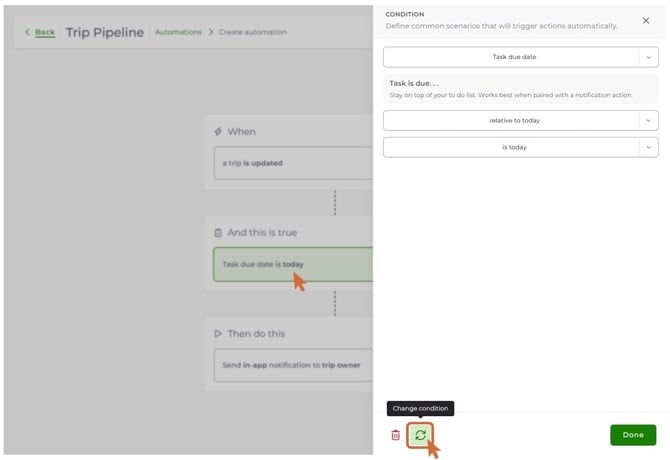
- Click the node to open its panel.
- Click the green reset button in the bottom left of the panel.
- Choose a new option.
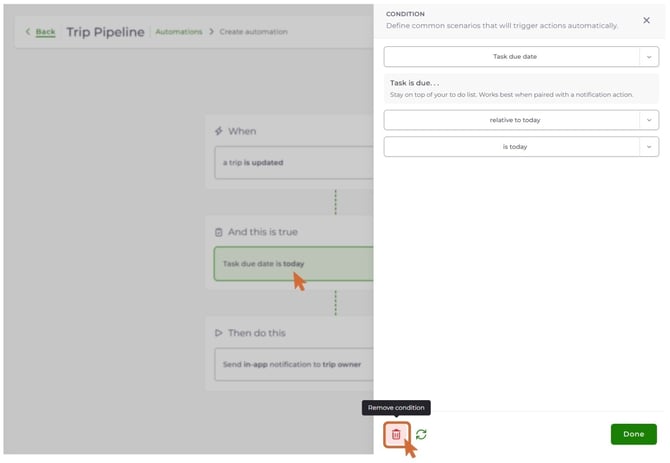
Removing a node
- Click the node to open its panel.
- Click the red trashcan in the bottom left of the panel.
You can remove any condition or action. The When trigger can't be removed, but you can change its settings.
Saving and switching it on
- Click Save.
You can only save once your automation has at least one condition and one action. Your new automation then appears in your list of automations. You can edit it, switch it off or delete it at any time.
3. Helpful tips
Tip 1: Always add a "Status is..." condition
Add a Status condition to every automation. It makes sure the automation only runs on trips in the right phase of your pipeline. Without it, an automation could run on trips you didn't mean it for, such as cancelled trips or trips that have already travelled.
Tip 2: Use "approaches a date" whenever you use a date condition
If your automation uses a date condition (Trip has expired after..., Trip is starting..., Trip is ending... or Task is due...), always set the When block to approaches a date.
Why? The is updated trigger only runs when someone on your team changes a trip. Dates come and go without anyone touching the trip, so an automation with is updated could miss the date completely. With approaches a date, Wetu checks your trips in the background every 30 minutes. Your automation runs on time even if nobody opens the trip.
Good to know: Which automations change trip card colours
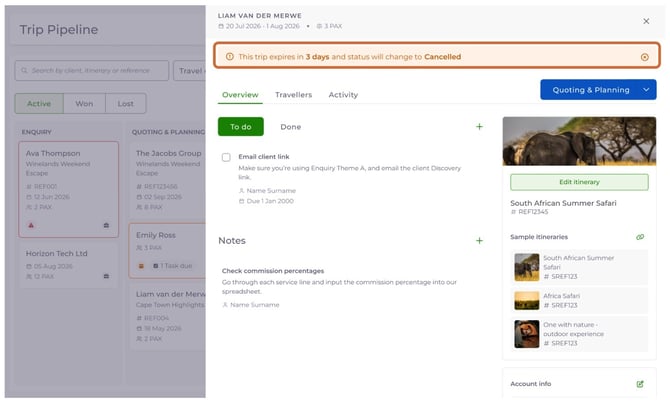
Some automations make your trip cards change colour as a deadline gets closer. This shows you at a glance what needs attention.
Trip cards change colour when:
- An automation uses a date condition together with a "Change trip status" action. The date conditions are Trip has expired after..., Trip is starting..., Trip is ending... and Task is due.... The card counts down to the status change, for example "7 days until Cancelled".
- A task's due date is coming up or has passed.
Notification-only automations don't change a card's colour.
The colour depends on where the trip is being moved to:
- To a Lost status (for example Cancelled or Did not book): The card shows warning colours, 🟡 yellow, then 🟠 orange, then 🔴 red, getting stronger as the date gets closer.
- To a status in the same category, or into an Active or Won status (for example Booked → Travelled): The card shows 🔵blue.
This helps you spot trips that are at risk of losing the booking or the sale, so you can act in time. Blue just lets you know a trip is about to move forward, with nothing to worry about.
When does the colour go back to white? Once the trip's status changes (automatically or by hand), or once the overdue task is marked as done.
What if several things are due at once? A trip shows one message at a time. Status changes that end a trip, such as Cancelled, come first. Task deadlines come next. After that, the most urgent colour wins.
| Related article
How do I set up common automated workflows in Trip Pipeline? Follow step-by-step examples for to-do lists, expiry deadlines, travel dates and reminders, and see the automations already set up on your account. |
Need help?
Contact Wetu Support at support@wetu.com.
Chat to us Live on your dashboard.