
Quick Links
- Getting Started
- Unmapped
- Accommodation
- Own Arrangement – Accommodation
- Included
- Activity
- Travel
- Car Hire
- General Accommodation
- General Activity
- Multi-Day Component
- Day Component
- Ignore
- Location Mapping
- Alternative Accommodation
- Own Arrangement
- Creating Your Itinerary
- Need Help?
Mapping Types at a Glance
| Map As | Use when… |
|---|---|
| Unmapped | The service should not be mapped at this time |
| Accommodation | Mapping a hotel or lodge to a specific Wetu property |
| Own Arrangement – Accommodation | The guest is making their own accommodation arrangements |
| Included | A service that is included and should appear on a specific day |
| Activity | Mapping a specific activity or experience |
| Travel | Any transport service (flight, road transfer, etc.) |
| Car Hire | A vehicle hire service |
| General Accommodation | Accommodation not listed in Wetu's database |
| General Activity | An activity not listed in Wetu's database |
| Multi-Day Component | A pre-built multi-day component in your Wetu account |
| Day Component | A pre-built day component in your Wetu account |
| Ignore | The service should be excluded from the itinerary entirely |
1. Getting Started
Navigate to the booking you want to map from your Wetu Dashboard.
1. Log in to your Wetu Dashboard.
2. Select Connect, then select Bookings.
3. Locate the booking whose services you want to map.
4. Under the Service column, select Map.
5. All services that still need to be mapped will display as Map Now.

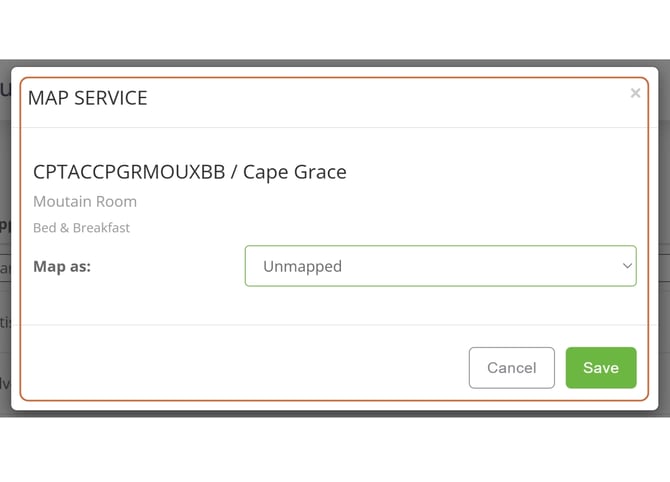
2. Unmapped
Use this option when you are not ready to map a service yet.
1. Select the Map Now drop-down for the service.
2. In the Map As drop-down, select Unmapped.
3. Select Save.
3. Accommodation
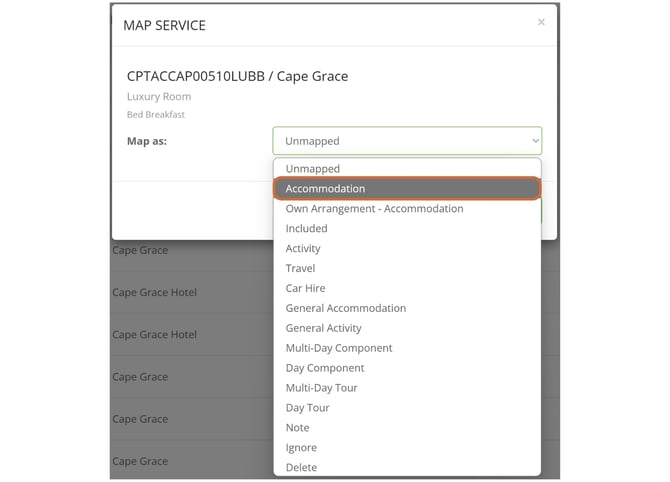
Use this option to map a hotel or lodge to a specific property in Wetu.
1. In the Map As drop-down, select Accommodation.
2. In the Wetu Accommodation field, start typing the name of the property.
3. Select the correct property from the list. Make sure it matches what is shown in your booking system.
4. Set the room basis, drinks basis, and room name.
5. Select Save. The accommodation mapping is now complete.
Tip: Mappings are saved for all users on your account. Once a property is mapped correctly, you won't need to map it again the next time you use it.
4. Own Arrangement – Accommodation
Use this when the guest is arranging their own accommodation.
1. In the Map As drop-down, select Own Arrangement – Accommodation.
2. Select Save.
5. Included
Use this when a service is included and should appear on a specific day in the itinerary.
1. In the Map As drop-down, select Included.
2. Select Daily - this ensures the service appears on the correct day in the Planner.
back to top
6. Activity
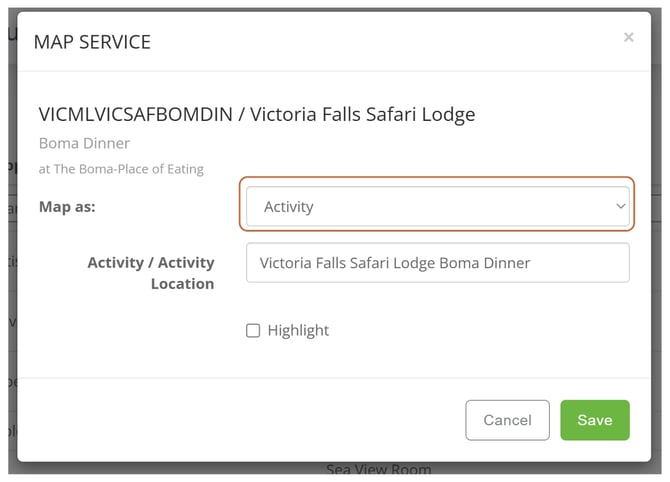
Use this to map a specific activity or experience.
1. In the Map As drop-down, select Activity.
2. In the Activity Location field, type either the activity name or the location where it takes place.
3. To display the activity as a highlight in the digital itinerary, select Highlight.
Can't find your activity? Contact contentservices@wetu.com for assistance.
7. Travel
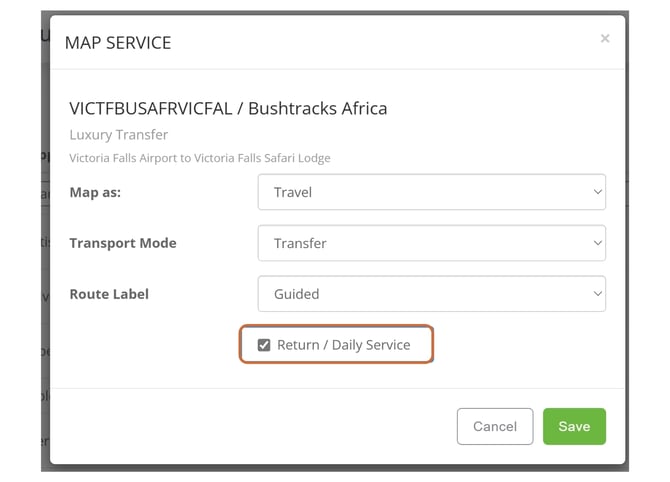
Use this for any transport service — flights, road transfers, and so on.
1. In the Map As drop-down, select Travel.
2. Under Transport Mode, select the mode that applies to this service.
3. Use the Route Label field to specify the type of transport.
4. If the travel service runs over more than 24 hours (multiple days), tick the Return / Daily checkbox.
8. Car Hire
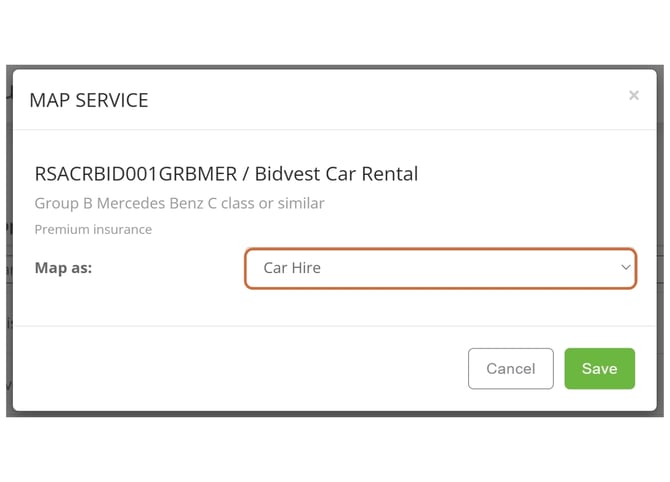
Use this to map a vehicle hire service.
1. In the Map As drop-down, select Car Hire.
2. Select Save.
9. General Accommodation
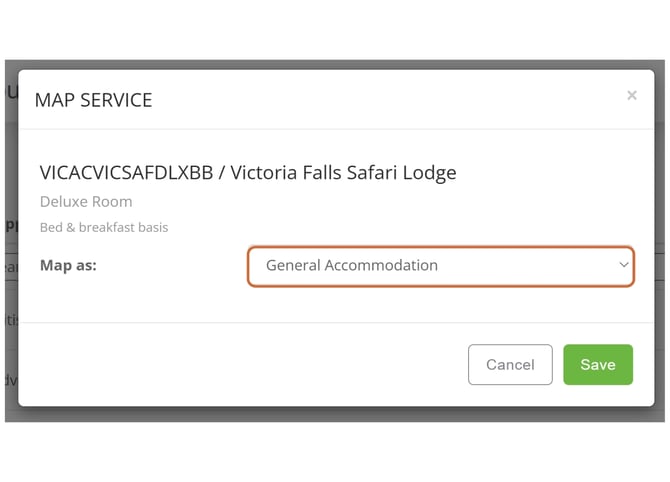
Use this when the accommodation is not listed in Wetu's database.
1. In the Map As drop-down, select General Accommodation.
2. Select Save.
3. When you open the Itinerary Builder, Wetu will prompt you to enter the accommodation name in the Search bar.
10. General Activity
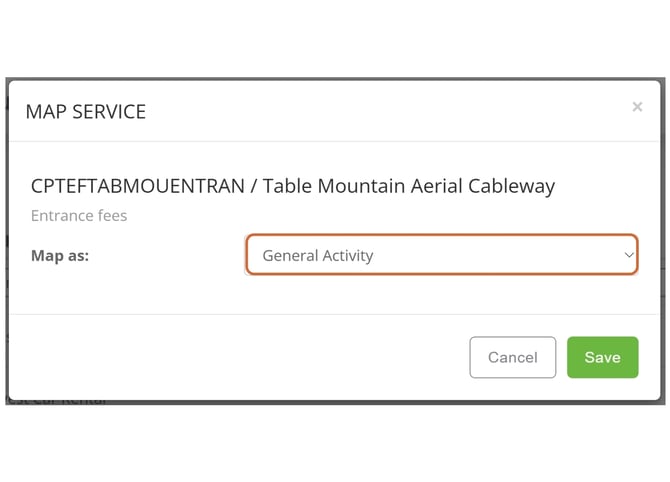
Use this when the activity is not listed in Wetu's database.
1. In the Map As drop-down, select General Activity.
2. Select Save.
3. When you open the Itinerary Builder, Wetu will prompt you to enter the activity name in the Search bar.
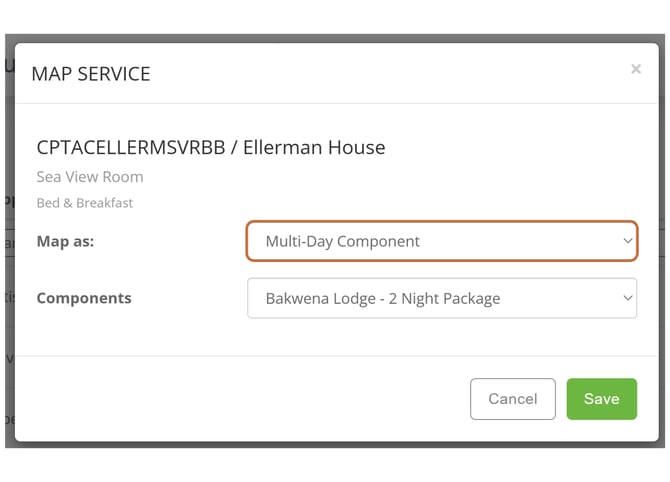
11. Multi-Day Component
Use this to map a service to a pre-built multi-day component in your Wetu account.
1. In the Map As drop-down, select Multi-Day Component.
2. Select the relevant component from your existing multi-day components.
12. Day Component
Use this to map a service to a pre-built day component in your Wetu account.
1. In the Map As drop-down, select Day Component.
2. Select the relevant component from your existing day components.
13. Ignore
Use this to exclude a service from the itinerary entirely.
1. In the Map As drop-down, select Ignore.
2. Select Save.
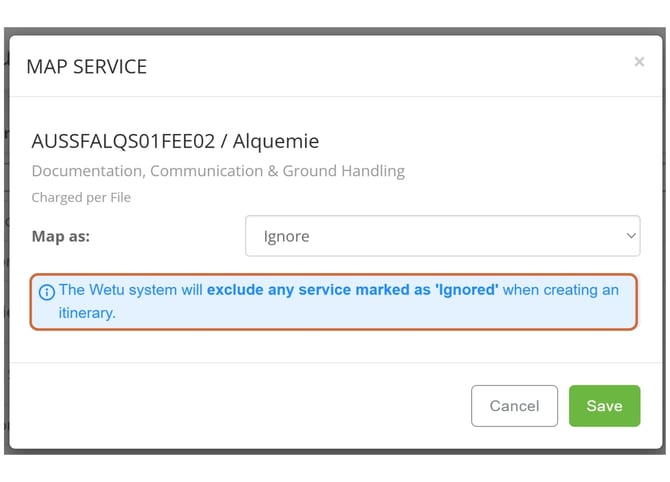
Important: A service mapped as Ignored will not appear in the itinerary. Take note of the warning message Wetu displays when you select this option.
14. Location Mapping
After mapping your services, map the locations associated with your booking.
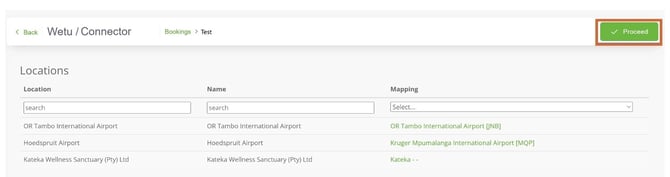
1. On the mapping screen, select Proceed on the far right-hand side.
2. The Location Mapping screen will open, displaying all locations in your booking.
3. For each location, select Map Now and choose the correct location from the list.
4. Once done, review the accommodation details and date sequencing before proceeding.
15. Alternative Accommodation
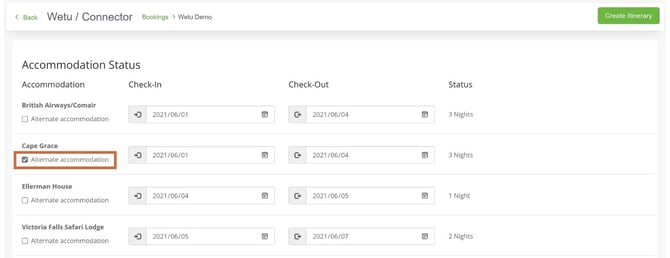
If two or more accommodation options are booked for the same dates, Wetu will flag this with a warning message.
1. Review the duplicated accommodation dates shown in the warning.
2. Select which option should be displayed as the Alternative accommodation by ticking Alternate.
3. Once ticked, the warning message will disappear and you can proceed to create your itinerary.
Incorrect dates? Make the corrections in your booking system, regenerate the Wetu message, and select Update for that booking in the Connector.
16. Own Arrangement
If there is a gap in accommodation dates, Wetu will add an Own Arrangement placeholder to flag the missing night.
1. Review the gap in accommodation dates flagged by Wetu.
2. Option A: Go back to your booking system and add the missing night.
3. Option B: Select Create Itinerary - an Own Arrangement night will be added to the itinerary automatically.
17. Creating Your Itinerary
Once mapping is complete, you're ready to create and review your itinerary.
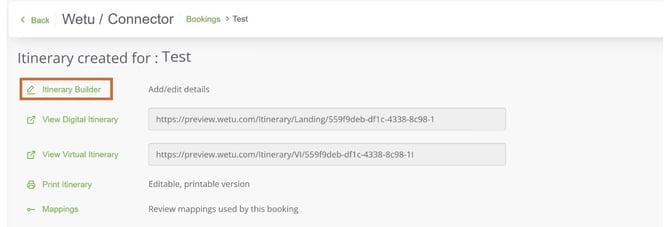
1. Select Create Itinerary. The Itinerary Created screen will open.
2. From this screen you can:
- Open the Itinerary Builder to edit the itinerary
- View the Digital Itinerary
- View the Map Itinerary
- Download the Printable Itinerary
- Review your mappings for this booking
Next step: Need to upload mappings in bulk? See the "How do I use Manage Mapping?" for instructions on uploading a CSV mapping file.
Need Help?
For support reach out to the Wetu enterprise team.
enterprise@wetu.com