
Quick Link
- Navigate to Countries
- Add or Edit Country Information
- Hide a Specific Section
- Hide All Country Information
- Need help?
Navigate to Countries
Step 1
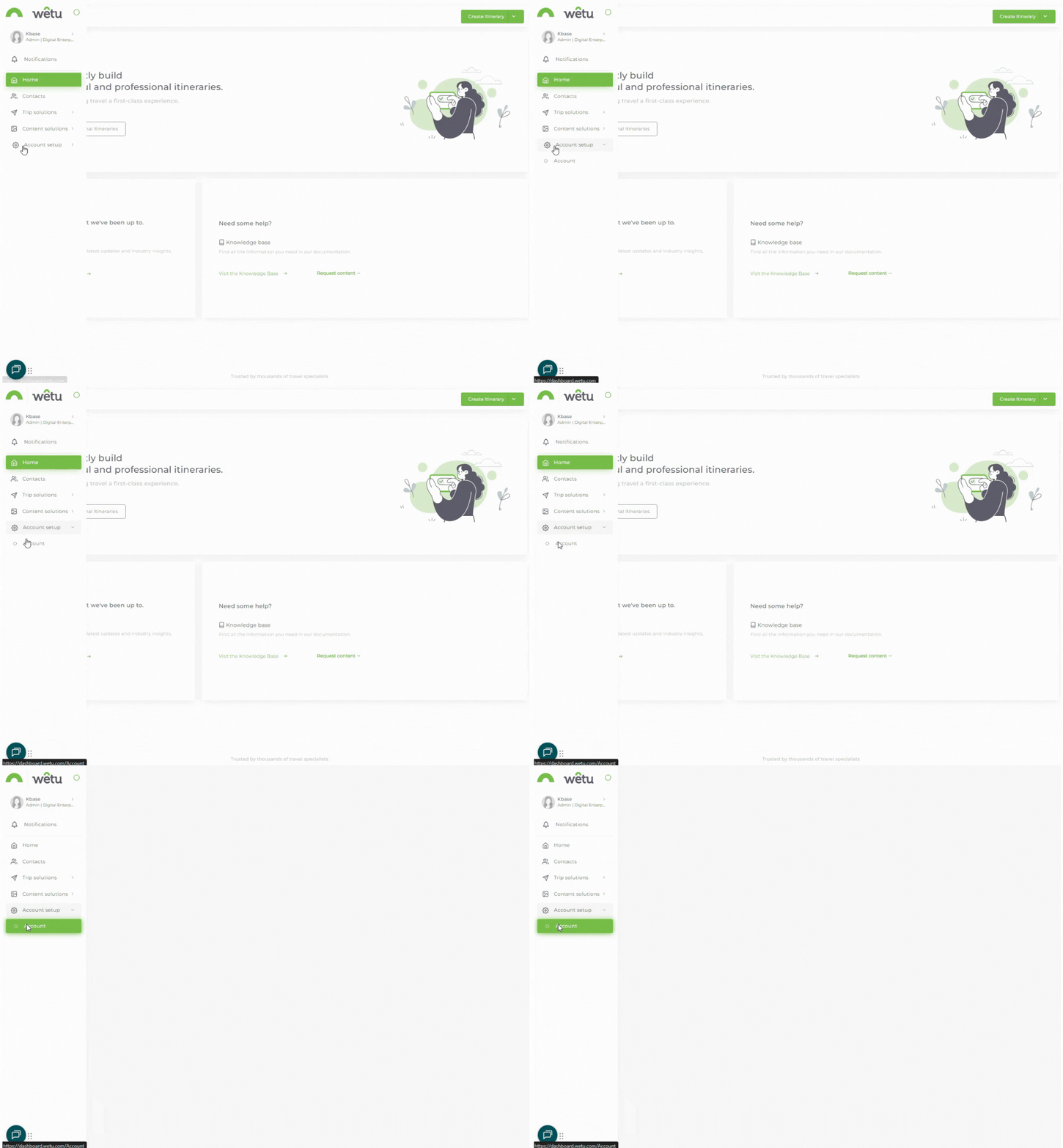
From the navigation panel, click Account setup, then select Account.
Step 2
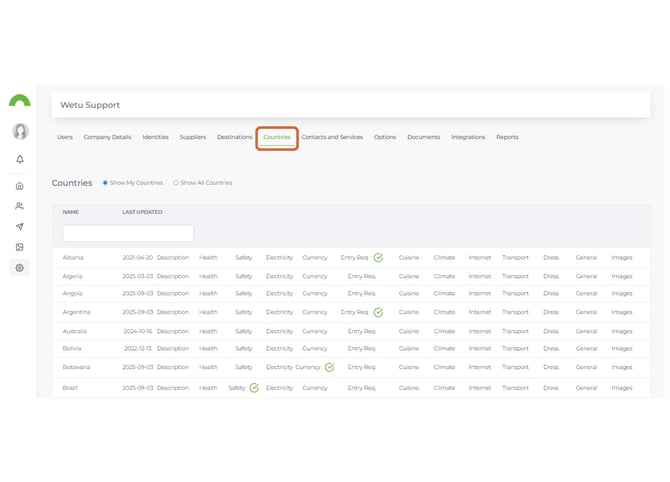
Inside Account, select the Countries tab.
Add or Edit Country Information
Step 3
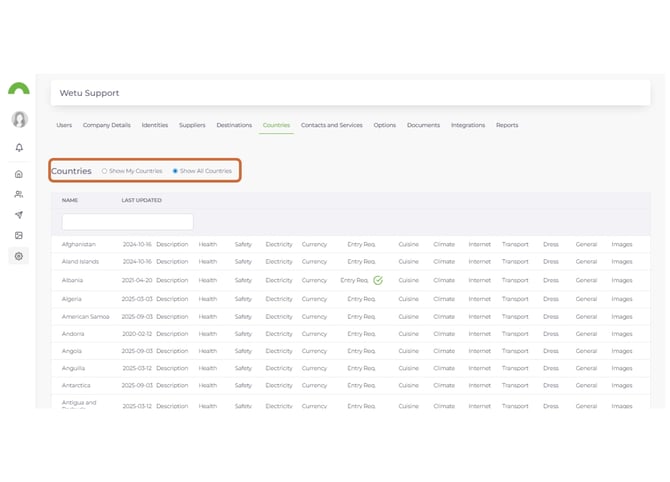
The Countries list displays the countries included in your itineraries. To view all countries available on the system, select Show All Countries.
Step 4
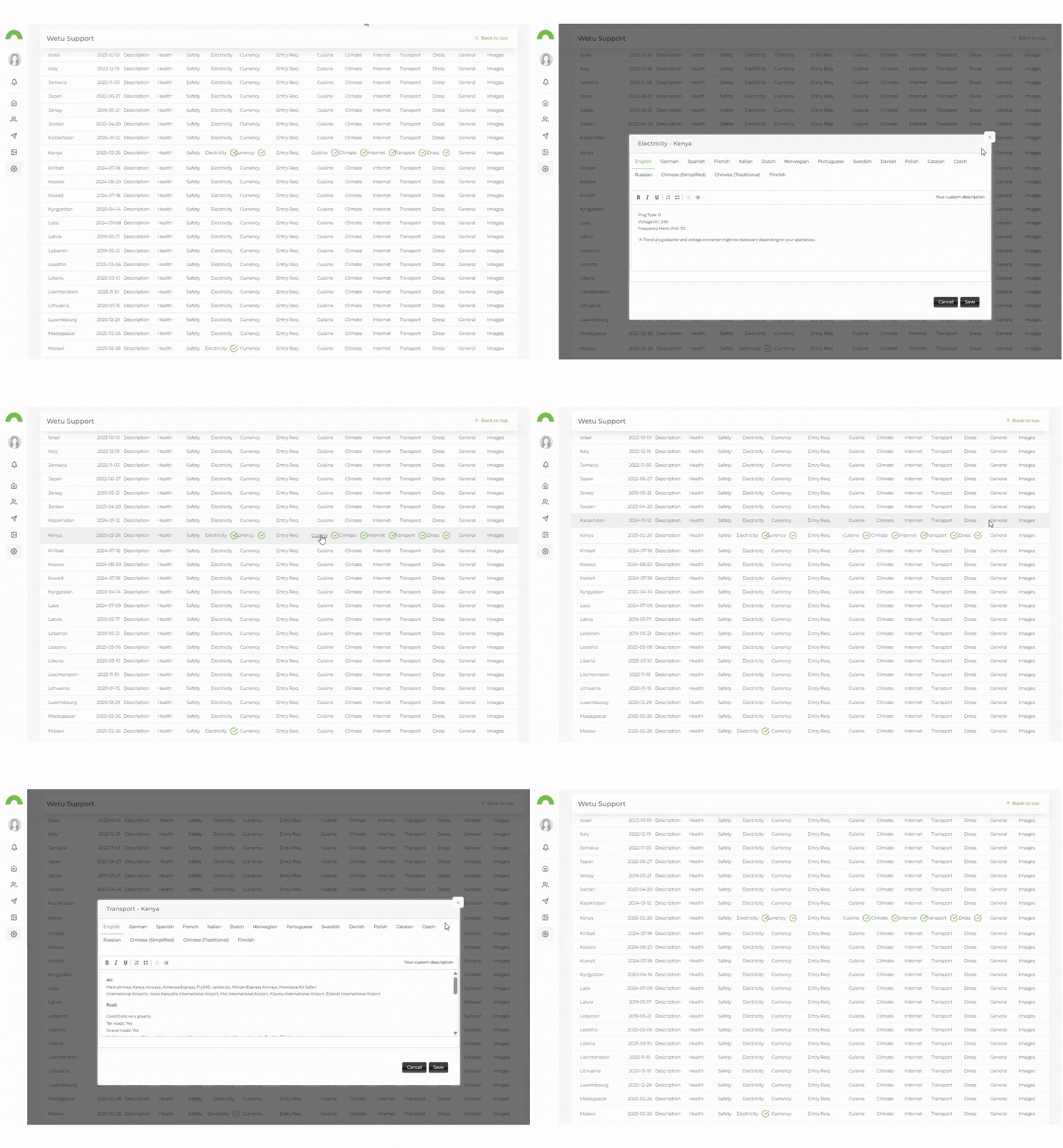
To add or edit information for a country, click on the relevant field (for example, Description, Health, Safety). A pop-up window will open where you can enter or update the content.
Step 5
Once you have entered the information, click Save. A green tick will appear next to each field that contains personalised content.
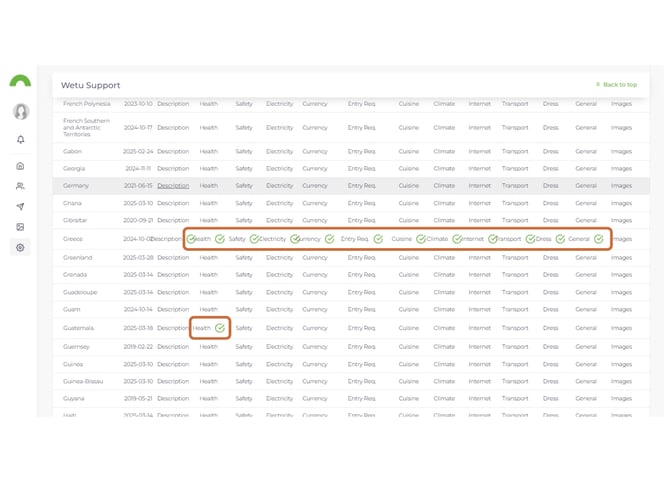
Note: Wetu does not pre-load information for Health, Safety, or Entry Requirements, as these details change regularly.
Note: Some fields contain information pre-loaded by Wetu. Once you update a field, that content will no longer be maintained by Wetu - it becomes your responsibility to keep the information accurate and up to date.
Hide a Specific Section
Step 6
To prevent a specific section from appearing on itinerary outputs, go to the Countries tab and click on the field you want to hide (for example, Currency).
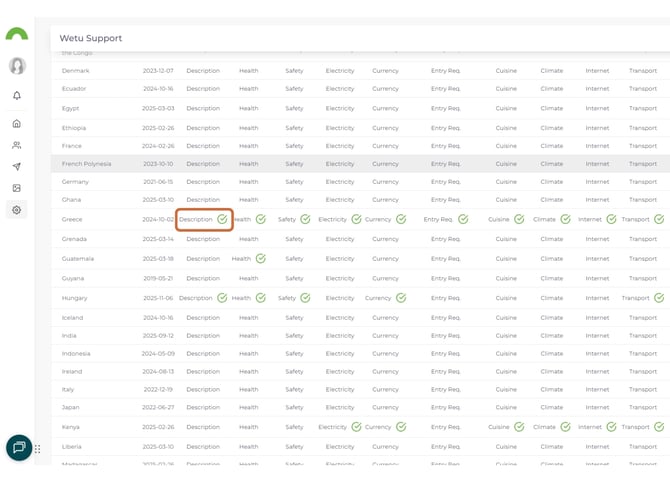
Step 7
Remove all existing text and replace it with any word between 1 and 10 characters - for example, Hide, Don't Show, or N/A. Click Save. The system will no longer display that section on itinerary outputs.
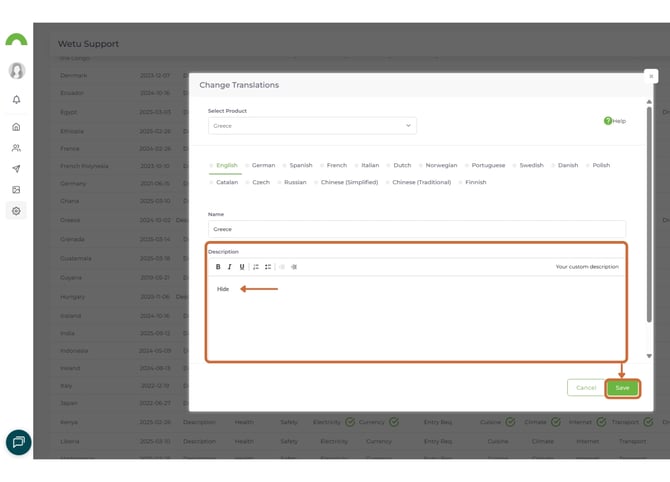
Step 8
The system applies the following rules to determine what is displayed:
| Content entered | What appears on itinerary outputs |
|---|---|
| No text | Wetu default text is displayed (if available) |
| 1–10 characters (e.g. Hide, Don't Show, N/A) | Nothing is displayed |
| 11 or more characters | The entered text is displayed on itinerary outputs |
Hide All Country Information
Step 9
To remove all country information except the country description from itinerary outputs, navigate to Account, select the Options tab, tick Show Country Descriptions Only, and click Save.
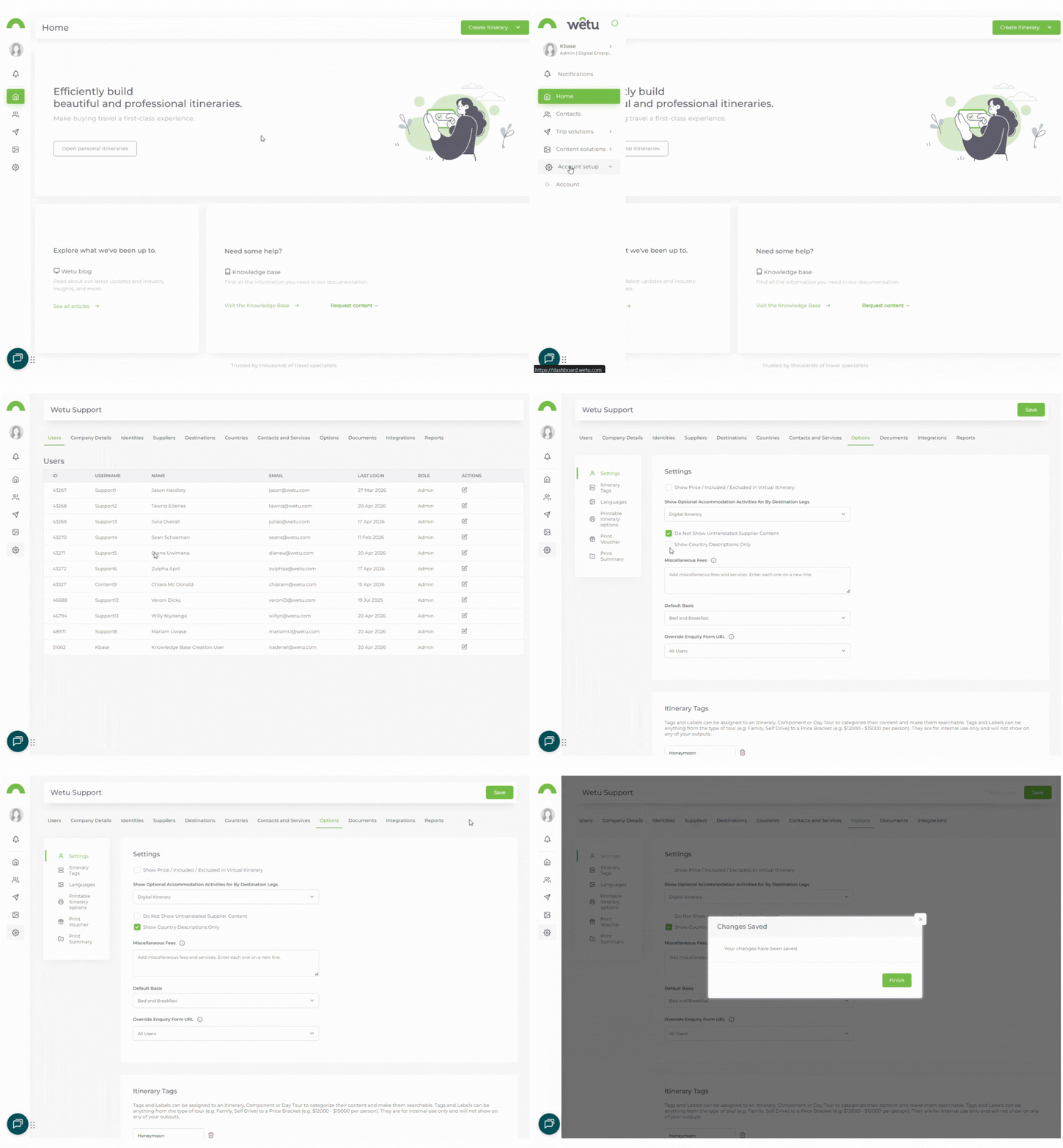
Step 10
The itinerary will now display only the country description.
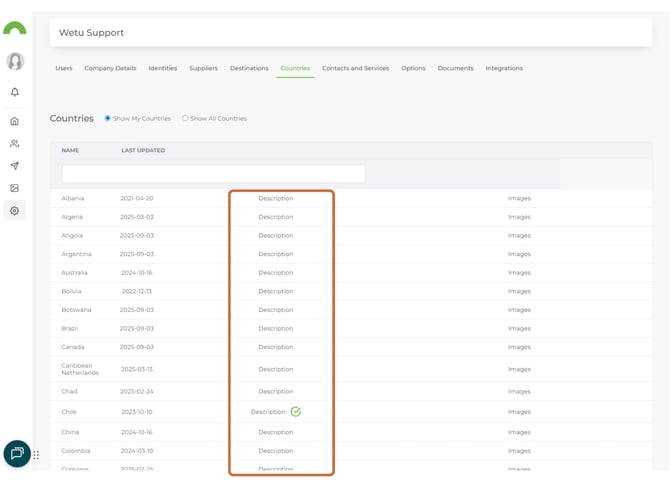
Step 11
When the option is not enabled, the itinerary displays all country information.
Need help?
Support: support@wetu.com
Live Chat: Available in your dashboard