
Quick Links
- Navigate to Destinations
- Custom Descriptions
- More Info
- Custom Images
- Banner Image
- Need Help?
Navigate to Destinations
Step 1
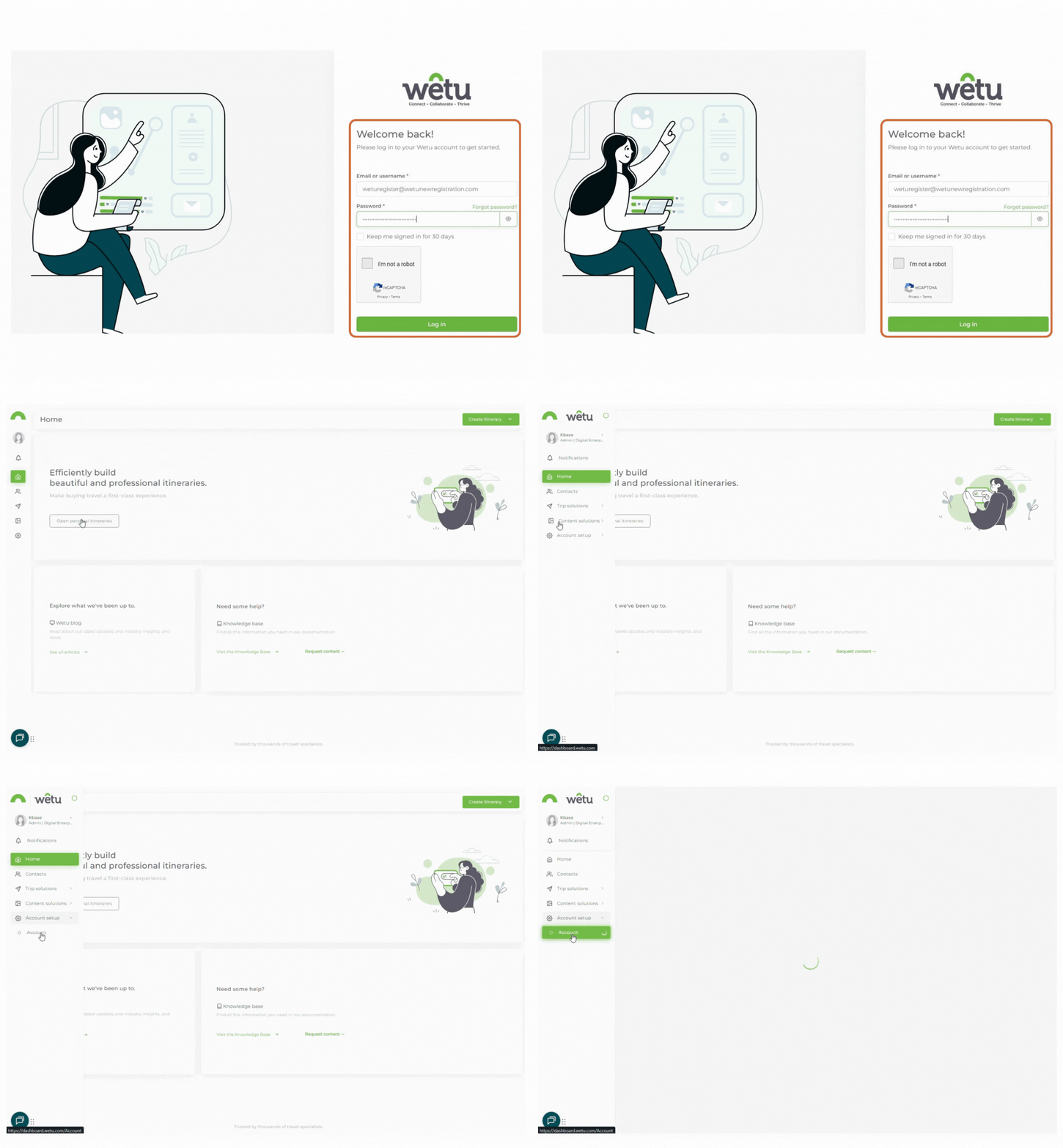
From the navigation panel, click Account setup, then select Account.
Step 2
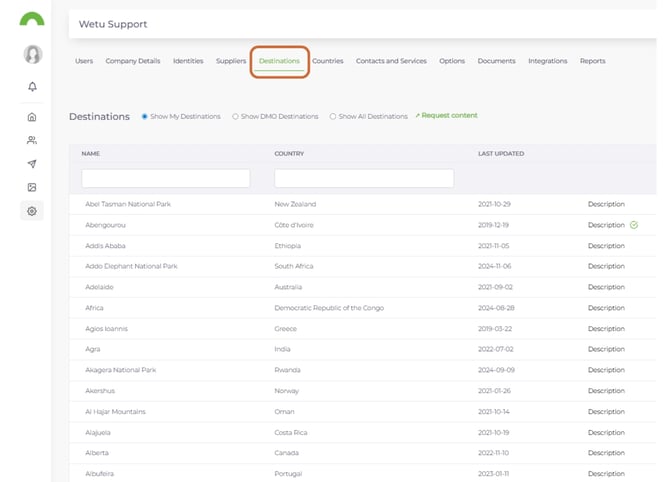
Select the Destinations tab to view a list of available destinations.
Custom Descriptions
Step 3
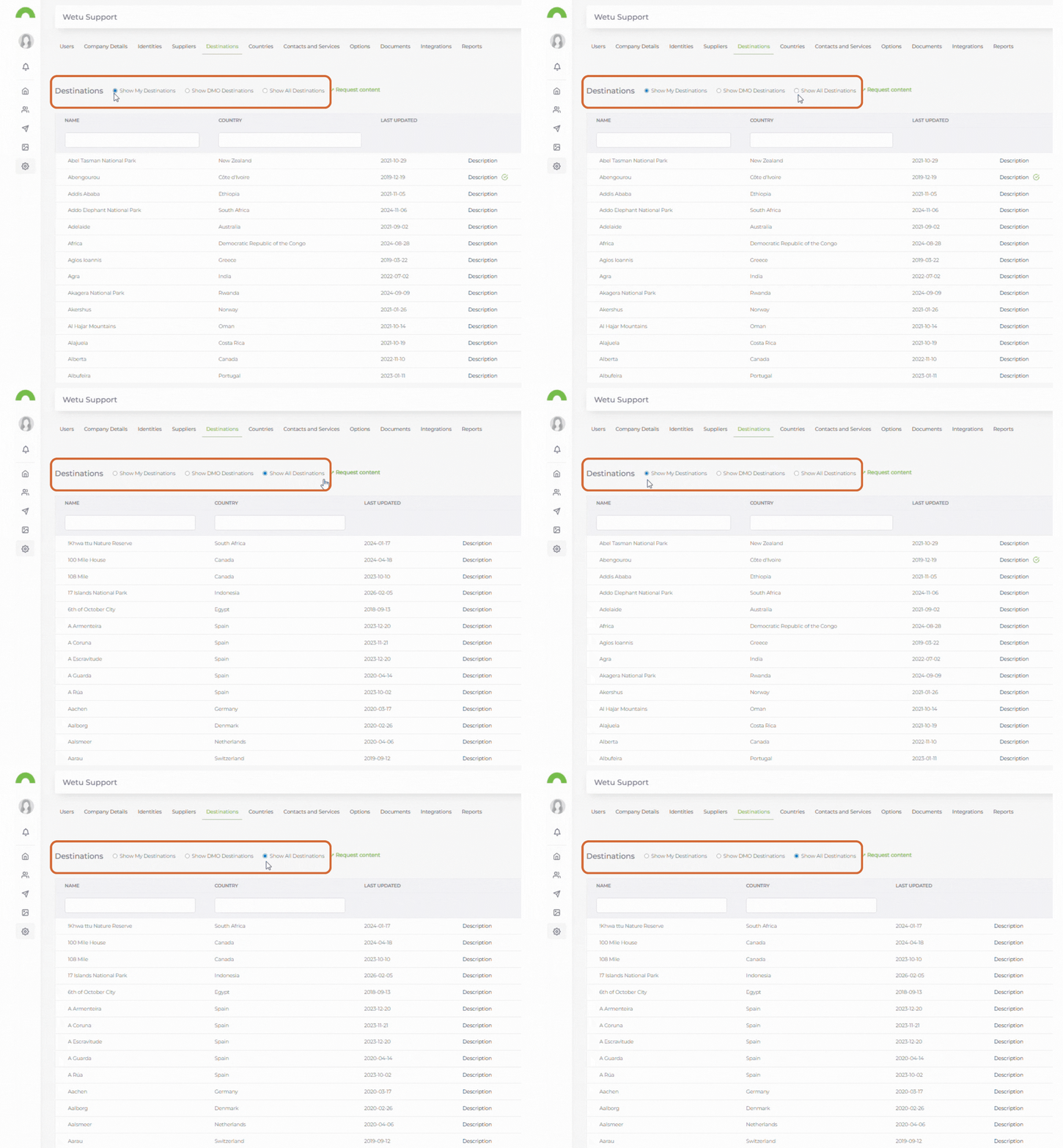
By default, the list shows destinations included in itineraries you have built (Show My Destinations). Select Show All Destinations to view all destinations loaded in the system.
Step 4
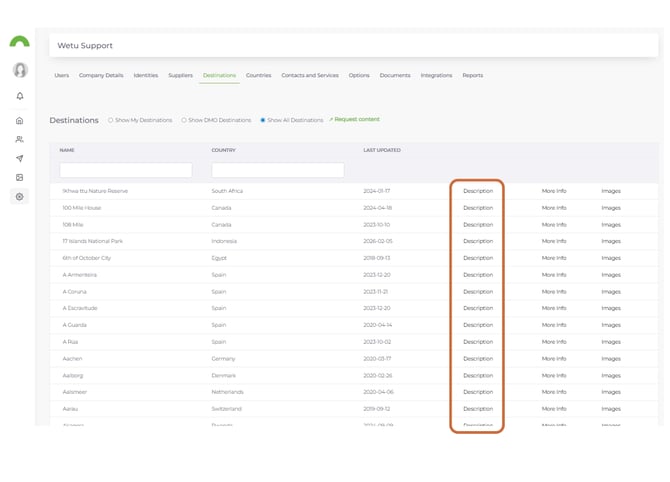
Click Description next to a destination to edit its name or description.
Step 5
In the pop-up window, make changes to the Wetu-provided content or add your own. You can also work with Machine Translations from this window.
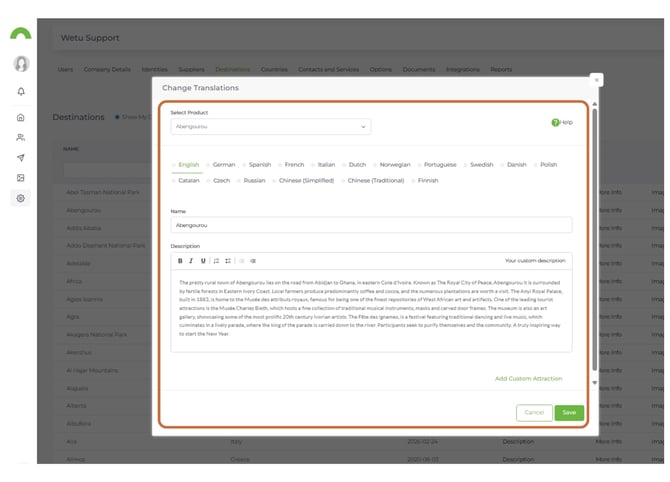
Note: When you change the Description, it will override the default Wetu content in all your outputs. Overwriting the default Wetu content also means that, if Wetu updates the content, your content will not update. You therefore need to ensure that you keep any customised content updated yourself.
Step 6
In the same pop-up, you can also customise the name of the destination that displays in your itineraries.
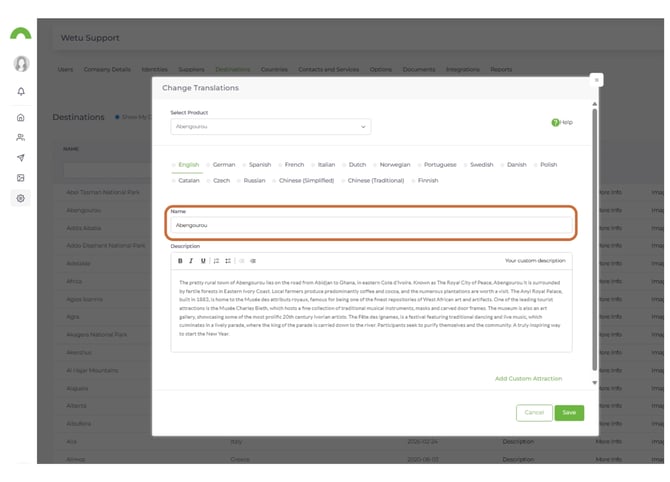
Step 7
The amended name will appear in brackets next to the default Wetu name in the Destinations list.
A green tick indicates that changes have been made to the content.
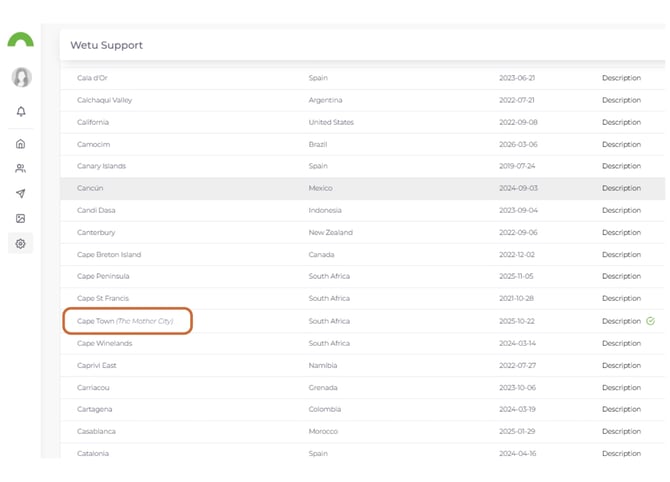
Note: The default Wetu content name will still display in the itinerary builder, however the custom name will show on all itinerary outputs.
When searching for a destination, you need to search using the default Wetu content name.
More Info
Step 8
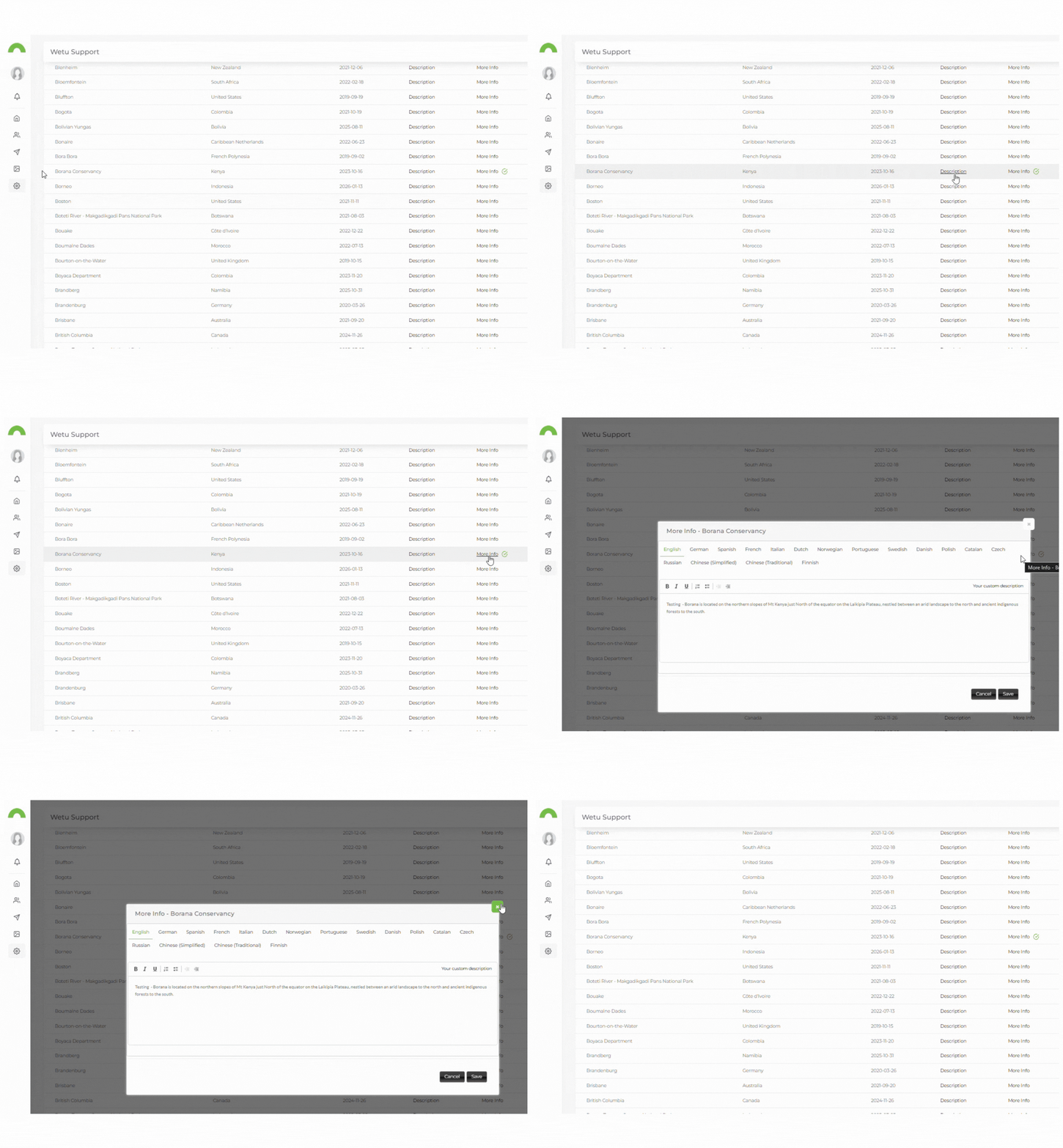
The More Info option allows you to add additional information about a destination that you would like to appear in your itinerary.
Click More Info next to the destination to which you want to add information.
Step 9
Enter your additional destination information in the pop-up window and click Save.
Custom Images
Step 10
Click Images next to the destination for which you would like to add custom images.
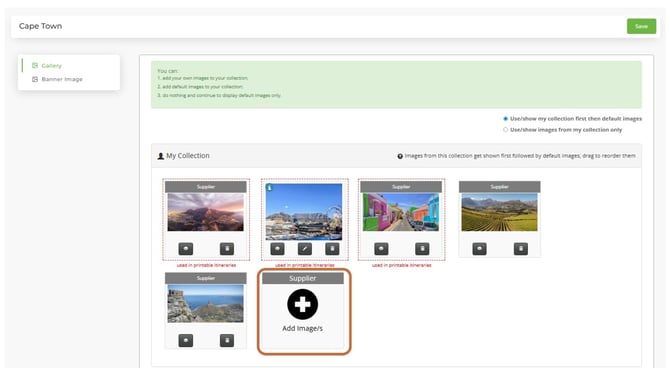
Wetu suggests: Images should be a 2:1 panoramic image (at least 1 MB in size).
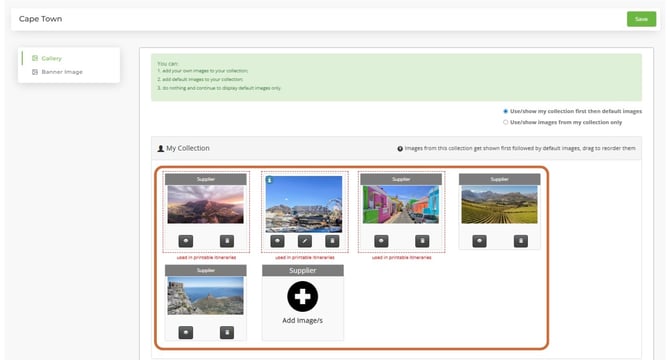
Note: The first 3 images in My Collection are important because these 3 images are what is displayed on most of your outputs.
Step 11
Under My Collection, select the images you would like to display for this destination. Click Add Image/s to upload your own images.
Step 12
To include images that Wetu has loaded, navigate to Default Images and click the arrow icon on an image to move it into My Collection.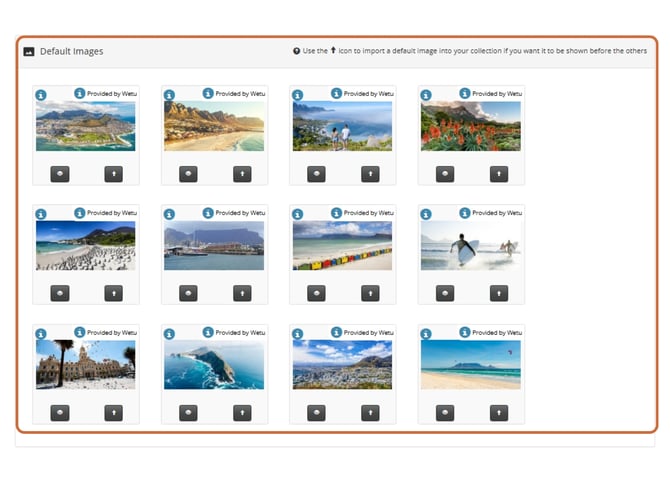
Note: You can change the order of appearance in My Collection by dragging and dropping the images.
Step 13
Once you have loaded, selected, and arranged your images, indicate whether you would like to display images from My Collection only, or images loaded by the supplier as well.
Banner Image
Step 14
To choose the image that displays as the banner for a destination, click Images next to the destination, then select Banner Image from the submenu.
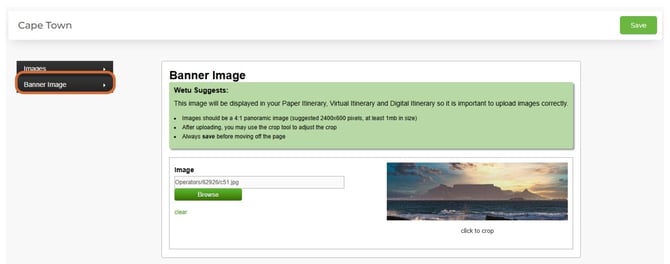
Note: This image will be displayed in your Paper Itinerary, Virtual Itinerary, and Digital Itinerary, so it is important to upload images correctly.
Wetu suggests: Images should be a 4:1 panoramic image (suggested 2400 x 600 pixels, at least 1 MB in size).
Important: Please ensure that you have permission from the content owner to avoid copyright issues when itineraries are distributed. Wetu is not responsible should any issues occur.
Need help?
- Support: support@wetu.com
- Live Chat: Available on your Dashboard