
What Is the Objective?
- To help you create a copy of an itinerary in Wetu that you can rename, update, and personalize without affecting the original version.
What Do I Need Before I Start?
-
Access to your Wetu account.
-
Permission to view and copy itineraries.
-
Basic knowledge of Personal and Sample Itineraries in Wetu.
Step-by-Step Instructions
1. Navigate to Itinerary Builder
-
Go to Trip Solutions → click Itinerary Builder.
-
Select Personal Itineraries or Sample Itineraries.
-
Your existing itineraries appear on the right-hand side.
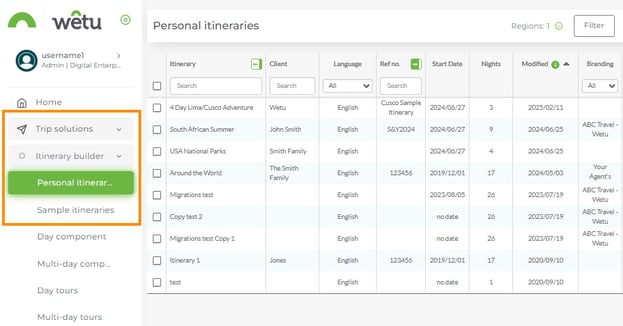
The copy function works for both Personal and Sample Itineraries. Components follow the same basic process.
2. Select the Itinerary to Copy
-
Click on the itinerary you want to copy.
-
Several copy options will appear.
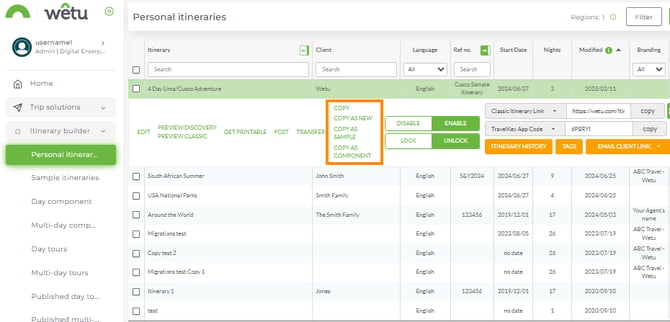
3. Understand the Copy Options
-
Copy: Exact duplicate, keeps all details and itinerary name; only Itinerary Link and Mobile Code differ.
-
Copy As New: Copies itinerary but removes client details and original name.
-
Copy As Personal: Converts a Sample Itinerary into a Personal Itinerary, adding client fields and dates.
-
Copy As Sample: Converts a Personal Itinerary into a Sample Itinerary, removing client-specific info. Ideal for website examples.
-
Copy As Component: Turns itinerary into a Multi-Day Component for reuse in any Personal or Sample Itinerary.